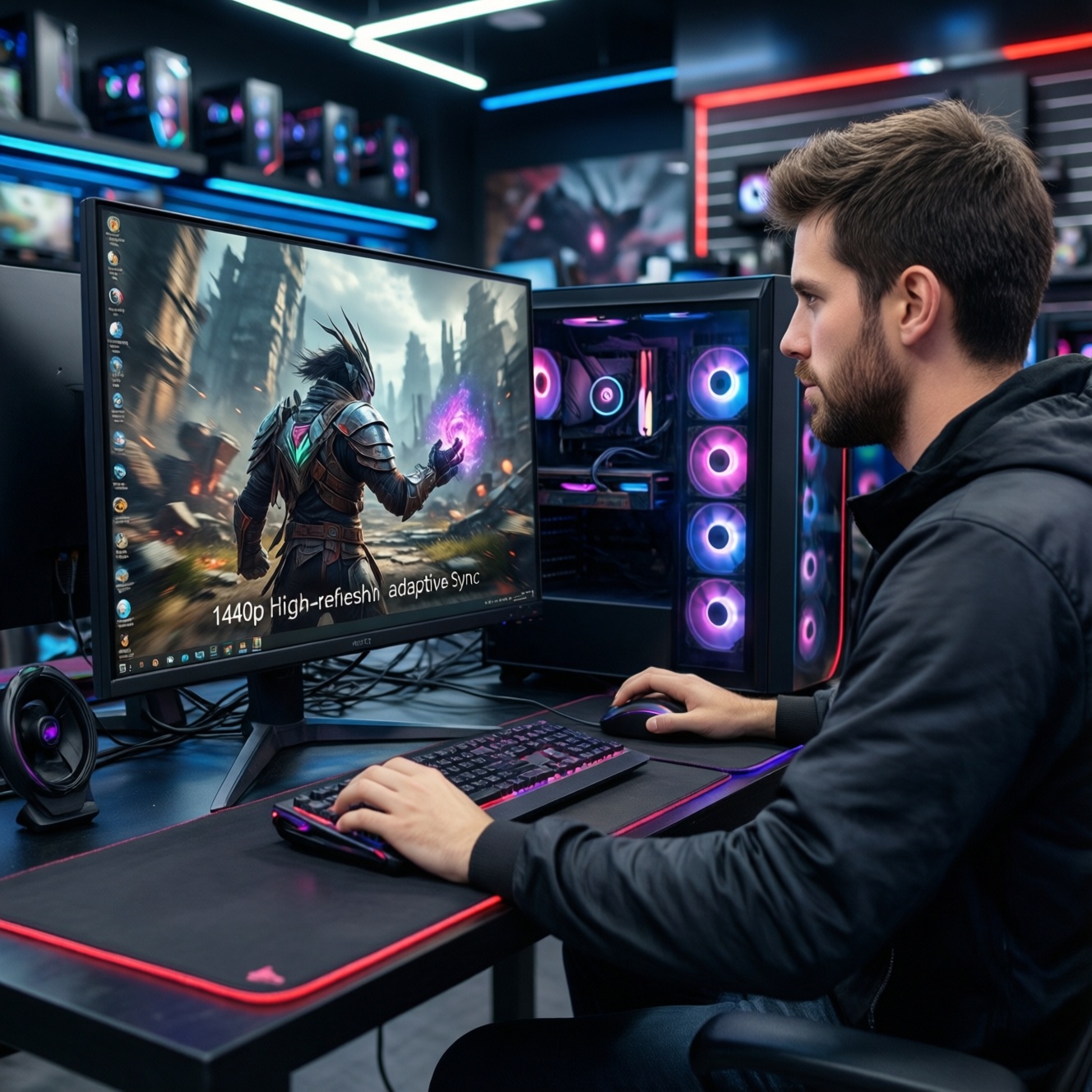
To pick the best-value monitor for your PC, start with the resolution your GPU can sustain, then choose the refresh rate that matches your games (competitive vs cinematic), and finally require Adaptive Sync to avoid tearing. For most intermediate users in Thailand, 1440p at 144-165Hz with FreeSync/G-Sync Compatible is the value "sweet spot," budget permitting.
Buying checklist: resolutions, refresh rates and value
- Choose resolution by realistic FPS: 1080p for high FPS on midrange GPUs, 1440p for balanced clarity + speed, 4K for premium sharpness if your GPU can hold it.
- Target refresh rate by game type: 144-165Hz for mixed gaming, 240Hz if you mainly play esports and can feed the frames.
- Require Adaptive Sync (FreeSync or G-Sync Compatible) and confirm your expected FPS sits inside the VRR range most of the time.
- Prioritize motion handling: good overdrive + low ghosting beats a higher Hz spec with messy trailing.
- Don't overpay for "HDR" branding; look for real contrast (panel type) and usable brightness only if HDR is a core need.
- For tight budgets, spend on the panel and VRR first; cosmetics and extra ports come later.
Resolution trade-offs: 1080p vs 1440p vs 4K
- Your GPU's sustainable FPS at target settings: pick a resolution where you can usually stay near your chosen refresh (e.g., ~120-165 FPS for a 144-165Hz screen).
- Screen size and pixel density: 24-25" favors 1080p; 27" is a natural fit for 1440p; 32"+ often benefits from 4K if you sit close.
- Game genre: esports shooters benefit most from high FPS (often 1080p/240Hz); open-world and single-player benefit from 1440p/4K clarity.
- CPU limits: at 1080p high FPS, the CPU often becomes the bottleneck; upgrading GPU alone may not raise frames much.
- VRAM headroom: higher resolutions increase VRAM pressure, especially with high textures; stutter hurts more than a small loss in sharpness.
- Scaling comfort: 4K on 27-32" may need OS scaling for productivity; check if your apps look good with scaling.
- Budget allocation: if money is tight, 1440p/144-165Hz with good VRR usually beats entry 4K with compromises.
If you are searching around Thai pricing, queries like ซื้อจอคอม 144Hz ราคา often surface many 1080p/144Hz options; treat them as the baseline and compare panel quality and VRR range, not just Hz.
Refresh rate, input lag and perceived smoothness
Higher refresh reduces frame-to-photon gaps and improves motion clarity, but only if your PC can deliver frames. As a practical rule: aim for stable frame pacing first (no big spikes), then raise refresh. Also remember that some "fast" panels look worse if overdrive is poorly tuned at your real-world FPS.
| Option | Who it fits | Pros | Cons | Pick it when |
|---|---|---|---|---|
| 1080p @ 144Hz | Budget gaming, mixed titles, midrange GPUs | Easy to drive; wide model availability; solid smoothness upgrade vs 60Hz | Less sharp on 27"; can feel "old" for productivity | You want the best entry value and you're comparing ซื้อจอคอม 144Hz ราคา deals |
| 1080p @ 240Hz | Competitive esports players | Very low perceived latency; clearer motion in fast flicks | Needs very high FPS; CPU limits common; panel quality varies | You mainly play esports and are specifically comparing จอคอม 1080p 240Hz ราคา with verified low-ghosting reviews |
| 1440p @ 144-165Hz | Most intermediate gamers (balanced) | Big clarity jump vs 1080p; still fast; strong resale/value | Harder to run than 1080p; weak GPUs may live at 80-120 FPS | You want the common "sweet spot" and are looking at จอคอม 1440p 165Hz แนะนำ lists for value models |
| 1440p @ 240Hz | High-end esports + sharpness | Combines high clarity with elite refresh | Expensive; demanding; diminishing returns if you can't push FPS | You already sustain very high FPS and want a premium competitive upgrade |
| 4K @ 144Hz | Premium single-player + top-tier rigs | Maximum sharpness; great for productivity + immersive games | Very demanding; often costly; may require settings compromises | You're explicitly pricing จอ 4K 144Hz สำหรับเล่นเกม ราคา and have the GPU budget to match |
Adaptive Sync explained: FreeSync, G‑Sync and practical limits
Adaptive Sync (VRR) matches the monitor refresh to your FPS to reduce tearing and judder. In practice, the best results come when your FPS stays inside the monitor's VRR window and your overdrive behaves well at variable refresh.
- If your FPS fluctuates a lot (e.g., 70-140 FPS), then prioritize a monitor with a wide VRR range and good variable-overdrive behavior; this is where many value "จอเกมมิ่ง FreeSync G-Sync Compatible ราคา" picks win.
- If you're on an AMD GPU, then FreeSync is the default value play; spend the saved budget on better panel performance (less ghosting) instead of paying for branding.
- If you're on an NVIDIA GPU, then aim for "G-Sync Compatible" (VRR over DisplayPort) and verify that VRR works cleanly (no flicker) at the FPS you actually get.
- If you often drop below the VRR floor, then enable LFC (if supported) and reduce settings to keep FPS above the lower limit; VRR can't fully hide stutter from big frame-time spikes.
- If you are budget-limited, then choose VRR first (even on 1080p/144Hz) and avoid paying extra for "HDR" labels that don't improve real contrast.
- If you're buying premium, then combine strong VRR performance with better HDR/contrast (often via higher-end panels) and stricter QC to reduce issues like VRR flicker.
Matching monitor specs to your GPU and use case
- Decide your main use: esports (latency/motion) vs mixed gaming vs productivity/creative.
- Pick a realistic FPS target based on your GPU and favorite titles (use your current in-game FPS as the anchor, not marketing benchmarks).
- Choose resolution: 1080p if you need very high FPS; 1440p for the best balance; 4K only if you can accept settings tweaks or have high-end GPU headroom.
- Choose refresh rate: 144-165Hz for balanced; 240Hz if you can commonly feed it and you care about competitive advantage.
- Require VRR: FreeSync or G-Sync Compatible, and confirm your typical FPS sits within the VRR range.
- Validate panel behavior: check for ghosting/overshoot at the FPS you play (e.g., 80-120 FPS), not only at max refresh.
- Spend remaining budget on usability: stand ergonomics, ports you need (DP/HDMI), and warranty support in Thailand.
Panel technologies, color accuracy and real-world image quality
- Overvaluing "1ms" claims: response time marketing rarely matches real transitions; look for low ghosting at your typical FPS/Hz.
- Assuming all IPS = no smearing: some IPS still trail in dark transitions; some VA smear heavily in dark scenes.
- Ignoring overdrive tuning: a fast mode can create overshoot (inverse ghosting), especially with VRR enabled.
- Buying 27" 1080p for productivity: text clarity can be noticeably worse; 1440p at 27" is often easier on the eyes.
- Expecting "HDR" without real contrast: many monitors label HDR but look similar to SDR; prioritize panel contrast and consistent brightness.
- Not checking input connectivity: you may need DisplayPort for full refresh + VRR; HDMI versions and limits vary by model.
- Forgetting ergonomics: a good stand (height/tilt) can matter as much as a small spec bump, especially for long sessions.
- Chasing specs over consistency: uniformity, backlight bleed, and VRR flicker can vary; buy from sellers with easy returns.
Budget-first monitor recommendations and cost-per-performance
Best value for mixed gaming: 27" 1440p at 144-165Hz with reliable FreeSync/G-Sync Compatible and low ghosting. Best on a tighter budget: 24-25" 1080p at 144Hz with VRR and a decent stand. Best for esports focus: 1080p at 240Hz if your CPU/GPU can sustain very high FPS. Best premium all-rounder: 4K at 144Hz only if you can consistently feed it or accept tuned settings.
Top buyer concerns with short, actionable answers
Should I buy 1440p 165Hz or 1080p 240Hz?
Pick 1440p/165Hz for mixed gaming and sharper everyday use. Pick 1080p/240Hz only if you mainly play esports and can sustain very high FPS consistently.
Is Adaptive Sync worth paying for?
Yes, if your FPS fluctuates; VRR reduces tearing and makes frame drops feel less harsh. Prefer well-reviewed FreeSync or G-Sync Compatible models over paying purely for branding.
Do I need 4K 144Hz for gaming?
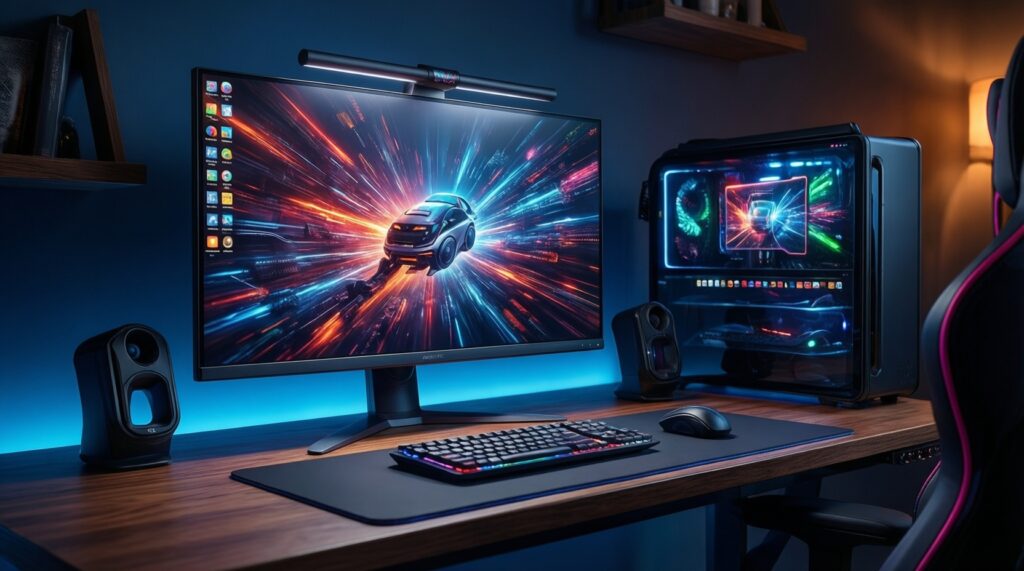
Only if you're building premium and accept that 4K is demanding. Otherwise, 1440p/144-165Hz usually delivers better cost-per-performance.
What refresh rate is the best "minimum" upgrade from 60Hz?
144Hz is the practical step change for smoothness in most games. Make sure your GPU can usually deliver above 100 FPS to feel the benefit.
Will VRR fix stutter completely?
No. VRR helps with tearing and uneven cadence, but big frame-time spikes (CPU limits, asset streaming) still cause visible stutter.
Which panel type should I prefer for gaming: IPS or VA?
IPS is often safer for motion clarity and viewing angles. VA can offer higher contrast but may show dark smearing; only choose it if reviews confirm good dark response.
How do I avoid a bad "spec-sheet" monitor?
Check real response/overshoot behavior at your target FPS, confirm VRR works over the port you'll use, and buy from a seller with a straightforward return policy.