To save power on Windows without breaking daily workflows, start by selecting the right Power Plan, then tune sleep/hibernate timing, display brightness, and CPU/GPU behavior. Validate the changes with built-in battery and power reports. This guide focuses on safe, reversible settings that work for real usage on Windows 10/11, especially laptops.
Core Energy-Saving Concepts for Windows
- Pick a plan that matches your day: "Balanced" plus a few targeted tweaks usually beats extreme "Power saver" for usability.
- Use Sleep for short breaks, Hibernate for long gaps-this is the practical answer to "โหมด Sleep กับ Hibernate Windows ต่างกันอย่างไร".
- Display power dominates on laptops: brightness, refresh rate, and screen timeout are quick wins.
- Limit background work: startup apps and background permissions often waste more battery than people expect.
- Change one group of settings at a time, then verify with Windows battery reports and powercfg logs.
- Create two profiles (AC vs battery) instead of one "perfect" profile for everything.
Choosing and Customizing a Power Plan
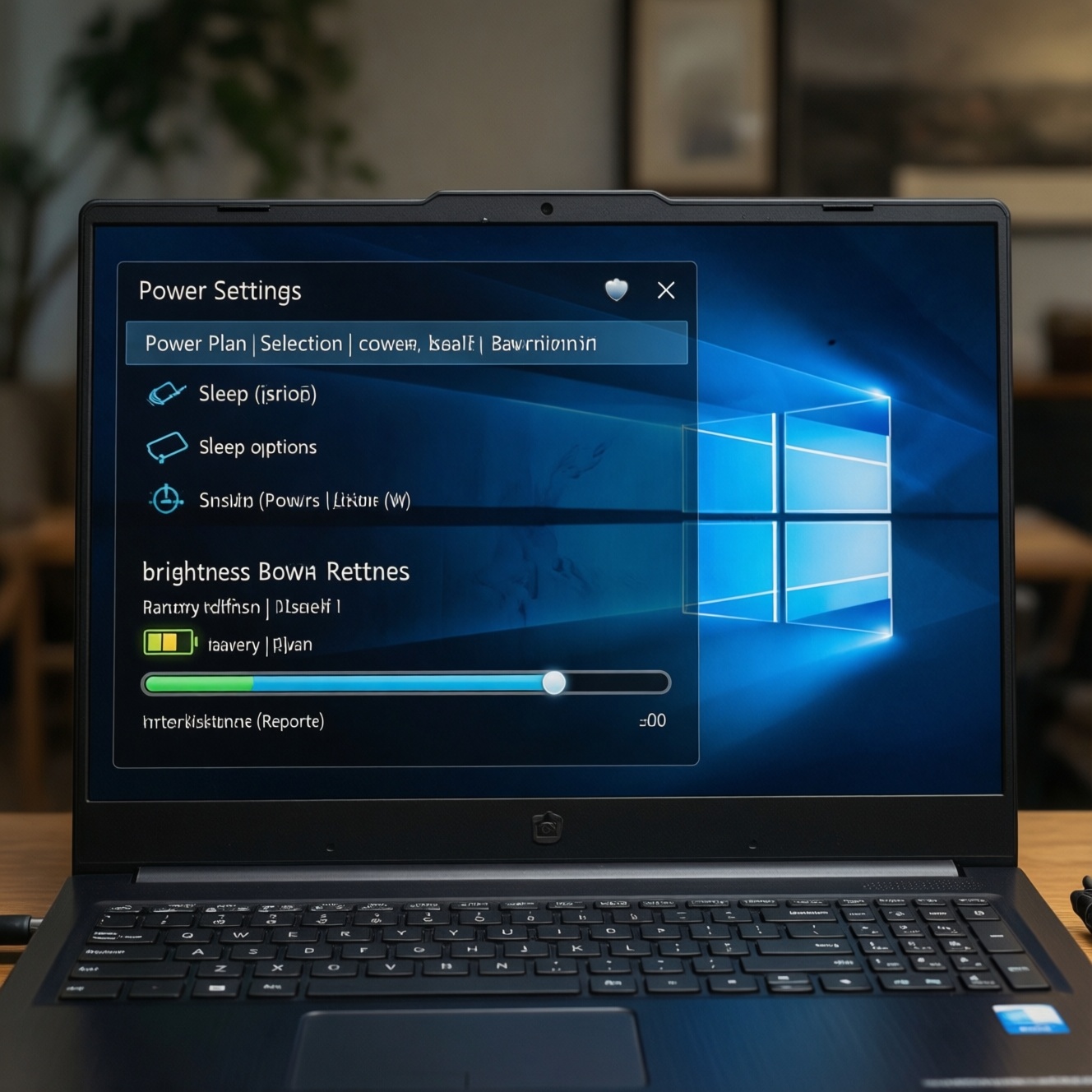
If you're searching "ตั้งค่า Power Plan Windows 10/11 ประหยัดพลังงาน", the fastest reliable approach is to keep Balanced and customize it. Use Best power efficiency on battery for travel days, and switch to Better/Best performance only when needed (games, video export, heavy compiling).
- Good fit: office work, browsing, video calls, study, general home use.
- Be cautious / don't overdo tweaks when: you run latency-sensitive audio, competitive gaming, or real-time device control; overly aggressive CPU limits and deep sleep can cause stutter or device reconnect delays.
Where to change plan and mode (Windows 10/11)
- Power mode slider: Settings > System > Power & battery (Win 11) / Settings > System > Power & sleep (Win 10) > choose "Best power efficiency" on battery.
- Classic Power Options: Control Panel > Hardware and Sound > Power Options > select a plan > Change plan settings > Change advanced power settings.
Comparison table: typical defaults vs safer optimized values
| Area | Common default behavior | Safer optimized starting point (laptop) | What you should notice |
|---|---|---|---|
| Screen brightness | High or unchanged on battery | Lower on battery; keep readable indoors | Immediate battery gain, less heat |
| Screen timeout | Long timeouts | Shorter on battery, longer on AC | Less idle drain |
| Sleep timeout | Sleep off or very long | Sleep after a reasonable idle period | Lower idle usage without losing work |
| Hibernate usage | Not used | Hibernate for long breaks / overnight | Near-zero drain while away |
| CPU max state (battery) | Allowed to boost freely | Moderate cap if you want quieter/longer runtime | Less fan noise, steadier temps |
| Discrete GPU activity | Apps may wake dGPU | Prefer integrated GPU on battery; dGPU on demand | Less sudden battery drops |
| Startup apps | Many enabled | Disable non-essential background starters | Faster boot, less background CPU |
Fast presets (pick one, then fine-tune)
- Office / study: Balanced + Best power efficiency on battery, moderate brightness, aggressive display timeout, Sleep enabled.
- Media consumer: Balanced, slightly higher brightness, keep video playback smooth; prefer Sleep for short breaks, Hibernate overnight.
- Mobile / travel: Balanced + strict timeouts, lower brightness, prefer integrated GPU, Hibernate when closing the lid in a bag.
Configuring Sleep and Hibernate for Real-World Use
Before changing sleep states, confirm what your device supports and ensure you can wake it reliably. You'll need an admin account for some commands and access to Windows Settings/Control Panel. This section also answers "โหมด Sleep กับ Hibernate Windows ต่างกันอย่างไร" in practical terms: Sleep is quick resume with some drain; Hibernate is slower resume with minimal drain.
What you need (tools and access)
- Admin rights (for certain
powercfgcommands). - Windows built-in tools: Settings, Control Panel Power Options, Task Manager.
- Command line (safe read-only checks): Windows Terminal / Command Prompt.
Check supported sleep states (safe diagnostics)
- Open Windows Terminal (Admin optional for this check).
- Run:
powercfg /a - Read which states are available (e.g., Sleep, Hibernate). If Hibernate is unavailable, Windows will tell you why.
Enable Hibernate (if you want it and it's supported)
- Open Windows Terminal as Administrator.
- Run:
powercfg /hibernate on - Then add it to the menu: Control Panel > Power Options > Choose what the power buttons do > Change settings that are currently unavailable > enable Hibernate.
Optimizing Display, GPU and CPU Power Behavior
-
Set separate "On battery" vs "Plugged in" behavior
Most savings come from being stricter on battery and more permissive on AC. In Windows 11: Settings > System > Power & battery, adjust power mode and screen/sleep timeouts for each state.
-
Cut display waste first (brightness, timeout, refresh rate)
Lower brightness on battery and shorten "Turn off my screen after." If your laptop supports multiple refresh rates, consider reducing it on battery for longer runtime.
- Path: Settings > System > Display > Brightness.
- Path (refresh rate): Settings > System > Display > Advanced display.
-
Prefer integrated GPU on battery (per-app graphics)
This is the most practical part of "ปรับแต่ง Power Options Windows สำหรับโน้ตบุ๊กทำงาน/เล่นเกม": keep dGPU available for games, but stop casual apps from waking it.
- Path: Settings > System > Display > Graphics.
- Set browsers, chat apps, office apps to Power saving (iGPU). Set games/editors to High performance when plugged in.
-
Tune CPU boost behavior safely via Power Options
In Control Panel > Power Options > Change advanced power settings, review processor settings. If you want quieter fans and better battery life, reduce how aggressively the CPU boosts on battery; keep defaults on AC.
- Look for "Processor power management" and adjust only the On battery side first.
- Avoid extreme caps if you do heavy work on battery; prefer moderate limits and test for responsiveness.
-
Set lid/power button actions to match real life
If you close the lid and put the laptop in a bag, use Hibernate (or Shutdown) to prevent heat and battery drain. If you step away at a desk, Sleep is usually fine.
- Path: Control Panel > Power Options > Choose what closing the lid does.
Quick mode (3-5 steps, fast-track)
- On battery, set Windows power mode to Best power efficiency (Settings > System > Power & battery).
- Reduce brightness and shorten screen timeout on battery (Settings > System > Display; then Power & battery > Screen and sleep).
- Set Sleep for short idle and enable Hibernate for long breaks (Control Panel > Power Options; optionally
powercfg /hibernate on). - Force everyday apps to iGPU (Settings > System > Display > Graphics).
- Disable non-essential startup apps (Task Manager > Startup apps).
Controlling Background Tasks, Services and Startup Impact
Use this checklist to confirm you actually reduced background drain and didn't just change a plan name. This is a key part of "วิธีประหยัดแบตโน้ตบุ๊ก Windows 11 ตั้งค่าให้ใช้งานได้นานขึ้น" because background tasks often steal battery silently.
- Task Manager > Processes: sort by CPU and Power usage; identify apps that spike while "idle."
- Task Manager > Startup apps: disable non-essential launchers, updaters, and tray tools.
- Settings > Apps > Installed apps: uninstall apps you don't use (less background services).
- Settings > Privacy & security: review app permissions that allow always-on activity (location, background access).
- Settings > System > Power & battery > Battery usage: confirm top consumers match your expectations.
- Pause heavy cloud sync when traveling (OneDrive/third-party) if it's constantly uploading.
- Keep Windows Update normal, but avoid running large updates on battery when you need maximum runtime.
- If you use a browser heavily, reduce extensions and background tabs; they can keep the CPU active.
Laptop-Specific Strategies: Battery Profiles and Hardware
These are common mistakes that prevent savings-even with a correctly tuned plan. If you're comparing devices for "ซื้อโน้ตบุ๊กประหยัดพลังงาน ใช้งาน Windows 11 แบตอึด", these points also explain why two laptops with similar specs can feel very different on battery.
- Leaving high refresh rate enabled on battery when you don't need it.
- Forgetting that an external monitor can force the discrete GPU on some laptops.
- Using Sleep inside a backpack: it can wake and heat up; prefer Hibernate for travel.
- Assuming "Battery saver" replaces Power Plan tuning; it's helpful, but not a full strategy.
- Allowing "always-on" peripherals (USB devices, dongles) to draw power; unplug what you don't need.
- Running vendor performance modes (OEM utilities) in "Turbo" while on battery.
- Keeping keyboard backlight at max continuously; reduce or set it to auto-off.
- Ignoring battery health: degraded batteries drop voltage faster and can exaggerate drain perception.
Measuring Savings: Tools, Logs and Validation Steps
Measure improvements with built-in reports before you keep or revert changes. This avoids placebo tuning and helps you spot which setting actually helped.
Option 1: Windows battery report (trend view)
- Open Windows Terminal.
- Run:
powercfg /batteryreport - Open the generated HTML file path shown in the output and compare recent sessions after your changes.
Option 2: Energy report (quick diagnostics)
- Close heavy apps and wait a minute for idle.
- Run (Admin):
powercfg /energy - Review warnings about devices/apps preventing sleep or causing wake timers.
Option 3: Sleep study (modern standby analysis, if supported)
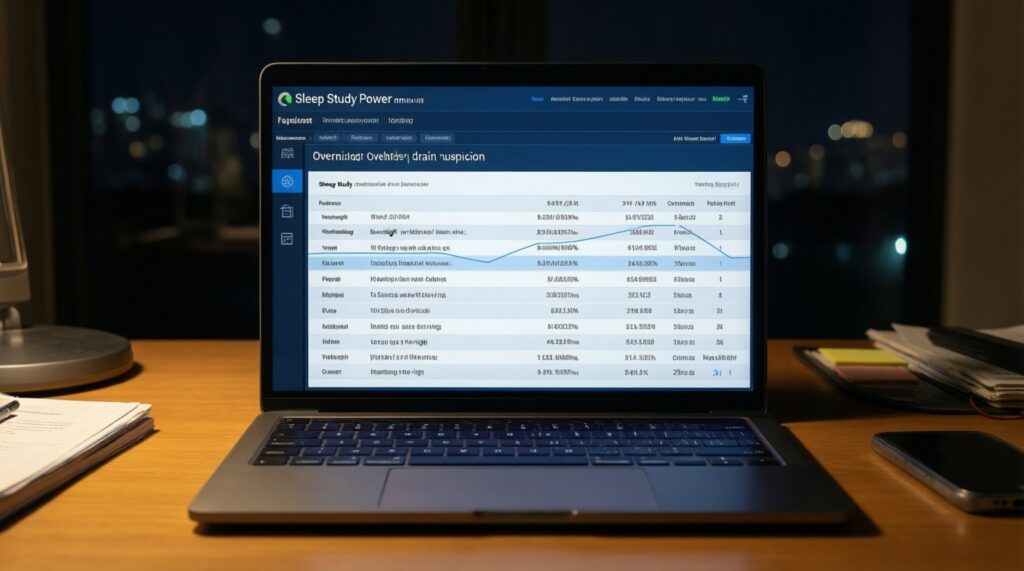
- Run:
powercfg /sleepstudy - Use it when you suspect "sleep drain" overnight.
Option 4: Built-in Battery usage screen (fastest feedback)
- Settings > System > Power & battery > Battery usage shows which apps drained power in the last period.
- Use it when you're hunting a single rogue app or a new startup item.
Common Problems, Misconceptions and Quick Fixes
Why did battery life not improve after setting Best power efficiency?
Check Battery usage for a specific app dominating drain and confirm brightness/refresh rate changed on battery. Power mode alone won't fix a constantly active browser tab, sync tool, or dGPU wakeups.
Is it normal for Sleep to drain battery overnight?
It can be, especially on systems using Modern Standby. Use Hibernate overnight, and run powercfg /sleepstudy to identify what kept the system active.
What should I change if games stutter or FPS drops after power tweaks?
You likely applied battery-oriented CPU/GPU limits while gaming. Create a separate plugged-in profile or switch power mode to performance before playing (this is the safe way to "ปรับแต่ง Power Options Windows สำหรับโน้ตบุ๊กทำงาน/เล่นเกม").
How do I fix the missing Hibernate option in Windows?
Enable it with powercfg /hibernate on, then turn it on in Power Options > Shutdown settings. If it's still unavailable, powercfg /a will show the reason.
How can I stop my laptop from getting hot in a bag after closing the lid?
Set lid close action to Hibernate (or Shut down) on battery. Also disable wake timers if you see unwanted wakes in the energy report.
Why is the fan still loud even with Battery saver enabled?
Fan noise usually means CPU/GPU load. Find the process in Task Manager and consider limiting background startup apps and forcing common apps to the integrated GPU.