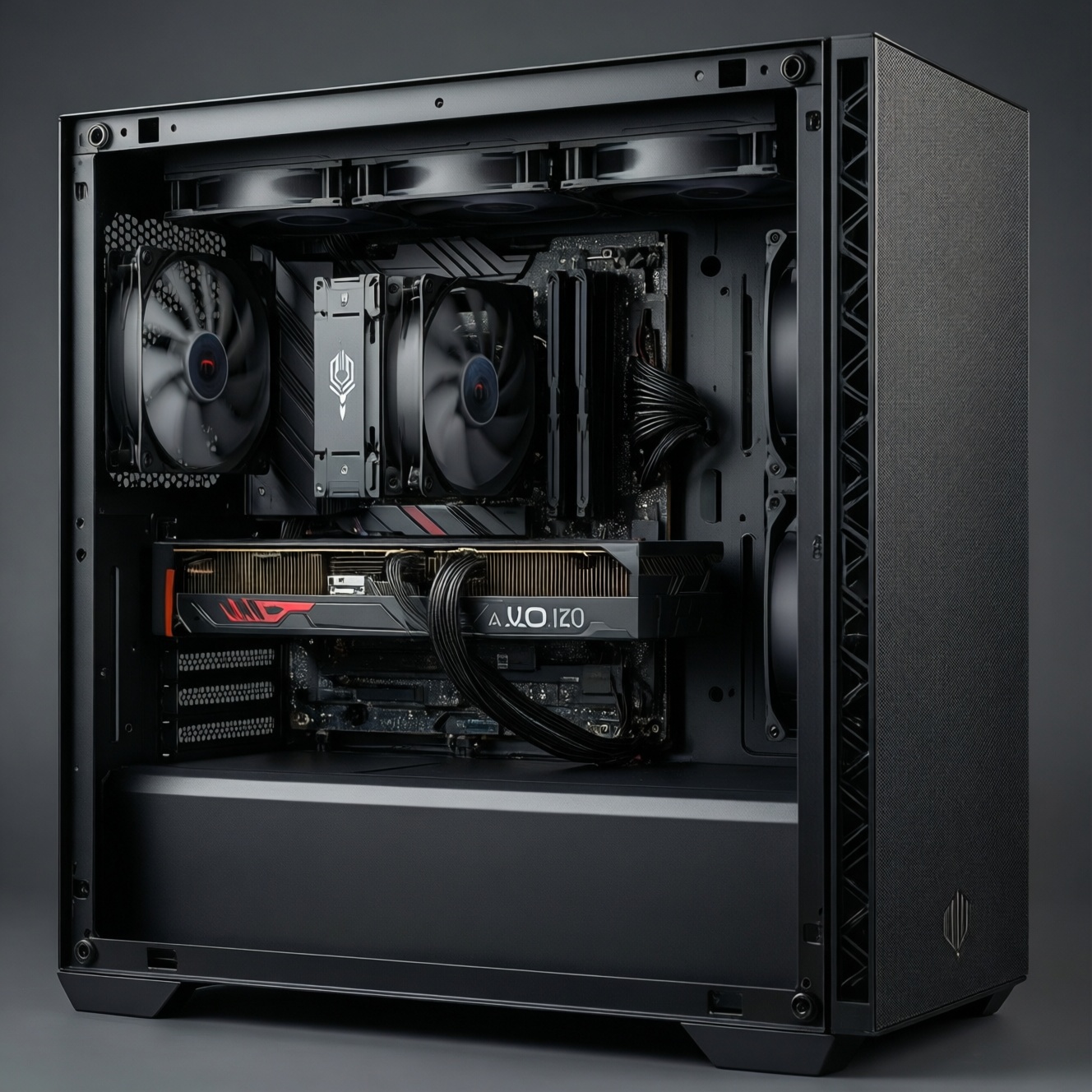
If your PC freezes or shows a blue screen (BSOD), isolate the cause in this order: drivers/system files, storage I/O (SSD), memory (RAM), then heat/power. Start with non-destructive checks in Windows, confirm symptoms in logs, and only replace parts after a controlled test proves a component is failing.
Critical symptoms to recognize before troubleshooting
- BSOD that repeats under the same trigger (gaming, sleep/wake, copying large files).
- Hard freeze with audio looping or total input lock (no Ctrl+Alt+Del response).
- Random reboots or shutdowns under load (often heat or power-related).
- Freezes during file transfers, Windows updates, or app installs (often SSD/I/O path).
- Memory-related messages, app crashes with different error codes each time (often RAM instability).
- Fans suddenly ramping up, hot chassis, or performance throttling before the hang (thermal).
Identifying RAM-related freezes and memory errors
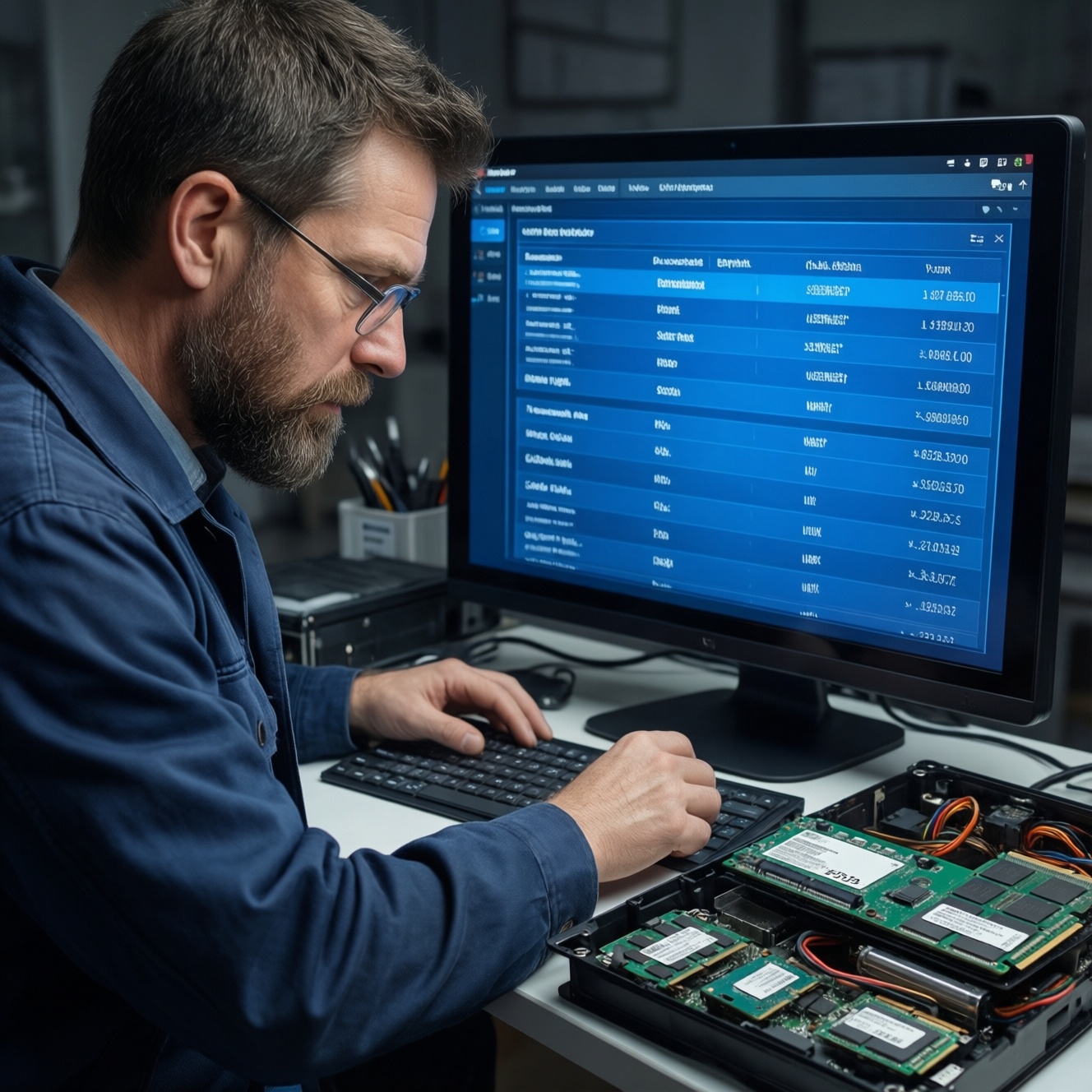
Best fit: intermittent hangs, BSODs with varying stop codes, crashes when multitasking, or stability issues after enabling XMP/EXPO or changing RAM.
Do not do this yet: avoid buying new modules or asking for ตรวจเช็ค RAM เสีย ราคา immediately if freezes mostly happen during heavy disk activity (copying, installs) or right after a driver update-validate software and SSD health first. Also avoid aggressive RAM overclock tuning while you still need data stability.
Diagnosing SSD faults and I/O bottlenecks
You will need:
- Windows admin access (Command Prompt/PowerShell as Administrator).
- Event Viewer access (built-in) and enough time for a disk scan.
- SSD SMART/health tool (vendor tool or a trusted SMART reader).
- Backup target (external drive or cloud) before any repair actions.
- Optional: a known-good SATA/NVMe slot/cable (desktop) for cross-checking.
Tip for Thailand users comparing เปลี่ยน SSD ใหม่ ราคา: postpone replacement decisions until you see SMART warnings, repeatable I/O errors in Event Viewer, or a scan that keeps finding new file-system errors after repairs.
Detecting driver conflicts and corrupted system files
-
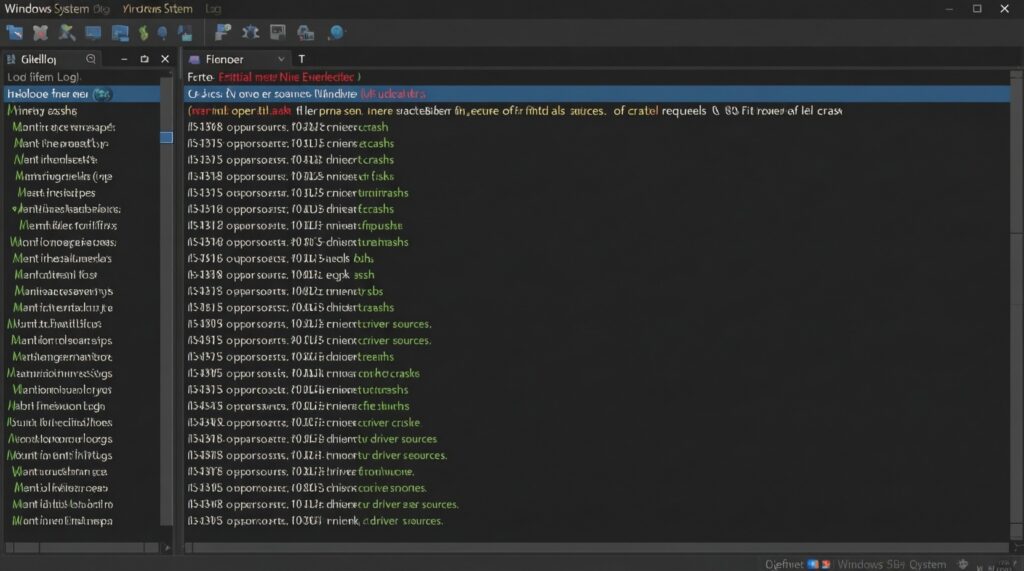
Capture the crash context in Event Viewer. Open Event Viewer → Windows Logs → System and filter for Critical and Error around the time of the hang/BSOD. Expected result: you identify a repeating source (e.g., disk, display driver, WHEA, bugcheck) instead of guessing.
- Look for Disk/StorPort/NVMe-related errors (I/O path), Display driver resets (GPU driver), or repeated BugCheck entries (BSOD records).
-
Boot once in Safe Mode to separate core Windows from third-party drivers. If the issue disappears in Safe Mode, suspect drivers/startup software. Expected result: a clear "stable vs unstable" comparison under the same workload.
- Windows 10/11: Settings → System → Recovery → Advanced startup then choose Safe Mode.
- Disable non-essential startup items for a clean boot. Use msconfig (hide Microsoft services) and Task Manager Startup to disable third-party entries. Expected result: if stability returns, re-enable items in small batches to find the offender (common with RGB tools, overlays, VPNs, older antivirus drivers).
-
Repair system files (SFC). Run Command Prompt as Administrator:
sfc /scannow
Expected result: "Windows Resource Protection did not find any integrity violations" or it repairs files. If it reports corruption it cannot fix, continue to the next step.
-
Repair the component store (DISM). Run:
DISM /Online /Cleanup-Image /RestoreHealth
Expected result: DISM completes without errors; then run
sfc /scannowagain. -
Validate disk file system (CHKDSK) without risking data. First run a read-only scan:
chkdsk C: /scan
Expected result: it reports whether it found problems. If it finds errors, schedule a repair at reboot:
chkdsk C: /f
(Do this only after backups.)
-
Roll back or reinstall suspect drivers (targeted, not everything at once). If logs point to GPU/network/storage drivers, update from the device vendor, or roll back to the last stable version. Expected result: the same workload no longer triggers a hang/BSOD.
- For GPU: prefer a clean driver install option if available.
- For storage: avoid "driver booster" tools; use OEM/chipset packages.
Fast mode (3-5 steps when you need a quick decision)
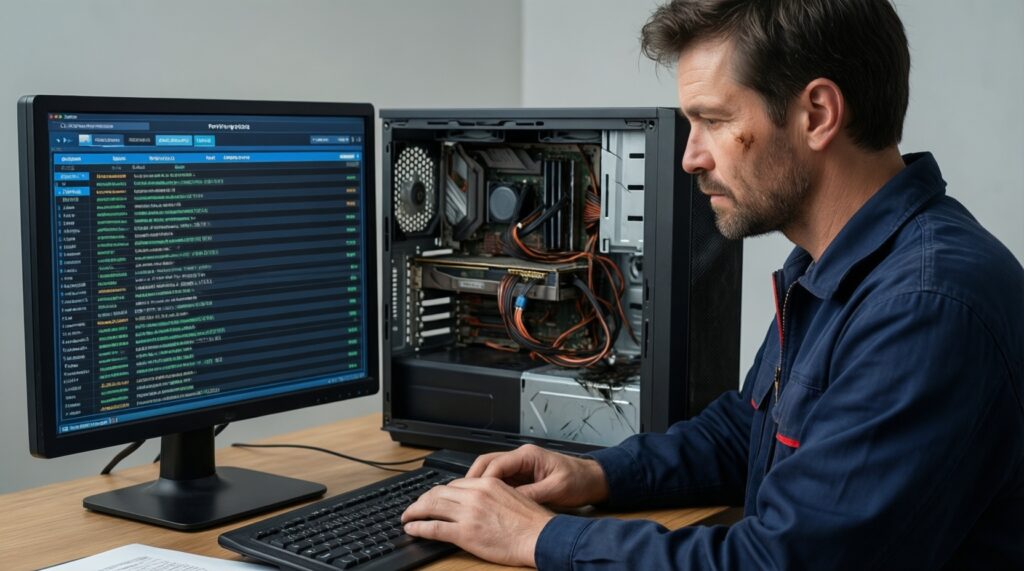
- Check Event Viewer for repeating errors at the freeze/BSOD time.
- Safe Mode test: stable = driver/startup suspect; unstable = hardware path suspect.
- Run
sfc /scannowthenDISM /RestoreHealth. - Run
chkdsk C: /scanand check SSD SMART health. - If still unstable, test RAM (Windows Memory Diagnostic) and check temperatures under load.
Thermal issues: spotting overheating and fan failures
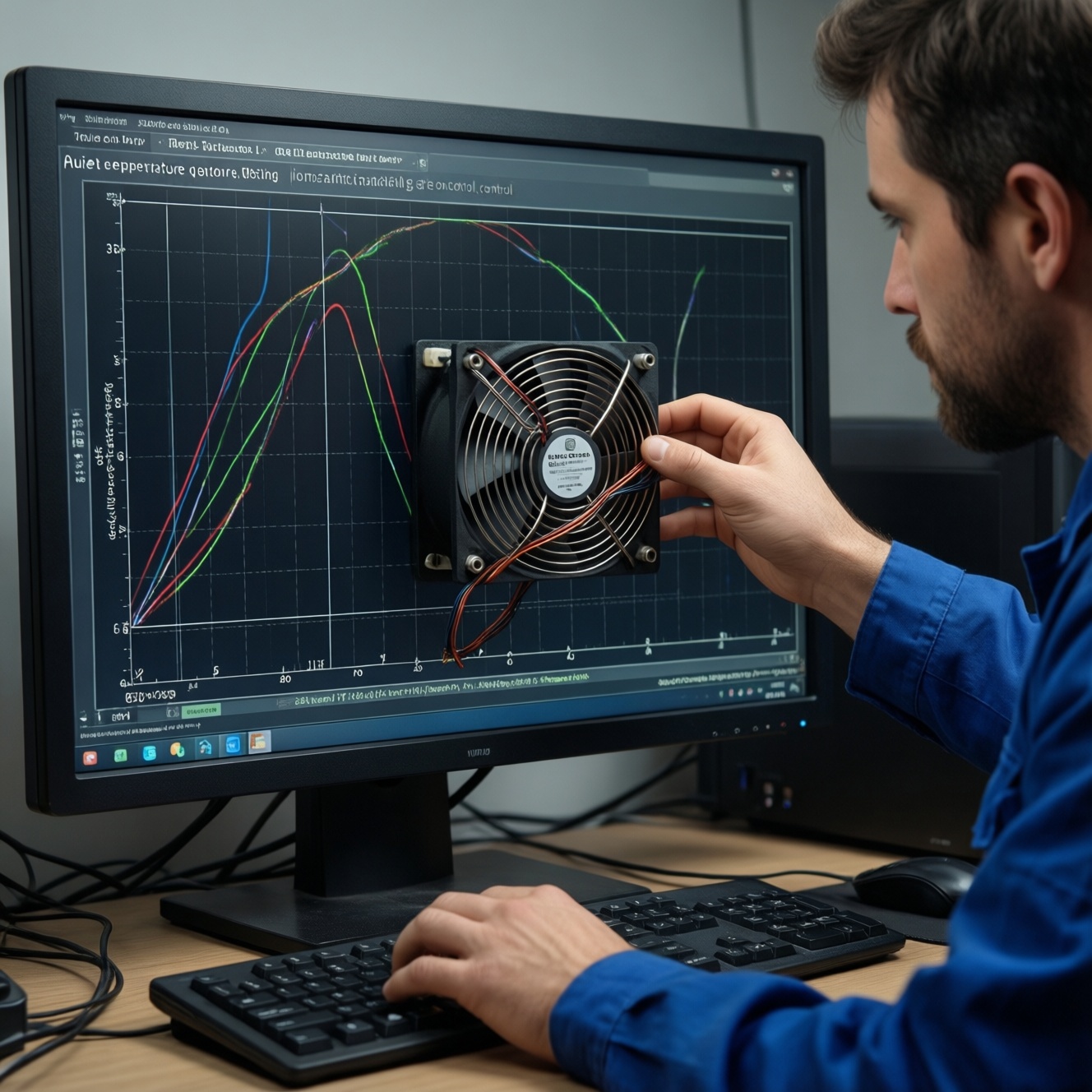
- Monitor CPU/GPU temperatures at idle and under a repeatable load; confirm temps do not spike rapidly within minutes.
- Verify all fans spin consistently (CPU cooler, GPU fans, case fans) and airflow direction is correct.
- Check for sudden clock drops or performance throttling during the hang-prone workload.
- Inspect heatsinks for dust mats and blocked fins; clean with compressed air (power off, hold fans to prevent overspin).
- Confirm the CPU cooler is firmly mounted; no wobble, even pressure.
- Laptop: verify vents are not blocked and the unit is not used on soft surfaces.
- GPU: confirm hotspot behavior is not extreme relative to core (use the same tool consistently).
- If you recently serviced the PC, re-check that thermal paste and pads were applied correctly (no missing contact areas).
- Document results if you plan to ask a shop about เช็คความร้อน CPU/GPU และเปลี่ยนซิลิโคนระบายความร้อน ราคา.
Step-by-step isolation workflow for intermittent hangs
- Changing multiple variables at once (new driver + new BIOS + new RAM setting) makes the root cause untraceable.
- Assuming "จอฟ้า = RAM" or "ค้าง = SSD" without log evidence; BSODs can be driver, storage, RAM, heat, or power.
- Running destructive disk repairs before backing up; always secure data first when I/O errors appear.
- Using third-party "optimizer/booster" utilities that install low-level drivers and create new instability.
- Testing stability with inconsistent workloads; use one repeatable scenario (same game benchmark, same file copy, same render).
- Ignoring power delivery (loose PCIe power, aging PSU) when crashes happen only under GPU load.
- Relying on a single quick memory test; intermittent RAM faults may require longer, repeatable testing.
- Not reseating basics (RAM sticks, GPU, SSD) and not checking for oxidation/dust on contacts-simple mechanical issues are common.
- Forgetting BIOS defaults: unstable XMP/EXPO or undervolt profiles can mimic failing hardware.
Recovery actions: testing, repairs, and preventative fixes
- Stabilize software first (most reversible): clean boot, targeted driver reinstall/rollback, SFC/DISM, and Windows Update. Use this when the issue started after updates or new software and Safe Mode is stable (typical แก้ปัญหาเครื่องค้าง Windows 10/11 scenario).
- Prove or clear SSD issues before replacement: SMART health check, Event Viewer I/O errors review, and non-destructive scans; then plan backup and only then repairs. Do this when hangs correlate with file operations and you're considering เปลี่ยน SSD ใหม่ ราคา.
- Confirm RAM stability before buying parts: revert BIOS to defaults (disable XMP/EXPO), test with one stick at a time, and use memory diagnostics. Appropriate when crashes vary widely and worsen with more apps/tabs; this reduces wasted spend before asking ตรวจเช็ค RAM เสีย ราคา.
- Thermal remediation (after measurement): cleaning, re-mounting cooler, replacing thermal paste, improving airflow. Use this when monitoring shows spikes/throttling and you're evaluating เช็คความร้อน CPU/GPU และเปลี่ยนซิลิโคนระบายความร้อน ราคา. If you're not comfortable removing coolers, outsource to avoid damage.
If the PC repeatedly BSODs and you need professional help, describe your completed steps and logs to a shop that handles ซ่อมคอมจอฟ้า; it reduces diagnosis time and prevents unnecessary part swaps.
Concise solutions to recurring doubts
Is it safer to test drivers or hardware first?
Test software/driver isolation first (Safe Mode, clean boot, SFC/DISM) because it's reversible. Move to SSD/RAM/thermal checks when logs and symptoms suggest hardware or when Safe Mode still fails.
What if the PC freezes but never shows a BSOD?
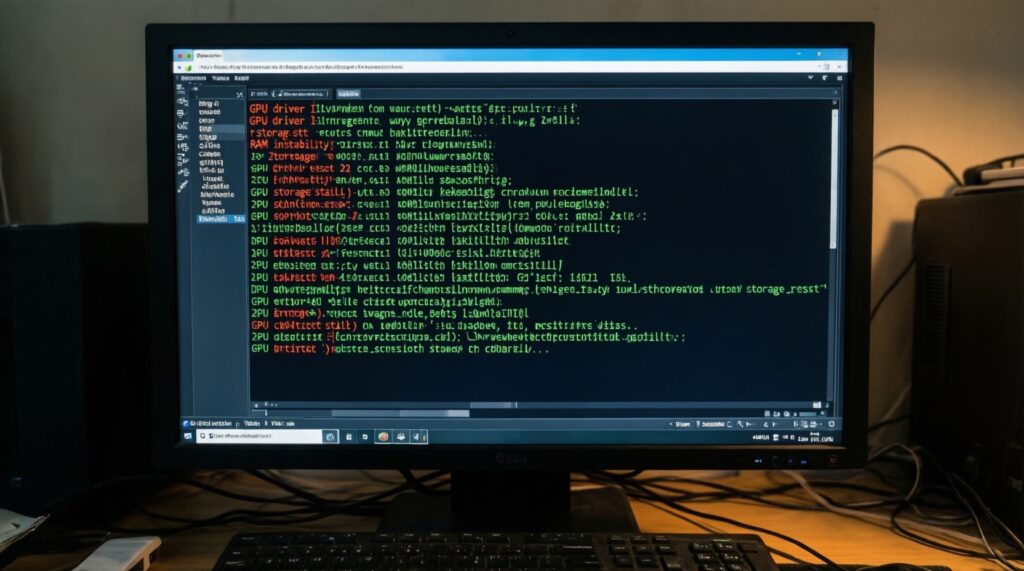
Hard freezes often point to GPU driver resets, storage stalls, unstable RAM, or overheating. Use Event Viewer correlation and a Safe Mode comparison to narrow the category.
Should I enable XMP/EXPO while troubleshooting?
No-set BIOS to defaults until stability is confirmed. If the system becomes stable at defaults, your "fault" may be memory profile instability rather than bad RAM.
When is SSD replacement justified?
When SMART reports warnings, Event Viewer shows recurring disk/NVMe/controller errors, or file-system errors keep returning after repair. Replace only after a confirmed backup.
Can corrupted Windows files alone cause repeated hangs?
Yes, especially after interrupted updates or disk issues. Run SFC, then DISM, and re-check stability under the same workload.
Do I need to repaste CPU/GPU immediately if temps look high?
Clean airflow and confirm fan operation first, then re-test. Repasting is justified when temperatures spike quickly or throttling persists after cleaning and proper mounting checks.
What single change gives the clearest diagnostic signal?
Safe Mode stability is the fastest separator: stable in Safe Mode suggests drivers/startup software; unstable suggests hardware (SSD/RAM/thermal/power) or deeper OS issues.