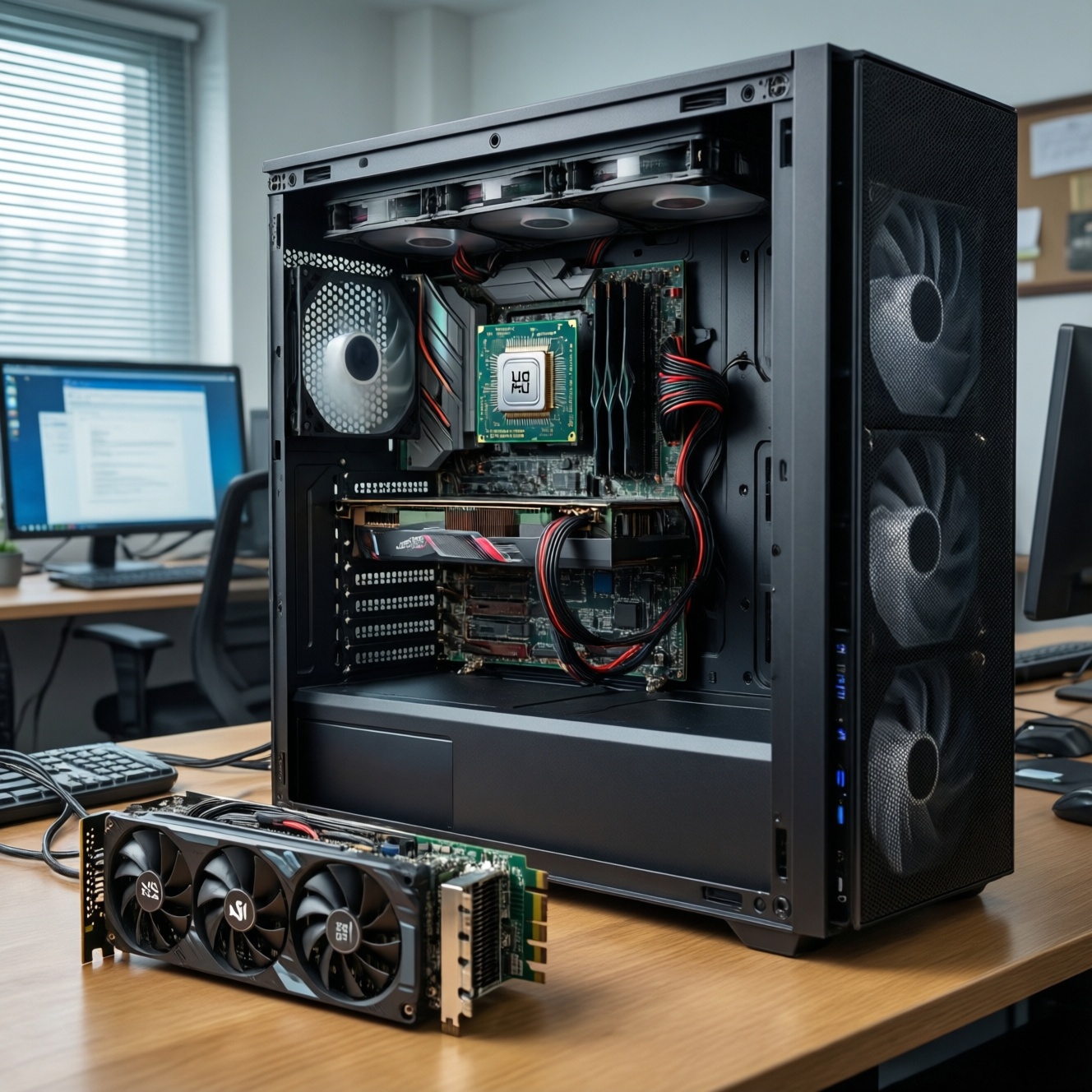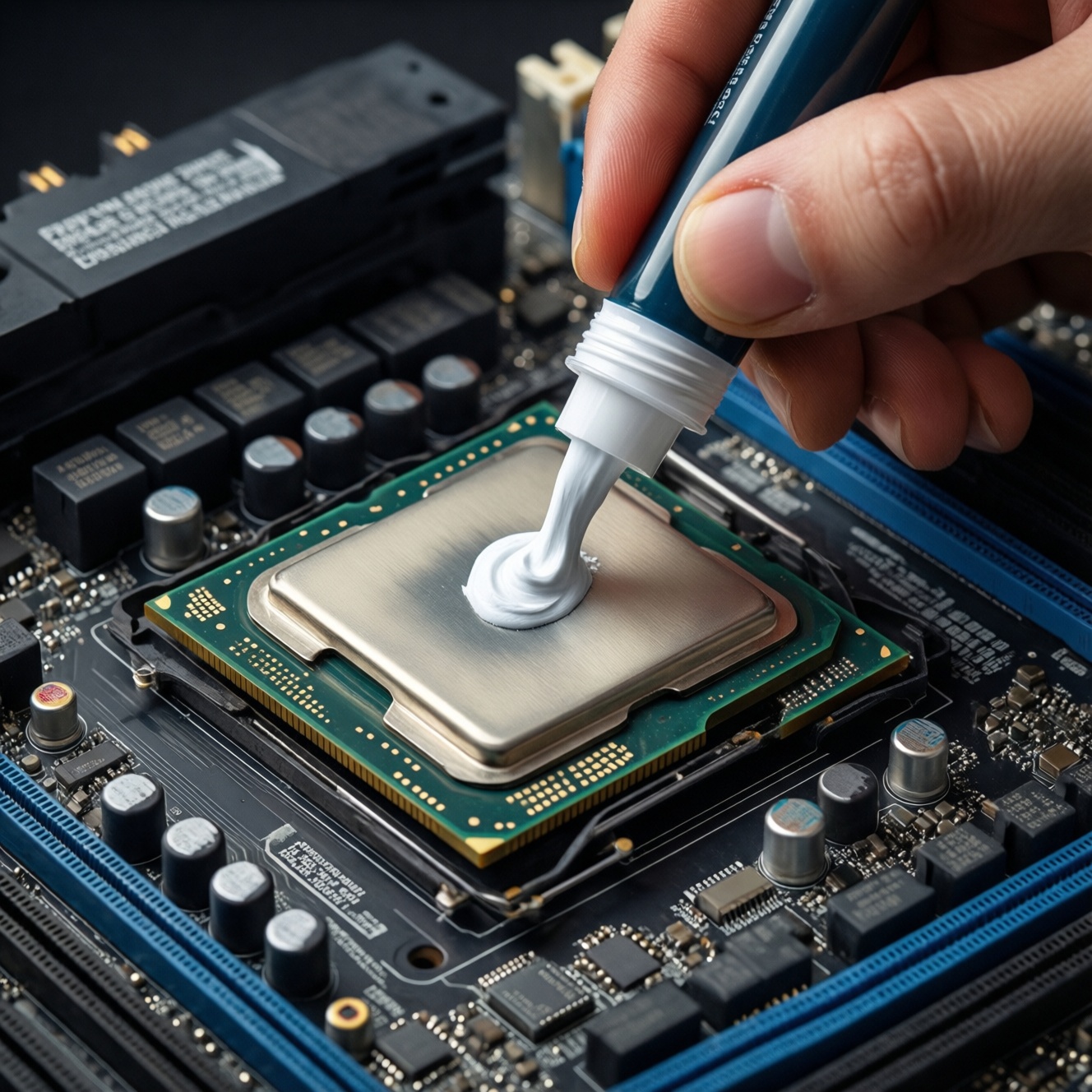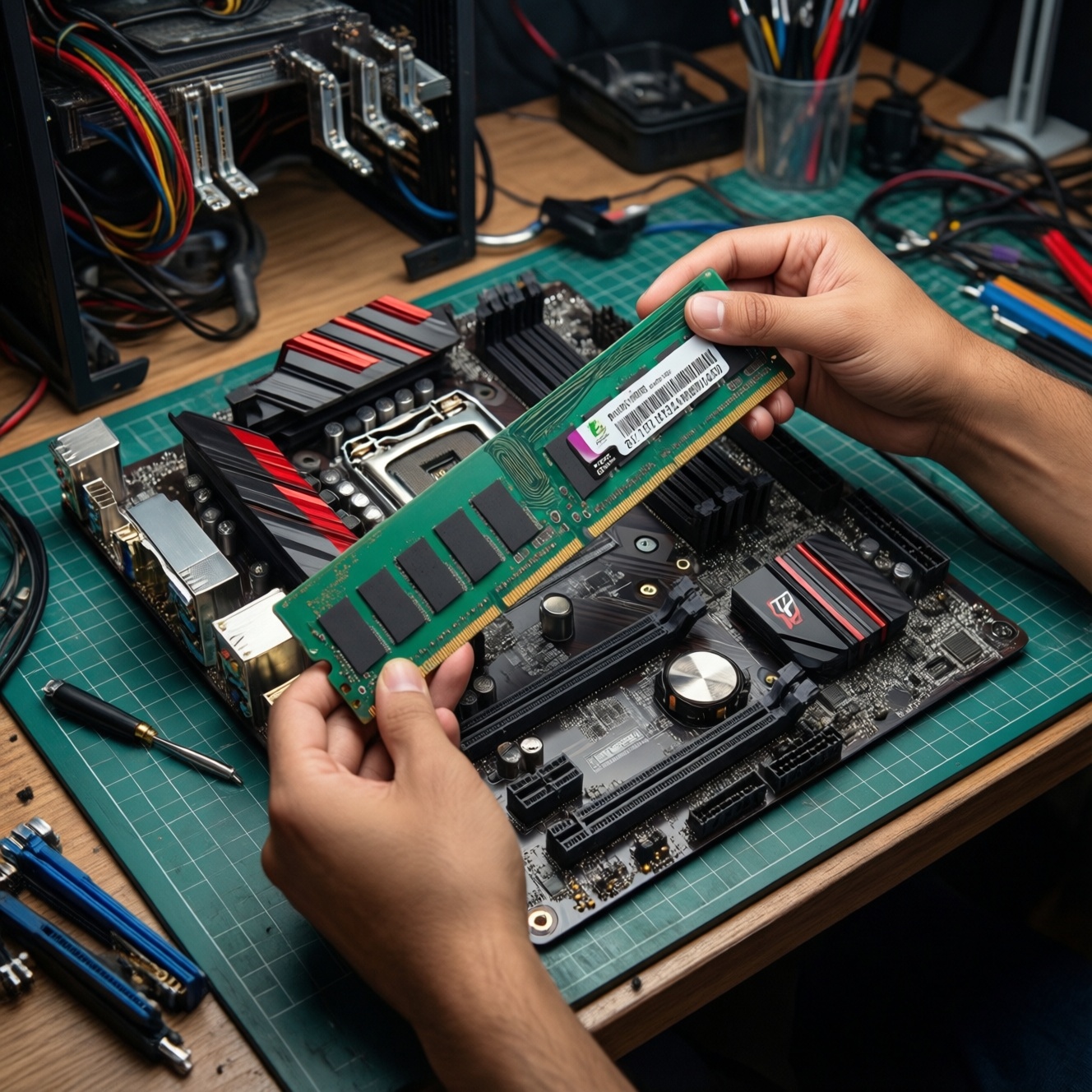
For most PCs in Thailand, choose RAM by workload first (capacity), then match speed to your CPU/motherboard, and finally pick a sensible latency (CL). A practical default is 16-32 GB in dual-channel with a supported XMP/EXPO kit; extreme MHz or ultra-low CL only matters when everything else is already optimized.
RAM selection at a glance
- Capacity drives smoothness: 16 GB is the floor for modern gaming/multitasking; 32 GB is the "set-and-forget" sweet spot.
- Speed must be supported: buy a kit your CPU + motherboard can actually run (with XMP/EXPO).
- Dual-channel matters: two sticks (matched kit) usually beat one larger stick at the same specs.
- DDR4 vs DDR5 is platform-driven: you can't swap types; decide based on your motherboard/CPU generation.
- Latency (CL) is secondary to stability: prioritize a stable profile over chasing the lowest number.
How much RAM for typical workloads: gaming, content creation, multitasking
If you're asking ซื้อแรม RAM กี่ GB ดี, start by mapping your daily "worst case" usage. Add headroom for background apps (browser tabs, Discord/Line, launchers) and future game/app updates. Don't overspend on RAM if your bottleneck is clearly GPU, storage, or CPU cores.
- Gaming + voice chat + browser: typically happiest at 16 GB; go 32 GB if you stream, mod heavily, or keep many apps open.
- Content creation: 32 GB is the practical baseline for photo/video timelines, large assets, and multiple apps; 64 GB helps only if you regularly hit memory limits.
- Heavy multitasking / VMs / dev stacks: 32-64 GB depending on how many virtual machines/containers and datasets you run at once.
- When not to "just buy more": if your current RAM usage never approaches full in your real workloads, faster storage or a better GPU/CPU may give more noticeable gains.
Choosing RAM capacity by use-case: 8/16/32/64 GB practical guidance
Before buying, you need a few specifics to avoid mismatches and wasted money-especially when comparing แรม DDR4 กับ DDR5 ต่างกันยังไง ซื้อแบบไหนดี.
- Your motherboard model (to confirm DDR4 vs DDR5, max capacity, supported speeds, and QVL memory list).
- Your CPU model (memory controller limits and best "stable" speed range).
- Current RAM layout (how many sticks, sizes, and which slots are occupied).
- Case/CPU cooler clearance (tall heat spreaders can collide with big air coolers).
- Access to BIOS/UEFI so you can enable XMP (Intel) or EXPO (AMD) safely.
| Capacity (total) | Typical speed targets | Recommended use-case |
|---|---|---|
| 8 GB | DDR4-3200 / DDR5 entry-level (only if platform forces) | Office/light browsing; not ideal for modern gaming or heavy multitasking |
| 16 GB | DDR4-3200 to 3600; DDR5 mid-range kits supported by your board | Mainstream gaming + daily multitasking; safest "minimum" today |
| 32 GB | DDR4-3600 (common sweet spot) or a stable DDR5 kit your platform runs reliably | Gaming + streaming, heavy browser use, creative apps, "future-proofing" without overspending |
| 64 GB | Prioritize stability over extreme MHz; often easier with 2×32 GB than 4 sticks | 4K/8K editing, big projects, VMs, large datasets; only if you truly use it |
Memory speed and latency explained: MHz, CL and real-world impact
Use this workflow to decide แรมความเร็วเท่าไหร่ดี 3200 3600 6000 and how to interpret ค่า CL แรม คืออะไร เลือก CL เท่าไหร่ดี without falling into spec-sheet traps.
Prep checklist before you choose a kit
- Confirm whether your platform is DDR4 or DDR5 (motherboard dictates it).
- Check motherboard QVL (memory compatibility list) for your CPU generation when possible.
- Decide your target capacity first (16/32/64 GB), then select speed/CL within that.
- Prefer a matched kit (same model, same batch if possible) over mixing separate sticks.
- Plan for the slot layout: aim for 2 sticks in the recommended A2/B2 slots on most boards.
-
Lock the platform (DDR4 vs DDR5) and capacity target
DDR4 and DDR5 are not interchangeable; your motherboard decides. Pick 16 GB for mainstream, 32 GB for smoother multitasking/creation, and 64 GB only if you can justify the workload.
-
Pick a speed the CPU+board can run stably with XMP/EXPO
Higher MHz can help bandwidth-sensitive tasks, but stability matters more than chasing a headline number. If your board/CPU frequently struggles with very high profiles, choose the next lower, widely supported speed.
- For many DDR4 builds, 3200-3600 is a practical range; for DDR5, choose a "known stable" kit for your platform rather than automatically jumping to the highest MHz.
- Expect diminishing returns: going from "okay" to "good" is noticeable; "good" to "extreme" is often marginal outside specific workloads.
-
Use CL as a tie-breaker, not the primary goal
CL (CAS latency) is only meaningful relative to frequency; lower CL at the same MHz is generally better, but not if it forces instability. If you must choose between slightly faster MHz or slightly lower CL, prioritize the option your platform is more likely to run reliably at rated settings.
- Compare kits at the same generation (DDR4 vs DDR4, DDR5 vs DDR5) and similar capacity.
- Don't pay extra for tiny CL differences unless you're tuning for competitive benchmarks or high-FPS esports with a strong CPU.
-
Decide on 2 sticks vs 4 sticks based on your upgrade plan
Two sticks is usually easier to run at rated speed and leaves room to upgrade later. Four sticks can work, but may reduce stable top speeds on some CPUs/boards and can complicate troubleshooting.
-
After installation, enable XMP/EXPO and validate stability
Boot once at default settings, then enable the memory profile in BIOS/UEFI. If you see crashes or boot loops, step down one profile or reduce speed slightly rather than forcing aggressive timings.
Dual-Channel, single-stick and population rules: maximizing bandwidth
If you're searching แรม Dual Channel คืออะไร ต้องซื้อกี่แผง, the practical answer is: buy a 2-stick kit (2×8, 2×16, 2×32) and install it in the recommended paired slots so the CPU can use dual-channel bandwidth.
- Use a matched kit (same model/part number) to minimize compatibility issues.
- Install 2 sticks in the motherboard's preferred dual-channel slots (often A2 + B2, check the manual).
- Confirm BIOS shows "Dual Channel" (wording varies by board).
- Verify the memory runs at the rated speed after enabling XMP/EXPO (not the lower default).
- Check that total capacity matches what you installed (no half-detected stick).
- For 4 sticks, expect higher chances of needing a lower speed or relaxed settings for stability.
- Avoid mixing different sizes/speeds if you care about consistent performance.
- Run a basic stability check after changes (no crashes, no random reboots, no app errors).
Price-to-performance sweet spots and when faster RAM is wasteful
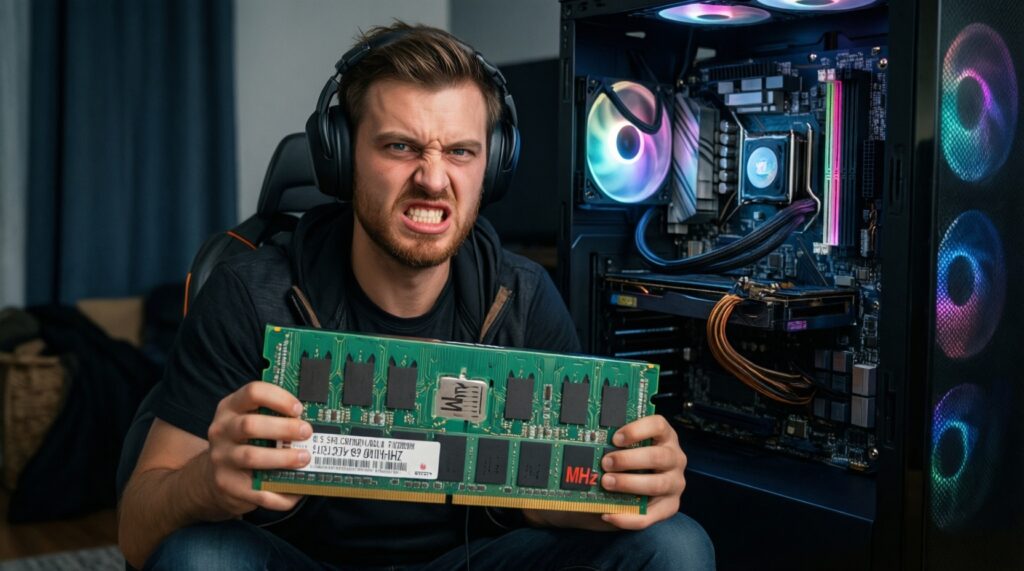
- Buying ultra-high MHz RAM that your CPU/motherboard won't run at rated settings (you'll fall back to lower speeds).
- Paying extra for a tiny CL improvement while staying at the same capacity and similar speed.
- Choosing 8 GB to "save money" for a gaming PC; you often pay later with stutters and background app constraints.
- Buying 4 sticks immediately when 2 sticks would meet the goal and keep an upgrade path open.
- Mixing different RAM kits and expecting XMP/EXPO to work flawlessly at the faster kit's rating.
- Over-focusing on RAM when your storage is nearly full or your GPU is undersized for the target resolution.
- Ignoring cooler clearance and ending up unable to fit the RAM or having to reconfigure fans/heatsinks.
- Assuming DDR5 is automatically "better value" for an existing DDR4 platform (a platform change is usually required).
Compatibility checklist: motherboard, CPU memory controller, BIOS and future upgrades
Use these alternatives when the "ideal" kit doesn't make sense for your build or budget.
- Stay on DDR4 and maximize value: If your motherboard is DDR4, buy a solid 16-32 GB DDR4 kit at a widely supported speed rather than paying for a platform jump.
- Move to DDR5 only with a planned platform upgrade: If you're already buying a new CPU + motherboard, choose DDR5 based on your board's QVL and stability reputation, not just the highest advertised MHz.
- Prioritize capacity over speed for creators and heavy multitaskers: If you often hit memory limits, 32→64 GB is usually more meaningful than a speed bump.
- Choose 2×(bigger) instead of 4×(smaller): For high capacities, 2×32 GB is often easier to stabilize than 4×16 GB at the same target speed.
Purchase + installation prep checklist (quick, safe)
- Update BIOS/UEFI if your board notes memory compatibility improvements (follow vendor instructions carefully).
- Confirm return/warranty terms in case your system can't run the rated XMP/EXPO profile.
- Power off, unplug, and discharge static before touching components; handle RAM by the edges.
- Seat the sticks firmly until both latches click; use the correct paired slots.
- First boot at defaults, then enable XMP/EXPO; change only one setting at a time when troubleshooting.
- If unstable, lower RAM speed one step before tweaking advanced timings/voltages.
Common buyer concerns and quick fixes
My PC shows the new RAM speed lower than advertised-did I get the wrong kit?
Usually no; many systems default to a safe baseline speed. Enable XMP (Intel) or EXPO (AMD) in BIOS/UEFI, then confirm the effective speed in BIOS or a trusted system tool.
Is it better to buy 1×16 GB now and add another later?
It works, but you'll run single-channel until you add the second stick. For best performance today, a 2×8 or 2×16 matched kit is safer and faster.
What does CL mean, and should I always pick the lowest number?
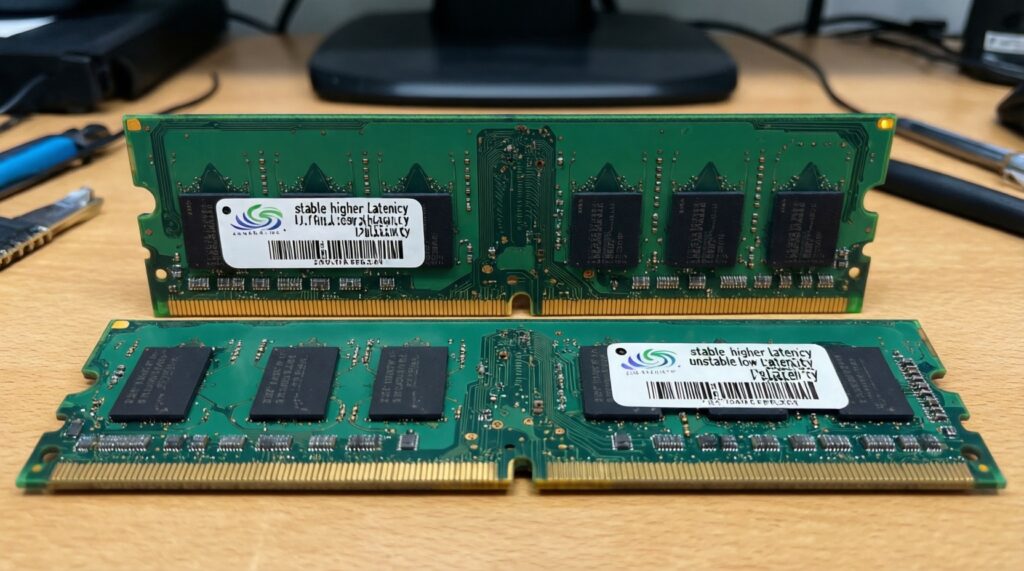
CL is one part of latency; it matters most when comparing kits at the same MHz and generation. Use CL as a tie-breaker after capacity and stable speed-an unstable "low CL" kit is worse than a stable slightly looser one.
DDR4 vs DDR5: can I reuse my old RAM on a new motherboard?
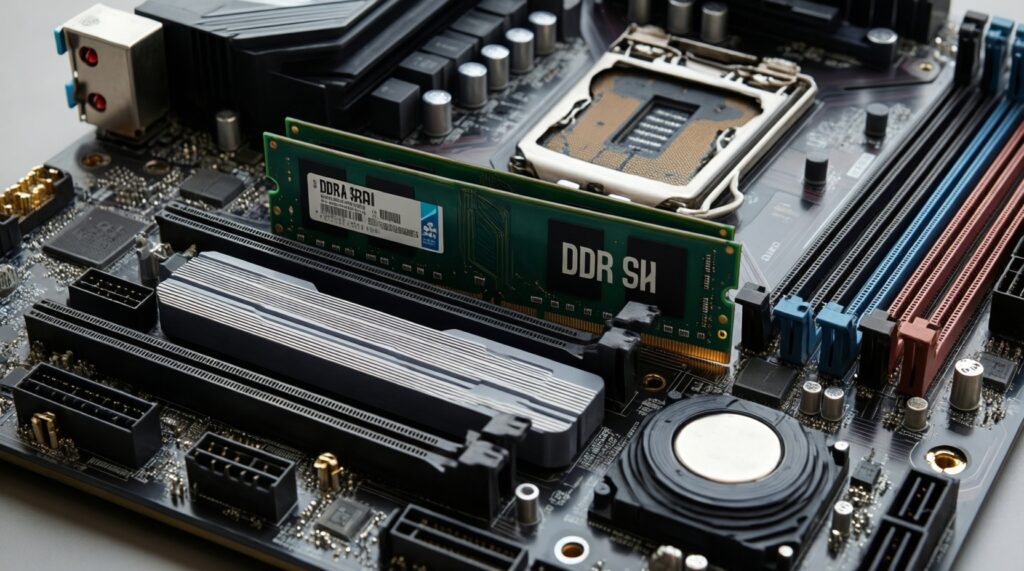
Only if the new motherboard uses the same RAM type. DDR4 and DDR5 slots are physically and electrically different, so you must match the board.
Why won't my PC boot after enabling XMP/EXPO?
Clear CMOS, boot at defaults, then try a lower memory profile/speed. Four sticks, mixed kits, or older BIOS versions commonly reduce the maximum stable settings.
Should I choose 3200, 3600, or 6000 MHz RAM?
Choose the speed your CPU+motherboard is known to run reliably; 3200-3600 is often practical for many DDR4 builds, while DDR5 should follow your platform's stable sweet spot. If you must pick between "higher MHz but unstable" and "slightly lower but stable," choose stable.