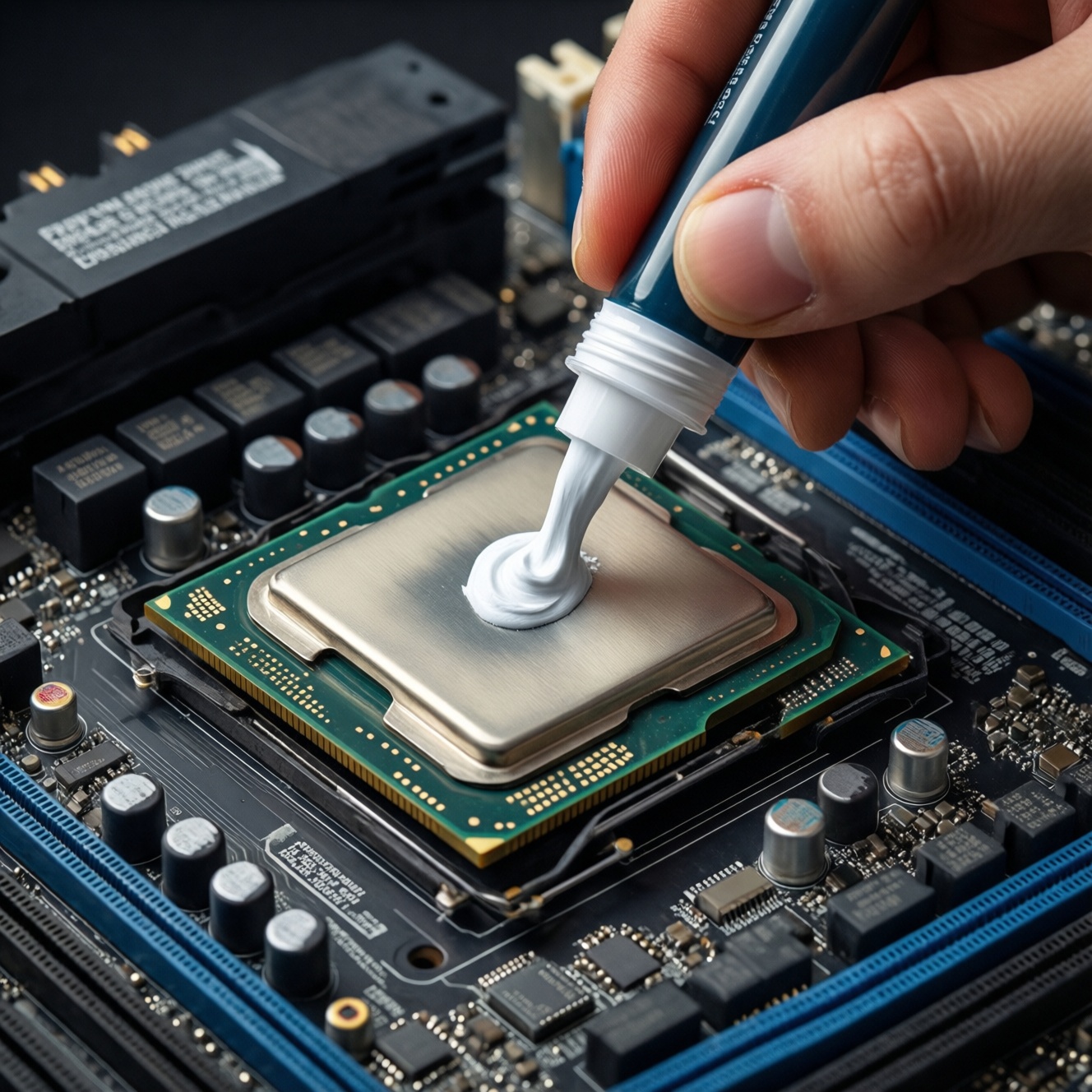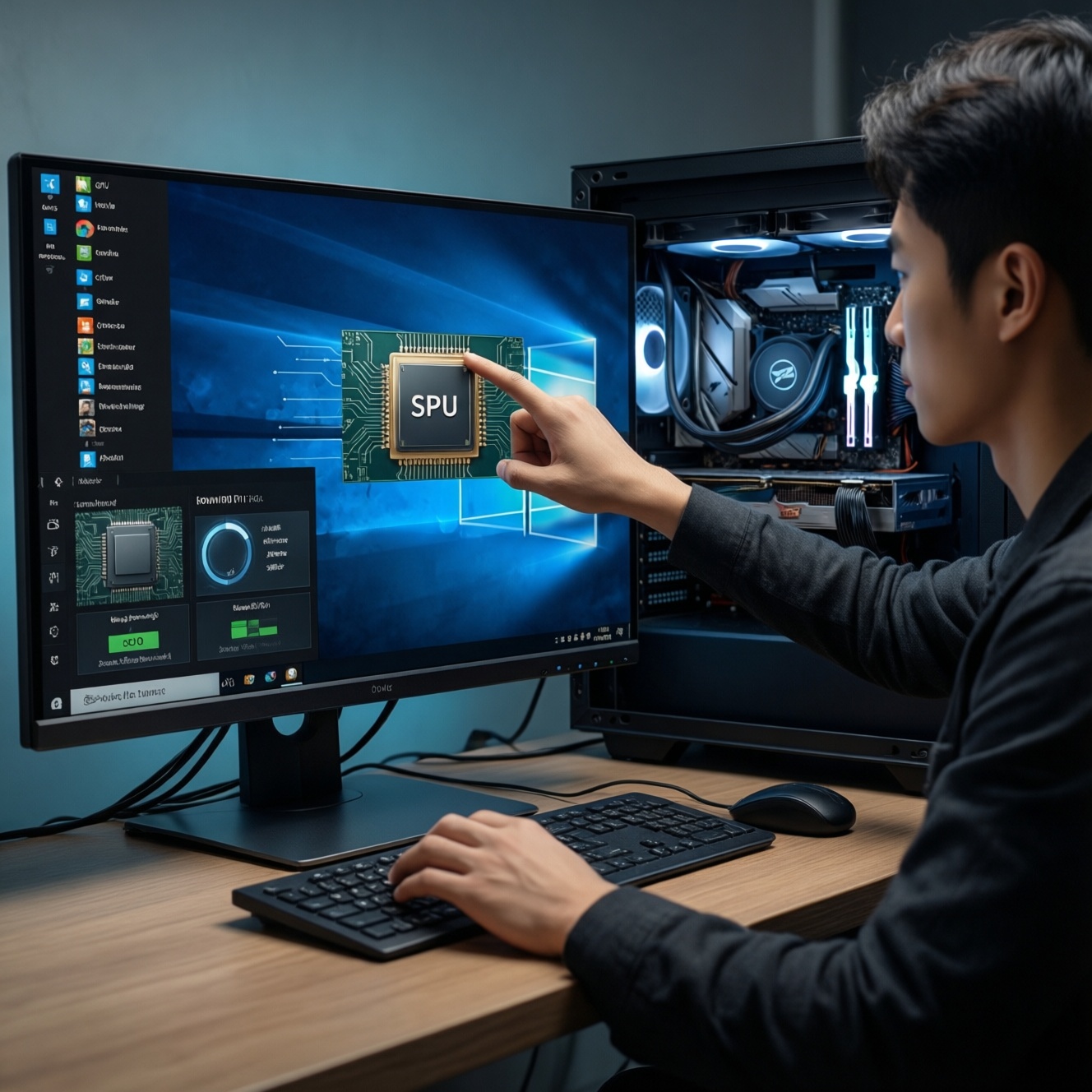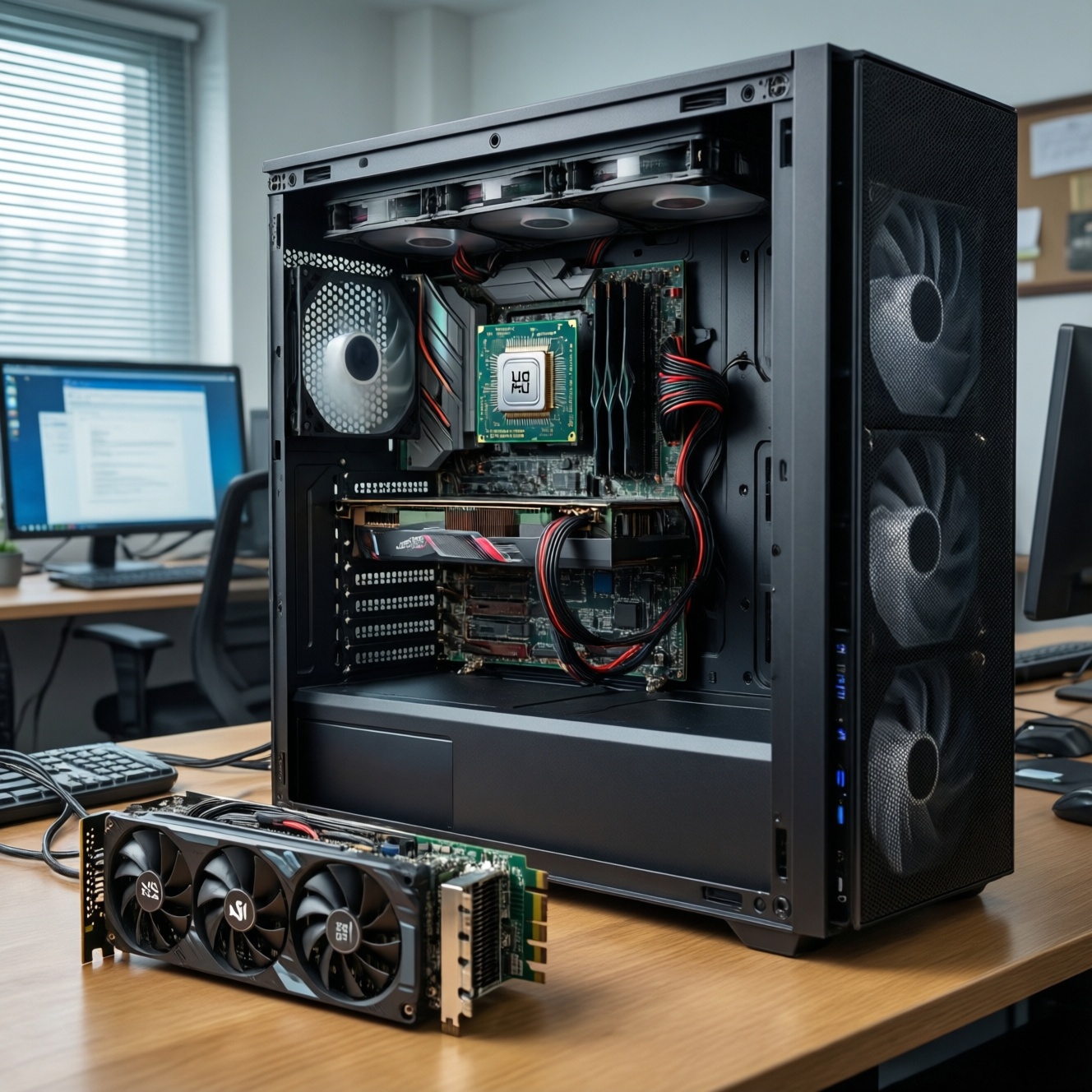
A CPU with integrated graphics (iGPU) is often the smarter baseline for a first PC because it lets you boot, troubleshoot, and work without a discrete GPU. It is ideal for office apps, light creative work, and as an emergency fallback when your graphics card fails, while accepting clear limits for modern gaming and heavy rendering.
Why a CPU with integrated graphics can be the smarter baseline
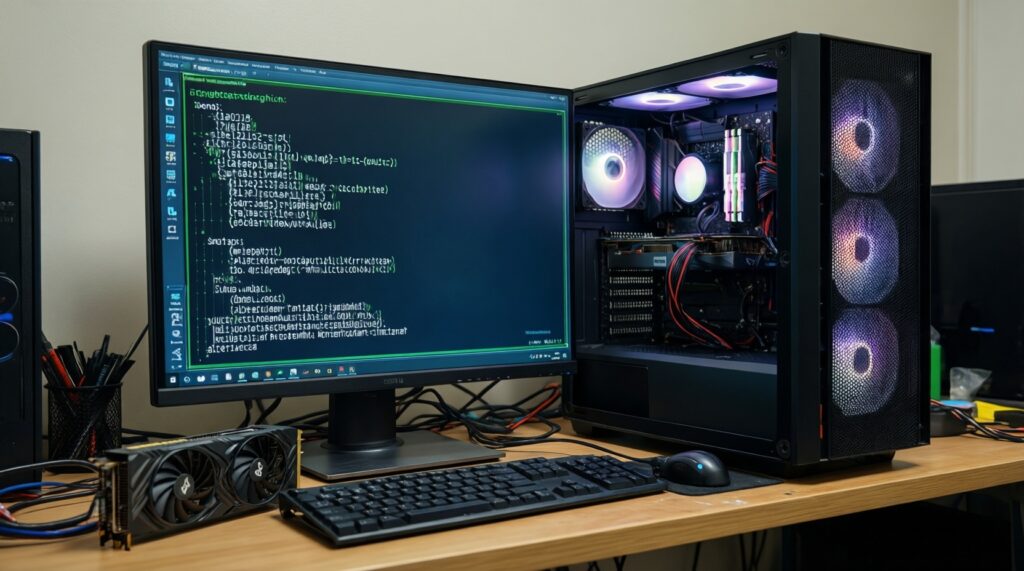
- You can complete a build and install the OS even before buying a discrete GPU.
- Faster fault isolation when the PC shows no display or the GPU behaves unpredictably.
- Lower risk downtime: you can keep working while waiting for warranty/repair.
- Simpler first-time setup and BIOS access without swapping parts.
- Useful for a secondary monitor, remote management, and low-power tasks.
How integrated GPUs work and what to expect in real tasks
An iGPU is a graphics processor inside the CPU package that uses system RAM instead of dedicated VRAM. For many beginners asking "CPU มี iGPU ดีไหม", the practical answer is: yes, if your goals are dependable display output, smooth desktop use, video playback, and basic creation tools-plus a safety net when hardware misbehaves.
Good fits:
- General productivity, browsing with many tabs, office suites, online learning.
- Media playback and streaming, multi-monitor setups (within motherboard output limits).
- Light photo editing, basic timeline work, and occasional casual/older games.
Not the right choice as your only graphics when:
- You target modern AAA gaming at higher settings/resolutions.
- You rely on GPU-heavy effects, 3D rendering, or long video exports.
- You need specific pro GPU features/certifications tied to discrete cards.
Performance limits: gaming, video work, and everyday apps
Before you decide on "CPU iGPU รุ่นไหนดี 2026", be clear about constraints: iGPUs share memory bandwidth with the CPU, so performance depends heavily on RAM capacity, dual-channel configuration, and driver quality. Expect desktop apps to be fine; expect games and GPU-accelerated effects to be the first place you feel limits.
What you'll want ready (tools/access):
- Access to your motherboard BIOS/UEFI (keyboard connected, wired if possible).
- Correct display cable for your monitor and motherboard port (HDMI/DisplayPort).
- Latest chipset and graphics drivers from the CPU vendor and/or motherboard vendor.
- Windows Device Manager access (or your OS equivalent) to confirm which GPU is active.
- Dual-channel RAM configured (matched sticks) to avoid common iGPU bottlenecks.
| Option | Best for | Main limits | Troubleshooting value | Typical cost direction (TH context) |
|---|---|---|---|---|
| iGPU only | Baseline builds, office/media, emergency display output | Lower 3D performance; shares system RAM | Highest (always available if CPU+board support it) | Lower overall; "ซีพียูมีการ์ดจอในตัว ราคา" can be attractive because you skip a GPU at first |
| Discrete GPU only | Gaming, rendering, heavy creative work | No fallback if GPU fails; higher power/heat | Lower (a failure can mean no display) | Higher overall due to GPU purchase |
| Hybrid (iGPU + discrete GPU) | Most flexible: performance plus backup | More settings complexity; must manage ports/drivers | High (you can switch to iGPU for diagnosis) | Mid-to-high (you pay for GPU, but gain resilience) |
Choosing the right CPU/iGPU combo for a beginner build
If you want "แนะนำ CPU มี iGPU สำหรับมือใหม่", treat the iGPU as a stability feature first, performance feature second. Use this prep checklist and then follow the steps to avoid common compatibility traps.
Prep checklist before you choose parts
- Confirm the CPU model you're considering actually includes an iGPU (some variants do not).
- Check the motherboard video outputs you need (HDMI vs DisplayPort) and your monitor inputs.
- Plan for dual-channel RAM (two sticks) and ensure the board supports your memory generation.
- Decide if you will add a discrete GPU later; if yes, ensure the PSU and case will support it.
- Verify your workflow requirements (apps that benefit from GPU acceleration, display count, resolution).
-
Pick the platform with an iGPU you can actually use
Make sure the CPU has an enabled iGPU and the motherboard has physical display outputs; an iGPU alone can't help if the board has no ports. This is the most common "it should work but doesn't" mistake.
- Expected result: you can connect the monitor to the motherboard and get BIOS display.
-
Prioritize memory configuration for iGPU stability
Choose two matched RAM sticks and run them in the recommended slots for dual-channel mode. iGPU performance and smoothness are highly sensitive to memory bandwidth and stability.
- Expected result: fewer stutters in UI, better consistency in light games, fewer random display glitches.
-
Plan your display path (ports, cables, and monitor settings)
Match the motherboard output to your monitor input with a known-good cable. Avoid stacking adapters unless necessary, and set the monitor to the correct input source.
- Expected result: a clean signal at boot without flicker or "No Signal".
-
Install chipset + graphics drivers in a clean, predictable order
After OS install, apply motherboard chipset drivers first, then iGPU drivers from the CPU vendor (or board vendor if required). Reboot when prompted so the display stack initializes correctly.
- Expected result: the iGPU appears correctly in Device Manager and resolutions/refresh rates become available.
-
Decide how you'll expand later (hybrid path)
If you'll add a discrete GPU, keep the iGPU enabled where possible so you have a fallback. This helps when "การ์ดจอเสีย ใช้ iGPU ได้ไหม" becomes a real-world emergency question.
- Expected result: switching the monitor cable to the motherboard restores display for troubleshooting.
Immediate diagnostics when your discrete GPU stops working
- Power off, unplug AC, wait briefly, then reseat the monitor cable into the motherboard video output (not the GPU).
- Confirm the monitor is set to the correct input source (HDMI/DP) that matches the new cable.
- Boot and enter BIOS/UEFI; look for iGPU/Integrated Graphics or Primary Display settings.
- In BIOS, set the primary display to iGPU/IGD (wording varies), save, and reboot.
- In the OS, open Device Manager and confirm the integrated graphics device is present and enabled.
- Check Windows display settings: ensure the active display is detected and the resolution is reasonable.
- If the system still won't show an image, try another cable/port (HDMI vs DP) on the motherboard.
- Remove the discrete GPU (only if you are comfortable and the PC is fully powered off) to rule out a short or seating issue.
Temporary workarounds using the iGPU: settings, cables, and drivers
- Connecting the monitor to the GPU outputs while expecting the iGPU to work; iGPU requires using the motherboard display ports.
- Leaving the BIOS primary display on PCIe/PEG so the PC keeps trying the dead discrete GPU first.
- Using passive adapters that don't support your monitor's resolution/refresh rate; test with a direct cable where possible.
- Mixing old GPU drivers after swapping from discrete GPU to iGPU; remove/clean problematic drivers, then reinstall the iGPU driver.
- Assuming any CPU includes graphics; verify the exact SKU before buying, especially when comparing "CPU iGPU รุ่นไหนดี 2026".
- Running single-stick RAM and blaming the iGPU; add a second matched stick and enable the correct slots.
- Forgetting to reconnect CPU power/PCIe power after moving parts; double-check all internal power connectors.
- Trying to troubleshoot instability while overclocking; return BIOS settings to default to stabilize the graphics path.
Configuring BIOS/OS so the iGPU kicks in reliably
-
Set Primary Display to iGPU/IGD in BIOS
Use this when you want guaranteed fallback behavior or you frequently troubleshoot hardware. It prioritizes motherboard video output at boot.
-
Enable iGPU Multi-Monitor (keep iGPU active alongside discrete GPU)
Use this for a hybrid setup so the iGPU stays available even when a discrete GPU is installed. It can simplify diagnostics and supports extra displays (within platform limits).
-
Use discrete GPU as primary, but keep a known-good iGPU cable ready
Use this if you prefer maximum performance day-to-day but still want a fast recovery path. Keep a spare cable connected or easily accessible for quick switching.
-
OS-level driver discipline (separate, updated drivers)
Use this when you see flicker, sleep/wake problems, or missing resolutions. Keep chipset and graphics drivers current and avoid stacking conflicting driver packages.
Practical questions about relying on an iGPU-equipped CPU
CPU มี iGPU ดีไหม for a first-time builder in Thailand?
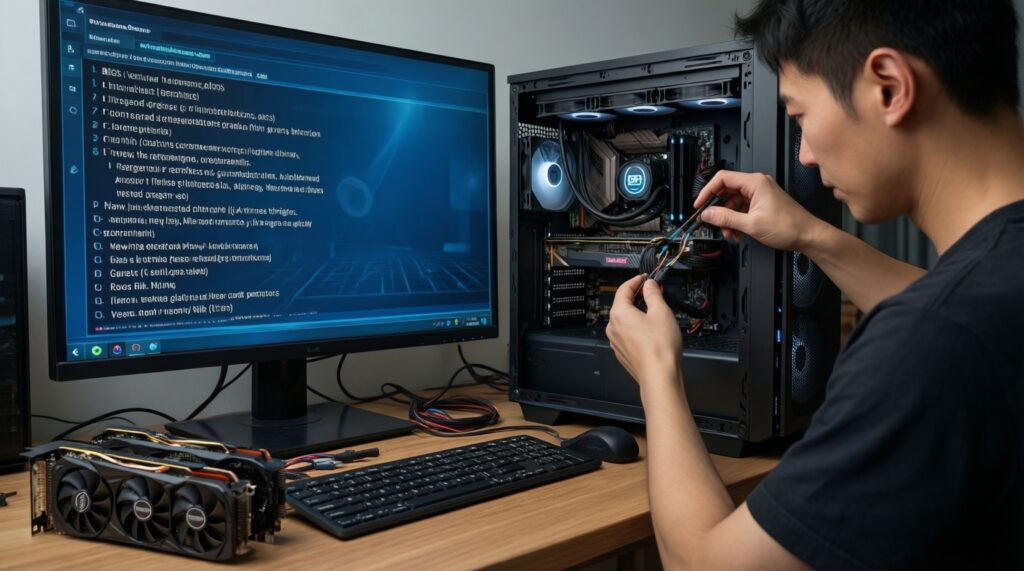
Yes, because it reduces the chance of a dead-end build with no display and helps you complete OS setup and troubleshooting without extra hardware. It's especially practical if you plan to add a GPU later.
How do I know if my CPU actually has an iGPU?
Check the exact CPU SKU on the manufacturer's spec page and confirm it lists integrated graphics. Also ensure your motherboard has video outputs; the iGPU needs those ports to be usable.
CPU iGPU รุ่นไหนดี 2026: what should I compare first?
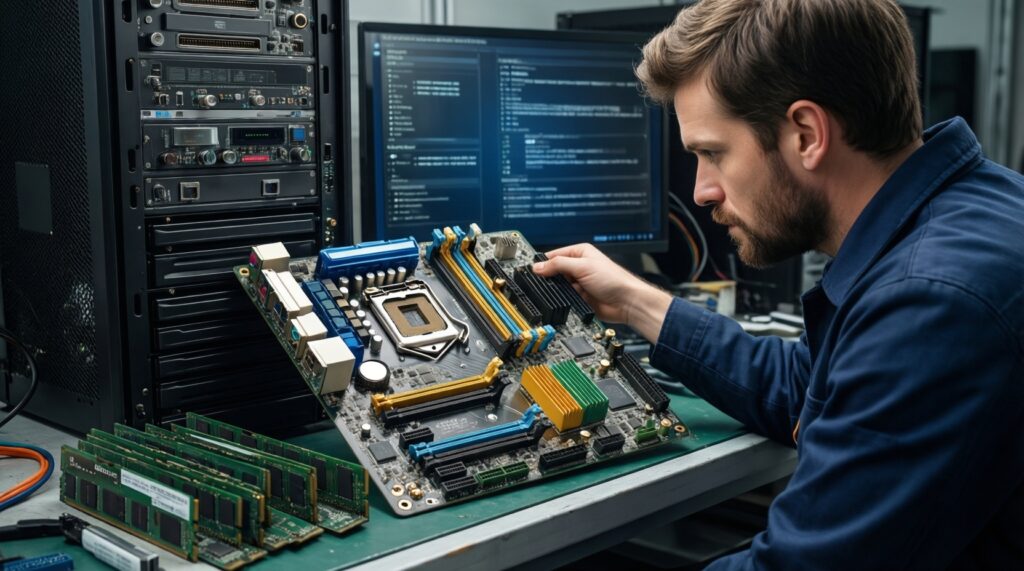
Start with platform compatibility (motherboard socket/chipset), then RAM support and display outputs, then driver maturity. For most users, stability and supported features matter more than small performance differences.
Is "ซีพียูมีการ์ดจอในตัว ราคา" always cheaper overall?
Often it's cheaper upfront because you can postpone buying a discrete GPU. Total cost depends on whether you later add a GPU and whether you choose higher-end RAM or storage to match your needs.
แนะนำ CPU มี iGPU สำหรับมือใหม่: should I still buy a discrete GPU later?
Buy a discrete GPU later if your apps or games demand it. Keep the iGPU as a backup and for troubleshooting even after you upgrade.
การ์ดจอเสีย ใช้ iGPU ได้ไหม in an emergency?
Usually yes if your CPU has an iGPU, the motherboard provides video outputs, and the iGPU is enabled in BIOS. Move the monitor cable to the motherboard port and set the primary display to iGPU/IGD if needed.