Unexpected shutdowns or spontaneous reboots usually come from three buckets: heat (CPU/GPU/VRM), unstable power (PSU/cables/wall power), or memory instability (RAM/IMC/XMP). Start with read-only evidence (logs, sensors, reproducible triggers), then run quick, low-risk checks before swapping parts. Escalate only after you can consistently reproduce and record conditions.
Symptom-first summary: prioritize observed failures
- Instant power-off (no blue screen): suspect PSU, motherboard protection, or short; verify logs show "unexpected power loss."
- Reboot under load (games/render): suspect PSU transient response, GPU power, or thermals; reproduce with a controlled stress test.
- Reboot at idle/sleep wake: suspect drivers, BIOS power states, or marginal RAM stability.
- Blue screen then reboot: treat as software/driver or RAM until proven otherwise; capture the stop code/minidump.
- Only when hot room/dusty case: prioritize airflow, fan curves, heatsink mounting, and VRM temps.
Immediate symptom mapping: logs, LEDs and reproduction steps
- What you observe: full power cut vs reboot vs BSOD; any motherboard debug LEDs/beeps; fans spin-down pattern.
- Expected "good" signals: consistent reproduction trigger; system clock correct; no repeated disk/controller resets; no persistent debug LED for CPU/DRAM/VGA after reboot.
- Classify the failure mode. If the PC turns off as if the plug was pulled, prioritize power/board protections; if it reboots cleanly, prioritize OS logs and drivers.
- Windows: record the minimum evidence set (read-only).
- Event Viewer: Windows Logs → System around the time of failure (Kernel-Power, WHEA, BugCheck).
- Reliability Monitor: View reliability history to correlate app/driver installs with first occurrence.
- Linux: collect logs without changing state.
journalctl -b -1 -p err..alert(previous boot errors)dmesg -T | tail -200(recent kernel messages)
- Reproduce with a single-variable trigger. Examples: "only during GPU load," "only when waking from sleep," "only after 20-30 minutes," "only with a specific USB device."
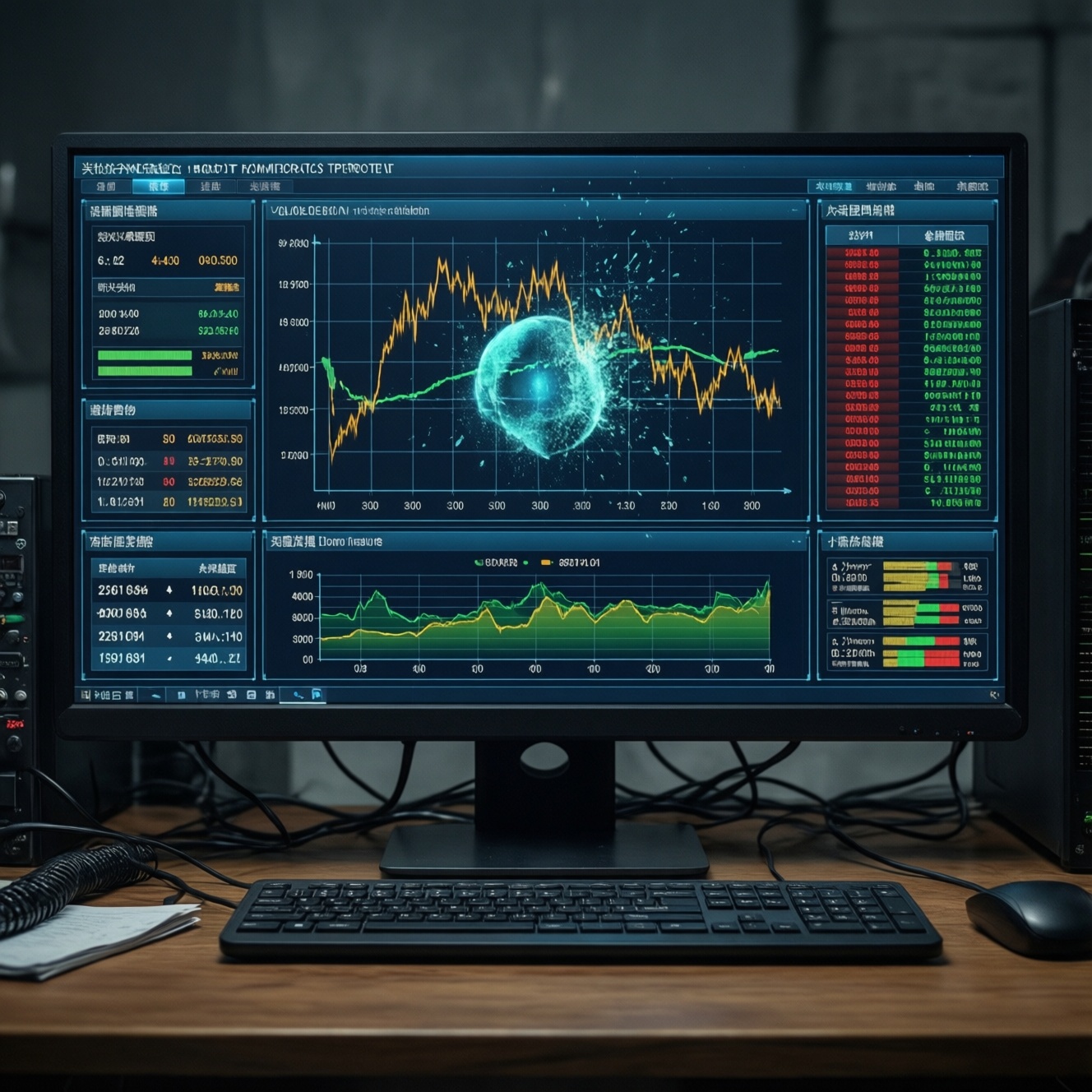
- Snapshot sensors at idle and just before failure (read-only). Use your preferred monitor (BIOS hardware monitor, HWiNFO, lm-sensors) and note: CPU/GPU clocks, whether any thermal throttling flags appear, and whether any voltage readings drop out or spike abnormally (as reported by the board).
- Document the exact configuration. BIOS version, RAM profile (JEDEC/XMP/EXPO), GPU model, PSU model, and any recent changes (new driver, new game, new cable, new power strip).
Thermal causes: from CPU throttling to VRM overheating
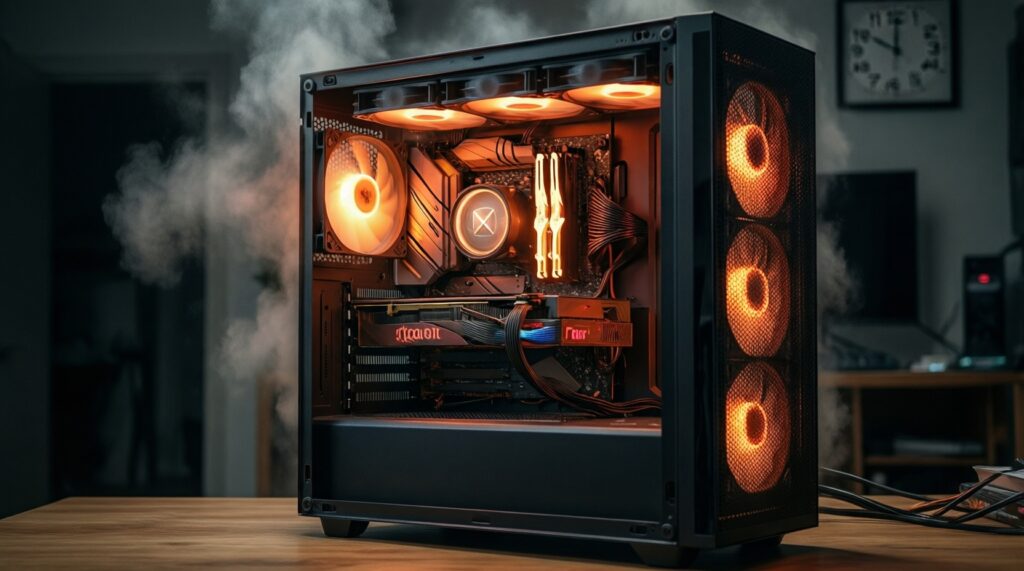
- What you observe: reboots after sustained load; fans ramp hard; clocks drop before failure; the case feels hot; crashes reduce when side panel is open.
- Expected "good" signals: no thermal throttling indicators under the same load; stable clocks; heatsink is firmly mounted; fans respond smoothly to temperature.
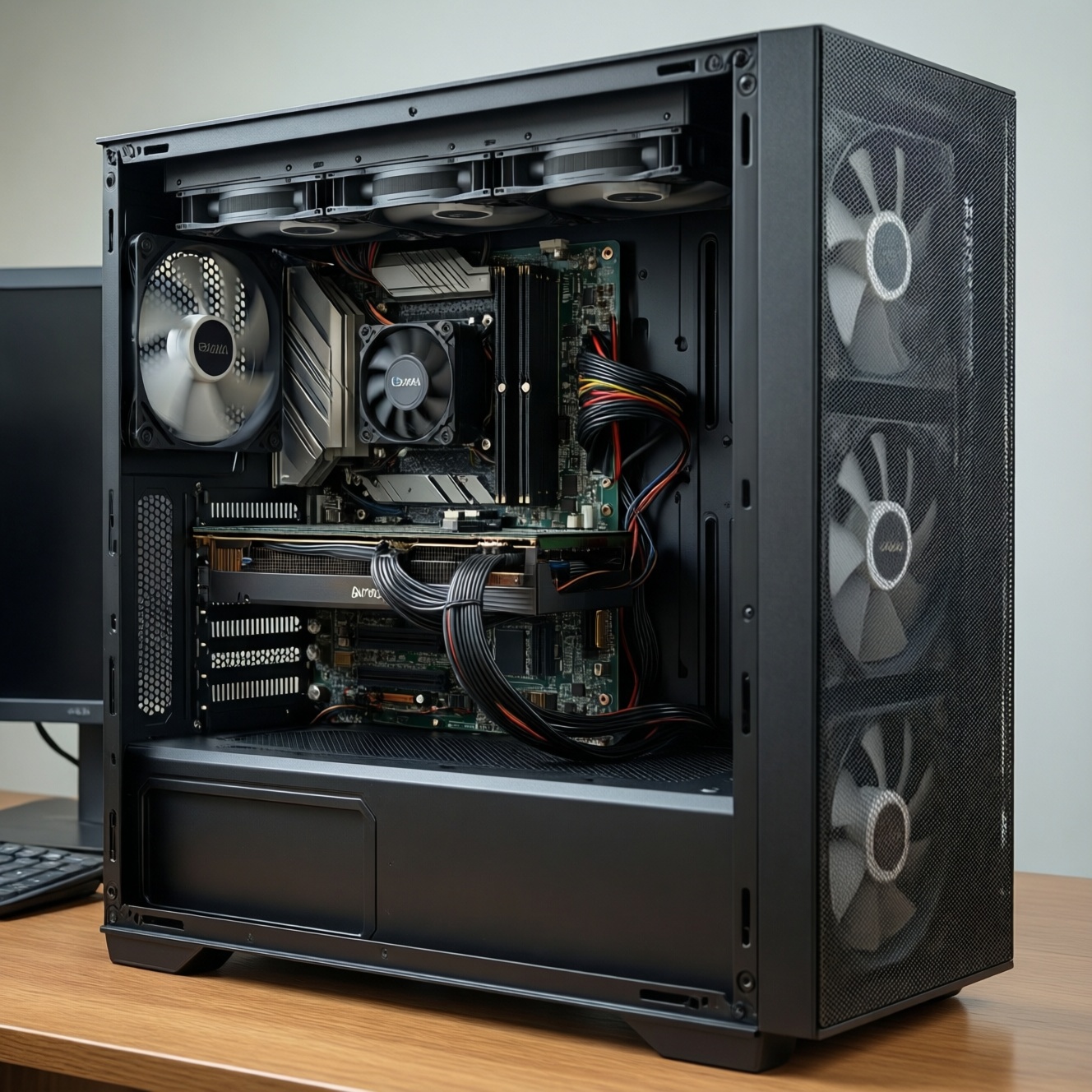
- Quick: Remove dust filters and clean accessible dust (without disassembling the cooler). Confirm all fans spin and ramp with temperature.
- Quick: Ensure the cooler is appropriate for the CPU and case airflow; many users end up needing to ซื้อซิงค์ CPU / ชุดน้ำระบายความร้อน when upgrading to higher-wattage CPUs or small cases.
- Quick: Check that front intake is not blocked (tight desk cavity, foam, plastic film). Cable-manage to avoid blocking the GPU intake.
- Quick: Verify fan direction: front/bottom intake, rear/top exhaust (typical), and confirm no "fighting fans."
- Moderate: Stress CPU-only and GPU-only separately to isolate heat source (run one load at a time, then both). If only combined load fails, suspect PSU/VRM/overall case heat.
- Moderate: Check motherboard VRM cooling: if VRM heatsinks are minimal and airflow is weak, add a case fan aimed at VRM area.
- Moderate: Inspect cooler mounting pressure and paste spread only if you are prepared to re-mount correctly; otherwise keep it read-only and focus on airflow and fan curves first.
- Invasive: Re-seat the CPU cooler and reapply thermal paste if you have clear signs of poor contact (rapid temperature spikes, uneven core temps, or a recently moved PC).
Power supply analysis: ripple, rails and load testing
- What you observe: instant power-off, black screen then reboot, failures during GPU spikes, random resets when a device starts (GPU boost, HDD spin-up).
- Expected "good" signals: stable operation under controlled load; no burning smell; all power connectors fully seated; no intermittent resets when wiggling a cable (do not do this while powered).
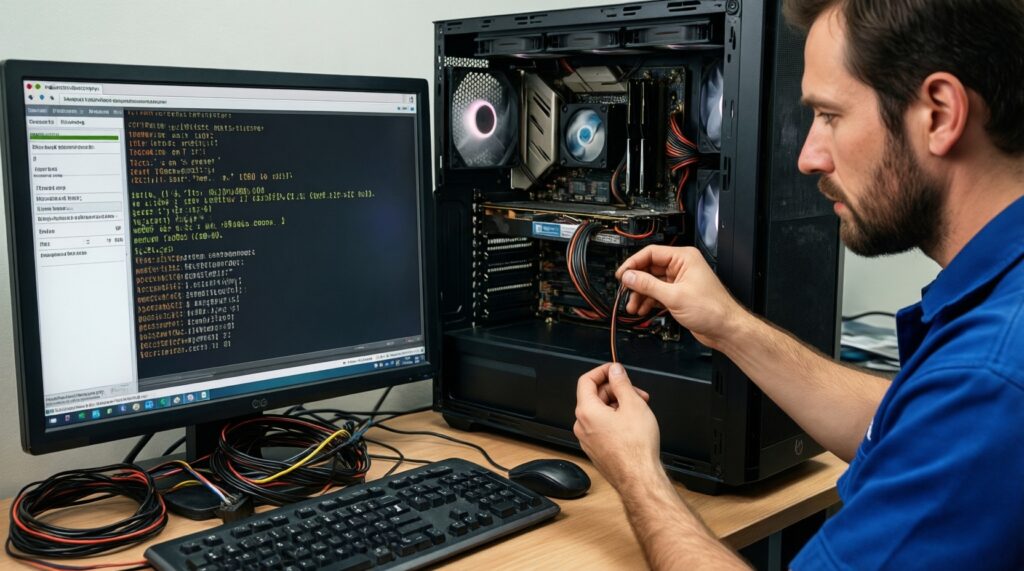
- Quick visual and connection checks (power off). Reseat 24-pin ATX, CPU EPS (4+4), GPU PCIe/12VHPWR, and ensure no partially latched connector. Inspect for heat discoloration on GPU power plugs.
- Quick isolation. Remove non-essential USB devices and extra drives; test with one monitor, one keyboard, wired network. If the issue disappears, add devices back one at a time.
- Moderate load test methodology. Reproduce with CPU-only load, then GPU-only load, then combined load. Power-related faults often appear on combined or GPU spike conditions.
- Moderate: interpret logs. "Unexpected shutdown" without BugCheck/WHEA often points to power loss. WHEA can be CPU/RAM, but also power instability under load.
- Invasive (recommended only if you know what you're doing): validate PSU quality and capacity by swapping to a known-good unit. When budgeting, people search เปลี่ยน PSU คอมพิวเตอร์ ราคา, but prioritize electrical quality and correct connectors over the cheapest option.
- Procurement sanity check. If buying new, ensure you ซื้อ PSU 80 Plus ของแท้ from an authorized channel, with proper warranty and correct cables (never mix modular cables between brands/models).
| Symptom | Likely causes | How to verify (fast → deeper) | Fix / next action |
|---|---|---|---|
| Instant power-off (no BSOD), returns immediately | PSU protection trip, short, loose ATX/EPS, wall power strip issue | Check Event Viewer shows unexpected power loss; reseat ATX/EPS; try direct wall outlet; minimal hardware boot | Replace suspect cables/strip; if reproducible across outlets and minimal config, swap PSU or board |
| Reboot under GPU load or at scene changes | PSU transient instability, GPU power connector overheating, marginal PSU for GPU spikes | GPU-only stress; inspect GPU power plug seating and heat marks; verify dedicated PCIe cables (not daisy-chained where inappropriate) | Re-cable correctly; reduce GPU power limit to confirm; swap PSU with known-good; address connector seating |
| Reboot only when CPU+GPU loaded together | Total system power/VRM/PSU margin, case heat soak | Run CPU-only then GPU-only (pass), combined (fail); check for thermal throttling flags and VRM airflow | Improve airflow/VRM cooling; verify PSU class and cabling; consider PSU upgrade |
| Random resets at idle/sleep wake | BIOS power states, drivers, marginal PSU at low load, USB devices | Disable fast startup; test clean boot; unplug USB hubs; review power-related events | Update BIOS/chipset; adjust sleep settings; remove problematic peripheral; if persists, test alternate PSU |
Memory faults: diagnostics, reseating and error signatures
- What you observe: BSODs with varying codes, app crashes, corrupted archives, reboots during compilation, failure after enabling XMP/EXPO.
- Expected "good" signals: stable memory tests; no WHEA memory-related errors; system stable at default JEDEC settings.
- Read-only triage: check whether recent memory settings changed. Note if XMP/EXPO was enabled, memory frequency/timings were tweaked, or a BIOS update occurred.
- Return to a known-stable baseline in BIOS. Load optimized defaults, disable XMP/EXPO temporarily, and test stability. This is a reversible change and usually the fastest signal.
- Reseat RAM (power off, unplug, discharge). Remove and reinsert modules firmly; clear dust in slots with safe methods (no metal tools).
- Single-stick isolation. Boot with one module in the recommended slot; rotate sticks to identify a bad module vs a bad slot or IMC sensitivity.
- Run a dedicated memory test. Use a reputable offline tester (bootable) or OS-level stress tool; record which test and whether errors appear quickly or only after time.
- Check stability at default before re-enabling XMP/EXPO. If default is stable but XMP fails, reduce aggressiveness (frequency/gear), or use a BIOS update that improves memory compatibility.
- Consider compatibility and upgrade costs. If you're weighing replacement, people often compare ซื้อ RAM DDR4 DDR5 ราคา, but for troubleshooting prioritize known-compatible kits from your motherboard QVL (when available) and stable defaults first.
- Last resort: increase diagnostic certainty via part swap. Test known-good RAM or test your RAM in another stable system to confirm the fault domain.
Supporting subsystems: motherboard, BIOS, drivers and peripherals
- What you observe: resets after driver updates, USB disconnect storms, storage timeouts, or only with a specific peripheral connected.
- Expected "good" signals: latest stable BIOS for your CPU generation, chipset drivers aligned with OS version, no repeated device resets in logs.
- BIOS/UEFI: Update to a stable release if you see memory compatibility notes or CPU microcode fixes; avoid beta unless you need a specific fix.
- Chipset and GPU drivers: Clean-install GPU driver if reboots correlate with graphics load or recent updates; install chipset drivers from the motherboard vendor/CPU platform.
- Storage and cabling: Reseat SATA/NVMe where possible; check logs for controller resets. Sudden reboots can be secondary to bus instability.
- Peripherals: Remove USB hubs, capture cards, and high-draw devices; test with a minimal set. Some faults look like "power" but are USB/controller crashes.
- When to escalate to a technician: If the system still power-cuts in a minimal configuration, if you smell overheating electronics, if connectors show heat damage, or if you cannot safely swap PSU/RAM. In Thailand, search ร้านซ่อมคอม คอมดับเอง รีสตาร์ทเอง and bring your evidence set (logs, reproduction steps, part list, photos of cabling).
Structured elimination plan: prioritized tests and decision table
- What you observe: repeated failures but unclear trigger; multiple changes made during troubleshooting.
- Expected "good" signals: one change at a time, consistent reproduction, and a written record that makes the next decision obvious.
- Freeze changes: stop installing new drivers/tools while diagnosing; document the current state (BIOS settings, driver versions, connected devices).
- Minimal hardware boot: CPU + cooler, one RAM stick, system drive, integrated graphics (if available). Add GPU and devices back only after stability.
- Separate loads: CPU-only → GPU-only → combined. Note exactly which stage triggers failure.
- Thermal-first if failures are time/heat dependent: improve airflow and fan curves before replacing parts.
- Power-first if failures are instant power cuts: reseat/recable, try another outlet, then swap PSU with a known-good unit.
- Memory-first if BSOD/WHEA/varied crashes: baseline defaults, single-stick tests, then memory diagnostics.
- Keep a one-page escalation record: failure mode, last 20 log lines (or key event IDs), exact reproduction steps, and what was changed between passes.
Typical edge cases and rapid workarounds
My PC reboots only when launching a game, but stress tests sometimes pass. Why?
Some games trigger rapid GPU power transients and driver paths that synthetic tests don't. Try a GPU-only load plus a real-game benchmark loop, then check GPU power connector seating and consider a known-good PSU swap.
Why does it shut down instantly and then boot fine right away, with no BSOD?
Treat it as power loss/protection until proven otherwise. Reseat ATX/EPS/GPU power, test a direct wall outlet, and reproduce in a minimal hardware configuration.
Why does it happen after enabling XMP/EXPO, but Windows logs look random?
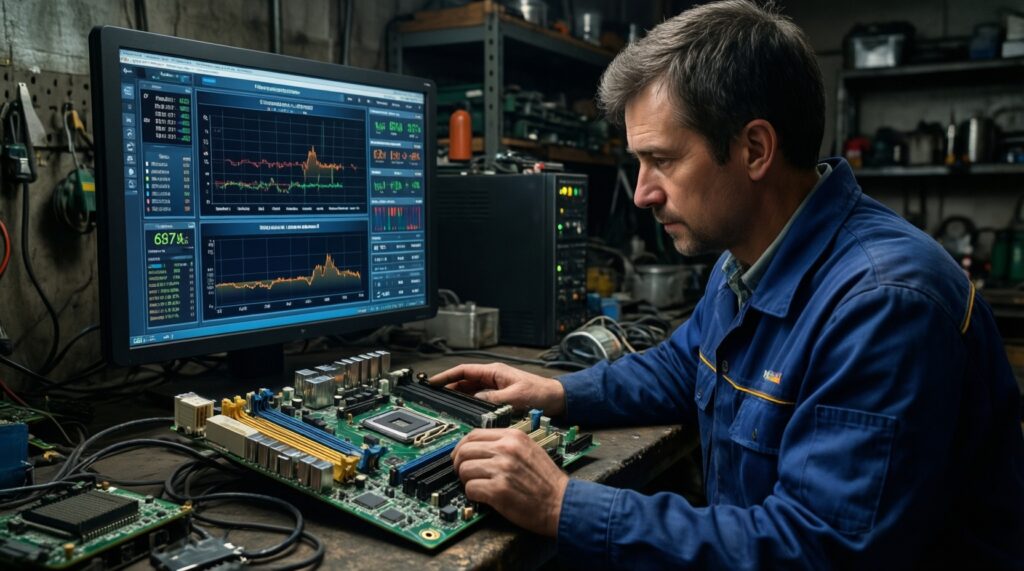
Disable XMP/EXPO and confirm stability at default settings first. If stable, reintroduce XMP/EXPO only after a BIOS update and/or less aggressive memory settings.
Why does it reboot mostly when waking from sleep?
Update BIOS and chipset drivers, then test with fast startup disabled and a clean boot. If it stops with peripherals unplugged, add USB devices back one by one.
My temperatures look fine, but it still reboots under load. What should I check next?
Look for thermal throttling flags, VRM overheating, and case heat soak rather than a single CPU temperature number. Improve VRM airflow and retest combined CPU+GPU load.
I replaced the PSU but the issue remained. What is the next most likely mistake?
Confirm modular cables match the exact PSU model (never reuse old modular cables). Then shift focus to RAM baseline stability and motherboard/VRM behavior under combined load.