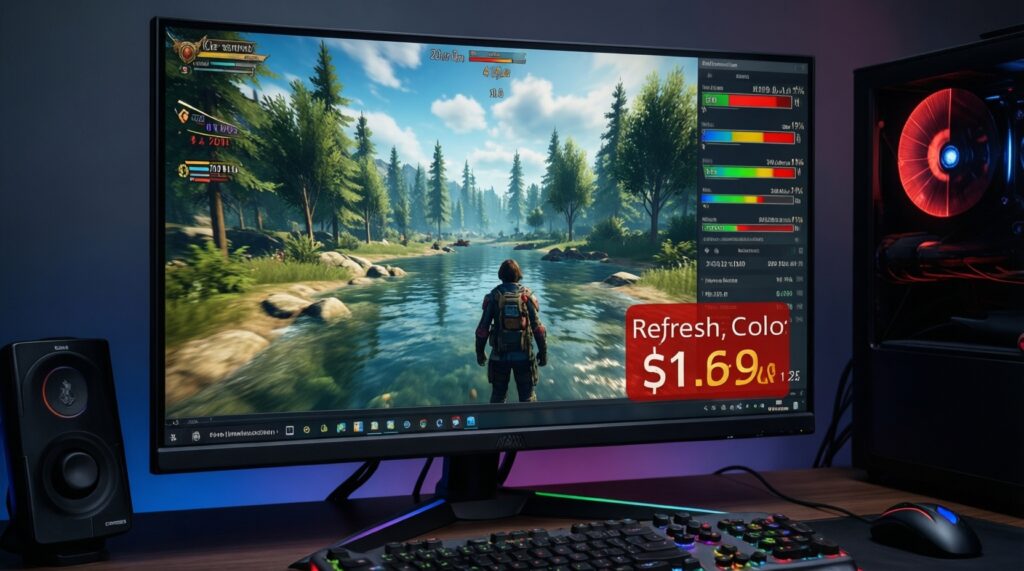
To pick a monitor that truly matches your PC spec, decide the target resolution (1080p/1440p/4K) and refresh rate first, then confirm color needs (panel type, gamut, calibration support) and finally verify ports/cables can actually deliver the mode you want (HDMI/DisplayPort, VRR). This prevents buying a screen your GPU cannot drive or your cable cannot feed.
Quick decision criteria before buying
- Choose resolution by workload: 1080p for highest FPS, 1440p for balanced clarity/FPS, 4K for workspace and detail.
- Set a refresh target you can sustain: 144Hz for general gaming smoothness; 240Hz only if you can keep high FPS in your main titles.
- For color work, prioritize IPS/accurate modes, wide gamut handling, and hardware/OS calibration support over marketing HDR labels.
- Verify bandwidth end-to-end (GPU port → cable → monitor port) before paying extra for HDMI 2.1/DP features.
- Check pixel density plus scaling comfort (especially on 27-32 inches) to avoid tiny UI or blurry scaling.
- Confirm VRR compatibility (FreeSync/G-SYNC Compatible) and whether it works over the port you will use.
Match resolution to GPU and use-case: 1080p, 1440p, 4K trade-offs
- Pick 1080p when you want the easiest path to high FPS, lower GPU load, and competitive play; it aligns well with searches like จอเกมมิ่ง 1080p 240hz แนะนำ if your priority is speed over pixel detail.
- Pick 1440p when you want a meaningful sharpness jump while keeping FPS realistic; this is the typical intent behind จอคอม 1440p 144hz ราคา.
- Pick 4K when you need maximum workspace/detail for editing, reading, and precise UI; it matches ซื้อจอ 4K สำหรับทำงานสี ราคา and จอคอม IPS 4K HDR ราคา, but it is the most demanding for gaming.
- Do not choose 4K for gaming if your GPU cannot maintain stable frame times at your preferred settings; you will end up lowering settings or relying heavily on upscaling.
- Do not choose 240Hz if your main games are GPU-heavy and you will not reach high FPS consistently; it can become an expensive spec you cannot use.
| Target | Best for | GPU load (relative) | Typical refresh pairing | Common gotcha |
|---|---|---|---|---|
| 1080p | Esports, high FPS, budget builds | Lowest | 144-240Hz | On larger screens, lower sharpness; UI may look less crisp than 1440p/4K. |
| 1440p | Balanced gaming plus work | Medium | 144-180Hz | Needs a stronger GPU than 1080p to keep high FPS at high settings. |
| 4K | Content creation, clarity, multi-window productivity | Highest | 60-144Hz | Port/cable bandwidth and scaling comfort become critical; gaming FPS drops fastest. |
Choosing the right refresh rate: responsiveness vs. GPU load
- Frame-rate reality check: know your typical FPS in your top 3 games at your usual settings (use any in-game benchmark or a repeatable test scene).
- VRR requirement: plan to use FreeSync or G-SYNC Compatible so dips below refresh do not feel as harsh.
- Connection plan: decide whether you will use HDMI or DisplayPort based on your GPU and monitor; this matters a lot when you search จอคอม 144hz รองรับ HDMI 2.1 DisplayPort ราคา.
- Cable readiness: have a known-good certified cable (DP for PC monitors; Ultra High Speed HDMI for HDMI 2.1 scenarios).
- OS settings access: ensure you can change refresh rate in Windows/macOS and in the GPU control panel.
- Time for tuning: budget 15-30 minutes to test overdrive/response-time presets and VRR behavior.
Color performance explained: panels, gamut, accuracy and HDR
Preparation checklist before you judge color
- Set the monitor to its default or Standard/sRGB preset (avoid Vivid modes).
- Warm up the panel for consistent output before judging.
- Disable dynamic contrast and aggressive HDR effect modes for SDR work.
- Have at least two references ready: a familiar photo set and a neutral gray/white UI.
- Ensure your signal path is correct: RGB Full range (PC) when available, not limited TV range.
-
Choose panel type based on the job
For color consistency and viewing angles, IPS is usually the safest pick for mixed work. VA can give deeper native contrast but may show dark smearing in motion; TN is typically chosen for speed-first esports.
-
Lock your working color space (sRGB vs wide gamut)
If you mostly create for web and general use, an sRGB mode reduces oversaturation. If you do print/video work, wide gamut can help, but only if your apps and workflow are color-managed.
- Prefer monitors with a usable sRGB clamp mode if you also want wide gamut capability.
- Be cautious: wide gamut without proper color management makes reds/greens look too intense.
-
Set a sane SDR baseline (brightness, white point)
Adjust brightness to a comfortable level for your room, then set color temperature to a neutral preset (often 6500K/Warm/Normal). Do not chase maximum brightness for accuracy work.
-
Validate gradients and skin tones using real content
Look for banding in skies/gradients and unnatural skin tones. If gradients band heavily, check whether the monitor is running in the intended bit depth mode and whether GPU output settings are correct.
-
Treat HDR as a separate mode with strict requirements
For real HDR impact, you need proper HDR handling in the OS, compatible apps, and a monitor that can tone-map well; a simple HDR badge is not enough. If you are shopping จอคอม IPS 4K HDR ราคา, verify HDR behavior in reviews and test it with known HDR clips after purchase.
-
Calibrate if color matters to your deliverables
If clients or print/video accuracy matters, use a hardware calibrator and generate an ICC profile. If you do not have a calibrator, rely on sRGB mode plus conservative settings and avoid enhancement features.
Ports, cables and adaptive sync: ensuring compatibility
- Confirm the monitor max resolution/refresh is available on the exact port you will use (HDMI port 1 vs 2 can differ).
- Match bandwidth to the mode:
- HDMI 2.0 is up to 18 Gbps; HDMI 2.1 is up to 48 Gbps.
- DisplayPort 1.4 is up to 32.4 Gbps raw link rate (commonly used for high refresh and higher resolutions).
- Use the right cable type and quality: certified DP cable for high refresh; Ultra High Speed HDMI for HDMI 2.1.
- In the GPU control panel, confirm the selected refresh rate is the advertised target (not stuck at 60Hz).
- Verify chroma and range: prefer RGB Full for PC monitors; avoid unintended YCbCr/limited range unless required.
- Enable VRR in both the monitor OSD and the GPU driver; then confirm VRR actually engages in supported games.
- Check for HDMI 2.1/DP feature claims vs reality: จอคอม 144hz รองรับ HDMI 2.1 DisplayPort ราคา searches often reveal models where only one port supports the highest mode.
- If you see flicker with VRR, test another cable/port and try lowering overdrive; some combos are more stable than others.
Scaling, UI and text clarity across resolutions and sizes
- Buying 4K without planning scaling: at typical desk distances, you will likely need OS scaling; inconsistent app scaling can look blurry.
- Assuming bigger equals better for sharpness: larger screens at the same resolution reduce pixel density and text crispness.
- Mixing multiple monitors with different scaling: dragging windows across screens can cause UI size jumps and occasional blur in non-DPI-aware apps.
- Using the wrong cable/port and blaming text: a fallback mode (lower refresh, different chroma) can make text look worse than it should.
- Overusing sharpness controls: high sharpness adds halos and makes fonts look noisy; keep it near neutral.
- Relying on HDR mode for desktop: HDR-on desktop can wash out SDR apps unless you tune SDR brightness in HDR settings.
- Ignoring subpixel layout issues: some panels (and rotations) can reduce text clarity depending on OS font rendering.
Practical checklist: tests, calibration and real-world validation
- If you cannot hit target FPS: choose 1440p 144Hz instead of 4K high refresh; it is often the most forgiving balance (the mindset behind จอคอม 1440p 144hz ราคา).
- If color is the priority but budget is fixed: pick an IPS with a strong sRGB mode and good uniformity controls; skip paying for headline refresh you will not use (typical for ซื้อจอ 4K สำหรับทำงานสี ราคา).
- If you want 240Hz feel without 240Hz cost: choose 144-180Hz with stable VRR and good response tuning; many setups benefit more from consistency than peak Hz (reframe จอเกมมิ่ง 1080p 240hz แนะนำ into realistic FPS goals).
- If ports are the bottleneck: prioritize a model with the right ports for your GPU (DP 1.4 and/or HDMI 2.1) and budget for proper cables; this is often the hidden issue in จอคอม 144hz รองรับ HDMI 2.1 DisplayPort ราคา.
Common purchase obstacles and precise fixes
I bought a 144Hz monitor but Windows only shows 60Hz. What should I do?
Switch to the correct input/port, then set the refresh rate in OS display settings and the GPU control panel. Replace the cable with a certified DP or Ultra High Speed HDMI if the mode still does not appear.
VRR (FreeSync/G-SYNC Compatible) is enabled, but why do I see flicker?
Try a different port/cable, lower overdrive, and cap FPS slightly below max refresh. Some VRR flicker is game-dependent; confirm behavior in multiple titles.
Why does 4K text look too small or blurry after scaling?
Adjust OS scaling to a comfortable level and prefer apps that are DPI-aware. Avoid forcing non-native resolutions; keep the monitor at native 4K and scale in the OS instead.
Why do colors look oversaturated on my new wide-gamut monitor?
Enable the monitor sRGB mode for general desktop/web use. Use color-managed apps for wide-gamut workflows and consider calibration with an ICC profile.
Why does HDR look washed out on the desktop?
Use SDR mode for everyday work and only enable HDR for HDR content/games. If you must keep HDR on, tune the OS SDR brightness setting and disable dynamic contrast features.
My HDMI 2.1 monitor will not run the advertised mode on my laptop/PC. How do I fix it?
Confirm your GPU output actually supports HDMI 2.1 and that you are using the specific HDMI port that supports the top mode. Use an Ultra High Speed HDMI cable; otherwise you may fall back to a lower bandwidth mode.