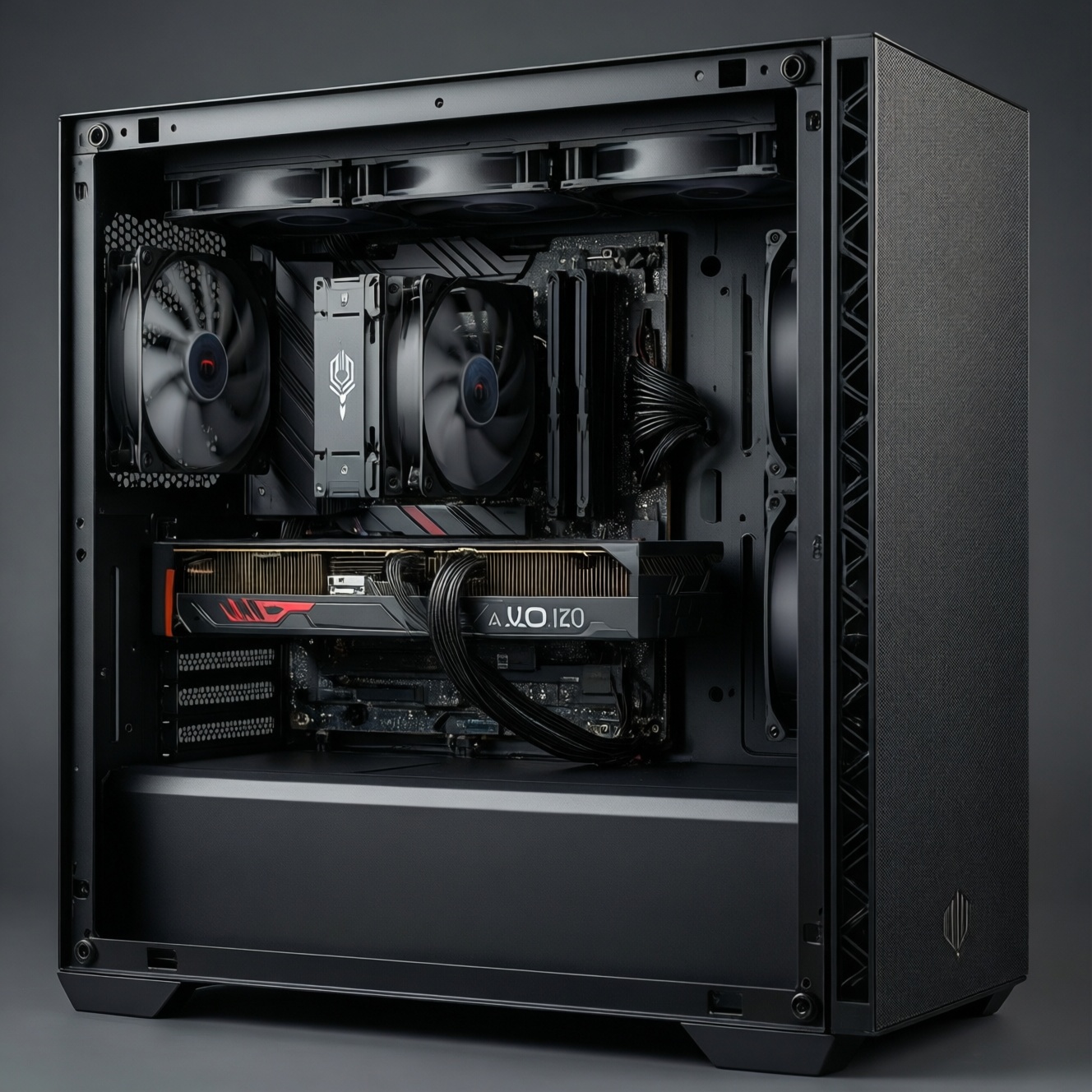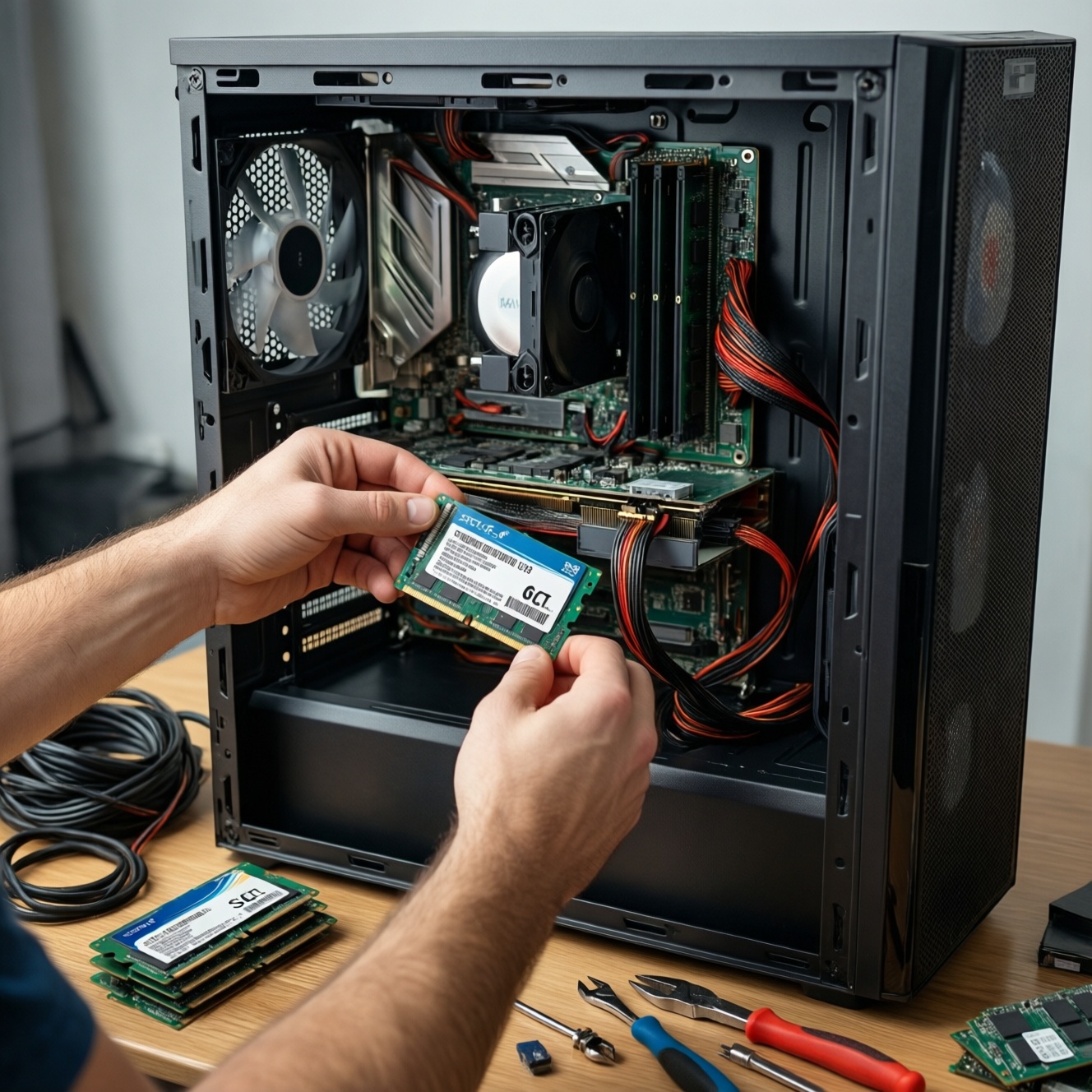
To upgrade a PC cost-effectively, start with the part that removes the biggest daily bottleneck: typically an SSD, then RAM, then GPU (for games/creation), and CPU last (only when the platform is holding you back). This guide shows safe, practical steps to choose what to swap first and how to verify the improvement.
Upgrades that deliver the fastest, most noticeable gains
- SSD first when your system feels slow in boot, app launches, file search, and updates.
- RAM next if you see heavy paging (disk activity spikes) while multitasking, browsing, or editing.
- GPU when FPS, render previews, AI filters, or timeline playback are the pain point.
- CPU when GPU usage is low in games, compile/export times dominate, or you're capped by platform limits.
- Verify each upgrade with before/after checks (boot time, app load, FPS consistency, export duration).
Why an SSD often transforms everyday performance first
If you're planning to อัปเกรดคอมพิวเตอร์ for the biggest "feel it immediately" gain, an SSD is usually the first move because it removes storage latency from nearly everything you do. It helps most for office work, browsing, Windows updates, launching games, and opening large projects.
Who benefits most
- PCs still using a hard drive (HDD) as the system drive.
- Laptops/desktops where apps "hang" during loading and the disk light stays busy.
- Creators who load large libraries (photos, samples, caches) and switch between tools often.
When an SSD is not the right first upgrade
- Your PC already has a healthy SSD for the OS/apps and is still slow under load (likely RAM/CPU/GPU bound).
- Your workload is mostly GPU-limited (high settings gaming, heavy 3D, AI) and storage isn't the bottleneck.
- You cannot safely reinstall/clone yet (no backup plan). In that case, fix backup first.
Practical note for ซื้อ SSD สำหรับคอมพิวเตอร์: confirm your motherboard supports the SSD type (2.5" SATA vs M.2 SATA vs M.2 NVMe) and that you have mounting screws/cables available before ordering.
How to decide when and how much RAM to add
RAM upgrades pay off when your system runs out of memory and starts using the drive as overflow (paging). That causes stutter, browser tab reloads, and slow app switching-even with a fast SSD.
What you need before buying
- Access to your system specs: installed RAM size, speed, DDR generation (DDR4/DDR5), and how many slots are free.
- Permission/tools: a screwdriver for the case/laptop bottom panel; admin access to check system info.
- Compatibility check: motherboard/laptop maximum RAM support and supported speeds (XMP/EXPO if applicable).
- Static safety: a clean workspace; power off and unplug; discharge residual power; avoid carpeted surfaces.
Decision signals that RAM is the bottleneck
- Task Manager (or Activity Monitor equivalents) shows memory near full during your normal workload.
- Disk usage spikes while apps are open (paging), especially when switching tasks.
- Games stutter when entering new areas despite stable GPU temperatures and drivers.
Buying guidance without guesswork
- Prefer matched modules (same capacity/speed/timings) to reduce instability.
- Prioritize dual-channel (two sticks) where supported; it often improves responsiveness and some game performance.
- Don't overpay for speed if your platform won't run it; stability beats headline MHz.
If you're comparing เพิ่ม RAM คอมพิวเตอร์ ราคา, focus on total capacity you can actually use, dual-channel balance, and return policy-small price gaps matter less than compatibility and stability.
Quick comparison: what to upgrade first
| Upgrade | Typical cost level | Noticeable impact | Best for | Check before you buy |
|---|---|---|---|---|
| SSD | Low-Medium | Very high for everyday use (boot/app/file tasks) | General use, older PCs, faster loading | Interface (SATA/NVMe), capacity needs, backup/clone plan |
| RAM | Low-Medium | High when paging occurs; moderate otherwise | Multitasking, browsers, editing, some games | DDR generation, slots, max supported, module matching |
| GPU | Medium-High | High for FPS/rendering; low for office work | Gaming, 3D, video effects, AI features | PSU wattage/connectors, case clearance, PCIe slot, display outputs |
| CPU | Medium-High | High in CPU-bound tasks; depends on platform | Compiling, heavy exports, high-FPS esports, simulation | Socket/chipset support, BIOS update, cooler capacity, RAM compatibility |
GPU upgrades: measurable benefits for gaming and creative work
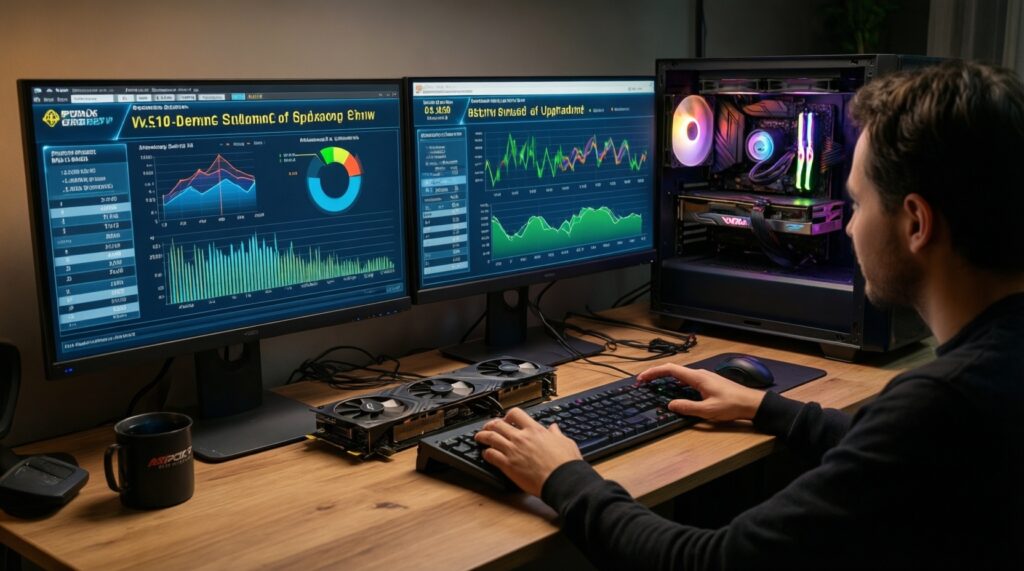
A GPU upgrade is the most direct way to raise game performance and accelerate many creative workflows. If you're asking การ์ดจอ (GPU) รุ่นไหนดี น่าใช้, start by defining your target resolution/settings and the apps you rely on, then validate power, space, and driver support.
-
Confirm you're actually GPU-limited
In a demanding game/scene, watch utilization: if the GPU is near full load while the CPU is not, a GPU upgrade will help. If the GPU sits low while FPS is low, the bottleneck is likely CPU, RAM, or settings.
- Use built-in game benchmarks where available for repeatable results.
- Check frame-time consistency (stutter) in addition to average FPS.
-
Check power supply and connectors
Verify your PSU has enough headroom and the correct PCIe power cables. Avoid using unsafe adapter chains unless the GPU vendor explicitly supports them and your PSU quality is known.
- Confirm the number/type of connectors required by the GPU.
- If your PSU is old or low-quality, plan a PSU upgrade first.
-
Measure case clearance and airflow
Check GPU length, thickness (slot width), and whether front radiators or drive cages block installation. Ensure your case airflow is adequate; a hotter GPU may throttle and negate gains.
- Plan where the power cables will route without bending sharply.
- Clean dust filters and fans before installing.
-
Prepare drivers and a rollback plan
Download the latest stable drivers in advance and note how to revert if you get crashes. If switching GPU brands, remove old drivers cleanly before installing the new ones.
- Create a restore point before the first boot with the new GPU.
- Keep your previous GPU until stability is confirmed.
-
Install, then validate with repeatable tests
After installation, run the same game benchmark or render test you used before. Compare results under the same settings to confirm real gains, not placebo.
- Check temperatures, boost behavior, and whether performance is stable over time.
- Verify display refresh rate and cable type (HDMI/DP) match your monitor's capability.
Быстрый режим
- Run one repeatable benchmark (game built-in or a fixed project export) to capture a baseline.
- Confirm PSU connectors/headroom and case clearance for the target GPU.
- Clean-install drivers (especially when changing GPU brands) and reboot once.
- Re-run the same benchmark and verify temperatures and stability under load.
CPU upgrades: identifying bottlenecks and platform constraints
CPU upgrades are often the most constrained by socket, chipset, BIOS, and cooling. If you're considering เปลี่ยน CPU รุ่นไหนดี, start by verifying motherboard support and whether your workload is CPU-bound (low GPU usage, long exports, high simulation/AI CPU time).
Post-upgrade verification checklist (safe and practical)
- BIOS detects the CPU correctly (model name, core count) and RAM runs at the expected profile.
- Idle temperatures are normal and stable; fans aren't stuck at max due to a sensor issue.
- Under load, the CPU maintains expected boost behavior without immediate thermal throttling.
- System passes a sustained stress run (CPU load) without crashes, WHEA errors, or sudden reboots.
- Gaming/creative tests show higher minimums or shorter completion time in the same scenario as before.
- GPU utilization improves in previously CPU-bound games (higher and more consistent usage).
- Storage performance remains normal (no unexpected driver/storage mode changes after BIOS updates).
- Windows/Linux power plan is appropriate (no forced low-power mode limiting clocks).
Optimal upgrade sequences for gamers, content creators, and general users
Use sequences that match your bottleneck, not what looks impressive on a spec sheet. Below are fast-track and thorough paths, followed by common mistakes to avoid.
Gaming upgrade order
- Fast-track: SSD (if on HDD) → GPU → RAM (if stutter/paging) → CPU (only if CPU-bound).
- Thorough: SSD + clean OS/driver baseline → GPU + PSU/airflow check → RAM tuned/stable → CPU + cooler + BIOS update.
Content creation upgrade order (photo/video/3D)
- Fast-track: SSD (projects/cache) → RAM → GPU (effects/3D/AI) → CPU (exports/encoding if CPU-bound).
- Thorough: Separate SSDs for OS/apps and active projects → RAM capacity + stability → GPU validated for app acceleration → CPU platform upgrade if timelines/exports still bottleneck.
General use upgrade order (office, study, browsing)
- Fast-track: SSD → RAM (if multitasking) → optional CPU only if the system remains sluggish.
- Thorough: SSD + fresh install or clean clone → RAM dual-channel → airflow cleanup/repaste if needed → consider platform refresh instead of incremental CPU swaps.
Common mistakes that waste money
- Buying a high-end GPU while keeping a weak PSU or poor case airflow (throttling, instability).
- Upgrading CPU without checking socket/chipset/BIOS support first.
- Mixing mismatched RAM kits and chasing unstable overclocks instead of reliable capacity.
- Expecting an SSD to increase FPS; it mostly improves loading and responsiveness.
- Upgrading one part without a baseline test, then being unable to prove the improvement.
- Ignoring bottlenecks caused by background software, malware, or a bloated startup list.
- Cloning to an SSD without verifying alignment/boot mode, causing boot issues or reduced performance.
- Forgetting physical constraints: GPU length, cooler height, M.2 heatsink clearance.
Step-by-step practical checklist with target benchmark improvements
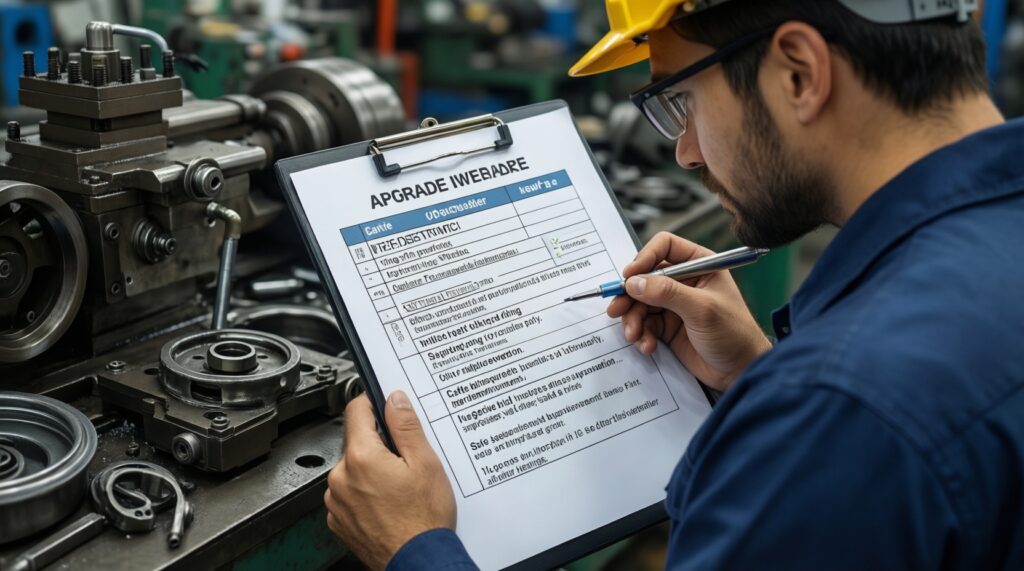
Use this checklist to keep upgrades safe and measurable, then pick an alternative path if a part swap isn't the best value.
Step-by-step checklist (repeat for each upgrade)
- Define the pain point and one repeatable test (boot-to-desktop time, a fixed game benchmark run, a specific project export, or a consistent timeline playback section).
- Capture a baseline by running the same test twice and noting consistency (use the second run as your reference if caching affects the first).
- Check constraints: PSU/case clearance for GPU, motherboard support for CPU, slots/DDR generation for RAM, interface for SSD.
- Back up critical data before storage or platform changes; for SSD moves, verify you can boot from recovery media.
- Install safely: power off, unplug, discharge power, avoid static, don't overtighten screws, and seat connectors fully.
- Verify after boot: device recognition, driver status, temperatures, and stability under load.
- Re-run the same test under identical settings; confirm the improvement matches your goal (faster completion, smoother frame-times, fewer stalls).
Alternatives when a component upgrade isn't the best move
- System cleanup and thermal maintenance: remove bloatware, reduce startup items, clean dust, and check CPU/GPU temperatures to prevent throttling.
- Targeted storage layout instead of bigger parts: add a dedicated SSD for active projects/scratch/cache rather than chasing a larger CPU/GPU immediately.
- Platform refresh rather than CPU-only swap: if motherboard limits CPU options, PCIe support, or RAM generation, a matched CPU+board+RAM upgrade can be more rational.
- Optimize in-app settings: tune game graphics (especially CPU-heavy settings) or configure creator apps to use GPU acceleration properly before buying hardware.
Concise solutions to common upgrade headaches
Should I upgrade SSD or RAM first?
If your OS drive is an HDD, do the SSD first. If you already have an SSD and memory is near full during normal use, add RAM next.
Can an SSD improve FPS in games?
Not materially for FPS; it improves loading and reduces hitching tied to asset streaming in some titles. FPS gains usually come from GPU/CPU.
Is it safe to mix different RAM sticks?
It can work but increases the chance of instability or reduced speed. For the safest result, use a matched kit with the same capacity and specs.
How do I know my PSU is enough for a new GPU?
Check required PCIe power connectors and ensure your PSU is reputable and not near its limits under load. If you're unsure, upgrade the PSU before the GPU.
When does a CPU upgrade make more sense than a GPU upgrade?
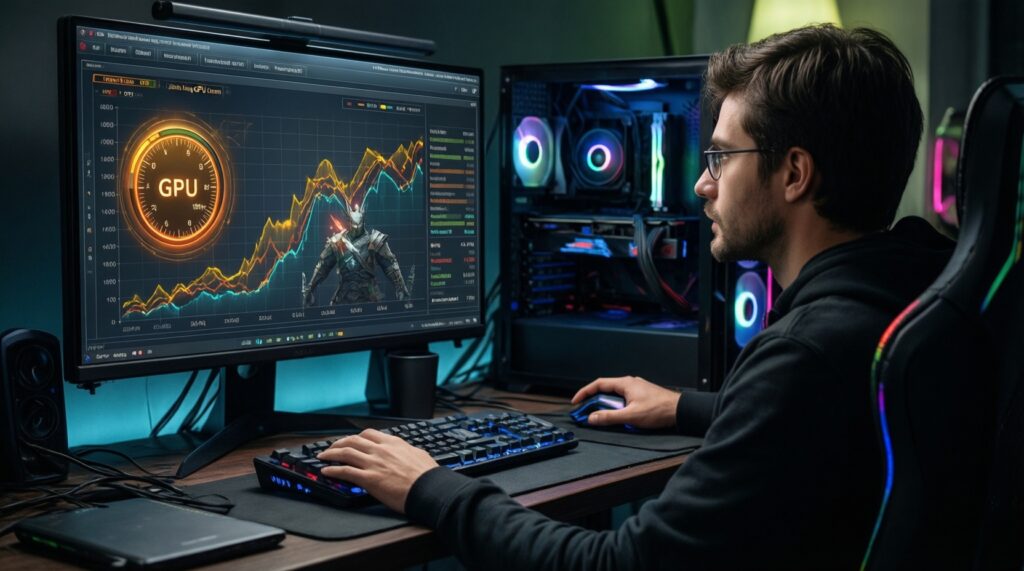
When GPU usage is low in games at your target settings, or when your primary tasks are CPU-bound (exports/compiles/simulations). Also when you need platform features your current CPU can't support.
Do I need to reinstall Windows after upgrading parts?
Usually no for RAM/GPU. For major platform changes (motherboard/CPU), a clean install often prevents driver conflicts and saves troubleshooting time.