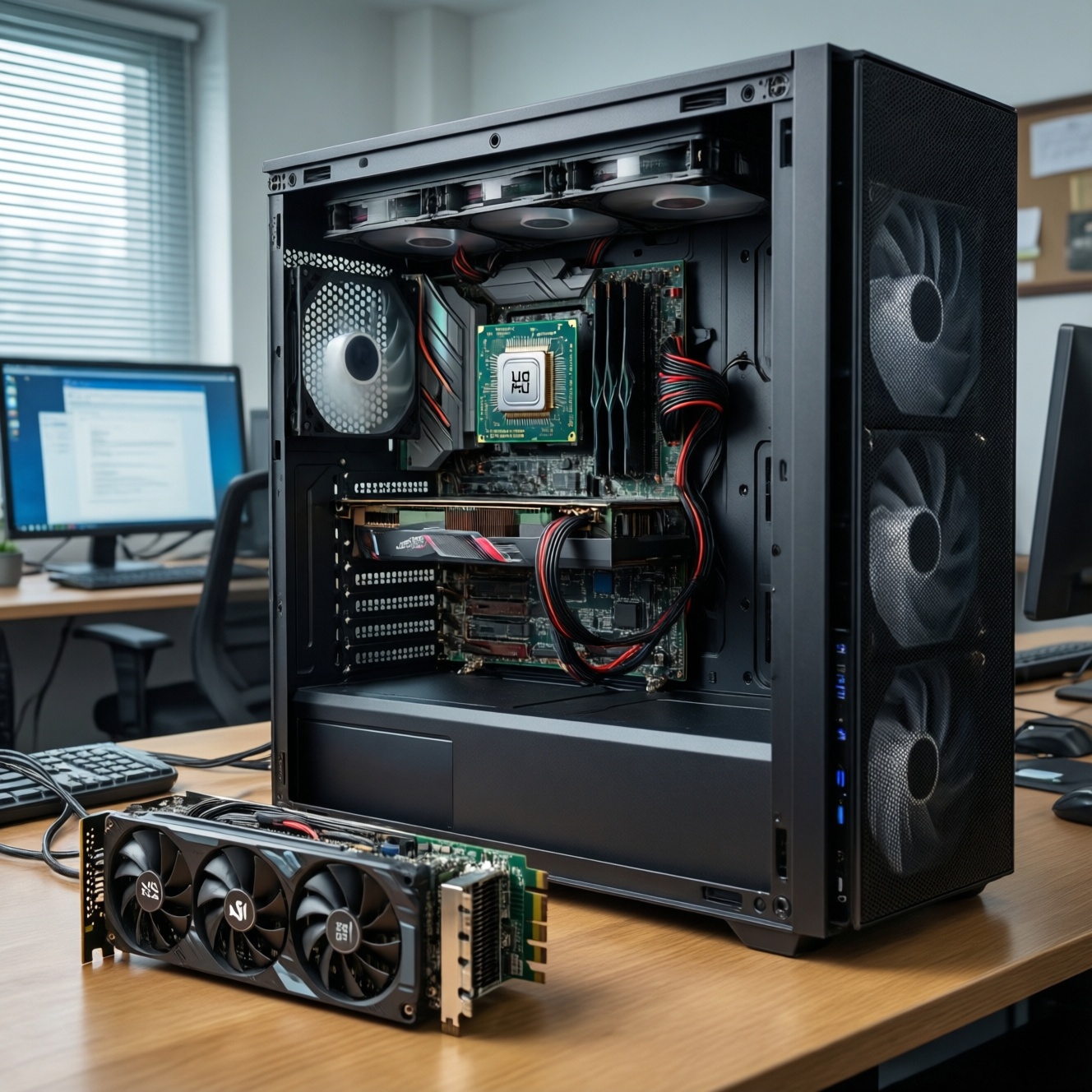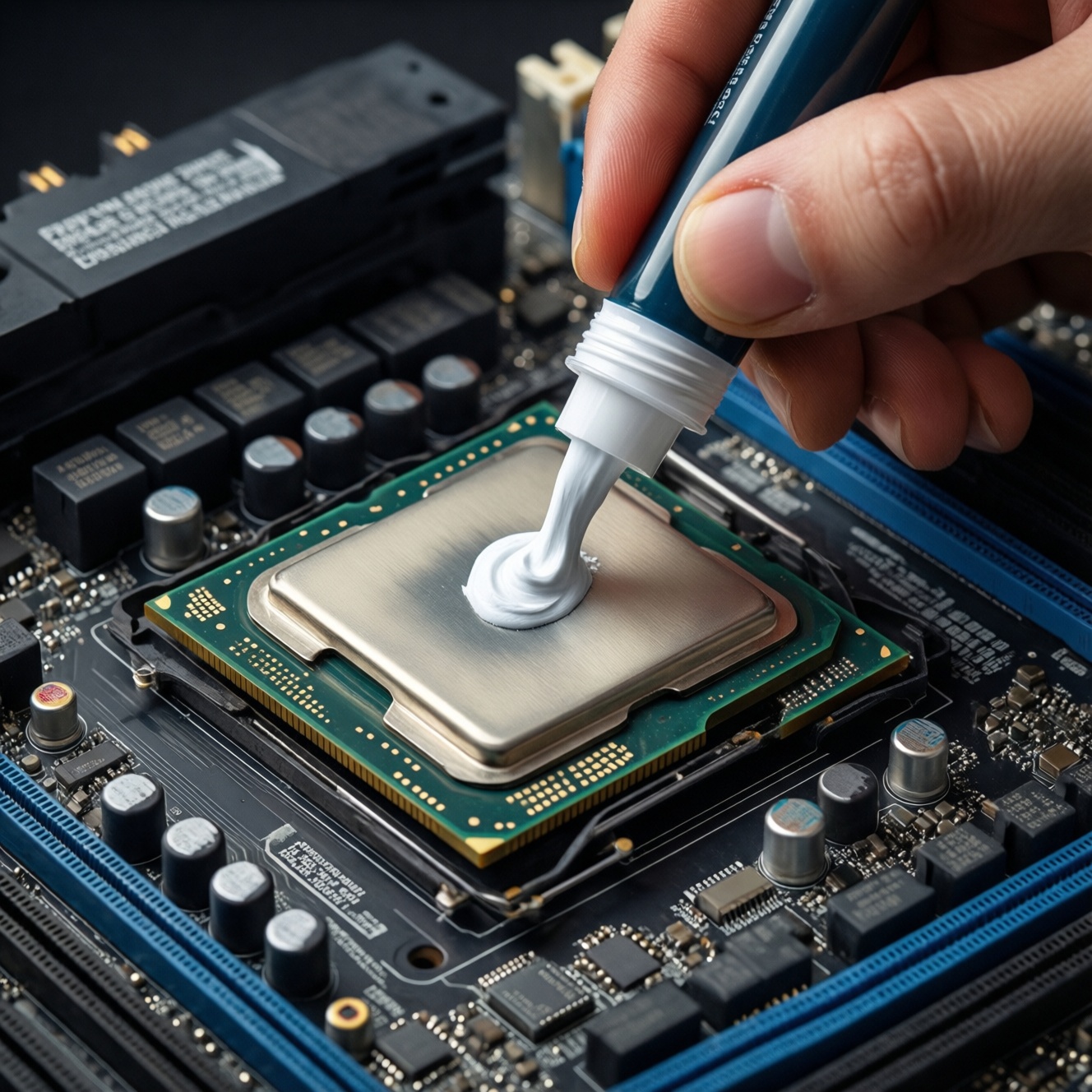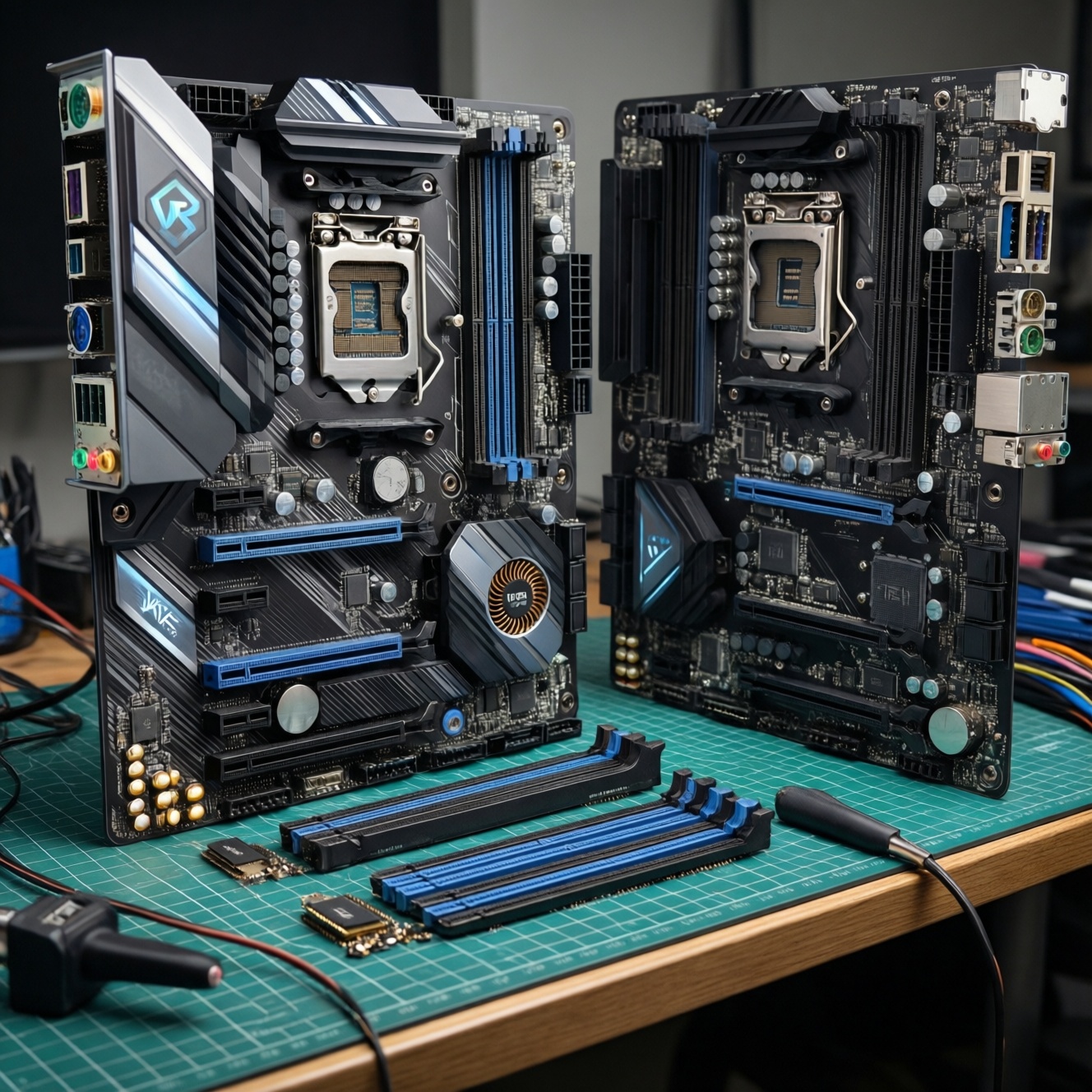
To avoid overpaying for a motherboard, pick only the specs that directly support your CPU, storage, and ports you will use within your next upgrade cycle: adequate VRM cooling for your target CPU (and OC plans), enough M.2 PCIe lanes for your SSD plan, and the exact rear/internal I/O you need. Then choose chipset and form factor that won't block upgrades.
Quick decision checklist for value-focused motherboard choice
- Confirm CPU socket and platform first, then shortlist boards (typical shopping questions like ซื้อเมนบอร์ด รุ่นไหนดี become easy once socket + needs are fixed).
- Match VRM quality to CPU power and cooling, not to "phase count" marketing; only pay extra if you truly need เมนบอร์ด VRM ดี สำหรับ OC.
- Plan storage lanes: decide how many NVMe drives you'll actually run and ensure เมนบอร์ด มีสล็อต M.2 PCIe 4.0 2 ช่อง (or more) without stealing GPU bandwidth.
- Audit ports you'll plug in weekly (USB speed/types, audio, LAN/Wi‑Fi, display outputs if needed) and ignore the rest.
- Choose chipset for your upgrade path and features you will use, not for the highest letter/number.
- Pick form factor by expansion reality (slots, headers, case clearance), not aesthetics.
Understanding VRM: wattage, phases, and real-world cooling
Who should prioritize VRM spending: users running high-core CPUs, sustained all-core workloads, small cases with limited airflow, or any manual tuning/undervolting/overclocking. This is where paying more can prevent throttling and instability under load.
When you should not pay extra: mid-range CPUs at stock settings in a well-ventilated case, light gaming/office use, or builds where your case/CPU cooler will be the limiting factor anyway.
- Focus on heatsink mass/coverage and airflow access around the VRM, not just advertised "phases."
- Look for independent VRM temperature data in reviews (same CPU load, same ambient), because two boards with similar "12+2" labels can behave very differently.
- Pay for stronger VRM only if it protects your intended CPU choice now or within your next upgrade.
M.2 slots and storage lanes: capacity, thermal throttling, and PCIe versions
What you need before choosing:
- Your SSD plan for the next 18-36 months: number of NVMe drives, expected sustained writes (content work) vs mostly reads (gaming).
- CPU + chipset lane behavior for your platform (which M.2 slots are CPU-connected, which are chipset-connected).
- Case airflow plan near M.2 areas (front intake, GPU proximity), because SSD throttling is often a case/placement problem.
- Access to motherboard manual PDF for each candidate board to verify lane sharing and disabled ports.
Practical rule: if you know you will run two fast NVMe drives, start your shortlist with เมนบอร์ด มีสล็อต M.2 PCIe 4.0 2 ช่อง and verify both can run concurrently without disabling ports you rely on.
Rear I/O and internal ports: essential connectivity without overpaying
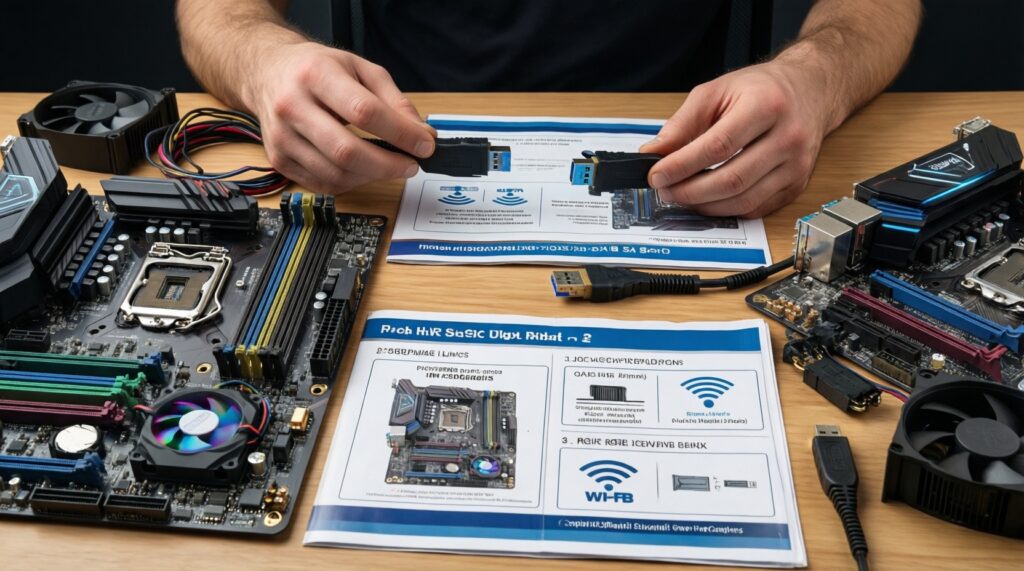
- List your must-have external devices (and their connectors) and your internal needs (front USB, RGB/ARGB, fan/pump headers) before comparing "feature lists."
- Download manuals for 2-3 finalist boards and check the internal header map and lane-sharing notes.
- Decide now if you need onboard Wi‑Fi/BT or prefer a separate card/USB adapter (cost vs flexibility).
- Confirm your case front-panel connectors (USB-C header vs only USB-A) to avoid paying for unusable headers.
-
Inventory what you actually plug in
Write down the devices that will be connected most days: keyboard/mouse, headset/DAC, external SSD, capture device, printer, gamepad dongles, phone cable, etc. This prevents paying for "lots of USB" that's the wrong type or speed.
- Prioritize: USB-C vs USB-A mix, and how many high-speed ports you truly use.
- If you use wired audio gear, note whether you need optical S/PDIF or just analog.
-
Match the case to the motherboard headers
Check your case front I/O: many modern cases have a front USB-C, which requires a specific internal header. If the board lacks it, you either lose that port or need an adapter (often slower or messy).
- Verify: front USB-C header, front USB 3.x header count, and enough fan headers for your fans without splitters.
-
Validate storage + PCIe slot sharing in the manual
Open the motherboard manual and find the "shared bandwidth" or "when M.2 is populated" notes. This is where hidden costs appear (e.g., a SATA port disables, or a PCIe slot drops speed).
- Confirm your main GPU slot remains full speed in the configuration you plan.
- Confirm the second NVMe doesn't disable a port you need (extra SATA drive, capture card slot, etc.).
-
Decide what must be onboard vs add-on
Onboard Wi‑Fi, extra USB controllers, and premium audio can be cheaper than add-ons, but only if you would buy those add-ons anyway. If not, they're pure overpay.
- If you'll always use Ethernet, onboard Wi‑Fi is optional.
- If you already own a good USB DAC, premium onboard audio is low priority.
-
Cross-check against your platform budget question
When comparing boards, keep platform pricing in mind (people often search เมนบอร์ด AM5 ราคา or เมนบอร์ด LGA1700 ราคา). Use your checklist to prevent "feature drift" where you pay more just because a board sits in a higher tier.
Compact comparison table: pay for what you use
| Decision area | Measurable check | Spend more when... | Cut cost when... |
|---|---|---|---|
| VRM & heatsinks | Review VRM temps under sustained load; heatsink size/coverage; airflow access | High-power CPU, long renders, small case, OC/undervolt tuning | Mid CPU at stock, good airflow, short bursts only |
| M.2 count & lanes | Manual: which M.2 are CPU/chipset; what gets disabled when populated | Two NVMe now/soon; need PCIe 4.0 speed on both | One NVMe total; OK with adding SATA later |
| Rear USB & internal headers | Port types/speeds + case header compatibility | Many fast external devices; front USB-C you will use | Few peripherals; can live with USB hub |
| Networking | Ethernet speed needs; Wi‑Fi requirement and antenna placement | No reliable cable run; need Bluetooth | Always wired; BT not needed |
| Form factor | Slot count, clearance, fan header count, M.2 placement vs GPU | Need extra PCIe cards, more M.2 spacing, easier cable management | Small build; only GPU + 1-2 NVMe |
Chipset longevity and CPU upgrade paths: matching boards to future needs
- I can name my next likely CPU upgrade on the same socket, and this board's VRM/cooling is appropriate for it.
- The board BIOS support and update process is acceptable to me (BIOS Flashback button is a strong convenience if you upgrade CPUs later).
- With my planned M.2 population, no critical ports/slots I need become disabled (confirmed in the manual).
- I have enough fan/pump headers for my cooling plan without risky overloading (otherwise I will use a powered hub).
- Rear I/O includes the exact ports I use weekly (not just "many ports").
- If I need Wi‑Fi/BT, the board includes it or I have a clean expansion plan (M.2 E-key slot, PCIe slot availability, or USB adapter).
- RAM support matches my capacity goal (DIMM count and practical speeds/EXPO/XMP behavior per QVL guidance).
- Case compatibility is confirmed: board size, front USB headers, and cooler clearance.
Form factor trade-offs: ATX, mATX, Mini-ITX implications for expandability
- Buying Mini-ITX "for looks" and then discovering you need more PCIe slots (capture card, sound card, extra NVMe card).
- Ignoring M.2 placement: some boards put M.2 under the GPU, increasing SSD temps and throttling risk.
- Assuming every board has a front USB-C header; many mATX budget boards omit it.
- Overpaying for an ATX board when you will never use the extra slots or headers.
- Underestimating cable management and airflow constraints in small cases, then blaming the motherboard for high VRM/SSD temperatures.
- Choosing a board with too few fan headers and stacking splitters without planning power limits and control behavior.
- Forgetting that some compact boards have fewer rear USB ports, forcing a hub you didn't budget for.
Budget optimization matrix: where to spend and where to cut
- Value gaming build (stock CPU, 1-2 NVMe): prioritize stable BIOS, decent VRM heatsinks, and the exact I/O you use; cut premium audio, extra controllers, and "armor" cosmetics.
- Creator/workstation on a budget (sustained loads): spend on VRM cooling and M.2 thermal solutions; cut RGB, extra rear USB you won't use, and onboard Wi‑Fi if you're always wired.
- Small-form-factor build: spend on layout (M.2 placement, headers, Wi‑Fi antennas) and VRM cooling due to limited airflow; cut "future slots" you physically can't add.
- Upgrade-focused buyer (next CPU planned): spend on VRM headroom and BIOS update convenience; cut peak rear I/O count if a hub solves it cleanly.
Common technical clarifications buyers consult before purchase
Is higher "phase count" always a better VRM?
No. Component quality, VRM heatsink design, and airflow matter more than the marketing phase number; use review thermals and board layout as the deciding evidence.
Do I need PCIe 5.0 on my motherboard today?
Only if you have a specific near-term use case. For most intermediate builders, PCIe 4.0 for GPU and NVMe is sufficient; prioritize lane sharing behavior and M.2 count instead.
What does it mean when an M.2 slot "shares lanes" with SATA or PCIe?
It means populating that M.2 slot can disable certain SATA ports or reduce bandwidth on a secondary slot. Always confirm the exact trade-off in the motherboard manual for the configuration you plan.
Is เมนบอร์ด มีสล็อต M.2 PCIe 4.0 2 ช่อง enough for most builds?
For many gaming and general productivity builds, yes: one OS/apps drive plus one game/project drive. If you expect more drives soon, verify a third slot or plan for SATA without surprises.
Should I choose AM5 or LGA1700 based on motherboard price alone?
No. Searches like เมนบอร์ด AM5 ราคา and เมนบอร์ด LGA1700 ราคา are useful, but platform choice should follow CPU options, upgrade intent, and board features you'll actually use.
Do I need onboard Wi‑Fi if I can run Ethernet?
Not necessarily. If you're reliably wired, onboard Wi‑Fi is a convenience feature; you can save budget or add Wi‑Fi later if you have a free slot and good antenna placement.
When is it worth paying extra for เมนบอร์ด VRM ดี สำหรับ OC?
When you will run sustained heavy loads or plan manual tuning/OC and your case airflow is limited. Otherwise, spend the difference on a better CPU cooler or case airflow.