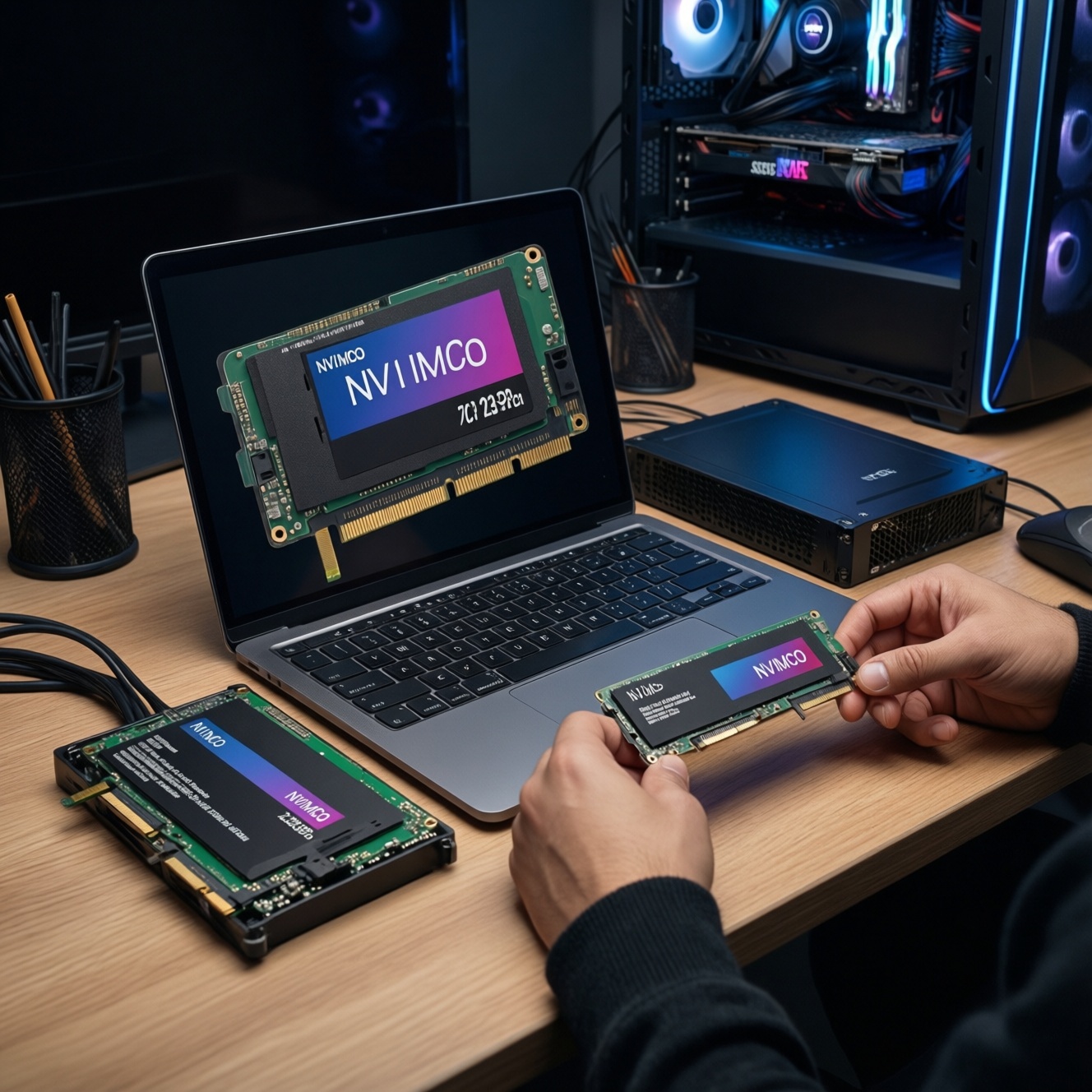
If you're choosing between SATA and NVMe SSDs in Thailand, NVMe is usually the better pick for new laptops/desktops that support it because it reduces wait time in heavier multitasking and file-heavy work. SATA still makes sense for older systems, extra storage, and budget upgrades where the interface is the bottleneck, not the drive.
Practical summary for immediate choice
- Pick NVMe when your system has an M.2 NVMe slot and you care about faster large file work, many apps open, or frequent installs/updates (the typical answer to "ซื้อ SSD NVMe หรือ SATA ดี").
- Pick SATA when you are upgrading an older laptop/desktop (2.5-inch bay) or adding inexpensive secondary storage where the performance ceiling is acceptable.
- For sustained heavy workloads, prioritize NVMe models with stable performance under load and adequate cooling, not just peak specs.
- Don't decide by "SSD NVMe ราคา" or "SSD SATA ราคา" alone-check form factor fit, thermals, and whether your motherboard actually supports NVMe booting.
- If you're asking "SSD NVMe ยี่ห้อไหนดี", shortlist by warranty terms, controller reputation, and consistent firmware support rather than marketing labels.
Performance in real-world desktop and mobile use
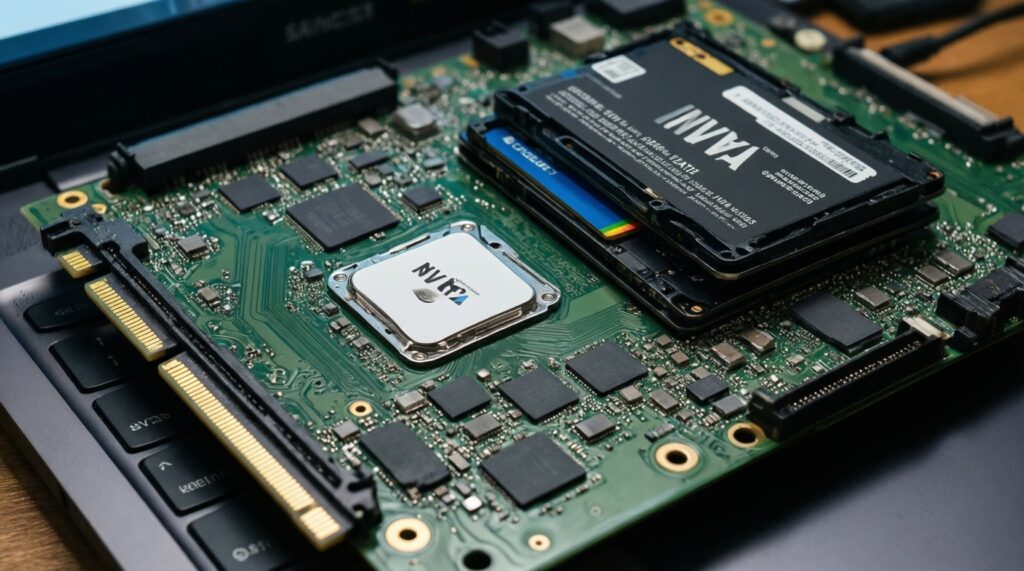
Use these criteria to decide based on what you'll actually feel day-to-day (not just synthetic peak numbers):
- Interface support: Does your device support NVMe in the M.2 slot, or only SATA (some M.2 slots are SATA-only)?
- Typical workload pattern: Many small reads/writes (OS + apps) vs. fewer large sequential transfers (media projects, archives).
- Queue depth behavior: Heavy multitasking, VMs, and background updates reward NVMe more than light office use.
- System bottlenecks: CPU, RAM, and network speed can hide SSD differences; a RAM-starved system won't feel "fixed" by NVMe alone.
- Upgrade path: SATA is universally compatible; NVMe requires platform support and sometimes BIOS updates.
- Thermal headroom: Thin laptops may throttle some NVMe drives under long writes; SATA often runs cooler.
- Power management: Laptop battery behavior can vary by NVMe power states and firmware; check platform compatibility.
- Capacity planning: Leaving free space improves sustained performance and reduces write amplification on both SATA and NVMe.
In practice, the "เปรียบเทียบ SSD SATA กับ NVMe" conversation usually comes down to this: both are fast for basic boot/app launch, but NVMe tends to feel more consistent when you stack tasks (copy + install + browser + IDE) or handle lots of assets.
Behavior under sustained heavy workloads: rendering, databases and virtualization
Under long, heavy writes and mixed read/write activity, the differences are often about stability: cache behavior, thermal throttling, and how the drive handles sustained pressure. Use the variants below to map a drive type to your workload.
| Вариант | Кому подходит | Плюсы | Минусы | Когда выбирать |
|---|---|---|---|---|
| 2.5-inch SATA SSD (main drive) | Older laptops/desktops, straightforward upgrades | Broad compatibility, predictable thermals, easy migration | Interface ceiling can limit heavy parallel workloads | When you need the safest upgrade path or your system has no NVMe support |
| M.2 SATA SSD | Systems with M.2 slot that is SATA-only | No cable, compact install, SATA-like thermals | Often confused with NVMe; still SATA-limited | When your M.2 slot doesn't support NVMe but you want an M.2 form factor |
| NVMe SSD (mainstream, general-purpose) | Most new PCs/laptops for mixed productivity | Better parallelism for installs, builds, asset-heavy apps | Can run hot in thin devices; quality varies widely | When you want a balanced "default" NVMe for daily work and occasional heavy tasks |
| NVMe SSD optimized for sustained writes (creator/workstation) | Video editing, photo catalogs, frequent large exports | More consistent long writes; better behavior when cache is exhausted | Typically higher cost; may need heatsink/airflow | When long exports, proxies, or large project syncs are common |
| NVMe SSD for virtualization/light database | Multiple VMs, containers, local DBs, dev environments | Lower latency under mixed I/O; handles concurrent workloads better | Platform tuning matters (power states, thermals, firmware) | When your "slow" moments come from many small I/O operations across many processes |
| SATA SSD as secondary storage (games/media/archive) | Extra capacity without platform changes | Cost-effective expansion; fine for large libraries | Slower for massive patching + concurrent tasks | When you already have NVMe for OS/apps and need more space reliably |
Example configurations (practical personas)
- Student / office + light editing: One mainstream NVMe as the primary drive (if supported). If the laptop is older, a 2.5-inch SATA SSD is the simplest, most compatible upgrade.
- Creator (frequent large project exports): One NVMe optimized for sustained writes as primary + a SATA SSD as secondary library/cache, especially if the case airflow is limited.
- Developer running VMs/containers: One NVMe chosen for mixed I/O consistency as primary; keep adequate free space and avoid filling it to the brim to maintain steady performance.
Latency, IOPS and how they affect perceived responsiveness
- If your system pauses during app installs, updates, and extracting archives while other apps are open, then NVMe usually improves the "busy system" feel because it handles concurrent small I/O better.
- If your main pain is copying a few big media files occasionally, then NVMe helps, but the gain may be limited by CPU, USB enclosure speed, or network; SATA may still feel "fast enough."
- If you run databases locally (Docker, WSL, dev stacks) and see stutters during indexing/builds, then NVMe is typically the more noticeable upgrade than moving from one SATA SSD to another.
- If the machine is used for browsing, Office apps, and light photo edits, then a good SATA SSD already delivers a big jump over HDD; the step from SATA SSD to NVMe can be subtle.
- If you multitask heavily on a laptop and notice heat-related slowdowns, then a cooler-running SATA SSD (or a well-cooled NVMe) can feel more stable than a fast NVMe that throttles.
Thermals, power draw and form-factor constraints in real systems
- Confirm the physical slot: 2.5-inch bay vs M.2; then confirm the M.2 keying and what the slot supports (SATA-only vs NVMe).
- Check motherboard/laptop documentation for NVMe boot support and any shared-lane constraints (some ports disable when an M.2 slot is used).
- Assess cooling: Does the M.2 area have airflow or a heatsink option? In compact builds, favor drives known for stability under heat.
- Decide on power profile: for laptops, prioritize drives with mature firmware and good idle power behavior to avoid unnecessary drain.
- Plan capacity with headroom: keep meaningful free space to reduce slowdowns during long writes and updates.
- Validate your migration method: cloning tools, partition alignment, and OS settings matter more than interface in many "it feels slow" cases.
Cost per GB, endurance ratings and long-term ownership costs
- Assuming the cheapest drive is the best value: low-end models can dip sharply in sustained performance once their cache is used.
- Comparing "SSD NVMe ราคา" vs "SSD SATA ราคา" without checking device compatibility (many buyers discover their M.2 slot is SATA-only too late).
- Overpaying for peak marketing specs that don't match your workload (light office use rarely benefits from premium tiers).
- Ignoring thermals: an NVMe that throttles in your laptop may feel no better (or worse) than a stable SATA SSD.
- Choosing capacity too small: constant near-full operation increases background cleanup and reduces steady performance.
- Mixing up endurance terms: endurance ratings and warranty conditions vary by model line; read the fine print and the warranty policy applicable in Thailand.
- Buying unknown-market imports without clear warranty support; long-term value depends on serviceability, not just the purchase price.
- Picking solely by brand popularity when asking "SSD NVMe ยี่ห้อไหนดี" instead of checking the exact model and controller class (brands often have multiple tiers).
Decision paths: choosing SATA vs NVMe by workflow and budget
- Workload: If you mainly do office/browsing and want a simple upgrade, lean SATA; if you do heavy multitasking, dev/VMs, or large creative projects, lean NVMe.
- Budget: If budget is tight, prioritize capacity and warranty support over peak specs; a larger, reliable SATA SSD can beat an undersized NVMe that stays full.
- Form factor: If your system supports NVMe and cooling is reasonable, choose NVMe; if it's 2.5-inch-only or M.2 SATA-only, choose SATA without regret.
- Thermals: If the build is thermally constrained, choose the option most likely to stay consistent under your sustained workload, even if peak performance is lower.
Best fit tends to look like this: NVMe is best for mixed heavy workflows (dev/VMs, frequent installs, large asset libraries) when the platform supports it and cooling is adequate; SATA is best for broad compatibility upgrades and cost-efficient secondary storage where the system's limits or workload make NVMe's advantages harder to realize.
Common deployment questions answered
Will I notice NVMe vs SATA for boot and app launching?
Often only slightly, unless you frequently multitask during background updates or open many large apps at once. The clearest gains usually appear in heavier, more concurrent workloads.
How do I know if my M.2 slot supports NVMe or only SATA?
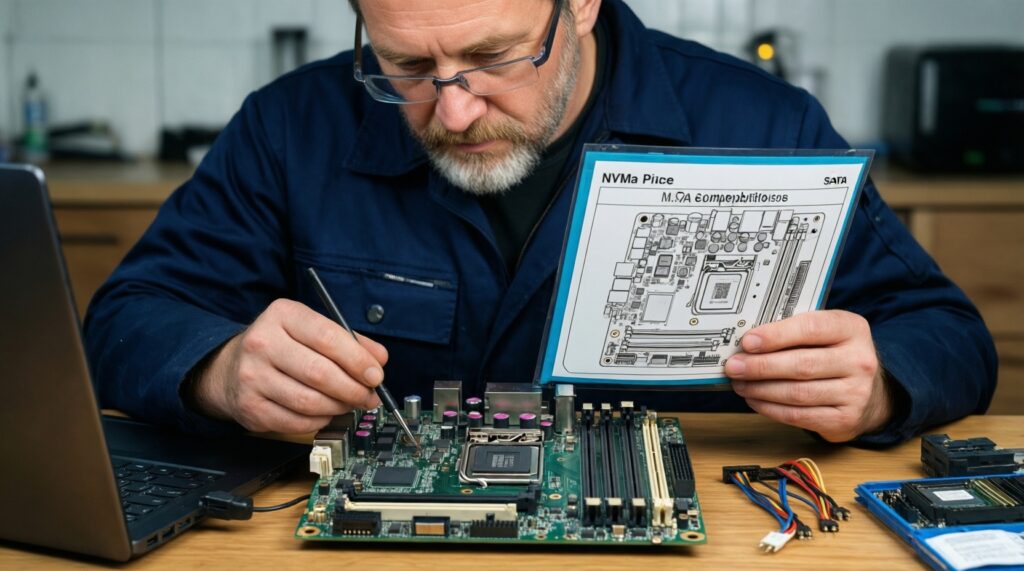
Check your laptop/motherboard manual for "NVMe/PCIe" support on that slot. Many systems have an M.2 connector but only wire it for SATA.
Is an M.2 SATA drive the same as an NVMe drive?
No. They can look similar physically, but M.2 is the shape; SATA vs NVMe is the protocol/interface, and performance/behavior can differ a lot.
Do I need a heatsink for NVMe?
In desktops with poor airflow or in sustained-write workloads, a heatsink can help maintain consistent performance. In many laptops you must rely on the chassis' existing thermal design.
Can NVMe reduce stutter in games?
It can help in game installs, updates, and asset streaming scenarios, but CPU/GPU/RAM limits often dominate. For pure in-game FPS, SSD type is usually not the primary factor.
What should I prioritize if I'm comparing "เปรียบเทียบ SSD SATA กับ NVMe" for an older laptop?
Prioritize compatibility and a clean OS migration. A good 2.5-inch SATA SSD is typically the most reliable upgrade path when NVMe support is uncertain.
Should I buy based on reviews that show maximum speed numbers?
Use them as context, but prioritize sustained performance behavior, thermals, warranty support, and whether the model matches your real workload.