
To extend SSD and hard drive life, keep predictable free space, monitor SMART health trends, enable SSD TRIM, avoid sudden power loss, and run tested, versioned backups. The safest workflow is: configure partitions and filesystem, schedule SMART checks, verify TRIM/firmware, then implement automated backups plus periodic restore tests so failures become recoverable events.
Critical Practical Rules for Drive Longevity
- Keep headroom: maintain 15-25% free space on SSDs and at least 10-15% on HDD volumes to reduce fragmentation (HDD) and write amplification (SSD). Risk impact: High
- Watch SMART trends, not only "OK" status: any non-zero pending/uncorrectable sectors on HDDs, or rapidly rising media errors on SSDs, is a trigger to back up and plan replacement. Risk impact: High
- TRIM on, defrag off (SSD): use "Optimize Drives" (TRIM) for SSD; avoid third-party defrag jobs on SSD. Risk impact: Medium
- Backups must be restorable: schedule automatic backups, keep versions, and run restore drills monthly (file-level) and quarterly (full image). Risk impact: High
- Power protection is data protection: use a UPS for desktops/NAS; for laptops, avoid forced shutdowns during heavy writes/updates. Risk impact: High
- Cooling and vibration matter: keep drives away from heat sources; avoid moving external HDDs while active. Risk impact: Medium
Understanding SSD vs HDD Failure Modes and Wear Patterns
SSD issues are often silent (controller/firmware, NAND wear, sudden death), so SMART "health" may drop late. HDD failures often show early warning signs (reallocated/pending sectors, abnormal noises, slow reads), but can also fail abruptly after shocks.
- Best fit: SSD for OS/apps and frequent random I/O; HDD for large archives and sequential storage; external HDD for offline backups.
- Do not do this: skip SMART/backup because the drive is "new"; run aggressive write-heavy benchmarks repeatedly on a near-full SSD; keep a single copy of critical files on any one drive.
- Buying context (TH): if your question is "ซื้อ SSD รุ่นไหนดี ทนทาน อายุการใช้งานยาว", prioritize models with a mature controller/firmware track record, a long warranty, and clear SMART attribute reporting; then validate with SMART baselines after install.
| Action | Applies to | Risk reduced | Risk impact | How to test quickly |
|---|---|---|---|---|
| Maintain 15-25% free space | SSD (also HDD) | Write amplification, slowdowns, metadata stress | High | Check free space; run a large file copy and confirm steady write speeds |
| Schedule SMART checks + alerts | SSD/HDD | Unnoticed degradation | High | Record baseline SMART now; compare weekly/monthly deltas |
| Enable TRIM (disable SSD defrag jobs) | SSD | Garbage-collection stress and performance cliffs | Medium | Verify TRIM is enabled; run "Optimize" and confirm it reports TRIM for SSD |
| UPS / stable power + safe shutdown | SSD/HDD | Metadata corruption, sudden failure during writes | High | Simulate a controlled shutdown during idle; confirm filesystem health check is clean |
| 3-2-1 backup with versioning | SSD/HDD | Data loss from failure, deletion, ransomware | High | Restore a previous version of a file; restore a full image to a spare disk/VM |
Partitioning, Filesystem Choices and Free Space Allocation
What you need: admin rights on the PC, a current backup (or at least a copy of irreplaceable files), and one management tool: Windows Disk Management / PowerShell, macOS Disk Utility, or Linux lsblk + parted.
- Partition plan: separate OS/apps from data where practical (easier imaging and restores). Avoid excessive partitioning on SSD if it forces you to run partitions nearly full.
- Filesystem choice: use NTFS on Windows system drives; exFAT for cross-platform portable drives; APFS for macOS SSDs; ext4 for Linux. Choose reliability features over marginal speed tweaks.
- Free space policy: reserve unallocated space (SSD overprovisioning) or keep a dedicated "buffer" folder you can delete to quickly regain headroom.
- Tooling shopping intent (TH): if you're searching "โปรแกรมสำรองข้อมูลอัตโนมัติสำหรับ Windows ราคา", treat cost as secondary to features: scheduling, versioning, verification, and restore usability.
SMART Monitoring: Metrics to Watch and How to Interpret Them
- Limits and risks (read this first):
- SMART is not a guarantee: some SSDs fail with little warning. Risk impact: High
- Different vendors label attributes differently; focus on trends and "bad" flags. Risk impact: Medium
- External USB enclosures may hide SMART; you may need a different enclosure/dock. Risk impact: Medium
- Stress tests can accelerate failure; do them only after a backup. Risk impact: High
-
Pick a SMART tool and confirm it can see the drive
On Windows, use vendor tools or smartmontools; on Linux/macOS, smartmontools is standard. If you're asking "โปรแกรมเช็คสุขภาพ SSD HDD SMART ซื้อที่ไหน", prefer reputable vendors or official repositories rather than random download mirrors.
- Windows (PowerShell as Admin):
Get-PhysicalDisk | Select FriendlyName, MediaType, HealthStatus(basic status) - Windows/Linux/macOS (smartmontools):
smartctl -a /dev/sdX(full SMART)
- Windows (PowerShell as Admin):
-
Record a baseline snapshot (today) before you tweak anything
Export the SMART output and keep it with your maintenance notes. Baselines help you spot "fast-changing" attributes that matter more than a single absolute number.
- Save output to a file:
smartctl -a /dev/sdX > smart-baseline.txt
- Save output to a file:
-
Check SSD wear and error indicators
Look for wear-related attributes (often "Percentage Used", "Wear Leveling Count", or vendor equivalents) and media/data integrity errors. A sudden jump in errors is a stronger replacement signal than slow wear progression.
- Action trigger (practical): if media/data integrity errors start increasing between weekly checks, back up immediately and plan a swap.
-
Check HDD sector health indicators
For HDD, treat any non-zero Reallocated Sectors, Current Pending Sector, or Uncorrectable Sector Count as a reason to increase backup frequency and monitor closely; rising counts usually mean the surface is degrading.
- Action trigger (practical): if Pending or Uncorrectable is non-zero, do not run long write-heavy operations until you have a fresh backup.
-
Verify temperatures under real load
Heat accelerates error rates and throttling. Check temps during typical workloads (gaming, exports, VM builds), not only at idle.
- Practical target: keep sustained SSD/HDD temps ideally < 50°C; investigate airflow if you regularly exceed this during normal use.
-
Automate monitoring and set human-readable alerts
Schedule weekly checks and alert on attribute changes, not just "FAILED". For desktops/NAS, email/notification alerts reduce the chance you miss early warnings.
- Windows Task Scheduler: run a script that logs SMART output weekly.
- Linux cron:
0 9 * * 1 smartctl -a /dev/sdX >> /var/log/smart-sdX.log
TRIM, Overprovisioning and Firmware Settings for SSD Health
- Confirm Windows recognizes the drive as SSD: open "Defragment and Optimize Drives" and verify it shows Solid state drive.
- Check TRIM status (Windows, Admin CMD):
fsutil behavior query DisableDeleteNotify(NTFS TRIM enabled when it returns0). - Run TRIM/Optimize (Windows): "Optimize" the SSD (this is not a classic defrag for SSD).
- Ensure the SSD has spare area: keep 15-25% free, or leave some space unallocated if you manage partitions manually. Risk impact: Medium
- Update SSD firmware only when: you have a verified backup and the update notes mention stability/data-loss fixes. Risk impact: High
- Disable third-party "SSD optimization" tools that promise registry tweaks or forced caching changes. Risk impact: Medium
- On laptops, keep battery health reasonable so the system can flush caches during shutdown; avoid forced power-offs mid-update. Risk impact: High
- After any firmware/storage-driver change, re-check SMART baseline and run a small restore test from backup. Risk impact: High
Backup Strategies, Versioning and Recovery Testing
- Mistake: one backup copy on the same PC. Fix: follow 3-2-1: 3 copies, 2 media types, 1 offsite/offline.
- Mistake: file sync mistaken for backup. Fix: use versioning/snapshots so deletions and ransomware don't propagate.
- Mistake: no restore test. Fix: monthly restore of a random folder; quarterly full-image restore to a spare drive or VM.
- Mistake: backing up only "Documents". Fix: include browser profiles, password vault exports, app data, license keys, and project caches that take days to rebuild.
- Mistake: external backup drive always connected. Fix: rotate drives or keep one offline; this is where "ฮาร์ดดิสก์สำรองข้อมูล (External HDD) ซื้อที่ไหน รุ่นไหนดี" becomes relevant-choose reliability, not just capacity.
- Mistake: assuming "cloud = done". Fix: confirm retention/version history; keep at least one local offline copy for fast recovery.
- Mistake: unclear ownership of costs and recovery plan. Fix: write down where backups live, encryption keys, and who can restore.
- Mistake: waiting until failure, then searching "บริการกู้ข้อมูล SSD HDD ราคา". Fix: treat data recovery as last resort; invest effort in backups because SSD recovery can be limited by encryption/firmware/controller failure.
Operational Best Practices: Power, Cooling and Risk Mitigation
Alternatives that make sense when you want less drive wear, simpler recovery, or fewer "single points of failure":
- Use a NAS with snapshots for shared data when multiple PCs need the same files and you want centralized versioning and easier restores. Risk impact: High
- Use external HDD rotation (offline sets) when ransomware risk is non-trivial or you need a cheap air-gap. Label drives by date and rotate weekly. Risk impact: High
- Use a UPS (line-interactive) for desktops and network gear when power flickers/brownouts occur; it prevents mid-write corruption and reduces abrupt shutdowns. Risk impact: High
- Move scratch workloads to a secondary SSD when you do heavy editing/VMs; keep OS SSD cleaner and easier to image/restore. Risk impact: Medium
Common Concerns and Risk Scenarios
Is it safe to fill an SSD to 95-100%?
No-performance and internal housekeeping degrade when an SSD is near full. Keep 15-25% free (or leave unallocated space) to reduce write amplification and stability issues.
Should I defragment my SSD to make it faster?
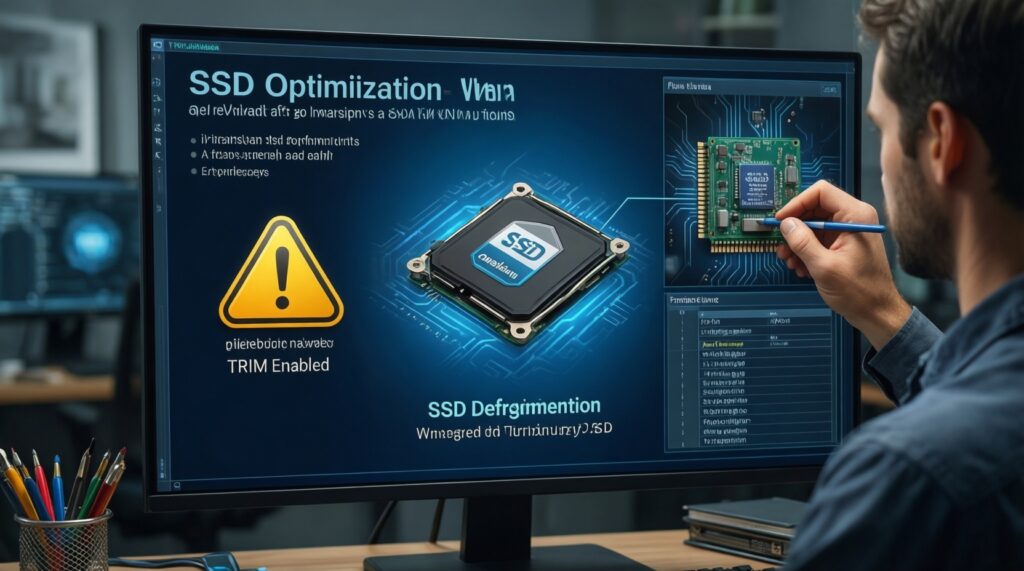
Don't run traditional defrag on SSD. Use the OS "Optimize" function (TRIM) and focus on free space and firmware stability instead.
SMART says "Good", but my PC freezes-what next?
Back up immediately, then check SMART error counters and run a filesystem check. If freezes correlate with read errors, rising SMART errors, or timeouts, plan a drive replacement.
My external HDD disconnects randomly-does that damage the disk?
Frequent disconnects risk filesystem corruption and incomplete writes. Replace the cable/enclosure, avoid moving the drive during activity, and keep an offline backup copy until the issue is resolved.
When should I update SSD firmware?
Only after a verified backup and when release notes address data integrity, stability, or compatibility. Firmware updates carry risk if interrupted or if the tool misbehaves.
Can data recovery always save me if an SSD dies?
No-SSD failures can be unrecoverable due to controller failure, encryption, or severe NAND issues. Treat "บริการกู้ข้อมูล SSD HDD ราคา" as a last resort, not a plan.
How do I choose an automatic backup program on Windows without overpaying?

Prioritize scheduling, versioning, verification, and a simple restore flow over extra features. If you compare "โปรแกรมสำรองข้อมูลอัตโนมัติสำหรับ Windows ราคา", evaluate with a real restore test before committing.