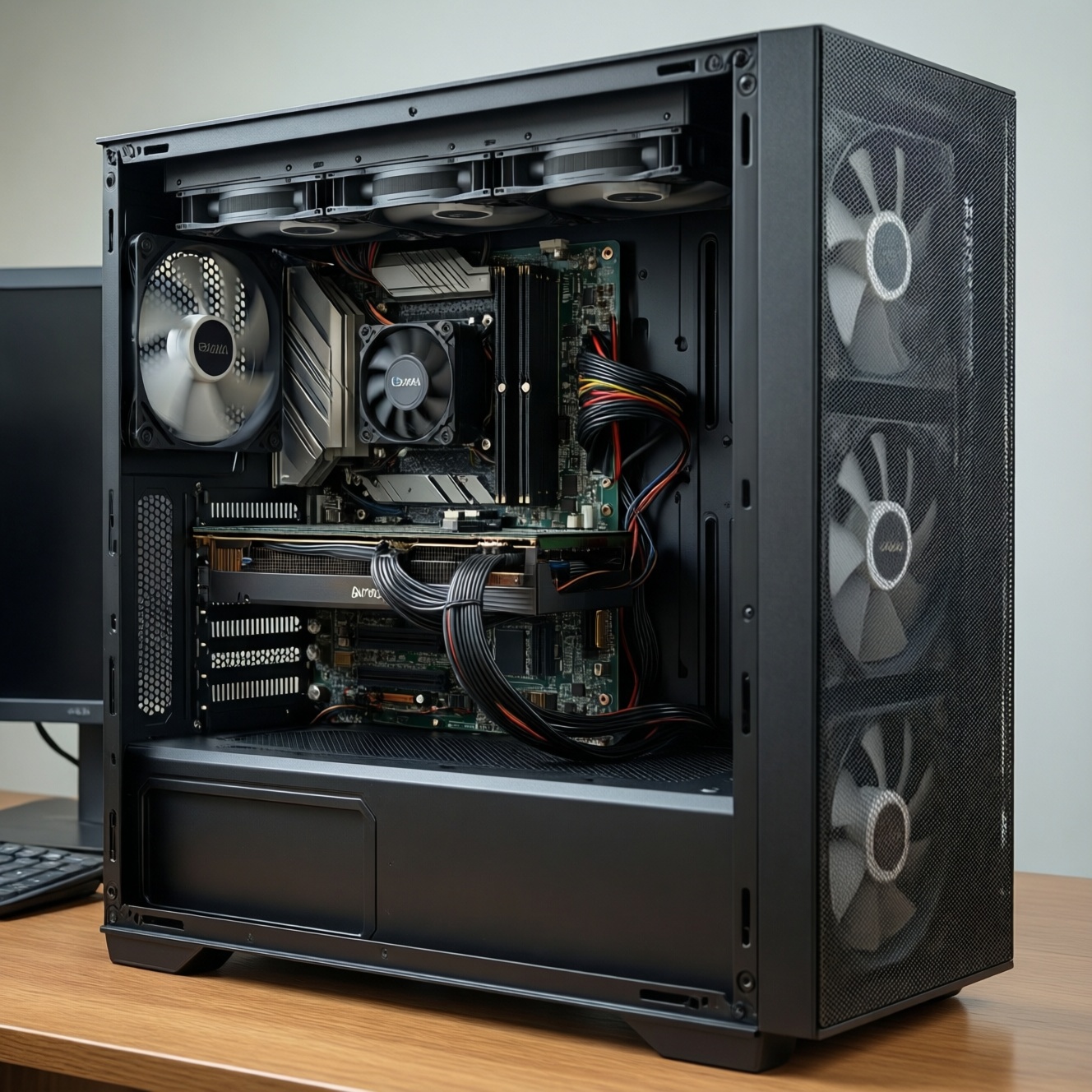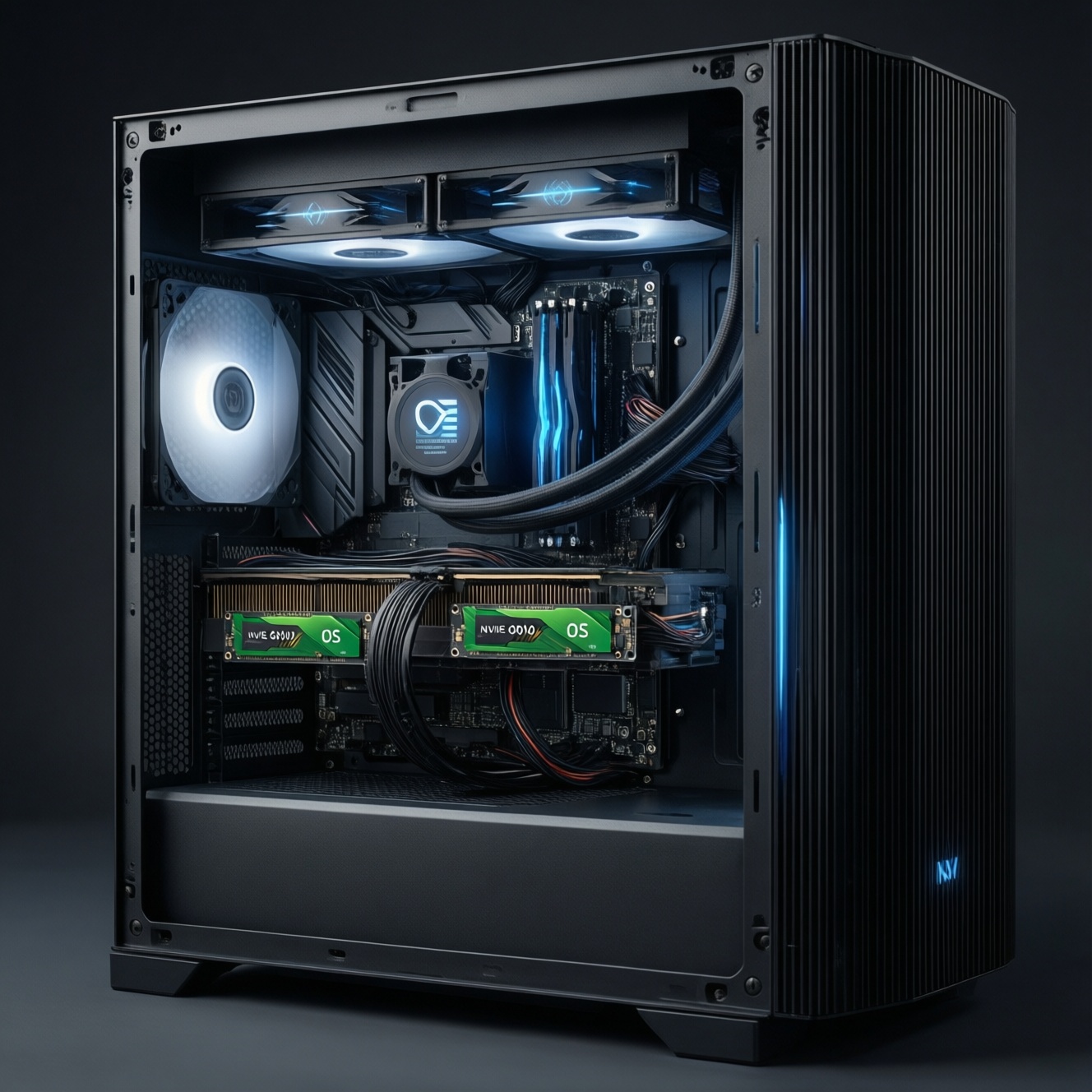
SATA SSDs use the older AHCI/SATA link and are capped by the SATA 6 Gb/s interface, while NVMe SSDs use PCIe lanes and a lower-latency NVMe protocol. For most modern PCs, put the OS and active apps on NVMe, keep large game libraries on either NVMe or SATA, and place video edit caches/projects on the fastest NVMe you can cool.
Core differences summarized
- Interface cap: SATA tops out at the SATA link limit; NVMe scales with PCIe generation and lane count.
- Latency/IO handling: NVMe is optimized for many parallel queues; SATA/AHCI is not.
- Real-world feel: OS responsiveness and heavy multitasking benefit most from NVMe; light workloads feel similar.
- Form factor confusion: M.2 can be SATA or NVMe-slot shape alone is not the protocol.
- Thermals: NVMe (especially higher-end) is more likely to throttle without airflow/heatsink.
- Value: comparing "SSD SATA ราคา" vs "SSD NVMe ราคา" only makes sense after confirming motherboard support and intended workload.
Technical architecture: SATA AHCI versus NVMe PCIe
- Motherboard support: confirm M.2 slot supports NVMe (PCIe) vs SATA-only; check BIOS/UEFI notes and lane sharing with GPU/SATA ports.
- PCIe generation and lane width: NVMe performance depends on PCIe Gen (3/4/5) and lanes (x2/x4); some laptops run x2.
- Command/queue model: NVMe supports many deep queues; AHCI is comparatively shallow and becomes a bottleneck under parallel I/O.
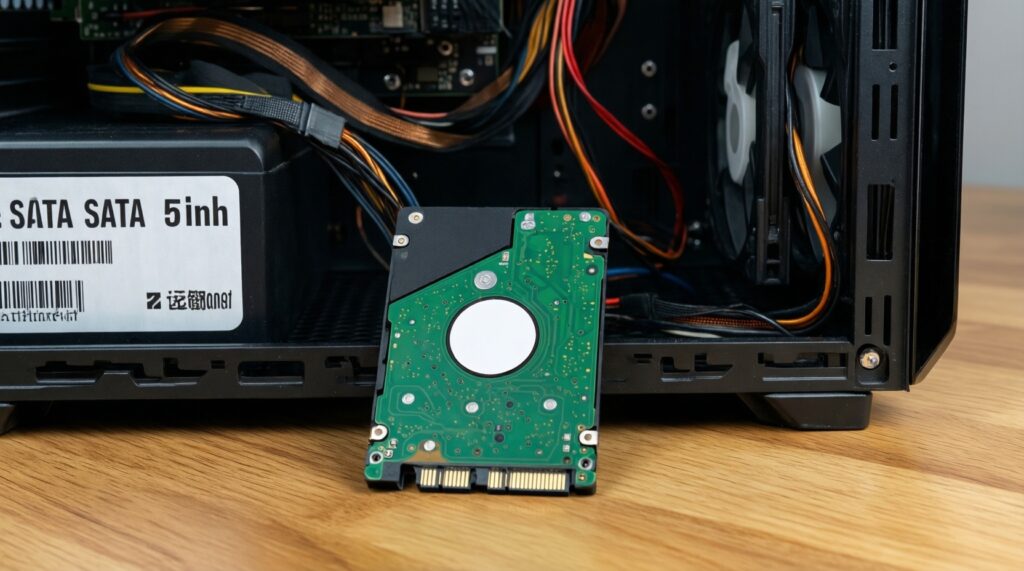
- Form factor and wiring: 2.5" SATA uses a cable; M.2 SATA shares SATA bandwidth; M.2 NVMe uses PCIe lanes.
- Boot compatibility: older systems may see NVMe only after BIOS updates; some boards boot SATA but not NVMe.
- Controller + DRAM design: DRAM-less drives rely more on HMB (if supported) and can drop performance in sustained random writes.
- Thermal envelope: NVMe controllers can hit throttling thresholds in tight laptop bays or under GPU backplates.
- Workload match: games and OS are mixed read-heavy; video editing adds sustained writes and metadata churn.
Performance metrics explained: latency, IOPS and throughput
| Variant | Who it fits | Pros | Cons | When to choose |
|---|---|---|---|---|
| 2.5" SATA SSD (AHCI) | Budget upgrades, extra library/storage drives | Wide compatibility; easy thermals; predictable performance within SATA cap | Interface-limited throughput; higher command overhead than NVMe | When the PC has no NVMe support or you need a stable secondary drive for bulk games/media |
| M.2 SATA SSD (AHCI over SATA) | Small-form-factor builds with limited cabling | Cable-free like NVMe; still easy to cool | Same SATA limits as 2.5"; easy to confuse with NVMe | When you want M.2 convenience but only have a SATA-capable M.2 slot |
| NVMe PCIe 3.0 x4 SSD | Mainstream PCs, gamers, mixed productivity | Lower latency than SATA; strong random I/O; good OS/app drive | Can throttle in poor airflow; performance depends on controller/firmware | When your board is Gen3/Gen4 capable but you want a balanced, cost-efficient system drive |
| NVMe PCIe 4.0 x4 SSD | Content creators, heavy multitaskers, fast scratch disks | Higher sequential bandwidth headroom; better sustained throughput on higher-end models | More heat; may need heatsink; can be overkill for light workloads | When you do frequent large transfers or use editing caches/scratch (typical "SSD สำหรับตัดต่อวิดีโอ" setups) |
| DRAM-less NVMe (HMB-capable) | Value-focused builds needing NVMe responsiveness | Often cheaper per capacity; still lower latency than SATA in many day-to-day tasks | Random write consistency can drop under sustained load; depends on HMB/OS support | When you want NVMe for OS/games but not as a heavy write scratch drive |
| High-end NVMe used as dedicated scratch/project drive | Editors working with large timelines, proxies, frequent renders | Best interactive scrubbing and cache responsiveness when properly cooled | Requires thermal planning; wastes potential if used only for cold storage | When your workflow is dominated by cache/scratch (e.g., preview files, conform, transcoding) |
Persona picks (preferred → fallback): Gamer: Gen3/Gen4 NVMe for OS + current games → SATA SSD for bulk library; Video editor: Gen4 NVMe for scratch/projects + separate OS NVMe → single larger NVMe; IT administrator: reliable SATA for fleet compatibility + one NVMe for power users → all-SATA where BIOS constraints exist; Budget upgrader: SATA if no M.2 NVMe support → entry NVMe if the board supports it.
Benchmarks in practice: boot times, game load and timeline scrubbing
- If you mostly browse, office, and light app switching, then SATA vs NVMe feels similar after the OS is already cached; choose based on compatibility and capacity rather than peak specs.
- If you do frequent installs/updates and multitask with many background I/O operations, then NVMe improves responsiveness due to lower latency and better parallelism.
- If you are building "SSD สำหรับลงเกม" storage for a large library, then put your current rotation of games on NVMe and older/rarely played titles on SATA to maximize capacity per baht.
- If you stream textures/open-world assets and see stutter during level streaming, then prioritize NVMe for the specific games that benefit from fast asset reads (and keep enough free space to avoid slowdowns).
- If you edit video and rely on timeline scrubbing, previews, and caches, then dedicate the fastest cooled NVMe to cache/scratch and active projects; SATA is fine for archived footage and exports.
Capacity, endurance and thermal management considerations
- Map your working set: OS/apps + current games + active edit projects (not your entire archive).
- Choose the fastest tier for the hottest data: active project + cache/scratch on NVMe; cold storage can be SATA.
- Leave headroom: avoid running SSDs nearly full; performance stability and write behavior are typically better with free space.
- Check for sustained-write needs: long renders/transcodes favor drives with better sustained performance (often higher-end NVMe).
- Plan cooling: add an M.2 heatsink or airflow path for NVMe near GPU zones; watch laptop bays for throttling.
- Decide capacity step: if you are about to "ซื้อ SSD NVMe 1TB", verify your active workload really needs 1TB fast space versus splitting into smaller OS NVMe + larger SATA library.
Cost, motherboard compatibility and upgrade pathways
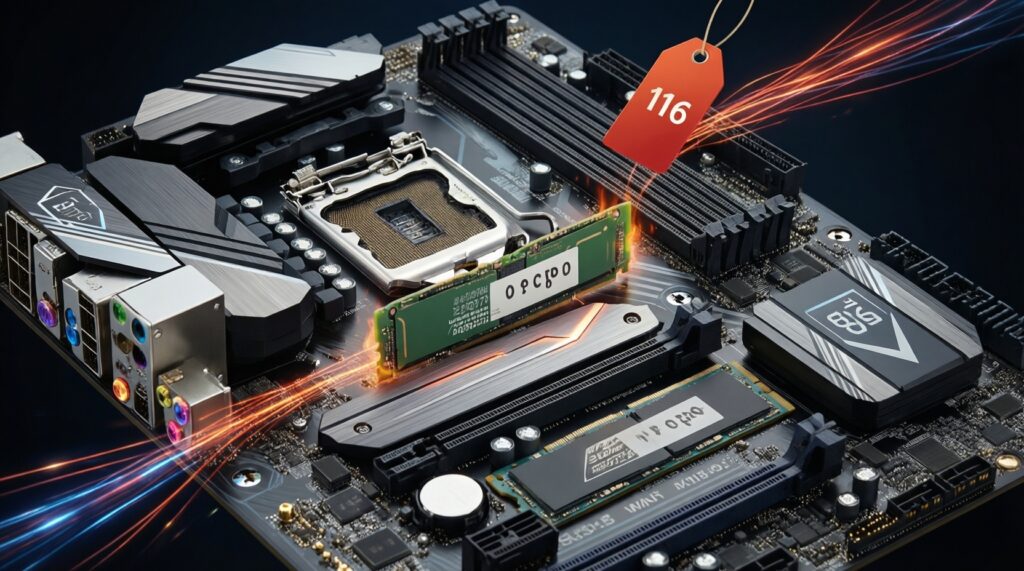
- Assuming every M.2 slot is NVMe-capable; some are SATA-only or share bandwidth with specific SATA ports.
- Buying the fastest NVMe tier while ignoring cooling; throttling can erase the advantage in long transfers and editing caches.
- Comparing "SSD SATA ราคา" and "SSD NVMe ราคา" without checking whether your system can boot NVMe and at what PCIe speed (Gen3 vs Gen4).
- Overpaying for sequential throughput when your workload is dominated by random I/O and latency (OS/app responsiveness).
- Using a DRAM-less value NVMe as a heavy scratch disk for editing; it can become inconsistent under sustained writes.
- Filling the drive to near 100% and then troubleshooting "slow SSD" symptoms that are actually capacity/headroom issues.
- Ignoring lane sharing: adding a second NVMe can reduce GPU lanes or disable SATA ports on some boards.
- Upgrading storage without updating BIOS/firmware where NVMe boot support is flaky on older platforms.
Drive allocation strategy: where to place OS, games and editing projects
Best for OS and everyday responsiveness is typically an NVMe system drive (Gen3 or Gen4 depending on platform), while best for large game libraries can be a mix-NVMe for current titles and SATA for bulk storage if you are optimizing value. Best for editing work is usually a dedicated, well-cooled NVMe for active projects and cache, with SATA used for archives and completed exports.
Quick clarifications for common scenarios
Will I notice NVMe over SATA in Windows day-to-day?
Usually you notice it most during multitasking, heavy installs/updates, and workloads with many small I/O operations. For light browsing and office work, the difference is often subtle.
Is an M.2 SSD always NVMe?
No. M.2 is a form factor; the drive can be SATA (AHCI) or NVMe (PCIe). Check the drive label and motherboard slot specifications.
For "SSD สำหรับลงเกม", should I buy NVMe first?
Buy NVMe first if your board supports it and you want the best load/streaming behavior for your current games. If you need maximum capacity for the money, add SATA for the larger library.
For "SSD สำหรับตัดต่อวิดีโอ", is one big drive enough?
It can be, but a separate fast NVMe scratch/project drive often keeps performance steadier. If you use one drive, prioritize capacity headroom and thermals.
What should I check before "ซื้อ SSD NVMe 1TB" for an older PC?
Confirm NVMe boot support in BIOS/UEFI and the M.2 slot's PCIe lanes (x2 vs x4). Also check whether installing NVMe disables certain SATA ports.
How should I think about "SSD SATA ราคา" vs "SSD NVMe ราคา" if my laptop has one slot?
If the slot is NVMe-capable, NVMe is typically the better long-term system choice. If it is SATA-only, buy the best SATA model you can and focus on capacity and reliability.
Do I need a heatsink on NVMe?
Often yes for sustained workloads or tight builds, especially PCIe 4.0 drives. For light use with good airflow, it may be optional but still helpful.