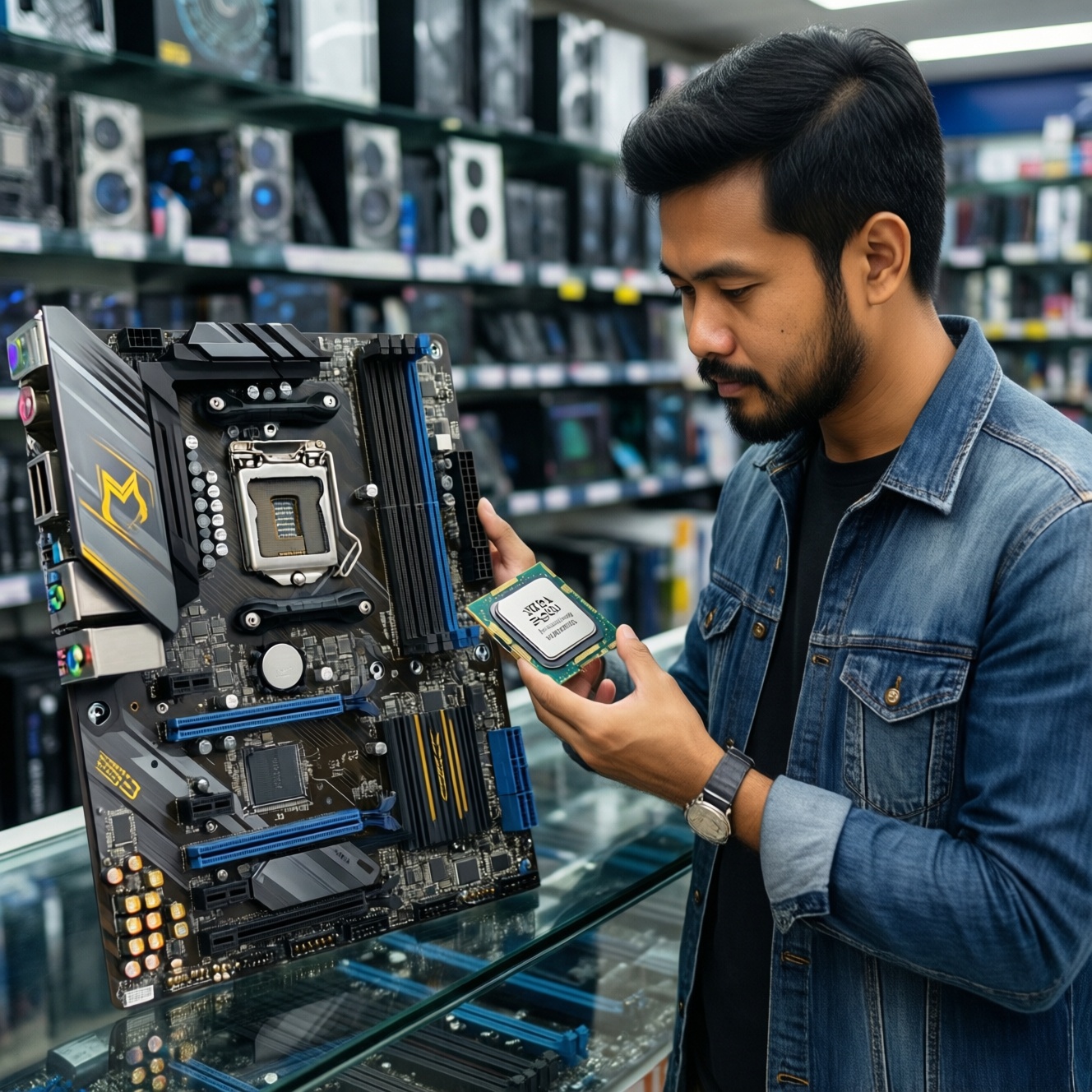
To choose a motherboard in Thailand without overpaying, start from CPU socket + chipset, then validate VRM cooling for your CPU class, confirm how many usable M.2 slots you get after lane sharing, and only then pick Wi‑Fi and ports. This is the practical วิธีเลือกเมนบอร์ด that prevents upgrade dead-ends.
Essential quick checklist for choosing a motherboard
- Match CPU socket first, then confirm a chipset that supports your target features and upgrades.
- Check VRM heatsinks and power staging quality if you use high-core CPUs or sustained loads.
- Count real usable M.2 slots after lane sharing with SATA/PCIe slots.
- Decide if you need integrated Wi‑Fi (and which standard) or a separate card.
- Verify rear I/O (USB-C, video outputs) and internal headers (front USB-C, fan, ARGB).
- Confirm form factor fits the case and gives enough expansion slots.
- Check BIOS features for painless upgrades (Flashback, clear CMOS access, update path).
How chipsets determine CPU compatibility and features
If you're wondering เมนบอร์ดชิปเซ็ตไหนดี, treat the chipset as the feature and lane budget that sits under the correct socket. It's a good fit when you want guaranteed CPU support, enough PCIe lanes for M.2/expansion, and the I/O you actually use. Avoid spending on a "higher" chipset if you won't use extra lanes/USB, or if you plan no upgrades.
- Do this: pick the CPU, then shortlist boards by socket and chipset tier.
- Don't do this: buy a board because it's "gaming" or has big heatsinks if the chipset/lane layout doesn't match your storage and expansion plan.
| Decision point | What to check on the spec sheet | What it impacts in real builds |
|---|---|---|
| CPU compatibility | Socket + CPU support list + BIOS version notes | Booting without needing an older CPU; upgrade safety |
| Chipset lane/I/O budget | PCIe generation, number of chipset lanes, USB counts | How many M.2/PCIe devices can run without disabling ports |
| Overclocking / tuning features | Memory OC support, power limits, BIOS controls | Stability under load; RAM speed headroom |
| Platform upgrade path | BIOS Flashback, Q-Flash, CPU roadmap (by socket) | Less downtime when moving to a newer CPU |
Assessing VRM quality: phases, cooling and real-world power delivery
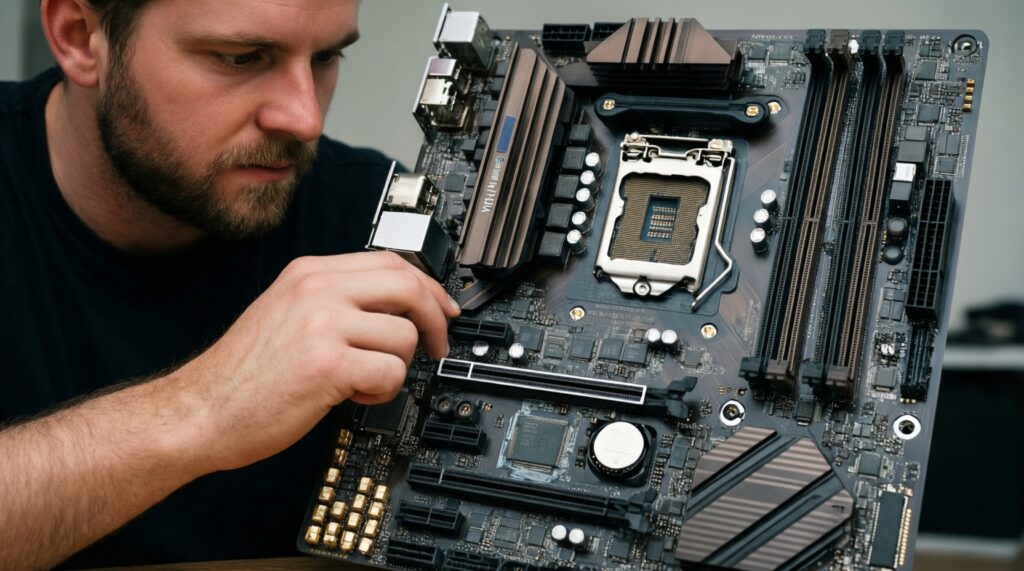
Before you compare เมนบอร์ดรุ่นไหนดี, decide how hard you'll push the CPU: gaming bursts, long renders, compiling, or 24/7 workloads. You'll need the board's product photos (close-ups), the VRM section details from the spec page, and preferably a reputable teardown or board layout diagram (to see what's actually cooled).
- Tools you need: manufacturer spec sheet, high-res photos of the VRM area, and your CPU's intended power behavior (stock limits vs tuned).
- What to look for quickly: substantial VRM heatsinks with surface area, clear airflow path, and enough CPU power connectors for your target CPU class.
- Safe rule: if you plan high-end CPUs or sustained all-core loads, prioritize VRM cooling over cosmetic features.
M.2 and storage layout: lanes, heatsinks and RAID options
-
List your drives and future adds
Write down how many NVMe M.2 drives you want now and later, plus any SATA SSD/HDD. This is the fastest way to answer เมนบอร์ดสล็อต M.2 เยอะ รุ่นไหนดี without guessing.
- Include a "future slot" if you plan a second NVMe for games/scratch/VMs.
- Note if you still need multiple SATA ports for bulk storage.
-
Check which M.2 slots are CPU-lanes vs chipset-lanes
Boards often route the top M.2 slot to CPU lanes (best performance/latency) and other slots through the chipset (shared bandwidth). The spec sheet usually states "from CPU" vs "from chipset".
- Prefer your OS drive on the CPU-connected M.2 slot when available.
- Plan for chipset-connected M.2 to share bandwidth with USB/SATA under heavy mixed I/O.
-
Detect lane-sharing and port disabling
Look for notes like "M2_2 shares bandwidth with SATA_5/6" or "PCIe x16 runs x8 when M2_3 is populated". This is where many builds silently lose ports.
- Confirm how many SATA ports remain active with all intended M.2 populated.
- Check if any PCIe slots drop speed or get disabled when M.2 slots are used.
-
Confirm M.2 physical length and heatsinks
Make sure the slot supports your drive length (commonly 2280; sometimes also 22110). If you'll run sustained writes, prioritize boards with included M.2 heatsinks (or ensure case airflow is strong).
- Heatsinks matter most for prolonged transfers and high-heat NVMe models.
- Avoid stacking M.2 drives under a hot GPU without any cooling plan.
-
Decide whether RAID is actually required
If you're considering chipset RAID for multiple NVMe/SATA drives, confirm the exact RAID modes supported and the OS install complexity. For many users, a single fast NVMe plus backups is simpler and safer.
- RAID is not a backup; plan separate backups regardless.
- Check if RAID works across CPU-lane + chipset-lane M.2 (often limited).
Fast-track mode: a shorter selection algorithm
- Lock CPU + socket and shortlist boards only on that platform.
- Pick chipset by needs: number of M.2/USB/PCIe you'll really use.
- Validate VRM cooling against your CPU class and sustained workloads.
- Audit lane sharing so no SATA/PCIe slot gets disabled in your intended configuration.
- Choose Wi‑Fi/ports last to avoid paying for features you won't use.
Integrated Wi‑Fi and networking: standards, antennas and throughput
If your question is เมนบอร์ดมี Wi‑Fi รุ่นไหนดี, focus on the Wi‑Fi generation, antenna quality, and how you'll place the PC in your room (distance and walls matter more than marketing). Use this verification checklist before buying.
- Wi‑Fi version is clearly stated (not just "Wi‑Fi ready").
- External antennas are included and use standard connectors (easy to replace/upgrade).
- Bluetooth version is listed if you use controllers/headsets.
- Ethernet controller model is named (not "2.5G LAN" with no details).
- Rear I/O has enough clearance for antenna connectors next to thick USB cables.
- If you game competitively, you still plan to use wired Ethernet when possible.
- Driver support is straightforward on your OS (especially if you clean-install).
- You have a plan for signal quality (router placement, 5 GHz vs 2.4 GHz, or mesh node).
Rear and internal I/O: which ports matter for peripherals and expansion
These mistakes cause most "everything works but it's annoying" outcomes after the build:
- Buying a case with front USB-C but choosing a motherboard with no front USB-C header.
- Assuming all USB-C ports are the same; some are data-only, some differ by speed, some lack video support.
- Too few fan headers for your cooling plan, leading to splitters and messy control.
- No clear CMOS access (button/header), making RAM tuning recovery painful.
- Not enough rear USB-A ports for dongles, printers, capture devices, and peripherals.
- Relying on motherboard video outputs when your CPU has no integrated graphics (or you always use a GPU).
- Ignoring audio needs (optical out, line-in) if you use external DACs or older speaker systems.
- Choosing a board with cramped PCIe slot spacing for thick GPUs plus add-in cards.
- Forgetting RGB/ARGB header type compatibility with your fans/strips.
Form factor, RAM support and BIOS features that affect upgrades
Choose the "shape" and firmware features based on how you'll upgrade, not on aesthetics.
-
ATX (full-size)
Best when you need more PCIe slots, more headers, and generally easier cable management. Prefer it for multi-drive builds and future expansion.
-
Micro-ATX
Great value when you want a smaller case but still need a reasonable number of slots and headers. Double-check fan headers and M.2 placement because layouts can be tight.
-
Mini-ITX
Use it for compact builds where size is the priority. Expect fewer M.2/PCIe options and more heat concentration; VRM cooling and case airflow become critical.
-
BIOS-first "upgrade-friendly" boards
Pick boards with BIOS Flashback/Q-Flash (update without a CPU), clear CMOS access, and a mature update history. This reduces risk when upgrading CPUs or using high-speed RAM kits.
Common concerns, pitfalls and short solutions
Why does the same CPU work on one board but not another?
Socket match is necessary but not sufficient: the board may need a specific BIOS version for that CPU. Choose boards with BIOS Flashback or confirm the shipping BIOS supports your CPU.
Is "more VRM phases" always better?
No-component quality, controller design, and heatsink effectiveness matter as much as phase count. Prioritize proven VRM cooling and stability for sustained workloads.
Why do I lose SATA ports when I install an extra M.2 drive?
Many boards share chipset lanes between M.2 and SATA. Read the storage section notes to see which SATA ports are disabled when specific M.2 slots are populated.
Do I need a motherboard with built-in Wi‑Fi?
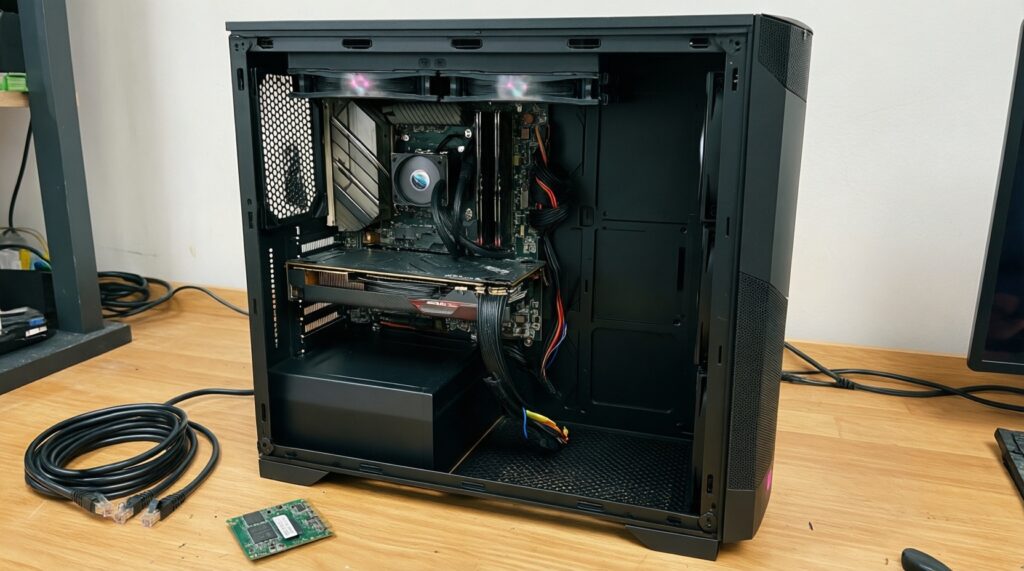
Only if you can't run Ethernet easily or you want a cleaner build. Otherwise, a PCIe Wi‑Fi card can be an easy upgrade later.
How do I avoid buying the wrong board for my case?
Match the form factor (ATX/mATX/ITX) and confirm front-panel headers (especially front USB-C). Also check GPU clearance and slot spacing if you use a thick GPU.
What's the safest way to pick "เมนบอร์ดรุ่นไหนดี" without overthinking?
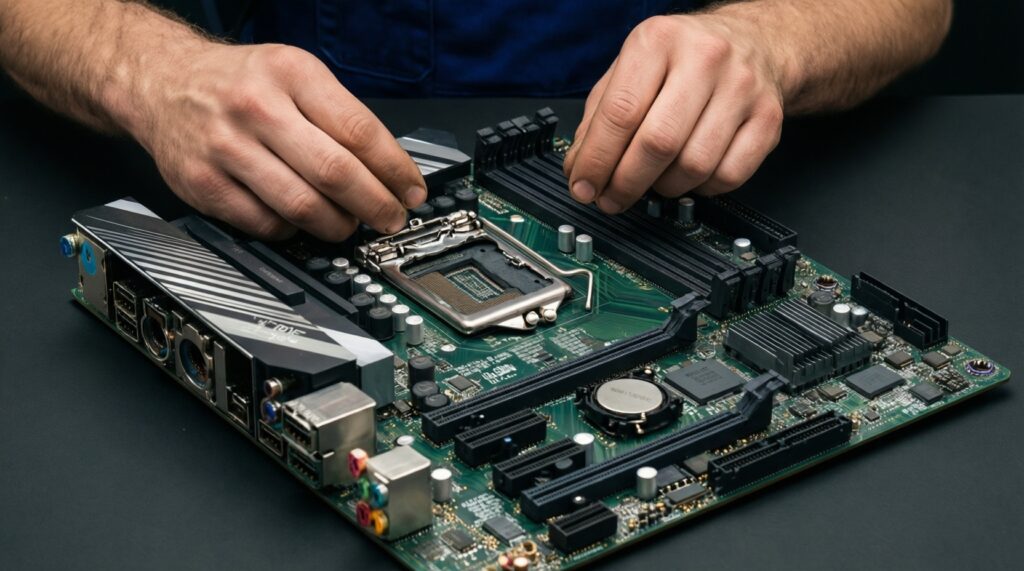
Choose by socket + chipset needs, then confirm VRM cooling, then validate storage lane sharing, and finally pick Wi‑Fi/ports. This order prevents most hidden compatibility and usability issues.