Choose a CPU by matching your main workload to the specs that matter most: gaming prefers high single-core boost and strong cache; video editing prefers more cores and sustained power; office work prioritizes efficiency and integrated graphics; streaming needs extra cores for simultaneous encoding. Then confirm socket, motherboard support, cooling, and budget before buying.
CPU selection checklist for specific workloads
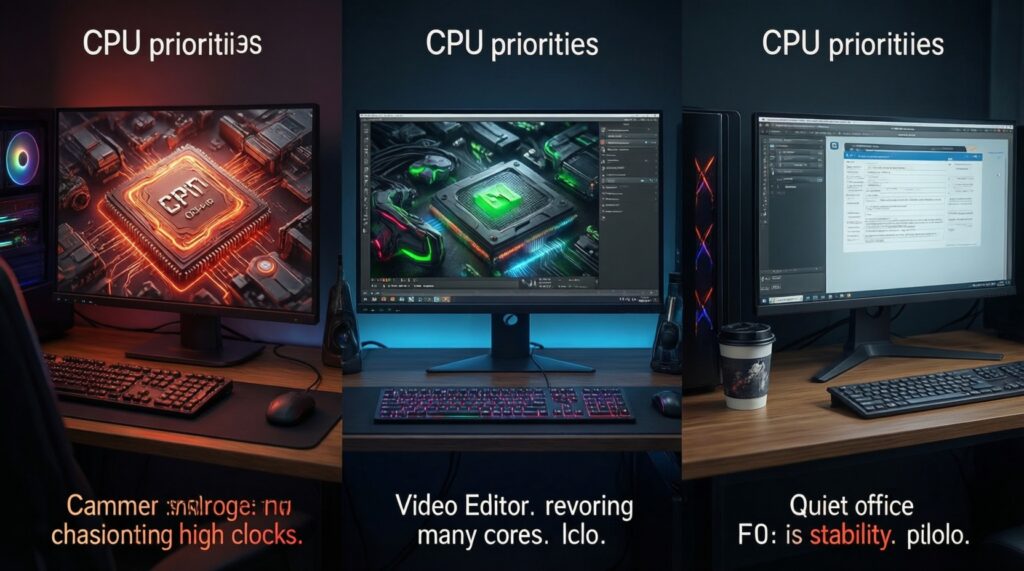
- Gaming focus: prioritize high boost clocks, strong single-thread performance, and adequate cache before chasing core count.
- Editing/rendering focus: prioritize higher core/thread count and sustained performance (cooling + power limits matter).
- Office focus: prioritize stability, low noise/heat, integrated graphics (if no GPU), and total platform cost.
- Streaming/gaming together: plan CPU headroom for encoding and background apps; don't size only for the game.
- Platform fit: verify motherboard socket/chipset, BIOS support, RAM type/speed, and PSU/cooler compatibility.
Which CPU specs actually affect gaming performance
If your question is "ซื้อ CPU เล่นเกม รุ่นไหนดี", start by sizing the CPU to your target FPS and GPU tier. Gaming performance is usually limited by single-core speed and latency first, then by overall CPU throughput once you add heavy multiplayer titles, high-refresh monitors, or lots of background tasks.
- Most important: single-core boost behavior, IPC (per-core performance), cache/latency, and stable high clocks under load.
- Helpful (situational): 6-8+ cores for modern titles, mods, and multitasking; more if you stream/record.
- Often overvalued: peak "up to" clock without checking sustained clocks and temperatures.
When not to over-invest in CPU for gaming: if you play at higher resolutions/settings where the GPU is the bottleneck, or your monitor refresh is modest. In those cases, upgrading GPU or storage can improve perceived performance more than a top-tier CPU.
| Use case | CPU tier to target | Spec priority | Practical notes (Thailand builds) |
|---|---|---|---|
| Gaming (esports / high refresh) | Mid to high | High boost + cache, strong single-thread | Budget for a decent cooler; avoid pairing a very fast GPU with an entry CPU. |
| AAA gaming (typical) | Mid | Balanced 6-8 cores + good single-thread | Put more money into GPU if you play at higher resolution. |
| Video editing + rendering | Mid to high | Cores/threads + sustained power | Cooling and motherboard VRM quality affect long exports more than peak specs. |
| Office / browsing | Entry to mid | Efficiency, iGPU (if no GPU), responsiveness | Platform cost matters most for "CPU ทำงานออฟฟิศ ราคา". |
| Gaming + streaming | Mid to high | Extra cores + stable all-core performance | If using CPU encoding, step up one tier; otherwise consider GPU encoder. |
Choosing CPUs for video editing and rendering workloads
If you're looking for "CPU สำหรับตัดต่อวิดีโอ แนะนำ", decide first whether you mainly do timeline playback (interactive) or exports (throughput). Editing benefits from a balanced platform; rendering/exporting scales with cores more consistently, but only if cooling and power limits allow sustained clocks.
What you should have ready before picking
- Your software and codecs: e.g., Premiere Pro, DaVinci Resolve, After Effects; H.264/H.265, ProRes, RAW.
- Typical project profile: resolution, frame rate, number of layers, effects, noise reduction, AI features.
- GPU plan: many editing apps offload effects/encoding to GPU; CPU choice changes depending on whether you have a strong GPU.
- Cooling and case airflow: sustained exports can downclock CPUs that are "fine" in short benchmarks.
- Storage and RAM capacity: fast SSD and enough RAM often prevent stutter more than a small CPU upgrade.
Workload-driven CPU priorities
- Timeline responsiveness: strong single-core, good cache/latency, stable boost behavior.
- Export/render: more cores/threads and sustained all-core performance; verify motherboard power delivery and cooler capability.
- Mixed work: choose a balanced CPU tier, then invest in RAM/SSD/GPU to remove common bottlenecks.
Selecting processors for office, browsing and light multitasking
For "CPU ทำงานออฟฟิศ ราคา", prioritize reliability and overall platform cost (CPU + motherboard + RAM + cooling). Office loads rarely need many cores, but they benefit from quick burst performance and fast storage.
-
Define the "no-GPU" requirement
If you won't install a discrete graphics card, pick a CPU with integrated graphics and confirm the motherboard video outputs match your monitors.
- Also check your display needs (dual monitors, resolution, refresh) before assuming any iGPU is enough.
-
Pick a sensible core count for multitasking
For heavy browser use (many tabs), office apps, and video calls, a modern mid-tier CPU is usually smoother than the cheapest option. More cores help when many apps run at once, but don't overspend.
-
Choose the platform for long-term maintenance
Select a widely supported socket/chipset so BIOS updates, replacement parts, and RAM availability are straightforward in Thailand.
- Confirm RAM type (DDR4/DDR5) and the board's QVL if you want maximum plug-and-play stability.
-
Prioritize low noise and safe temperatures
Office PCs run all day; choose a cooler/case that keeps the CPU out of thermal throttling and avoids loud fan curves. This improves sustained responsiveness during calls, screen sharing, and background updates.
-
Validate with your real workload
Before final purchase, check reviews/benchmarks that match your apps (browser, Office suite, conferencing, light photo work) instead of only gaming charts.
Fast-track mode (3-5 steps)
- Office only: choose an efficient entry-to-mid CPU, prefer iGPU if you won't buy a GPU.
- Gaming: choose a mid/high CPU with strong single-thread and good sustained boost; match to your GPU tier.
- Editing/rendering: move up one tier in cores/threads; budget for cooling and enough RAM/SSD.
- Streaming: add CPU headroom (or plan GPU encoding) so the game doesn't stutter during live encoding.
CPU considerations for live streaming and simultaneous tasks
If your question is "CPU สำหรับสตรีมเกม รุ่นไหนดี", decide whether you will encode on the CPU (heavier) or mainly use a GPU hardware encoder (lighter). Either way, streaming adds background load (chat overlays, browser sources, recording, alerts) that can expose CPU bottlenecks.
Result check: confirm you sized the CPU correctly
- You still have CPU headroom while gaming + streaming (no frequent 100% CPU spikes).
- Game frame-times remain stable when the stream starts (no recurring micro-stutter).
- Encoding doesn't force the CPU to downclock due to heat (watch sustained clocks under load).
- Background apps (browser sources, voice chat, music) don't cause dropped frames.
- System remains responsive when switching scenes or opening menus mid-game.
- RAM capacity is sufficient so the OS isn't paging to disk during a live session.
- Cooling is adequate for long sessions (fans not constantly maxed; no thermal throttling).
Balancing budget, socket compatibility and upgrade paths
When you compare platforms-especially if you search "เปรียบเทียบ CPU Intel กับ AMD รุ่นล่าสุด"-treat the CPU as part of a platform decision (motherboard, RAM, cooler, future upgrades), not a standalone product.
Common mistakes that waste money or cause instability
- Ignoring BIOS support: the motherboard may need a BIOS update for a newer CPU revision; confirm before buying.
- Under-budgeting cooling: a hotter CPU can throttle and perform like a cheaper model if cooling is weak.
- Mismatching CPU tier and GPU tier: an entry CPU with a high-end GPU can cap FPS and worsen frame-times.
- Buying cores you can't use: if your apps don't scale, a more balanced CPU plus faster SSD/RAM may feel better.
- Overpaying for "latest" features you won't use: check if you actually need DDR5, PCIe lane count, or special I/O.
- Forgetting total platform cost: motherboard and RAM pricing can flip the value between CPU options.
- Weak power delivery on cheap boards: sustained workloads (exports/streaming) may reduce performance on low-end VRMs.
- No upgrade plan: if you expect to upgrade later, choose a socket/chipset with a realistic future CPU path.
How to interpret benchmarks and real-world performance numbers
Benchmarks are useful only when they resemble your workload and hardware. Prefer tests that show sustained results, frame-time consistency (not just average FPS), and clear configuration details (RAM speed, power limits, cooler, BIOS settings).
Alternatives when generic benchmarks don't match your situation
- App-specific benchmarks: choose tests inside your editing software (or project-based export tests) when selecting for content creation.
- Frame-time focused gaming reviews: use 1% lows/frame-time plots for competitive gaming and stutter diagnosis.
- Your own A/B validation plan: if upgrading, compare your current system logs (CPU usage, clocks, temps) to see whether you're CPU-bound or GPU-bound.
- Platform-first comparison: when "เปรียบเทียบ CPU Intel กับ AMD รุ่นล่าสุด", compare total cost and motherboard/RAM availability in local shops, not only a single chart.
Common pitfalls and concise solutions
I bought a high-core CPU but games didn't get faster-why?
Many games scale more with single-core speed, cache, and latency than with extra cores. Check GPU bottleneck and frame-time metrics; you may be limited by GPU, settings, or resolution.
Is a CPU with integrated graphics good enough for office PCs?
Yes, for office/browsing and video calls it's often ideal and reduces total build cost. Confirm monitor connectivity and resolution support via the motherboard outputs.
Why does my CPU benchmark look good but exports slow down after a few minutes?
That usually indicates thermal throttling or power limits under sustained load. Improve cooling, check power settings/limits, and ensure the motherboard VRM can handle long all-core workloads.
For streaming, should I upgrade CPU or rely on GPU encoding?
If you already have a capable GPU encoder, it can reduce CPU load significantly during streaming. If you need CPU-based encoding quality or run heavy background tasks, choose a CPU tier with extra headroom.
How do I avoid a motherboard/CPU compatibility surprise?
Match socket and chipset, then confirm BIOS version support for the exact CPU model. When buying locally, ask the shop to update BIOS if needed before you pick up.
What matters more for "CPU ทำงานออฟฟิศ ราคา": CPU model or the whole platform?
The whole platform: motherboard, RAM, SSD, and cooling often decide responsiveness and stability. A balanced mid-tier build is usually better than the cheapest CPU paired with slow storage or too little RAM.