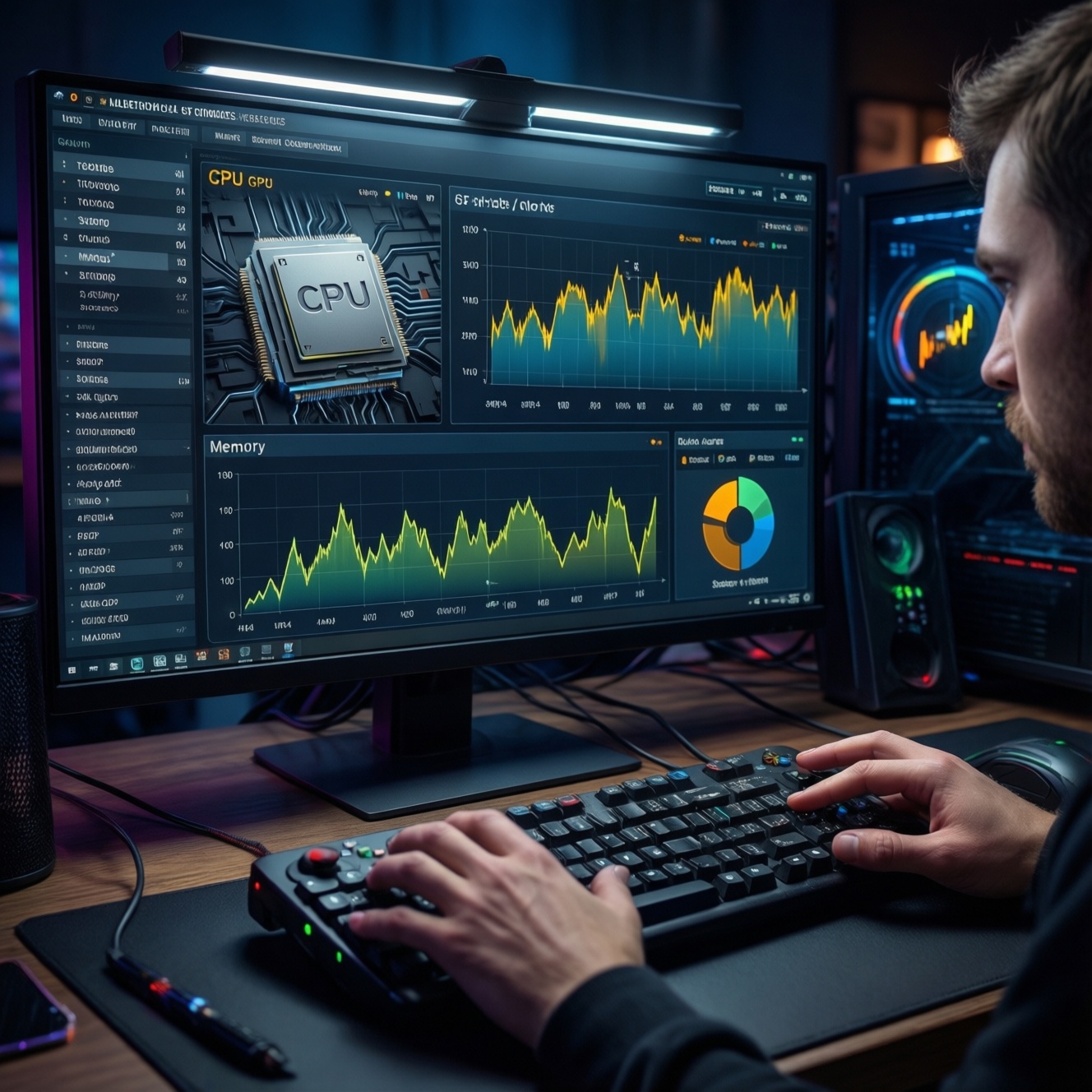
To check PC bottlenecks before upgrading, measure real workloads and look for the first resource that repeatedly hits its limit: CPU per-core saturation or throttling, GPU 95-99% load with high frame times, RAM pressure with paging, or storage queues/latency spikes. This method works for games and creative apps and prevents buying the wrong part.
Pre-upgrade bottleneck summary
- Define one primary workload (game, edit, compile) and one target (FPS stability, render time, export time) before you เช็กคอขวดคอม CPU GPU RAM.
- Always log CPU per-core, GPU utilization, VRAM, RAM, and disk latency at the same time; a single "% usage" view can mislead.
- For เช็กคอขวดเกม FPS ต่ำ, prioritize frame time (ms) consistency over average FPS.
- If GPU sits 95-99% while CPU cores are not pegged, the upgrade answer is usually GPU; if one CPU core pins at 95-100%, it's usually CPU or game settings.
- RAM bottlenecks show as rising committed memory + paging; storage bottlenecks show as high active time plus high latency/queue length.
- Decide with evidence first, then ask อัปเกรดคอม CPU หรือ GPU ดี only after you identify the limiting resource.
Define workloads and target performance gains
This workflow is for intermediate users who can install monitoring tools and run repeatable tests. Use it when you are unsure which part to upgrade (CPU/GPU/RAM/Storage) or when performance is inconsistent. Skip hardware changes if your issue is clearly software-bound (broken drivers, background tasks, thermal paste failure) and fix that first.
- Good fit: gaming stutter, inconsistent FPS, long exports, slow project loads, heavy multitasking.
- Not worth upgrading yet: malware/overheating, out-of-date BIOS/driver causing crashes, Windows indexing stuck, storage nearly full (free space < 15%).
Establish baseline metrics: how to measure real-world load
You need one repeatable scenario (same game scene/benchmark, same project export, same compile), admin permissions to run monitors, and 10-15 minutes for logging. This is your "before" baseline; repeat after any change.
| What to capture | Windows (built-in + common tools) | Linux | macOS | Red flags (practical thresholds) |
|---|---|---|---|---|
| CPU per-core load + clocks | Task Manager (Performance) + Resource Monitor; optional HWiNFO/Intel XTU/AMD Ryzen Master | htop / mpstat -P ALL 1 |
Activity Monitor (CPU) + powermetrics (admin) |
One or more cores pinned 95-100% while GPU load is not high; clock drops > 10% under load (throttling) |
| GPU load + frame time | Xbox Game Bar Performance; MSI Afterburner + RTSS; vendor overlay | nvidia-smi dmon -s pucvmt (NVIDIA); radeontop |
Activity Monitor (GPU History); Metal HUD (dev tools) | GPU 95-99% sustained and frame time spikes (e.g., jumps from ~8-16 ms to > 25-40 ms) |
| VRAM pressure | Afterburner/HWiNFO (VRAM used) | nvidia-smi --query-gpu=memory.used,memory.total --format=csv -l 1 |
Limited visibility; infer via stutter when high-res textures enabled | VRAM consistently > 90% and stutter appears when loading new assets |
| RAM + paging (swap) | Task Manager (Memory) + Resource Monitor (Hard Faults/sec) | free -h + vmstat 1 (swap in/out) |
Activity Monitor (Memory) "Memory Pressure"; vm_stat 1 |
Swap activity sustained; Windows "Hard Faults/sec" repeatedly high during gameplay/work; memory pressure stays yellow/red |
| Disk latency/queue | Resource Monitor (Disk) + Performance Monitor counters | iostat -xz 1 |
Activity Monitor (Disk) + fs_usage (advanced) |
High latency during pauses (common: > 20-50 ms on HDD; > 5-20 ms on SSD) and queue/backlog growing |
| Storage health | Vendor SSD tool; CrystalDiskInfo (SMART) | smartctl -a /dev/nvme0 (or disk device) |
diskutil info (limited SMART on some models) |
SMART warnings, reallocated sectors increasing, frequent I/O errors |
Tool choice note: if you're searching for โปรแกรมเช็กคอขวดคอมพิวเตอร์, prefer tools that can log to a file (CSV) so you can correlate spikes (CPU/GPU/RAM/disk) with the exact stutter moment.
Compact decision flow (map symptoms to actions)
- Reproduce and log: run the same 3-5 minute segment twice while logging CPU per-core, GPU, RAM, and disk.
- Find the first limiter: identify which resource hits its limit at the same timestamp as the slowdown (frame time spike / UI freeze / export stall).
- Decide "optimize vs upgrade": if limits are caused by thermals, drivers, or background tasks, optimize first; if the same limiter repeats after cleanup, upgrade that component.
- Validate after change: rerun the exact baseline and confirm the limiter moved (or frame times stabilized).
CPU diagnostics: utilization patterns, throttling, and core-level analysis
Preparation mini-checklist (safe)
- Update GPU driver and chipset driver; reboot once before testing.
- Set a stable power plan (Windows: Balanced/High performance) and disable "battery saver" modes on laptops.
- Close heavy background apps (browser video tabs, sync tools) and pause game downloads.
- Ensure temperatures are reasonable: clean dust, confirm fans spin, don't block vents.
- Pick one repeatable test (same game area/benchmark/export) and keep settings unchanged.
-
Log per-core, not just total CPU%
Total CPU at 40-60% can still be a CPU bottleneck if one main thread is pinned. Watch per-core graphs while reproducing the slowdown; this is the most common reason people misread "no bottleneck."
- Likely CPU limit: any core sits 95-100% during stutter while GPU is below ~90%.
- Likely not CPU limit: all cores are moderate and GPU is 95-99% at the same moment.
-
Check sustained clocks and thermal/power throttling
During a 5-10 minute load, clocks should remain relatively stable. If clocks drop noticeably (commonly > 10% from the initial boost) exactly when performance drops, you're throttling rather than "needing more CPU."
- Fix first: cooling, laptop power limits, BIOS settings, dust, fan curves.
- Upgrade later: only if clocks are stable but the same core still pins.
-
Correlate CPU spikes with frame time spikes
For gaming, frame time is the truth metric. If frame time spikes coincide with CPU main-thread saturation, reduce CPU-heavy settings (crowd density, view distance, simulation) before buying parts.
- Target: keep frame times consistent (e.g., near 16.7 ms for 60 FPS or 8.3 ms for 120 FPS) rather than chasing peak FPS.
-
Rule out background contention
Background scans and overlays can create periodic CPU spikes that look like a hardware limit. Temporarily disable non-essential overlays and real-time scans, then rerun the same segment.
- If stutter disappears, optimize software first; no upgrade needed.
-
Decide CPU upgrade vs platform tuning
If you consistently see one/two cores pinned with stable clocks and no unusual background spikes, a CPU (or platform) upgrade is justified. If clocks are unstable, fix thermals/power settings before spending money.
One-line guidance: when CPU is the limiter, optimizing settings and reducing background load can help immediately; upgrading CPU makes sense only after per-core logging proves repeated saturation under stable clocks.
GPU diagnostics: frame times, VRAM pressure, and driver impact
- Enable a frame time graph (not just FPS) and reproduce the stutter; treat repeated spikes > 25-40 ms as the primary symptom to fix.
- Check if GPU utilization is sustained 95-99% during the slow segment; if yes, you're usually GPU-limited and lowering resolution/AA should increase FPS.
- Watch VRAM usage; if VRAM stays > 90% and stutter happens when turning camera/entering new areas, reduce texture quality or upgrade GPU VRAM.
- Test a resolution scaling change (e.g., 100% → 80%): if FPS improves a lot, it's GPU-bound; if it barely changes, suspect CPU or RAM/storage.
- Compare borderless vs exclusive fullscreen and toggle V-Sync/Frame cap: unstable frame pacing can be a settings issue, not hardware.
- Clean up driver issues safely: use a standard driver reinstall (avoid risky tweaks), then rerun the baseline.
- If you're deciding อัปเกรดคอม CPU หรือ GPU ดี for games, choose GPU when you're consistently GPU 95-99% with stable CPU per-core headroom.
Memory diagnostics: swap activity, working set size, and fragmentation
- Mistake: judging by "RAM used %" alone. Do instead: watch sustained swap/pagefile activity; that's where stutter comes from.
- Mistake: leaving too many browser tabs or launchers open while testing. Do instead: reproduce your real workflow, but keep it consistent between runs.
- Mistake: assuming faster RAM fixes paging. Do instead: add capacity first if the system swaps during the workload.
- Mistake: ignoring memory compression/pressure indicators. Do instead: treat yellow/red memory pressure (macOS) or repeated hard faults (Windows) as "capacity limit reached."
- Mistake: mixing RAM sticks with unstable XMP/EXPO settings. Do instead: validate stability (stock settings first), because instability can mimic bottlenecks.
- Mistake: upgrading storage when the real issue is not enough RAM. Do instead: if paging is sustained, answer อัปเกรด RAM หรือ SSD อันไหนคุ้ม with "RAM first" in most cases.
- Mistake: running with very low free disk space. Do instead: keep free space available so paging and caches don't choke the system.
Storage diagnostics: sequential vs random, IOPS, latency and health indicators
Storage bottlenecks usually show up as pauses, long load times, and hitching when streaming assets-often with high disk active time and latency spikes. Before replacing a drive, confirm it's actually the limiter.
- Optimize first (no hardware): free space, reduce background disk activity (indexing, sync), and move games/projects off a nearly-full drive.
- Upgrade path for HDD users: move OS + most-used apps/games to an SSD; this is often the single biggest responsiveness improvement.
- Upgrade path for SATA SSD users: move heavy random-I/O workloads (large projects, many small files) to NVMe if your platform supports it and latency/queue is the proven limiter.
- Reliability-driven replacement: if SMART indicates degradation or errors, replace the drive regardless of performance tests.
Concise answers to upgrade uncertainties
How do I know it's a bottleneck and not just a poorly optimized game?
If the same limiter (CPU core pinning, GPU 99%, paging, or disk latency spikes) repeats at the same point across two runs, it's a measurable bottleneck; if metrics vary wildly run-to-run, suspect software/driver/background tasks first.
What is the fastest way to เช็กคอขวดคอม CPU GPU RAM without buying tools?
Use built-in monitors (Task Manager/Resource Monitor on Windows; Activity Monitor on macOS; htop/vmstat/iostat on Linux) and log a 3-5 minute repeatable run while watching CPU per-core, GPU load, RAM/swap, and disk latency.
Which โปรแกรมเช็กคอขวดคอมพิวเตอร์ should I use for gaming?
Use an overlay that shows frame time plus CPU per-core and GPU utilization (e.g., RTSS-style overlays) and a sensor tool that can log to CSV so you can correlate spikes with the exact stutter moment.
I have เช็กคอขวดเกม FPS ต่ำ; should I upgrade CPU or GPU?
Upgrade GPU if GPU stays 95-99% during the slow scene and lowering resolution boosts FPS clearly. Upgrade CPU if one/two CPU cores pin near 100% while GPU utilization remains relatively low.
For อัปเกรด RAM หรือ SSD อันไหนคุ้ม, what's the practical rule?
If you see sustained swap/pagefile activity during the workload, RAM capacity is the priority. If there's little/no swapping but disk latency spikes during loads and asset streaming, SSD (or faster SSD) is the better buy.
Do synthetic benchmarks replace real testing?
No-use them only to validate that hardware is behaving normally. Bottlenecks that matter for you must be measured in your actual game/app scene with frame time and system metrics captured together.
How many runs are enough to decide?
Two clean, repeatable runs are usually sufficient to spot the same limiter. If results disagree, fix thermals, drivers, and background apps and then retest.