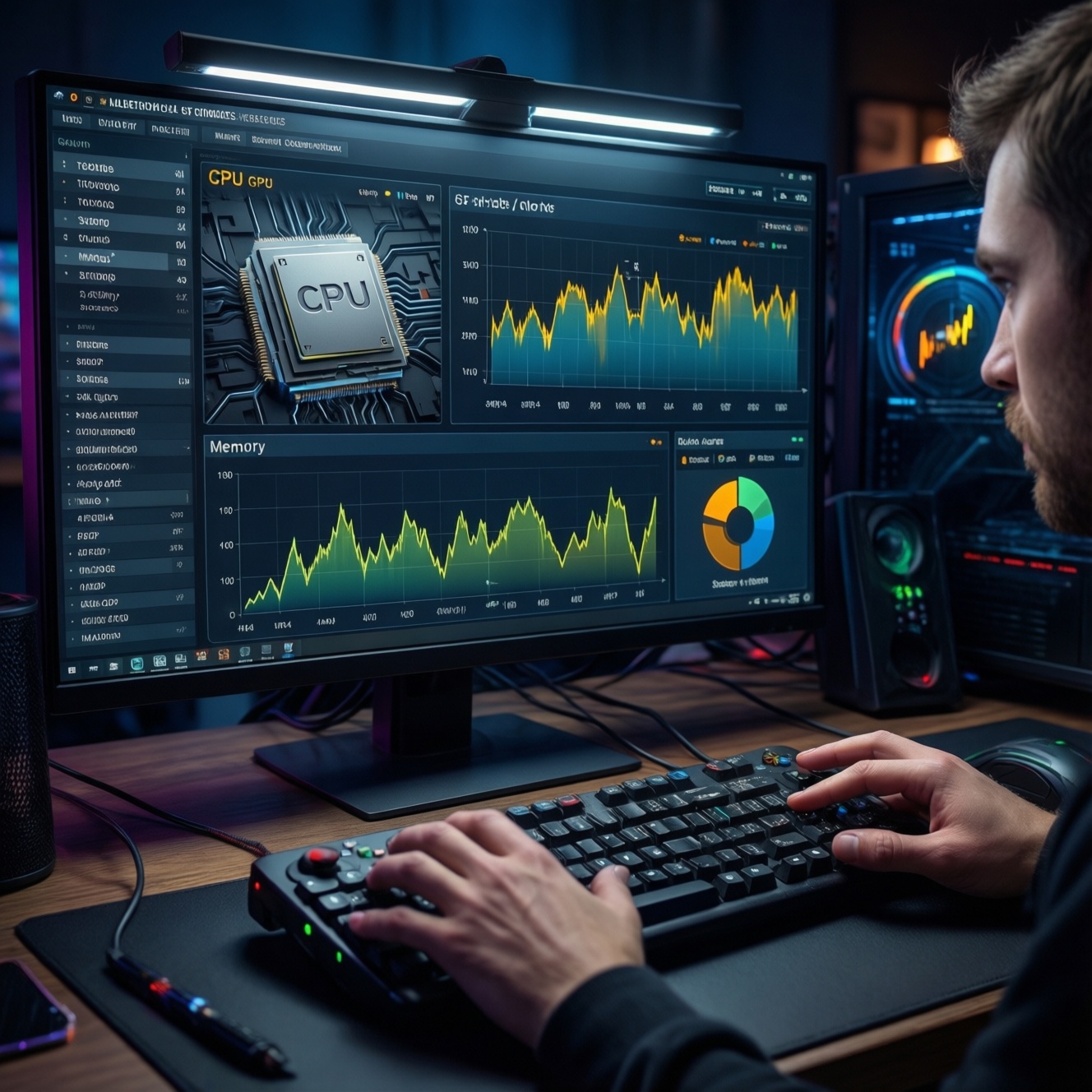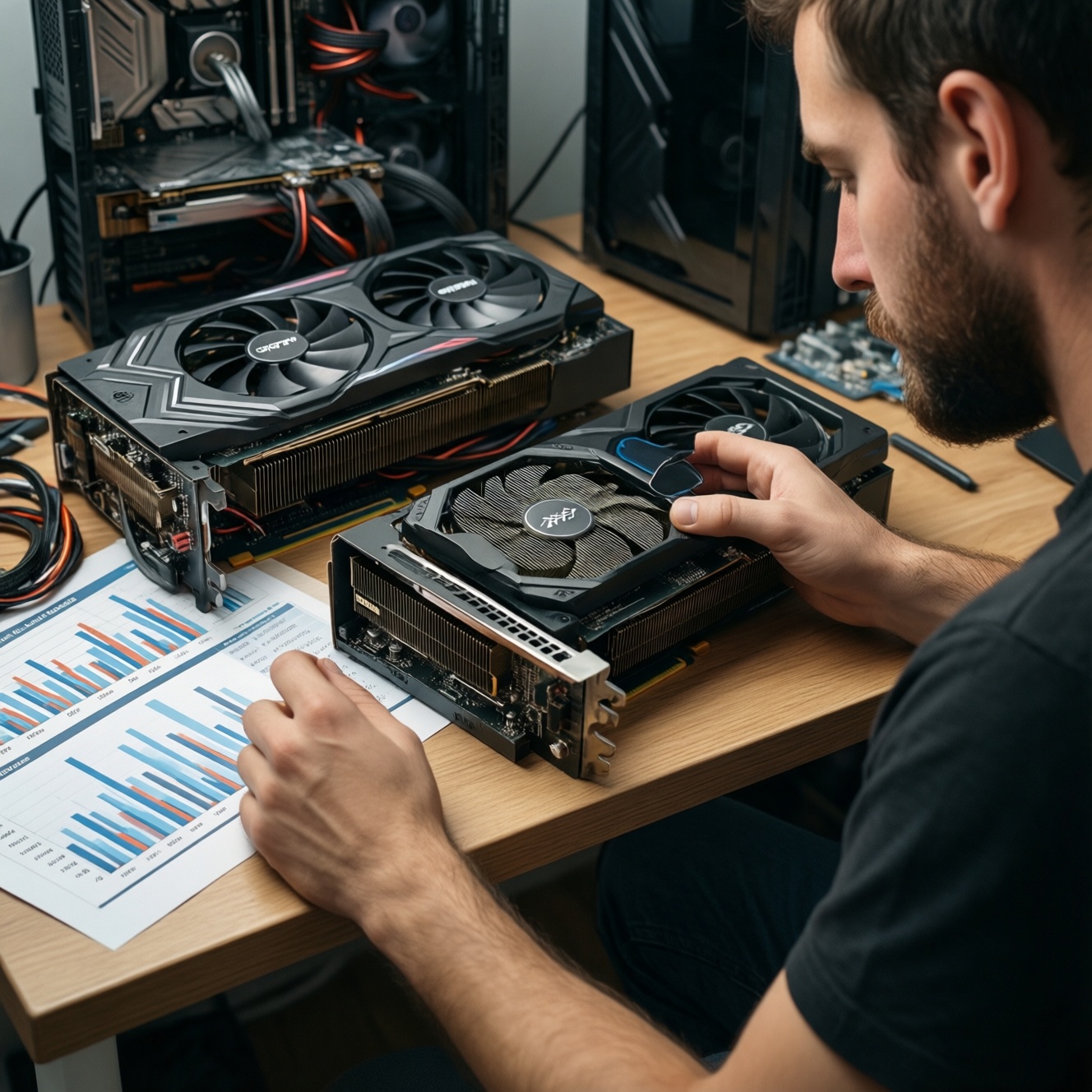
To get the best value in a PC build, set your CPU/GPU budget split by workload: gaming usually rewards a stronger GPU, video editing often needs a balanced pair, and office/pro apps may favor CPU cores, RAM, and fast storage. Use the decision rules and splits below to avoid bottlenecks and overspending.
Quick reference: optimal CPU/GPU splits by task
- 1080p high-FPS esports: CPU 35-45% / GPU 35-45% (keep the CPU strong to prevent frame-time spikes).
- 1440p-4K AAA gaming: CPU 20-30% / GPU 50-65% (GPU-first for higher settings and resolution).
- Video editing (mixed timeline + effects): CPU 30-40% / GPU 35-50% (balance, plus prioritize RAM and SSD).
- CPU-heavy pro workloads (compiles, simulations): CPU 45-60% / GPU 10-30% (only pay for GPU if your app uses it).
- Streaming + gaming on one PC: CPU 30-40% / GPU 45-60% (leave headroom for encoding and multitasking).
How CPU vs GPU shapes gaming performance
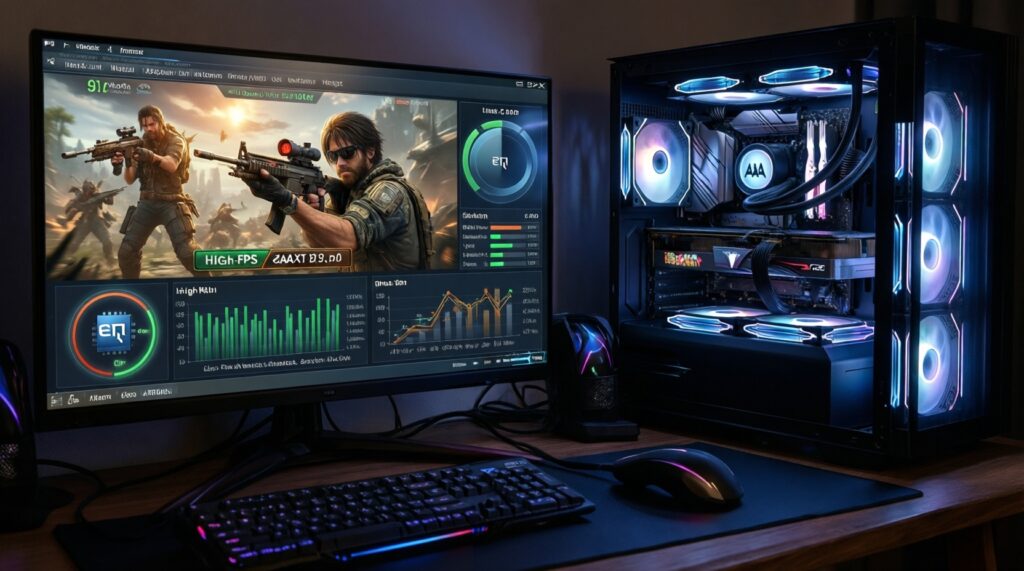
- Target resolution and settings: higher resolution/shadows/textures push GPU; lower resolution + very high FPS pushes CPU.
- Game genre and engine behavior: competitive shooters and large multiplayer titles often stress CPU scheduling and cache; cinematic AAA titles tend to scale with GPU.
- Minimum FPS and frame-time stability: CPU, RAM speed/latency, and background tasks influence dips more than average FPS.
- Ray tracing and upscaling features: RT performance is typically GPU-bound; upscalers can reduce GPU load but don't fix CPU limits.
- VR and high-refresh monitors: consistent frame pacing is critical; weak CPUs can cause stutter even with a strong GPU.
- Driver and game optimizations: some games prefer certain GPU architectures; still, a balanced platform avoids "one part wasted."
- Cooling and sustained clocks: undersized cooling can throttle CPU/GPU, turning a "good on paper" split into real-world underperformance.
- Platform costs: motherboard and memory requirements can shift the true CPU budget; don't ignore "hidden" CPU-side expenses.
- Typical buyer question: for many builds, "จัดสเปคคอมเล่นเกม เน้นการ์ดจอหรือซีพียู" is answered by your resolution/FPS target, not by brand loyalty.
Allocating budget for video editing and rendering
For editors, the best split depends on codec (H.264/H.265 vs intraframe), effects, color work, and whether your NLE leverages GPU for playback/export. When people ask "จัดสเปคคอมตัดต่อ视频 เน้นซีพียูหรือการ์ดจอ", the practical answer is: balance first, then bias toward the component your timeline actually saturates.
| Variant | Who it fits | Pros | Cons | When to choose |
|---|---|---|---|---|
| CPU-first (55/25) | CPU renderers, heavy multitask, lots of background tools | Strong general responsiveness; good for CPU-only pipelines | Slower GPU-accelerated effects; weaker gaming uplift | When your app/plugins are CPU-bound and exports don't scale with GPU |
| Balanced creator (40/40) | Most mixed editing: cuts + effects + moderate color | Best all-round; fewer obvious bottlenecks | May not top charts in any single benchmark | When you want smooth playback and solid export times across many projects |
| GPU-accelerated effects (30/50) | Motion graphics, heavy GPU effects, noise reduction | Faster GPU previews/effects; better for gaming too | CPU can cap decode/encode or timeline responsiveness | When GPU utilization is consistently high during your real edits |
| Quick-sync / iGPU assist + mid GPU (35/40) | Editors exporting lots of H.264/H.265 while also gaming | Efficient encode workflows; good day-to-day speed | Requires the right platform/features; not universal | When your workflow benefits from hardware encode/decode plus a capable discrete GPU |
| 3D + GPU rendering bias (25/60) | 3D viewport work, GPU render engines, AI-assisted tools | Big uplift in GPU renders; strong real-time viewport | CPU tasks (sim, baking, compiles) may feel slower | When the GPU is the primary compute device most of your day |
Rule of thumb: if you can't decide, start at 40/40 and invest the "missing 20%" into RAM capacity and a fast SSD-those often fix editing pain faster than chasing a slightly higher tier CPU or GPU.
Prioritizing CPU for productivity and professional apps
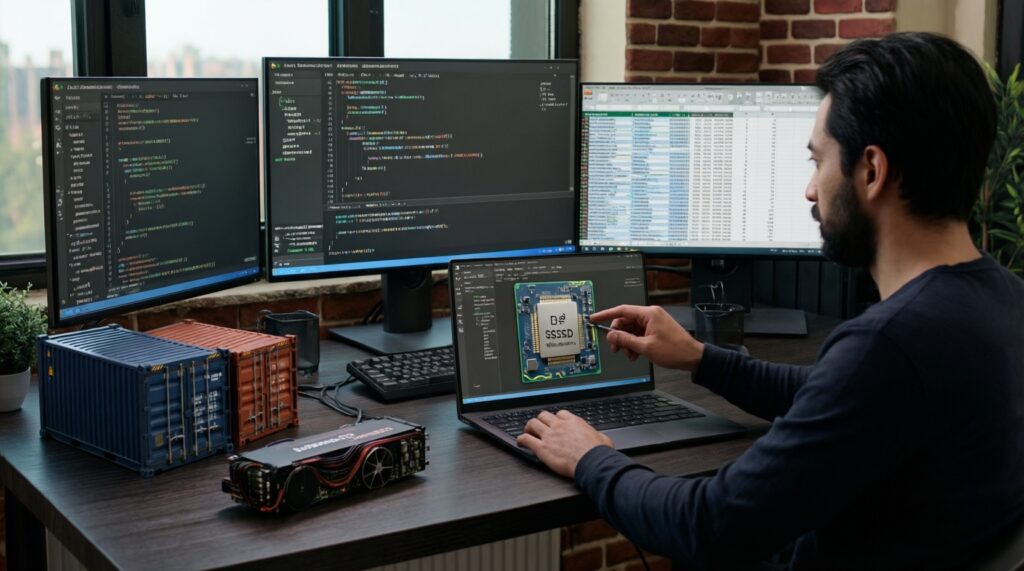
- If you compile code, run local containers/VMs, or do data preprocessing, then prioritize CPU cores/threads and RAM before upgrading the GPU.
- If you work in large spreadsheets, databases, and browser-heavy workflows, then prioritize CPU single-core stability, RAM capacity, and SSD performance; a modest GPU is usually enough.
- If you do CAD/BIM where viewport smoothness matters but final renders aren't GPU-based, then choose a stronger CPU and a midrange GPU with stable drivers.
- If your app uses GPU compute (certain AI, rendering, denoise, effects), then confirm GPU acceleration is enabled and supported, and allocate more budget to the GPU plus VRAM.
- If you're asking "จัดสเปคคอม CPU หรือ GPU สำคัญกว่า" for office/pro use, then measure your real bottleneck: CPU saturation and RAM paging usually hurt more than raw GPU power.
Balancing for live streaming, encoding and multitask workflows
- Pick the primary load: gaming-first, editing-first, or stream-first (only one can be "primary" for clean budgeting).
- Choose your encode path: hardware encoder on GPU vs CPU encoding; decide based on your quality/performance target and how much gameplay FPS you can sacrifice.
- Set a starting split: gaming+stream on one PC: 35/55; editing+stream: 40/45; CPU-heavy productivity+stream: 50/30.
- Reserve headroom: keep some CPU capacity for OBS, browser sources, chat bots, and background tasks; avoid running both CPU and GPU at 95-100% constantly.
- Lock memory and storage basics: enough RAM for game + OBS + browser, and an SSD that prevents asset/recording stutter.
- Validate with a worst-case scene: test your heaviest in-game moment plus overlays/alerts; if frame-time spikes appear, shift budget toward the limiting component next upgrade cycle.
Concrete allocation tables and example builds
Use this as a practical budgeting guide for สัดส่วนงบ CPU GPU สำหรับประกอบคอม (CPU/GPU budget split). Percentages are for the CPU + GPU portion of your total spend; don't starve the rest of the platform.
| Workload focus | CPU share | GPU share | Suggested CPU tier | Suggested GPU tier |
|---|---|---|---|---|
| Esports 1080p high FPS | 35-45% | 35-45% | Upper midrange (strong single-core) | Midrange (stable drivers, good efficiency) |
| AAA 1440p-4K | 20-30% | 50-65% | Midrange (avoid entry-level bottlenecks) | Upper midrange to high-end |
| Editing + effects (general) | 30-40% | 35-50% | Upper midrange (more cores help) | Midrange to upper midrange (VRAM as needed) |
| CPU-heavy professional | 45-60% | 10-30% | High-core-count (sustained clocks) | Entry to midrange (unless GPU compute required) |
Example build logic (entry / mid / high) with one upgrade path each
- Entry balanced gaming: allocate toward a solid midrange GPU and a CPU that won't cap 1080p/1440p averages. Upgrade path: next upgrade goes to GPU first if moving to higher resolution; otherwise upgrade CPU if chasing very high FPS.
- Mid creator-gamer: keep CPU/GPU near balanced, then prioritize RAM capacity and a fast SSD for project media. Upgrade path: add GPU tier/VRAM if effects/denoise are slow; add CPU cores if exports and background tasks dominate.
- High-end AAA + streaming: bias to GPU, but avoid a "too-small" CPU that causes stream stutter or frame-time spikes. Upgrade path: if streaming quality is the pain point, improve encoding headroom (CPU tier or encoder-capable GPU tier) before chasing marginal FPS.
Common mistakes that waste budget
- Buying a top-tier GPU while using an entry CPU and then wondering why 1080p high-FPS performance stutters.
- Overspending on CPU core count for gaming-only builds where the GPU is the consistent limiter.
- Underbuying RAM or SSD speed/capacity and blaming CPU/GPU for timeline hitching and app freezes.
- Ignoring cooling/PSU quality, leading to throttling or instability that looks like "bad performance per baht."
- Choosing parts without checking motherboard BIOS support and upgrade options.
- Chasing "render benchmarks" while your real workflow is decode/playback bound.
- Not planning for ports and capture needs (extra storage, capture card lanes, USB stability) in streaming setups.
- Picking a GPU with insufficient VRAM for your target textures, mods, or creator tools, forcing compromises later.
- Searching only for "แนะนำซีพียูและการ์ดจอคุ้มค่า ราคา" and ignoring total platform cost (board, RAM, PSU, cooler).
Planning upgrades: spotting bottlenecks and future-proofing
- If your main goal is high-resolution gaming: choose the GPU-first split (50-65% GPU) and keep the CPU at a "no-bottleneck" midrange tier.
- If your main goal is editing with effects: start balanced (40/40), then bias GPU only if your effects pipeline consistently saturates it.
- If your main goal is CPU-heavy work: choose CPU-first (45-60% CPU), then add GPU later only when your apps genuinely accelerate.
The best "CPU vs GPU" answer changes by workload: GPU-leaning builds usually feel best for 1440p-4K gaming, balanced builds tend to be safest for mixed creator use, and CPU-leaning builds are typically smoother for heavy multitasking and professional CPU-bound tools-without claiming any single split is universally best.
Decisions solved: short answers to common trade-offs
Should I ever buy a stronger CPU than GPU for a gaming PC?
Yes, for 1080p high-refresh esports or CPU-heavy games where minimum FPS and frame-time stability matter more than ultra settings.
What split is safest if I game and edit videos equally?
Start near 40/40 for CPU/GPU and put remaining budget into RAM and SSD; then shift toward the part that hits high utilization in your real projects.
When does GPU VRAM matter more than GPU "tier"?
When your tools or games exceed VRAM, performance can drop sharply; adequate VRAM prevents stutter and quality compromises even if the GPU core is slightly slower.
Is hardware encoding enough for streaming without a strong CPU?
Often, but you still need CPU headroom for OBS, scene composition, browsers, and background tasks; a too-weak CPU can cause dropped frames and stutter.
Can a fast SSD reduce the need for a CPU or GPU upgrade in editing?
Yes, if your bottleneck is media caching, paging, or slow project loads; storage and RAM can fix "choppy" timelines that look like CPU/GPU issues.
What's a quick sign I should upgrade CPU instead of GPU?
If lowering resolution/settings barely improves FPS, or you see frequent frame-time spikes with moderate GPU usage, the CPU/platform is likely limiting.