To choose a monitor that truly fits your GPU, match three things first: target resolution (1080p/1440p/4K), refresh rate you can realistically feed with frames, and VRR support (G-Sync/FreeSync) over the right port. If any one of these mismatches, you'll pay for specs you cannot use or get flicker, capped Hz, or blurry scaling.
Compatibility checklist: what must match between monitor and GPU
- Resolution vs GPU headroom: 1080p, 1440p, or 4K must align with the games/settings you run.
- Refresh rate vs typical FPS: the monitor's Hz is only useful if your GPU can deliver frames consistently.
- VRR ecosystem: FreeSync vs G-Sync Compatible vs native G-Sync, plus real-world implementation quality.
- Port version and cable: DisplayPort/HDMI generation determines max resolution/Hz and VRR support.
- VRAM and memory bandwidth: too low causes stutter, texture pop-in, and unstable frame pacing at higher resolutions.
- Panel behavior: response time/overshoot, local dimming/HDR behavior, and flicker risks with VRR.
Match resolution to GPU capability: 1080p vs 1440p vs 4K decisions
If your goal is เลือกจอให้เหมาะกับการ์ดจอ, start by picking the resolution your GPU can sustain at the settings you actually use (not just benchmarks at "Ultra"). Higher resolution increases pixel workload and VRAM pressure; it also raises the "minimum FPS" requirement to keep motion smooth.
- 1080p fits competitive play and older/midrange GPUs; it makes ซื้อจอเกมมิ่ง 144Hz achievable with more titles and lower latency.
- 1440p is the balanced upgrade for clarity without the extreme cost of 4K; it pairs well with high-refresh displays like the popular จอ 1440p 165Hz ราคา segment-if your GPU has enough VRAM and bandwidth.
- 4K is best when you prioritize sharpness and image quality, or you plan to use upscaling; it becomes much harder to justify a จอ 4K 144Hz unless you have strong GPU headroom and the right ports.
When not to move up in resolution (quick "don't" rules):
- If you already lower settings to keep FPS stable, increasing resolution will usually make frame pacing worse.
- If you routinely hit VRAM limits (texture downscaling, hitching), 1440p/4K will amplify the problem.
- If your GPU output ports cannot drive your target resolution/Hz with VRR, you'll end up capped (wasted monitor spec).
| GPU tier (practical) | Best case monitor target | Likely case (safer buy) | Avoid if you dislike compromises | Common failure mode if pushed |
|---|---|---|---|---|
| Entry / older (limited VRAM, limited bandwidth) | 1080p 144Hz (esports settings) | 1080p 120-165Hz with VRR | 1440p high-refresh; 4K | VRAM spikes, stutter, inconsistent frametimes |
| Midrange (good 1080p, decent 1440p) | 1440p 144-165Hz (tuned settings) | 1440p 120-165Hz with VRR | 4K high-refresh without upscaling | FPS swings that make high Hz feel wasted without VRR |
| Upper-mid (strong 1440p, workable 4K) | 1440p 165-240Hz (competitive) or 4K 120-144Hz (with upscaling) | 1440p high-refresh with strong VRR range | 4K 144Hz if ports/cables or VRAM are marginal | Bandwidth/port caps; VRR dropouts; compression artifacts sensitivity |
| High-end (4K-capable with headroom) | 4K 144Hz or ultrawide high-refresh with VRR | 4K 120-144Hz with VRR + tuned settings | Overspending on HDR/refresh you won't configure properly | Misconfiguration: running at 60Hz, wrong cable/port, VRR off |
Refresh rate vs frame delivery: when to prioritise higher Hz
Higher Hz only helps when your PC can deliver frames with stable pacing. Before you pay for 165/240Hz, confirm you can measure and control your frame output and VRR behavior.
What you'll need (tools and access):
- GPU control panel access (NVIDIA Control Panel or AMD Software) to set refresh rate, VRR, and color format.
- Windows display settings to confirm the monitor is actually running at the chosen Hz (common pitfall: stuck at 60Hz).
- In-game frame limiter or driver-level limiter to keep FPS inside the VRR window and reduce latency spikes.
- Monitoring overlay (any FPS/frametime overlay you already trust) to spot frametime spikes and VRAM pressure.
- Correct cable (and using the correct port) so the monitor can expose its full Hz + VRR mode.
Practical priority rule: choose higher Hz when you play fast shooters, value motion clarity, and can keep FPS near (or within) the VRR range; otherwise, prioritize resolution/image quality and a good VRR implementation.
VRR realities: G‑Sync, FreeSync, and implementation caveats
Risks and limitations to plan for:
- VRR behavior varies by monitor model; the badge alone doesn't guarantee no flicker or no brightness pulsation.
- VRR may depend on the port: some displays support VRR on DisplayPort but not on all HDMI ports.
- If FPS drops below the VRR floor, you may see judder or flicker unless LFC (low framerate compensation) works well.
- Wrong color format (RGB vs YCbCr) or bit depth can reduce max Hz or trigger instability.
- Mixing adapters/docks can break VRR entirely; connect GPU → monitor directly while testing.
-
Confirm what your monitor actually supports
In the monitor OSD, find Adaptive-Sync/FreeSync/G-Sync settings and turn it on. If the monitor lists VRR per input, note which port supports it and at what resolution/Hz.
-
Use the right connection first (direct GPU to monitor)
Prefer DisplayPort for PC VRR unless you specifically know your HDMI chain supports VRR at your target mode. Avoid adapters while validating stability.
- If you're shopping based on จอ G-Sync FreeSync ราคา, verify the exact model's port behavior-pricing often mixes multiple revisions with different input capabilities.
-
Enable VRR in the GPU driver and select the correct refresh rate
In the GPU control panel, enable VRR (G-Sync/Adaptive-Sync) for the display and then set the maximum refresh rate in Windows. Re-check after driver updates, as settings sometimes reset.
-
Cap FPS to stay inside the VRR range
Set a frame limit slightly below max Hz (for example, below 144Hz/165Hz) so the GPU doesn't slam into the ceiling and cause latency or tearing transitions. This also reduces power spikes and coil whine on some systems.
-
Test for flicker, overshoot, and dropouts with real gameplay
Check dark scenes, menus, and loading transitions where VRR flicker is most obvious. If flicker appears, try a slightly lower max Hz, adjust overdrive, or use a tighter FPS cap.
-
Lock in a stable "daily profile"
Save a monitor preset (if available) and keep a known-good combination: resolution, Hz, VRR on, overdrive level, and FPS cap. Stability is worth more than a paper spec you can't use comfortably.
Pixel density, scaling and perceived sharpness for different screen sizes
After choosing resolution and Hz, verify the result looks sharp and readable at your viewing distance. Use this checklist before the return window ends.
- Text clarity: no persistent blur on desktop text at your chosen scaling level.
- Windows scaling: UI elements are comfortable without forcing excessive scaling that negates resolution benefits.
- Game UI readability: HUD and subtitles remain readable without awkward size adjustments.
- Consistency across apps: no apps render tiny/unusable menus due to scaling behavior.
- Sharpness settings: monitor "Sharpness" isn't artificially boosting edges (haloing) to fake clarity.
- Chroma clarity: fine colored text (red/blue on gray) doesn't smear, suggesting subpixel/layout quirks.
- Viewing distance: you're not sitting so close that you notice pixel structure at 1080p on a large screen.
- Upscaling dependence: if you rely on upscaling, confirm the image isn't too soft for your preference at 1440p/4K.
Physical interfaces and bandwidth: HDMI, DisplayPort, compression and limits
Most "my new monitor can't do X Hz" issues are port/cable/config mistakes, not GPU power. These are the errors to avoid:
- Using the wrong port on the monitor (only one input supports full refresh rate or VRR).
- Using a low-spec or damaged cable that forces a lower link rate (random black screens, reduced Hz options).
- Assuming all HDMI is equal: HDMI version and feature set differ by device and even by port.
- Running through a dock/KVM/adapter chain that blocks VRR or limits bandwidth.
- Leaving the display at 60Hz in Windows after buying a high-refresh panel (very common after setup).
- Selecting a color mode/bit depth that silently reduces max Hz at your chosen resolution.
- Ignoring DSC/compression behavior: it can be fine, but some setups are more sensitive to handshake issues.
- Using "TV" picture modes that add processing/latency and can interfere with VRR stability.
- Not updating monitor firmware (when available) before troubleshooting persistent VRR flicker or handshake drops.
Practical pairing guide: examples, safe choices and upgrade paths
Use these options as "safe" purchase patterns, then refine by panel type, size, and budget. This is especially useful when you're comparing จอ 1440p 165Hz ราคา listings that look similar on paper.
Option A: Competitive 1080p high-refresh (lowest risk)
- When it fits: you mainly play esports/FPS and want consistent responsiveness; your GPU is midrange or older.
- Safe monitor target: 1080p 144-240Hz with strong VRR support.
- GPU pairing logic: prioritize stable frametimes and CPU performance; VRR + FPS cap is the daily driver.
Option B: Balanced 1440p high-refresh (best all-round)
- When it fits: you want a visible sharpness upgrade and still care about smooth motion.
- Safe monitor target: 1440p 144-165Hz with VRR; treat "max Hz" as a ceiling, not a promise.
- GPU pairing logic: strong VRAM/bandwidth matters; tune settings to keep FPS within VRR range.
Option C: 4K high-refresh (performance-sensitive, port-sensitive)
- When it fits: you value crisp detail, play slower-paced titles, and accept upscaling/tuned settings.
- Safer approach: aim for 4K with VRR and target stable performance rather than chasing the monitor's maximum.
- Watch-outs: a จอ 4K 144Hz can be wasted if your GPU port/cable can't expose full bandwidth or if VRAM becomes the limiting factor.
Option D: "Buy once, grow into it" upgrade path (risk-managed)
- When it fits: you plan a GPU upgrade later and don't want to replace the monitor twice.
- How to do it safely: choose a monitor with solid VRR behavior at multiple refresh rates, and confirm it works well at a lower Hz today.
- Budget sanity: don't overpay purely for branding-compare actual VRR stability and port support when evaluating จอ G-Sync FreeSync ราคา.
Answers to common compatibility and performance doubts
Is "ซื้อจอเกมมิ่ง 144Hz" always worth it?
It's worth it if your GPU can deliver stable FPS in the games you play and you enable VRR with an FPS cap. If you mostly sit below the VRR range, you may feel less benefit than expected.
Will a 1440p monitor make my games look worse if my GPU struggles?
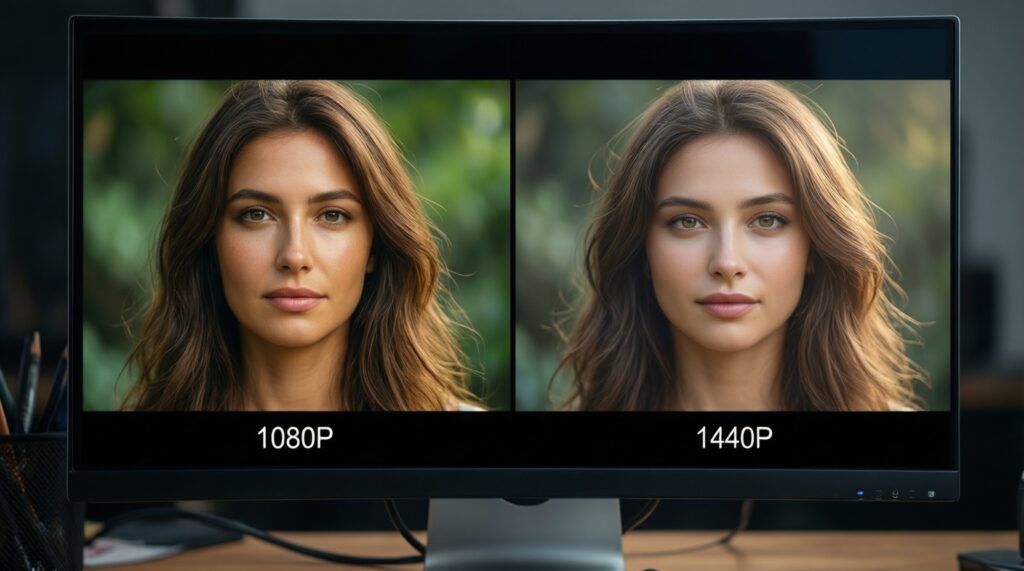
Yes-if you end up running non-native scaling frequently, the image can look softer than clean 1080p. Prefer 1440p when you can keep native resolution most of the time, or you're comfortable with upscaling.
Can I use FreeSync with an NVIDIA GPU?
Often yes via "G-Sync Compatible" over DisplayPort, but results depend on the monitor's VRR implementation. Test for flicker and range behavior during your return period.
Why does my new monitor still show 60Hz?
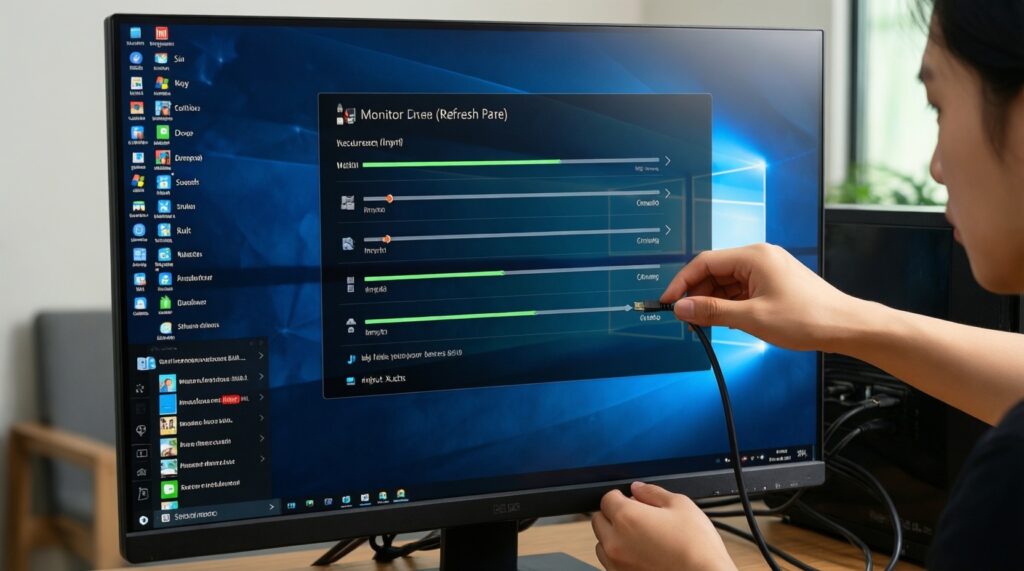
Windows may default to 60Hz, or you may be on the wrong port/cable. Set the refresh rate in Windows and verify the monitor input supports the target Hz.
Do I need DisplayPort for VRR?
DisplayPort is the most consistent path for PC VRR, but HDMI VRR can work depending on both GPU and monitor support. Use the connection that your specific monitor confirms for VRR at your desired mode.
Is 4K + high refresh realistic for most builds?
It's realistic only with strong GPU headroom or with upscaling/tuned settings. If you want "max settings" without compromises, 4K high-refresh is the easiest place to overspend.
How do I avoid paying extra for specs I can't use?
Start from your GPU ports and realistic FPS, then choose resolution/Hz/VRR around that. This is the most reliable way to เลือกจอให้เหมาะกับการ์ดจอ without buying features that stay disabled.