To choose a GPU that truly fits your work (gaming, video editing, or AI), start with the workload, then validate VRAM needs, real benchmark behavior, and system compatibility before comparing price. This prevents overpaying for unused features or buying a card that stutters, runs out of memory, or is bottlenecked by power, cooling, or CPU.
Core decisions before choosing a GPU
- Define your primary workload first: การ์ดจอเล่นเกม, การ์ดจอสำหรับตัดต่อ, or การ์ดจอสำหรับ AI require different priorities.
- Decide your VRAM class up front (e.g., การ์ดจอ VRAM 8GB 12GB 16GB) based on resolution, timeline complexity, or model size.
- Measure "real strength" with repeatable tests: average FPS is not enough-check frame pacing and stability.
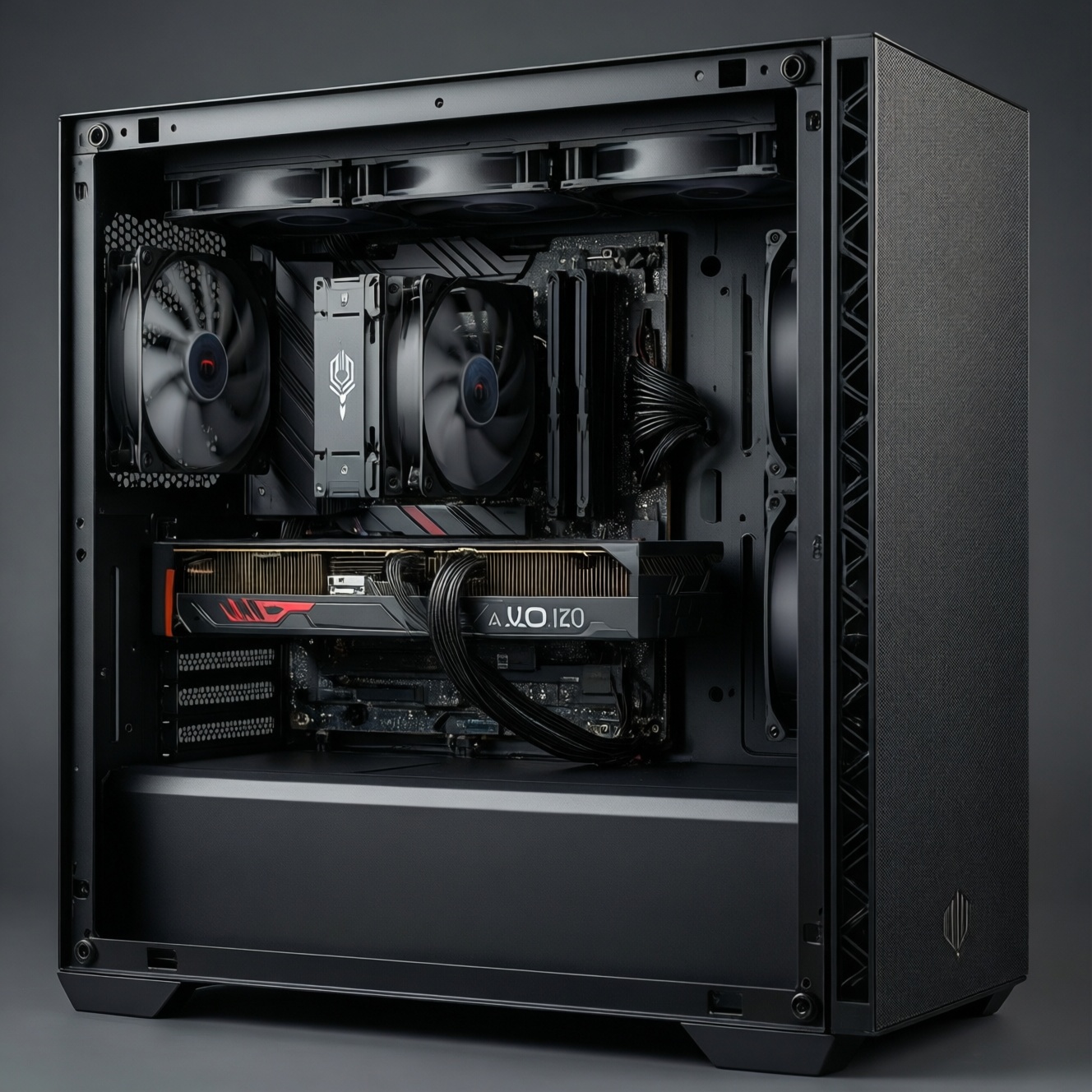
- Confirm platform limits (PCIe slot, PSU connectors, case clearance, airflow) before shopping.
- Compare total value: drivers for your apps, warranty/RMA convenience in Thailand, and resale liquidity-not just ซื้อการ์ดจอ ราคา.
Matching GPU architectures to workload: gaming vs. video editing vs. AI
Pick features that your software can actually use. A "faster" GPU on paper can lose in your workflow if it lacks the right encoder, has insufficient VRAM, or your app favors a different compute stack.
- Gaming: prioritize stable frame pacing, strong raster performance at your target resolution, and modern upscaling support. Don't overspend on compute features you won't use.
- Video editing: prioritize VRAM headroom, reliable hardware encode/decode support used by your NLE, and smooth playback with effects. Don't buy purely for gaming FPS if your bottleneck is timeline memory or codec acceleration.
- AI: prioritize VRAM capacity and software ecosystem compatibility (your framework + drivers), then memory bandwidth and sustained power. Don't buy a low-VRAM card expecting large local models to fit.
When not to "optimize" for one workload: if you split time evenly (game + edit + AI experiments), avoid extreme picks (very low VRAM, or workstation-only features) and aim for balanced VRAM and stable drivers.
Interpreting VRAM: what numbers mean for textures, timelines and models
VRAM is the GPU's working memory. More VRAM doesn't automatically increase FPS, but insufficient VRAM causes stutter, crashes, failed renders, or AI out-of-memory errors. Use VRAM as a fit check, then validate with monitoring.
What you need before deciding on VRAM
- A monitoring tool: any reputable GPU monitoring utility that shows VRAM usage, GPU load, power, and clocks.
- Your real project or game scene: a representative timeline (effects + color + your typical codec) or the game area that usually stutters.
- Your AI workload details: model family, intended context length / batch behavior, and whether you can use quantization/offloading.
How to think about 8GB vs 12GB vs 16GB (practical framing)
- 8GB-class: often workable for mainstream gaming settings and lighter editing, but easiest to hit limits with higher resolutions, heavy texture packs, multiple high-res monitors, complex timelines, or local AI workloads.
- 12GB-class: a safer middle ground for mixed use; reduces "VRAM ceiling" problems in modern games and heavier edits.
- 16GB-class (and above): best when you want fewer compromises in editing and local AI, or you need headroom for bigger assets/models and longer sessions without memory thrash.
Concise comparison table (tiers instead of hype)
| Use case | Recommended VRAM class | What to prioritize beyond VRAM | Common symptoms if you undershoot |
|---|---|---|---|
| 1080p-1440p gaming (การ์ดจอเล่นเกม) | 8GB-12GB class | Frame pacing stability, cooling quality, driver maturity | Texture pop-in, stutter when turning camera, sudden FPS drops after long sessions |
| Editing + effects (การ์ดจอสำหรับตัดต่อ) | 12GB-16GB class | Hardware codec support your NLE uses, sustained clocks, quiet thermals | Choppy playback, proxy dependence, render failures on heavy grades/effects |
| Local inference / training experiments (การ์ดจอสำหรับ AI) | 16GB class or higher when possible | Framework + driver support, memory bandwidth, stability under long load | Out-of-memory errors, forced offloading to RAM/CPU, very slow throughput |
| Mixed gaming + editing + AI (balanced) | 12GB-16GB class | Reliable drivers, strong cooler, sensible power draw | One workload always feels "fine" while another regularly hits limits |
Measuring real-world performance: benchmarks, frame pacing and AI inference
-
Lock your target scenario
Test the exact thing you care about: the game map that dips, the timeline section that drops frames, or the AI model you will actually run. Consistency matters more than synthetic peak scores.
-
Run repeatable tests and record more than averages
For gaming, capture average FPS plus frame-time consistency (stutter). For editing, measure playback smoothness at your delivery resolution and export reliability. For AI, measure tokens/sec or images/sec with the same settings.
- Repeat runs after the system is warm to see sustained behavior.
- Use the same driver version and background apps each time.
-
Watch VRAM headroom in real time
During your test, monitor VRAM usage and note the peak. If you routinely sit near the limit, you're one project update or game patch away from stutter or crashes-this is where การ์ดจอ VRAM 8GB 12GB 16GB becomes a practical decision, not a spec debate.
-
Check for bottlenecks: GPU load vs CPU limits
If GPU utilization is low while FPS is low, you're likely CPU-limited, memory-limited, or hitting an engine limit. In editing, CPU and storage can dominate; in AI, CPU offloading can quietly throttle you.
-
Validate stability: thermals, clocks, and long-session behavior
Run a longer session than a quick benchmark. If clocks drop, fans spike, or the system becomes unstable, the "fast" GPU on day one may be slower in real use.
Fast mode: 3-5 step shortcut
- Pick workload first: gaming vs editing vs AI; don't mix priorities blindly.
- Choose VRAM class: 8GB for mainstream, 12GB for balanced, 16GB+ for heavier edits and local AI.
- Test your real scene: record frame times (gaming), smooth playback/export (editing), throughput (AI).
- Confirm no system blockers: PSU connectors, case clearance, cooling, and PCIe slot.
- Then compare ซื้อการ์ดจอ ราคา: include warranty, drivers, and resale, not only sticker price.
Compatibility and system limits: PCIe, CPU bottlenecks, power and cooling
- Motherboard has the correct PCIe x16 slot available and not obstructed by other cards or M.2 heatsinks.
- PSU capacity and the exact PCIe power connectors match the GPU requirements; avoid unsafe adapters unless explicitly supported by the GPU vendor.
- Case clearance fits GPU length, height, and thickness (slots); check front radiator/fan interference.
- Cooling is adequate: enough intake airflow, clean filters, and no cable blockage near the GPU fans.
- CPU won't bottleneck your target: if you play high-FPS esports or do heavy effects, confirm CPU headroom.
- RAM capacity and speed are sufficient for your editing/AI workflows; avoid paging to disk.
- Storage is not the hidden limiter: fast SSD for media cache/scratch and AI datasets if applicable.
- Display outputs match your monitor needs (HDMI/DP) and multi-monitor plan.
- Driver support is available for your OS version and your key apps/frameworks.
Price-performance and longevity: balancing budget, drivers and resale value
- Buying for peak benchmark charts while ignoring frame pacing and VRAM spikes in your real games.
- Assuming "more VRAM = more FPS" and overspending when the bottleneck is GPU compute, CPU, or settings.
- Choosing a card for editing without confirming your NLE benefits from its hardware encode/decode path.
- Underestimating AI memory needs and expecting large models to fit without quantization or offloading.
- Ignoring power and cooling: a hot, throttling card can underperform a "slower" card with a better cooler.
- Comparing ซื้อการ์ดจอ ราคา without factoring warranty/RMA convenience and local availability in Thailand.
- Upgrading GPU while leaving an obvious CPU/PSU/RAM constraint that blocks the gain.
- Buying used without verifying stability under load, fan condition, and artifacts (especially after long stress tests).
Practical build checklist and recommended GPU tiers for common workflows
Tiered picks (use this as a shopping filter, not a brand rule)
- Gaming-focused (การ์ดจอเล่นเกม):
- Entry: 8GB-class, prioritize quiet cooling and stable drivers.
- Mid: 12GB-class, best balance for 1440p and newer titles.
- High: 16GB-class if you want higher textures/settings with fewer compromises.
- Pro: only if you also do heavy creation/AI; otherwise diminishing returns.
- Editing-focused (การ์ดจอสำหรับตัดต่อ):
- Entry: 8GB-class for lighter timelines; expect more reliance on proxies.
- Mid: 12GB-class for smoother effects and fewer memory pinch points.
- High: 16GB-class for heavier grades/effects and higher-res work.
- Pro: more VRAM + stronger sustained cooling for long renders and complex projects.
- AI-focused (การ์ดจอสำหรับ AI):
- Entry: 12GB-class if you mainly run smaller models or use aggressive quantization.
- Mid: 16GB-class to reduce constant offloading and OOM errors.
- High: 16GB+ with strong sustained power/cooling for longer sessions.
- Pro: prioritize maximum VRAM within budget and ecosystem stability for your framework.
Alternatives when a GPU upgrade is not the best next step
- Optimize settings or workflow: in games, reduce texture resolution first if VRAM-bound; in editing, use proxies and optimized media; in AI, use quantization or smaller context/batch.
- Upgrade system bottlenecks: add RAM, move media/cache to a fast SSD, or improve case airflow to stop throttling.
- Buy used strategically: if budget is tight, prioritize better VRAM class and cooler quality; verify stability with a long load test before committing.
- Delay purchase for the right deal: if current prices are inflated, track local promos and warranty terms rather than rushing the first "good spec" listing.
Common practical concerns answered
Is 8GB VRAM still OK for gaming in 2026?
It can be fine for mainstream settings, but it's easier to hit VRAM limits in newer titles. If you see stutter tied to VRAM spikes, moving from 8GB-class to 12GB-class is often a practical fix.
What matters most for การ์ดจอสำหรับตัดต่อ: VRAM or cores?
Both matter, but VRAM shortfalls are more disruptive (dropped frames, render failures). After you have enough VRAM headroom, prioritize the acceleration features your editing software actually uses.
For การ์ดจอสำหรับ AI, should I always buy the biggest VRAM I can afford?
More VRAM usually improves what you can run locally, but verify driver/framework compatibility and sustained cooling. A stable, compatible card with slightly less VRAM can outperform a problematic setup in real use.
How do I know I'm CPU-bottlenecked in games?
If FPS is low while GPU utilization stays well below full load in the same scene, you're likely CPU-limited. Lowering resolution doesn't help much in that case; CPU-side settings and upgrades matter more.
Do I need PCIe 5.0 for a new GPU?
No, most GPUs work well on earlier PCIe generations for typical workloads. The bigger risks are physical fit, power connectors, and cooling-not PCIe version alone.
What's the safest way to compare ซื้อการ์ดจอ ราคา between models?
Compare the price against performance in your exact workload plus warranty/RMA convenience and power/cooling requirements. A cheaper card can cost more if it needs a PSU upgrade or throttles in your case.