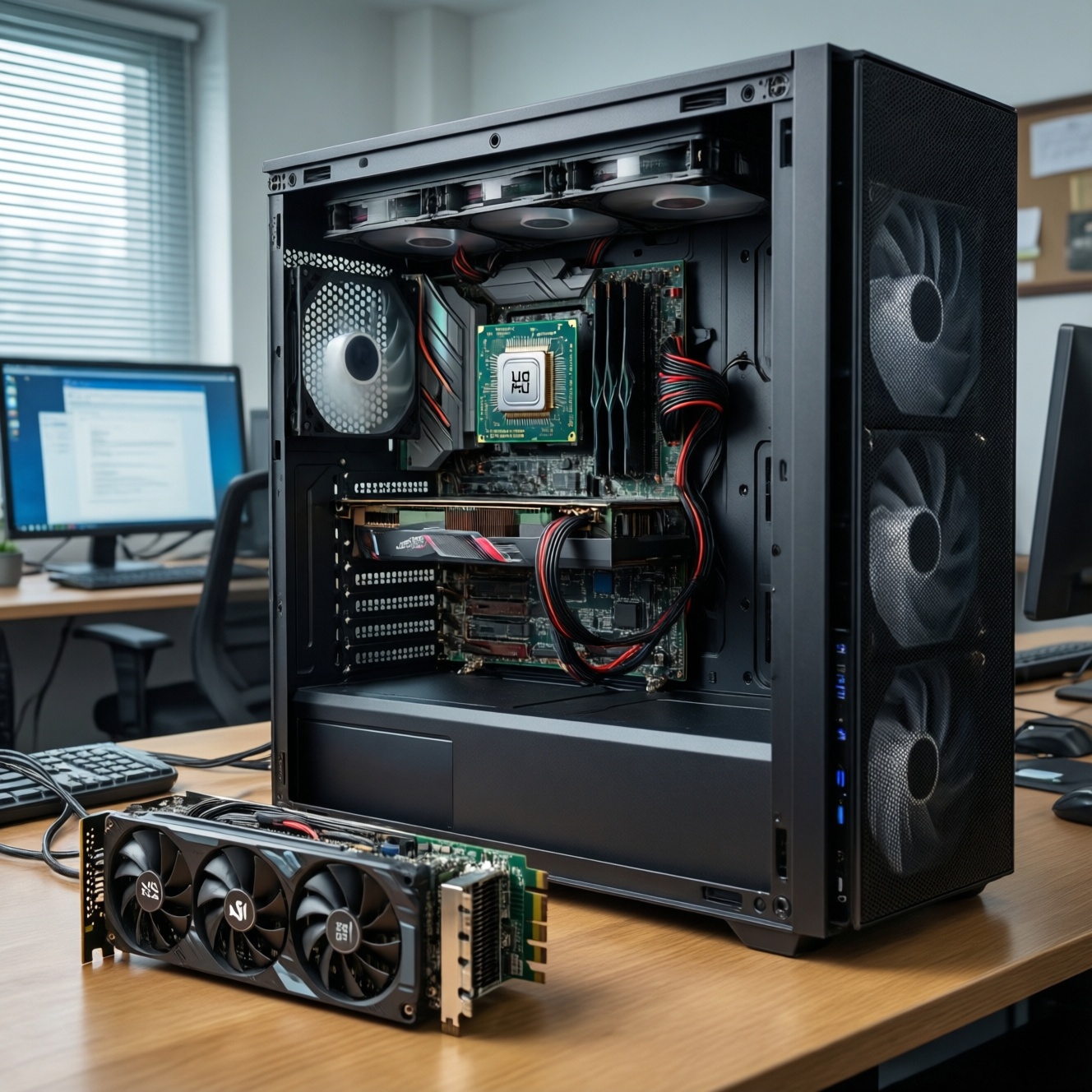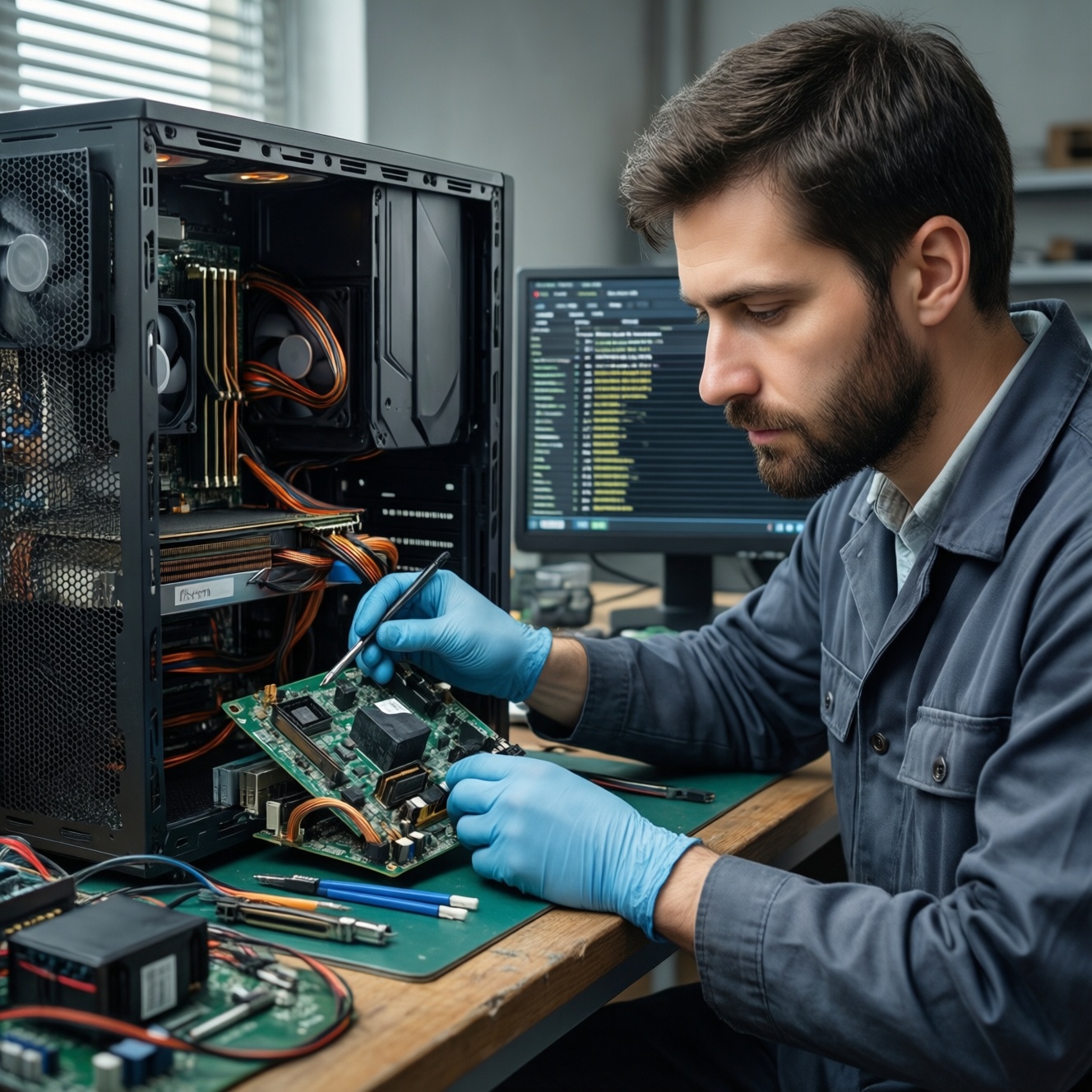
If your PC shuts down or restarts by itself, treat it as a symptom-driven isolation task: first confirm whether it is a hard power-off, a sudden reboot, or a boot loop; then check PSU stability, RAM errors, overheating, and finally drivers/OS. Start with read-only logs and monitoring, then move to physical reseating and part swaps.
Symptom-to-cause summary
- Instant power-off (no blue screen): PSU protection trip, short, overheating, loose power connectors.
- Sudden reboot (as if reset): unstable PSU, RAM error, kernel panic/driver crash, watchdog reset.
- Boot loop after power button: RAM training failure, unstable XMP/EXPO, PSU sag at start, corrupted boot/driver.
- Happens only under gaming/rendering: GPU/CPU power draw exposing PSU weakness or thermals.
- Happens at idle/light use: RAM/driver issues, motherboard power delivery, aggressive power settings.
- Gets worse with heat/time: thermal paste/contact, dust, failing capacitors in PSU/board.
Prioritize symptoms: shutdown vs random restart vs boot loop
Before changing anything, classify what you see and collect evidence (read-only first). Use this quick checklist:
- Hard shutdown: screen goes black, fans stop, LEDs off (often PSU/short/thermal cut).
- Random restart: system reboots immediately (often driver/kernel crash or power instability).
- Boot loop: powers on then resets repeatedly, may not reach BIOS splash (often RAM/CPU/PSU at startup).
- Blue screen present: prioritize memory/driver investigation before hardware swaps.
- Only under load: prioritize PSU + thermals; reproduce with a controlled stress test.
| What you observe | Most probable causes (fastest to check first) | First action (read-only if possible) |
|---|---|---|
| Instant power-off, no log-in screen | Overheat cutoff, PSU trip, loose power cable | Check temps + Windows/Linux logs; inspect/seat power connectors |
| Instant reboot, no BSOD | PSU instability, watchdog reset, RAM transient error | Event Viewer / journalctl; disable OC/XMP temporarily |
| Boot loop before OS | RAM/XMP, PSU sag at startup, motherboard training issue | Clear CMOS, boot with 1 RAM stick, default BIOS settings |
| Only during gaming | GPU power spikes, PSU headroom, GPU hotspot/CPU temp | Log GPU/CPU temps + power; run a combined stress test |
If you came here searching in Thai, the typical path for คอมดับเอง แก้ยังไง or คอมรีสตาร์ทเอง สาเหตุ is: collect logs → remove overclocks → check PSU and connectors → test RAM → confirm thermals → then drivers.
Power supply diagnostics: voltage, load tests and capacitor checks
PSU issues can mimic almost everything. Run these checks in order (fast, low-risk first):
- Return BIOS to defaults: disable CPU/GPU overclocks and XMP/EXPO for the test window. Pass/Fail: if crashes stop, suspect marginal PSU/RAM/VRM stability.
- Inspect and reseat power cables: 24‑pin ATX, CPU EPS 8‑pin, GPU PCIe/12VHPWR. Pass/Fail: if a gentle push changes behavior, suspect poor contact.
- Check Windows shutdown cause: Event Viewer → Windows Logs → System; look for Kernel-Power events around the time. (This is diagnostic, not proof of PSU.)
- Check Linux power/reset hints:
journalctl -b -1 -p errandjournalctl -k -b -1; look for machine check, GPU resets, or sudden log gaps. - Wall power basics: avoid daisy-chained power strips; test a different outlet/UPS if available. Pass/Fail: if only one outlet setup triggers issues, suspect power quality or overload.
- Combined load test (controlled): run CPU + GPU stress to reproduce. Pass/Fail: if it fails quickly under combined load but not CPU-only, PSU/GPU power delivery is likely.
- Voltage reading sanity check: use motherboard sensors only for trends (not absolute accuracy). Pass/Fail: sudden drops during load correlate with instability.
- Listen/smell check (power off): buzzing, burnt smell, or intermittent fan behavior can indicate PSU trouble. If present, stop testing and replace.
- Visual external check: dust clogging PSU intake/exhaust. Pass/Fail: if airflow is blocked, clean and retest.
- Swap test (best proof): temporarily test with a known-good PSU of adequate capacity. Pass/Fail: if problems disappear, PSU is the prime suspect.
When planning a replacement, people often ask เปลี่ยน PSU ราคา; instead of chasing a specific number, prioritize electrical quality (protections, stable rails), correct connectors for your GPU, and sufficient headroom for transient spikes.
Memory troubleshooting: MemTest, reseating, and error patterns
RAM instability is a top cause of random restarts, BSODs, and boot loops-especially with XMP/EXPO enabled. Triage it with minimal changes first, then isolate sticks/slots.
- Read-only evidence: Windows Reliability Monitor; in Linux, check
dmesgfor memory-related machine checks. - Disable XMP/EXPO: retest your usual workload. Pass/Fail: if stable, tune memory (lower frequency, higher voltage only if you understand the risk) or keep defaults.
- Reseat RAM: power off, unplug, discharge, reseat firmly until both latches click. Pass/Fail: if behavior changes, contact/slot was marginal.
- One stick at a time: boot with a single module in the recommended slot. Pass/Fail: one stick fails consistently → suspect that stick; one slot fails consistently → suspect motherboard slot/IMC.
- Run MemTest-style testing: use a bootable memory test or OS-based test; any error is significant. Pass/Fail: a single reproducible error usually warrants replacing or downclocking.
| Symptom | Possible causes | How to verify | How to fix |
|---|---|---|---|
| Boot loop before BIOS | XMP/EXPO too aggressive; marginal DIMM; bad slot contact | Clear CMOS; boot with 1 stick; try another slot | Run default JEDEC; reseat/clean contacts; replace failing DIMM |
| Random reboot under mixed load | RAM timing instability; IMC borderline; PSU amplifying instability | Disable XMP/EXPO; memory test; compare stability with known-good PSU | Lower RAM speed; update BIOS; replace RAM if errors persist |
| BSODs or app crashes (varied codes) | Bit flips; driver surfacing memory corruption; unstable overclock | Reliability Monitor + dump analysis; run extended memory test | Remove overclocks; replace RAM; ensure correct voltage/settings |
| Only fails when system is warm | Thermal sensitivity in RAM/IMC; poor case airflow | Log internal temps; test with case open temporarily | Improve airflow; adjust RAM settings; consider better cooling |
If you're comparing parts, the query ซื้อ RAM คอมพิวเตอร์ ราคา is common-focus on compatibility (QVL where possible), sensible speeds for your CPU, and stability over peak frequency.
Thermal causes: monitoring, thermal throttling, and heatsink inspection
Overheating can cause both shutdowns and restarts. Do these steps from safest to most intrusive:
- Log temps first (no changes): monitor CPU package and GPU hotspot while reproducing the issue. Pass/Fail: if temps spike right before a shutdown, treat as thermal.
- Check fan behavior: confirm CPU/GPU fans ramp under load; verify fan curves in BIOS/software. Pass/Fail: stuck low RPM suggests control or header issues.
- Clear dust and restore airflow: clean filters, heatsink fins, and ensure intakes/exhaust are not blocked. Pass/Fail: improved stability indicates airflow was the trigger.
- Verify heatsink mounting pressure: power off; gently check if the CPU cooler is loose or uneven. Pass/Fail: any looseness is unacceptable.
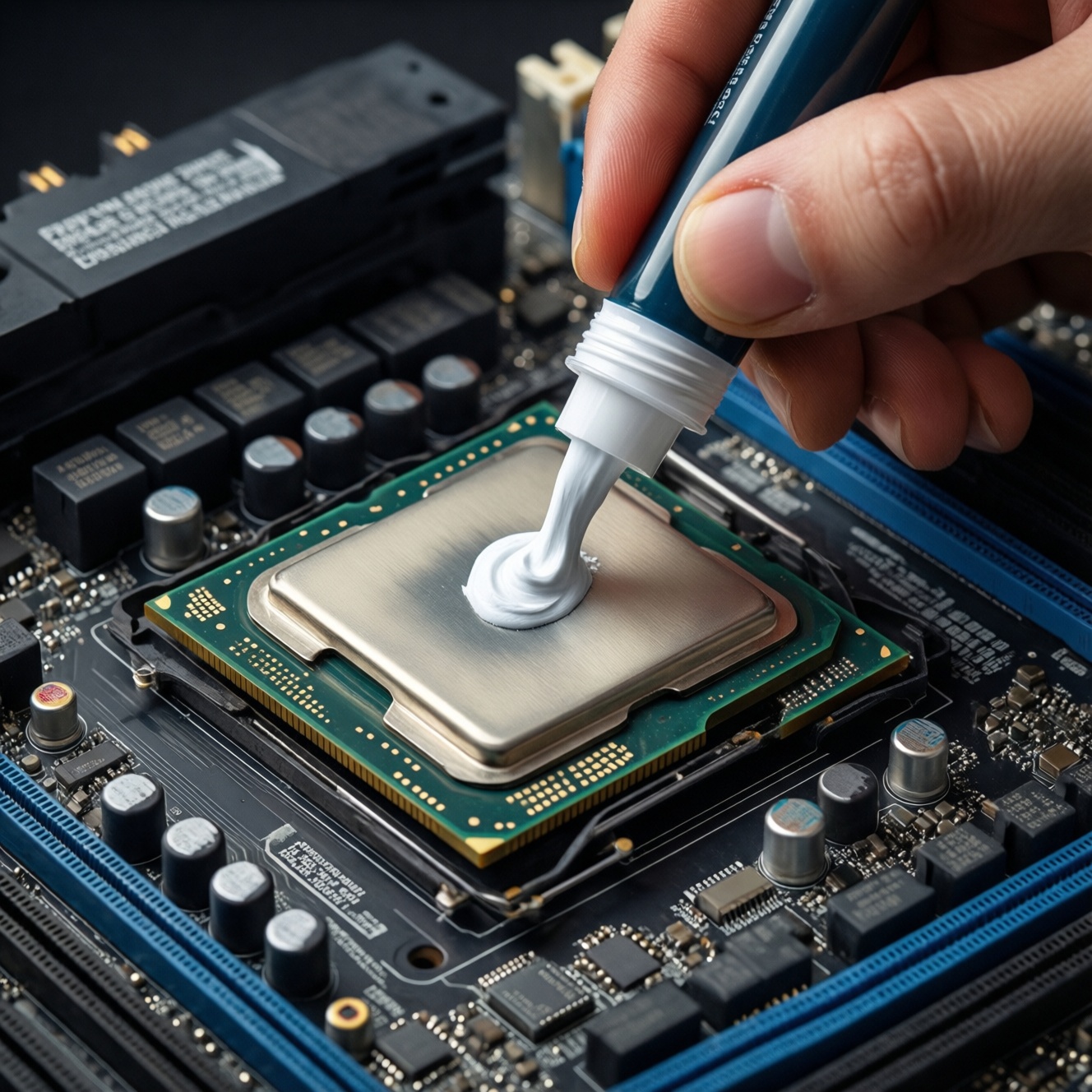
- Inspect thermal paste condition: if the PC is older or paste was applied poorly, repaste may be needed. Pass/Fail: consistently high temps at modest load indicate poor heat transfer.
- Repaste carefully: clean with isopropyl alcohol, apply appropriate amount, remount evenly. Pass/Fail: lower load temps and no shutdowns during stress suggests success.
- Undervolt/limit power (advanced): apply conservative power limits as a diagnostic. Pass/Fail: if limiting power prevents crashes, you're thermally or power-delivery constrained.
For budgeting, people often search ซิลิโคนระบายความร้อน CPU ราคา; choose reputable paste and prioritize correct mounting/cleaning technique, because application quality usually matters more than minor product differences.
Driver and software checks: event logs, rollback and safe-mode tests
Escalate to software/driver work when hardware checks don't correlate with load, temperature, or memory errors, or when you see consistent crash signatures.
- Windows: check System logs: Event Viewer → System for BugCheck, WHEA-Logger, Display driver resets, and the sequence around Kernel-Power.
- Windows: Safe Mode test: if stable in Safe Mode, suspect GPU/chipset/storage drivers or third-party services.
- Windows: rollback recent changes: revert GPU driver version, remove recent driver utilities, and uninstall recently added low-level tools (RGB, overclocking, monitoring).
- Linux: isolate kernel/driver: try a different kernel version; check
journalctl -kfor GPU hangs (amdgpu/nvidia) or storage resets. - Firmware/BIOS update (controlled): update only if release notes mention stability/memory compatibility, and only after you can reproduce the problem consistently.
Bring in a specialist/support when: the system powers off with burning smell or visible damage; it fails even at BIOS screen; you have repeated WHEA machine-check errors with stock settings; or you cannot safely swap PSU/RAM to confirm.
Structured isolation workflow: step-by-step tests and decision table
Use this sequence to avoid breaking a working production setup: start read-only, change one variable at a time, and only then swap parts.
- Record baseline: note exact symptom type, workload, time-to-fail, and whether BSOD appears.
- Collect logs (read-only): Windows Event Viewer/Reliability Monitor; Linux
journalctl. Save timestamps. - Remove instability knobs: BIOS defaults, no XMP/EXPO, no CPU/GPU overclock/undervolt (unless used purely as a diagnostic later).
- Thermal confirmation: monitor temps while reproducing; clean dust if temps are abnormal.
- PSU and connectors: reseat cables; test a different outlet; reproduce under combined load.
- RAM isolation: one stick/slot at a time; run memory testing; keep a written pass/fail matrix.
- Driver isolation: Safe Mode / clean boot; roll back GPU driver; remove low-level utilities.
- Swap with known-good parts: PSU first (highest leverage), then RAM; confirm by reproducing the original failure workload.
- Only after confirmation: purchase replacement parts based on the component that failed isolation, not based on guesswork.
| Checkpoint | Pass criteria | If it fails | Next most likely move |
|---|---|---|---|
| Stock BIOS, no XMP/EXPO | Stable in your usual workload | Still restarts/shuts down | Correlate with temps and reproduce under controlled load |
| Temp logging during reproduction | No thermal spikes before failure | Temps spike / throttling / cutoff | Clean airflow → verify cooler mount → repaste |
| Combined CPU+GPU stress | No reset/power-off | Fails quickly | Inspect/replace PSU, check GPU power cabling |
| One RAM stick test | Both sticks pass individually | One stick/slot fails | Replace DIMM or avoid bad slot; keep stable settings |
| Safe Mode / clean boot | Still fails | Becomes stable | Driver rollback, remove utilities, investigate GPU/storage drivers |
Ambiguous cases and rapid resolutions
No BSOD, only "Kernel-Power" in Windows-does that prove a bad PSU?
No. Kernel-Power often only means Windows noticed an unexpected power loss. Use it as a timestamp, then correlate with temps, load, and whether a known-good PSU resolves the issue.
The PC restarts only when gaming, but CPU temps look fine-what next?
Check GPU hotspot temps and power cabling, then run a combined CPU+GPU load test. If it fails only under combined load, prioritize PSU headroom and GPU power delivery.
It boot-loops after enabling XMP/EXPO-should I replace RAM immediately?
First return to defaults and confirm stability, then try one stick at a time and update BIOS if it improves memory compatibility. Replace RAM only if you can reproduce errors at safe settings or in memory tests.
Linux reboots without logs-how can I diagnose read-only?
Review the previous boot: journalctl -b -1 and kernel messages: journalctl -k -b -1. A sudden gap often points to power loss, while explicit GPU/storage errors point to driver or hardware I/O issues.
After cleaning dust, it still shuts down-should I repaste the CPU?
Repaste after you confirm abnormal temperatures or poor cooler mounting. If temps are normal and it still powers off instantly, move back to PSU/connectors and short protection scenarios.
How do I avoid breaking a production machine while troubleshooting?
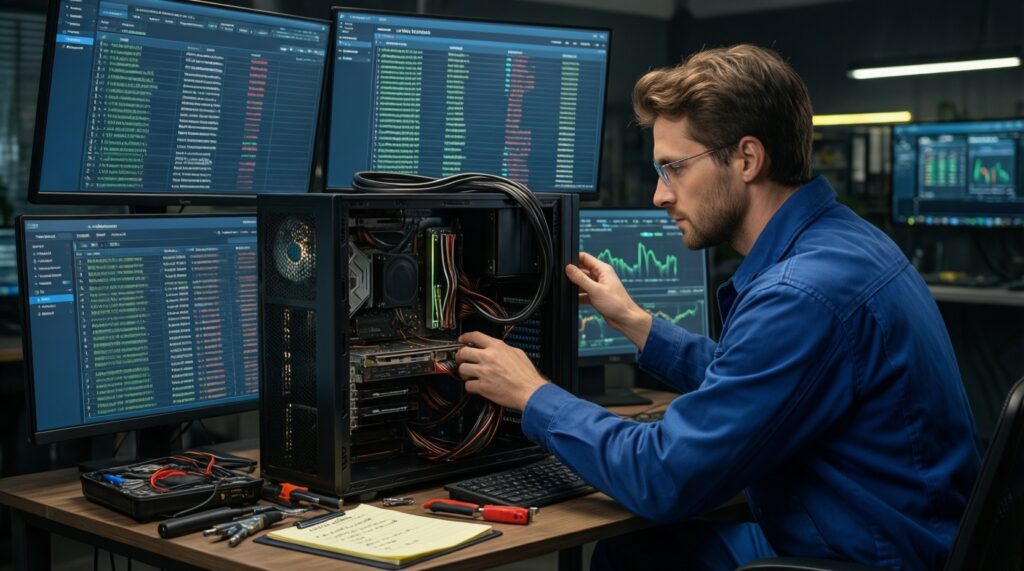
Start with logs and monitoring, change one variable at a time, and keep a rollback plan (driver versions, BIOS settings, and restore points). Schedule invasive steps (repaste, part swaps) during downtime.