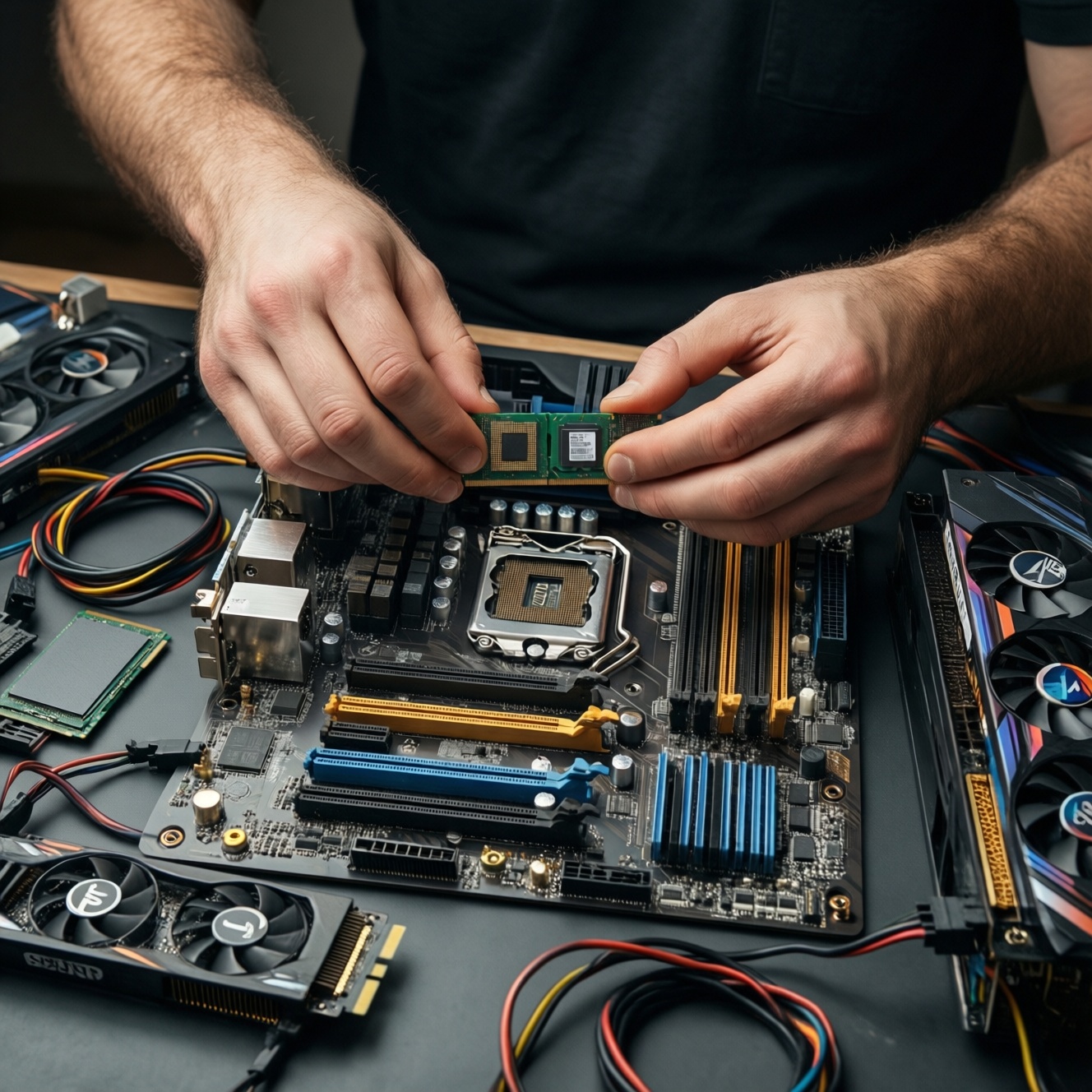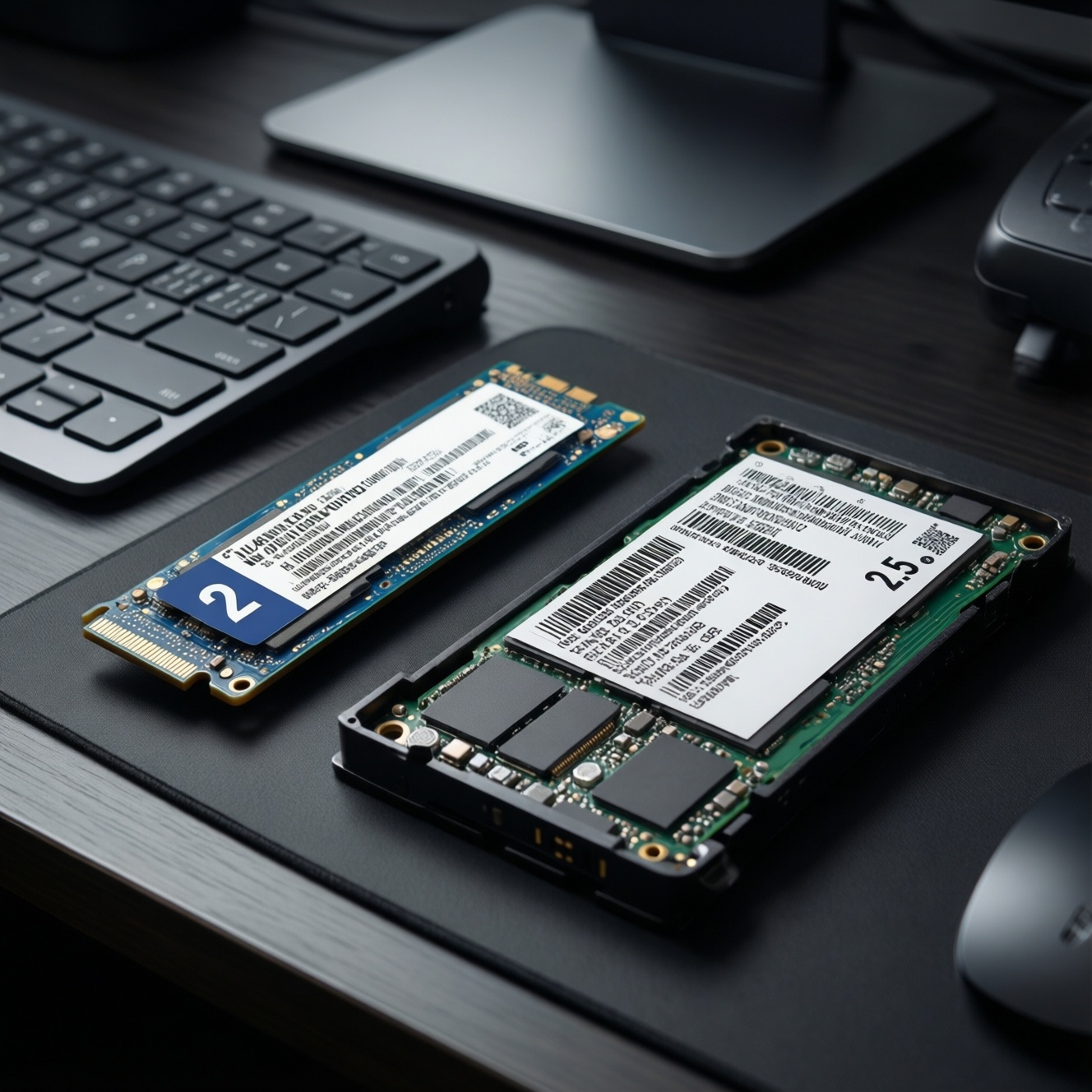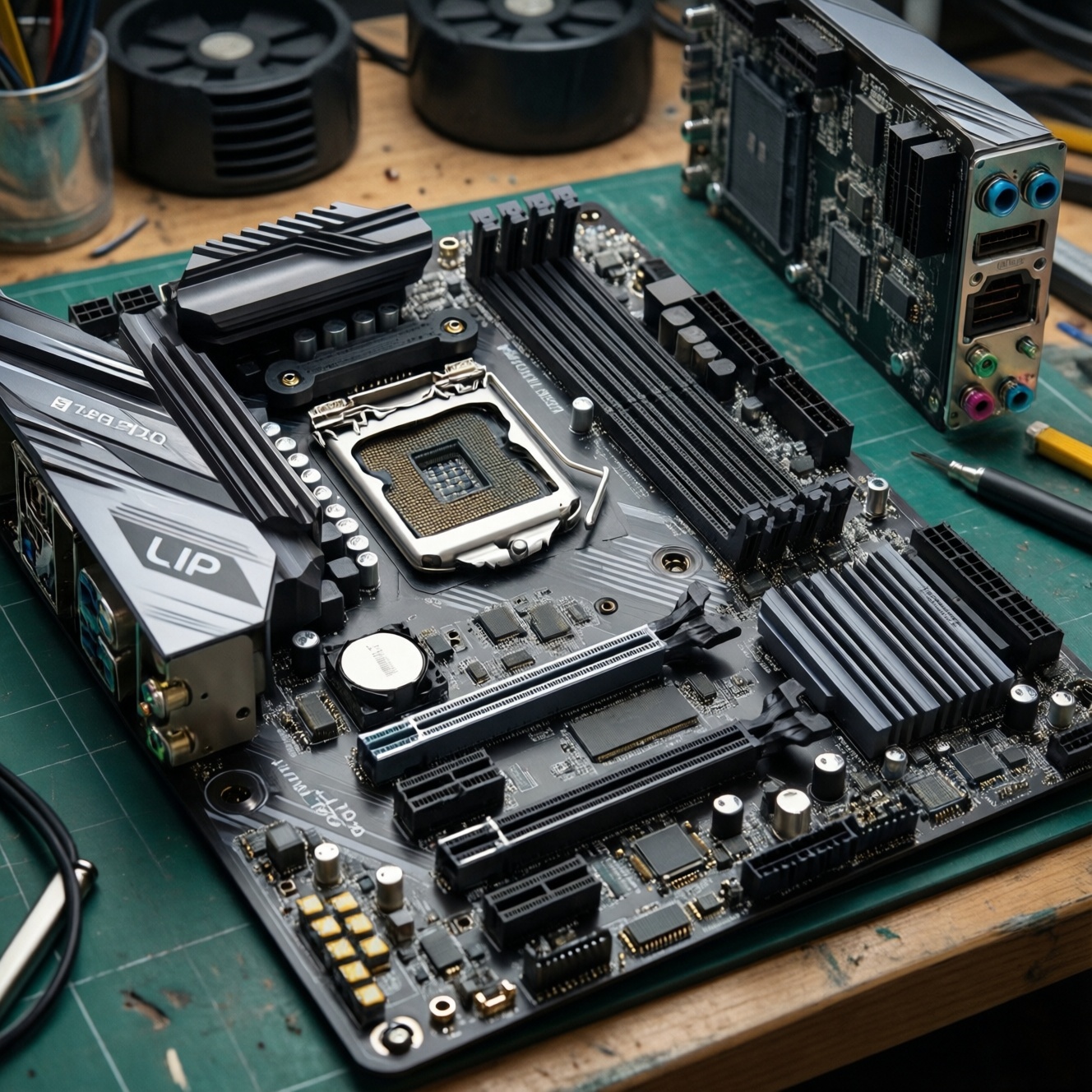
To pick a motherboard without overpaying, match the exact CPU socket and chipset features you will actually use, then prioritize a stable VRM, the right number of usable M.2 slots, and networking/I-O that fits your peripherals. Verify lane sharing rules and power connectors so upgrades do not silently disable ports or throttle performance.
Quick buying checklist: what to verify at a glance
- CPU socket + chipset match your CPU now and likely next upgrade (avoid paying for features your CPU cannot use).
- VRM build and cooling are appropriate for your CPU power level (aim for a เมนบอร์ด VRM ดี if you run high boost clocks).
- M.2 count you can really use at the same time (look for เมนบอร์ดมีสล็อต M.2 หลายช่อง with clear lane-sharing notes).
- Networking you need: เมนบอร์ด WiFi ในตัว vs add-in card, plus Ethernet speed and antenna type.
- USB and internal headers: enough ports for your devices, front-panel USB-C if your case supports it.
- Form factor fits the case and expansion plan (GPU thickness, extra PCIe cards, capture card, etc.).
CPU compatibility and socket longevity
This approach fits intermediate builders who already know their CPU choice and want to avoid paying for unused chipset features. It is especially useful when you are asking "ซื้อเมนบอร์ดไหนดี" and the options look similar on paper.
- Good fit: you already picked the CPU model (or at least socket/platform), and you have a clear storage + connectivity plan.
- Don't do it this way: if you might switch platforms soon (e.g., changing CPU socket), buying for "future-proofing" often wastes budget.
- Rule of thumb: pay for features you will use in the next build cycle (extra M.2, faster networking, specific USB), not theoretical upgrades.
VRM quality: phases, cooling and real-world thresholds
Before comparing boards, gather what you need to evaluate VRM and thermals safely and consistently:
- Your CPU's realistic power behavior: stock limits vs extended boost / unlocked power limits (the board must handle your chosen settings, not just "supports CPU").
- Case airflow plan: at least one intake and one exhaust fan; VRM heatsinks only work if air actually moves across them.
- Vendor documentation: motherboard manual + spec page to confirm power connectors, fan headers, M.2 sharing, and rear I/O.
- Basic monitoring tools (after build): BIOS hardware monitor and OS tools that show motherboard/VRM-related sensors if available.
Practical thresholds you can apply when choosing a เมนบอร์ดแนะนำ list or comparing models:
- Heatsink matters more than phase count marketing: favor boards with substantial VRM heatsinks and airflow clearance.
- Avoid "bare VRM" boards for high-boost CPUs: if VRM cooling looks minimal, don't pair it with power-unlocked settings.
- Target behavior: under sustained CPU load, you want stable clocks without power-limit oscillation or thermal throttling induced by motherboard power delivery.
| Use case | VRM priority | M.2 / lanes priority | Networking priority | I/O priority | Form factor note |
|---|---|---|---|---|---|
| Gaming (single GPU) | Solid heatsinks; stable boost | 1-2 NVMe without disabling GPU slot or key ports | Ethernet stability; Wi‑Fi optional | Enough USB for headset/controllers; front USB-C if needed | ATX/mATX for better spacing and airflow |
| Content creation (storage heavy) | Higher sustained load tolerance | Multiple usable M.2 + clear lane map | Wi‑Fi handy; faster Ethernet if you use NAS | More high-speed USB; internal headers for front panel | ATX often easiest for slots + cooling |
| Mini‑ITX / small build | Heatsink + airflow are critical | Usually fewer M.2; verify placement vs GPU thermals | เมนบอร์ด WiFi ในตัว strongly preferred | Rear USB density matters (fewer headers) | Check cooler clearance and cable routing |
M.2 layout, PCIe lane allocation and NVMe performance
-
List your drives and "must-run-together" combos.
Decide how many NVMe drives you will use simultaneously (now and near-term), and whether any SATA drives must stay enabled. This prevents buying เมนบอร์ดมีสล็อต M.2 หลายช่อง that cannot actually run all slots at full speed at the same time.- Write down: number of NVMe, any SATA SSD/HDD, and whether you need RAID.
- Note if you also need a capture card / extra PCIe card (lane competition).
-
Read the lane-sharing notes in the manual, not just the spec sheet.
Find the section that states which M.2 slot disables which SATA ports or PCIe slots when populated. Many "it has 3 M.2 slots" boards reduce GPU slot bandwidth or disable SATA ports depending on configuration.- Search the PDF for: "M.2", "shares bandwidth", "SATA disabled", "PCIe x16/x8".
- Prefer boards that state the behavior clearly (tables/diagrams).
-
Prioritize the primary M.2 slot placement and cooling.
Use the CPU-connected (primary) M.2 slot for the OS / main apps drive when possible, and ensure it has a proper heatsink if you expect long writes (content work). Placement matters: an M.2 directly under a hot GPU can run warmer and throttle sooner.- If the board includes multiple M.2 heatsinks, confirm which slots get them.
- Check clearance: some thick GPU backplates reduce airflow over M.2 areas.
-
Confirm your GPU and expansion needs won't be compromised.
If you use a high-end GPU plus additional PCIe cards, avoid configurations that force the main GPU slot to run at reduced bandwidth when an M.2 or secondary slot is used.- Look for explicit statements about x16 vs x8 behavior.
- On compact boards, assume tighter compromises-verify before buying.
-
Choose a board that matches your "real" storage plan, not max marketing.
The best value is the board that supports your exact drive layout with minimal sharing penalties. This is the difference between a sensible เมนบอร์ดแนะนำ and an overkill board you never fully use.
Fast mode: the 60-second decision path
- Lock CPU platform first: socket + chipset that supports your CPU features (and only the features you need).
- Filter for VRM + heatsinks: eliminate boards with weak-looking VRM cooling if you run sustained boost.
- Validate M.2 sharing rules: confirm your "NVMe + SATA + GPU" combo works with no nasty surprises.
- Pick networking intentionally: if you need it, choose เมนบอร์ด WiFi ในตัว; otherwise buy Ethernet-first and save budget.
- Count ports and headers: ensure USB, front-panel connectors, and fan headers match your case and peripherals.
Integrated networking: Wi‑Fi standards, Ethernet speeds and antennas
- Decide whether you truly need เมนบอร์ด WiFi ในตัว (distance to router, walls, ability to run Ethernet).
- Check that the board includes an external antenna (or antenna base) and that the connectors are accessible once installed.
- Confirm Ethernet controller reputation and driver support for your OS (avoid obscure chips if you value plug-and-play stability).
- If you use Bluetooth peripherals, confirm Bluetooth is included with the Wi‑Fi module and supports your devices.
- Verify rear I/O has enough USB left after connecting Wi‑Fi antenna and other peripherals (crowded rear panels can be inconvenient).
- For small cases, confirm antenna placement won't be blocked by the case or desk position.
- If you plan to add a PCIe network card later, confirm you will still have a free slot with adequate airflow.
I/O essentials: USB, display outputs and internal headers
- Overbuying USB speed tiers: paying for the fastest ports everywhere but only using keyboard/mouse/headset.
- Missing front-panel compatibility: case has front USB-C, but the board lacks the matching internal header.
- Assuming display outputs always matter: if you run a discrete GPU, motherboard display ports may be unused (unless you rely on iGPU for troubleshooting or Quick Sync-style workflows).
- Too few fan headers: leads to splitters and messy control; plan headers for CPU cooler + case fans + possible AIO pump.
- Ignoring audio needs: if you use sensitive headphones or specific outputs, check the rear audio jacks you actually need.
- Forgetting internal headers: RGB/ARGB, additional USB headers, and front audio can be deal-breakers in certain builds.
- Rear I/O congestion: boards with "everything" sometimes have awkward port spacing; check photos, not just lists.
Form factor, power connectors and expansion slot planning
Pick the form factor based on your case and expansion reality, then back into the board choice:
- ATX: best when you want easier cable management, more fan headers, more PCIe flexibility, and fewer lane/slot compromises.
- Micro-ATX: best value when you want a smaller case but still need multiple slots; often the sweet spot if you're asking "ซื้อเมนบอร์ดไหนดี" for mainstream builds.
- Mini‑ITX: choose when size is the priority; expect tighter thermals, fewer ports, and pay extra attention to VRM cooling and M.2 placement.
- ATX board with built-in Wi‑Fi vs add-in card: built-in is cleaner and saves slots; add-in is fine if you have spare PCIe space and want upgrade flexibility.
Always verify power connectors before purchase:
- Board CPU power connector(s) match your PSU cables (and you have enough connectors available).
- GPU clearance: thick GPUs can cover headers, block airflow to M.2, and make adjacent slots unusable.
Typical buyer concerns and short answers
How do I know if a board is "เมนบอร์ด VRM ดี" without lab tests?
Look for substantial VRM heatsinks, a layout that leaves airflow space, and consistent reports of stable boost under sustained load. Avoid boards with tiny or decorative heatsinks if you plan extended boost/power limits.
Does "เมนบอร์ดมีสล็อต M.2 หลายช่อง" always mean I can use all slots at full speed?
No. Many boards share lanes between M.2, SATA, and PCIe slots. Read the manual's lane-sharing table/notes to confirm your exact drive combo works.
Is เมนบอร์ด WiFi ในตัว better than a Wi‑Fi PCIe card?
Built-in Wi‑Fi saves a PCIe slot and is usually simpler. A PCIe card is fine if you have space and want the option to upgrade later.
What's the fastest way to choose when I'm stuck between two similar models?
Compare (1) lane-sharing consequences, (2) VRM heatsink quality, and (3) the exact internal headers your case needs. The board that avoids compromises in your build wins.
Do I need to pay extra for high-end chipset features?
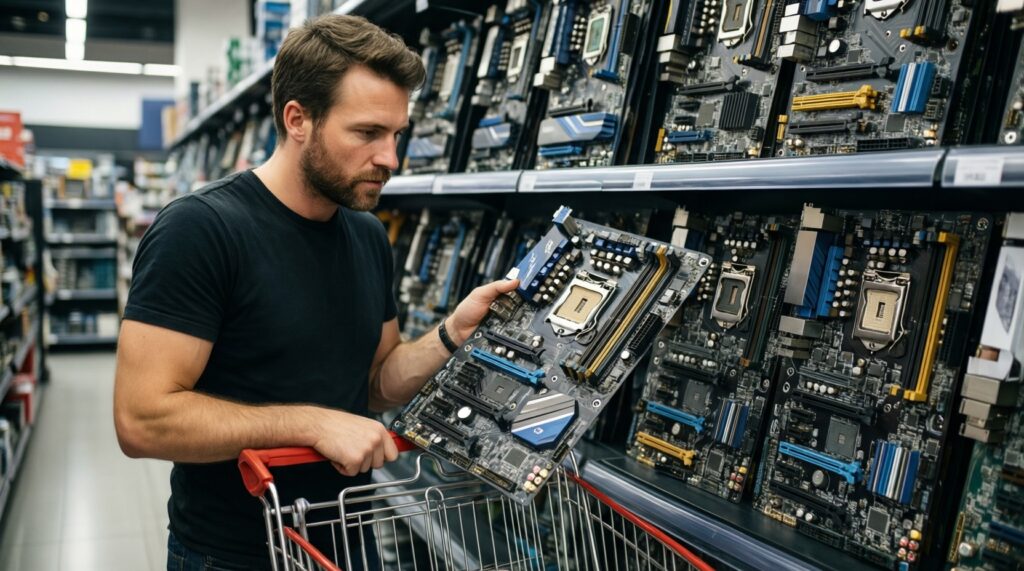
Only if you will use them soon (extra usable M.2, specific USB needs, networking). Paying for features you won't touch is the most common way to overpay when searching "ซื้อเมนบอร์ดไหนดี".
What mistakes cause "it works, but performance is weird" after installation?
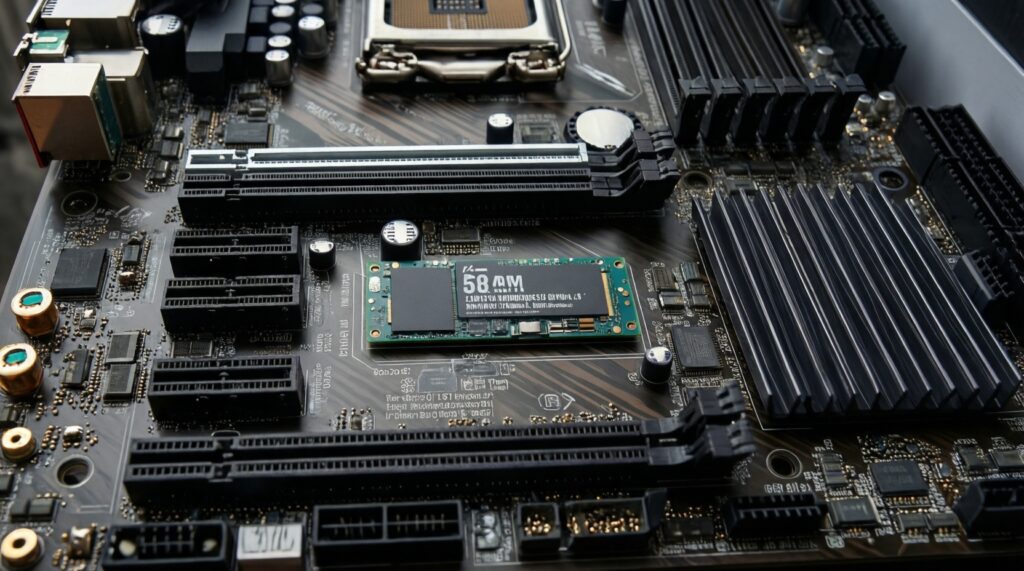
Common causes are M.2/PCIe lane sharing disabling ports, the OS drive placed in a secondary slot, or weak VRM cooling causing power-limit behavior under load. These are avoidable by reading the manual before buying.
Where should I start if I just want a reliable เมนบอร์ดแนะนำ pick?
Start with your CPU platform, then pick the board that meets your storage/networking/I-O needs with the fewest sharing compromises. Reliability usually correlates with sensible thermals and clear documentation.