If you're choosing an SSD in Thailand, start with interface and platform support: NVMe (M.2/U.2) is the better performance ceiling, while SATA is the safest compatibility upgrade. Next, decide on DRAM vs DRAMless based on workload consistency, then sanity-check endurance via TBW/DWPD against how much you write.
60‑Second Decision Snapshot: which SSD fits your setup
- Pick NVMe when your motherboard/laptop supports it and you care about fast app loads, file work, or heavy multitasking; pick SATA for universal compatibility and simple upgrades.
- Prefer DRAM drives for sustained writes and steadier performance; DRAMless is fine for lighter desktop use when the price difference matters.
- Check TBW/DWPD on the exact capacity you're buying; compare within the same capacity class, not across different sizes.
- For laptops, verify M.2 keying and length (commonly 2280) and whether the slot supports NVMe, SATA, or both.
- For long write sessions, plan for thermal behavior (heatsink/airflow) to avoid throttling on NVMe.
- Don't overpay for headline sequential speed if your work is mostly small random IO and app launches.
Interface trade-offs: SATA vs NVMe - latency, bandwidth and practical limits
Use these criteria to answer the common question ซื้อ SSD SATA หรือ NVMe ดี for your specific machine:
- Platform support: Your system may physically have an M.2 slot, but it might be SATA-only, NVMe-only, or dual-mode.
- Workload shape: Gaming and general apps often benefit more from good random performance and low latency than from maximum sequential throughput.
- Sustained write needs: Large exports/captures can push a drive beyond its fast cache; NVMe can still vary widely by controller and NAND type.
- Thermal headroom: Many NVMe drives downclock under heat; SATA typically runs cooler and more predictably in cramped cases.
- Queue depth behavior: NVMe shines more as parallel IO rises (multiple tasks/VMs), while SATA can feel "good enough" at light loads.
- Upgrade path: SATA is easy to move between machines; NVMe compatibility and form factor constraints can reduce reusability.
- Price positioning: In real shopping, SSD NVMe ราคา vs SSD SATA ราคา can be close at the same capacity-so compatibility and thermals become deciding factors.
- Power and battery: Some high-end NVMe models can draw more power under load; that matters for laptops doing long sustained writes.
Physical compatibility: 2.5" SATA, M.2 NVMe sizes, U.2 and adapter caveats
| Variant | Who it fits | Pros | Cons | When to choose |
|---|---|---|---|---|
| 2.5" SATA SSD | Desktops and many older laptops with SATA bays | Broad compatibility; easy migration; stable thermals | Limited by SATA; needs cable/bay in desktops | Upgrading an HDD system; maximizing compatibility across multiple PCs |
| M.2 SATA (B+M key) | Laptops/mini PCs with M.2 slots that don't support NVMe | No cables; often fits slim designs | Same performance ceiling as SATA; easy to mistakenly buy for NVMe-only slots | You confirmed the slot is SATA-capable (documentation/BIOS) and need a drop-in replacement |
| M.2 NVMe 2280 (M key) | Most modern desktops/laptops with NVMe support | Best overall performance potential; wide selection | Can throttle without heatsink/airflow; laptop clearance can be tight | Mainstream best choice if your slot supports NVMe and you can manage thermals |
| M.2 NVMe 2230/2242 | Handhelds, ultrabooks, and very compact devices | Fits constrained spaces | Fewer options; sometimes higher cost per GB; may run warmer due to density | Your device explicitly requires a short M.2 length |
| U.2 / U.3 NVMe (2.5" cabled) | Workstations/servers with backplanes or specific host adapters | Serviceable cabled NVMe; good for multi-drive setups | Requires correct cabling/adapter; not common in consumer laptops | You need maintainable NVMe storage in a chassis designed for it |
| PCIe add-in card (AIC) NVMe (adapter or native) | Desktops with free PCIe slots; older boards without M.2 | Adds NVMe capability; can improve cooling with larger heatsinks | Boot support may depend on BIOS; lane sharing can reduce GPU/slot bandwidth | You want NVMe on a desktop and can verify BIOS/PCIe lane constraints |
- Slot reality check: M.2 describes the shape, not the protocol-confirm "NVMe/PCIe" vs "SATA" support before buying.
- Length check: Ensure the standoff position supports your drive length (for example 2230 vs 2280).
- Adapter caveat: Adapters can solve "fit", not "protocol"; an M.2-to-SATA adapter won't make an NVMe drive work on SATA.
Memory architecture: DRAM, DRAM‑less and HMB explained with consequences
People often ask SSD มี DRAM กับ DRAMless ต่างกันอย่างไร. In practice, it's about how the drive stores and updates its mapping table (where data lives) and how consistent it stays under mixed writes and low free space.
- If you regularly copy large folders, export video, compile code, or run VM images, then favor an NVMe drive with onboard DRAM for steadier sustained performance and lower "stutter" risk.
- If you mostly browse, study, and game with occasional installs/patches, then a good DRAMless drive can be acceptable-especially when it's priced clearly below DRAM models.
- If you're buying NVMe DRAMless and your system supports it, then prefer a model that uses HMB (Host Memory Buffer) so it can borrow a small portion of system RAM to reduce worst-case slowdowns.
- If the drive will be used as a scratch disk (editing cache, temp renders, database logs), then avoid entry-level DRAMless designs and prioritize DRAM plus stronger endurance ratings.
- If you tend to keep the SSD nearly full, then lean toward DRAM models and leave free space; fuller drives have less room for internal housekeeping.
Endurance decoded: TBW, DWPD and translating ratings into expected life
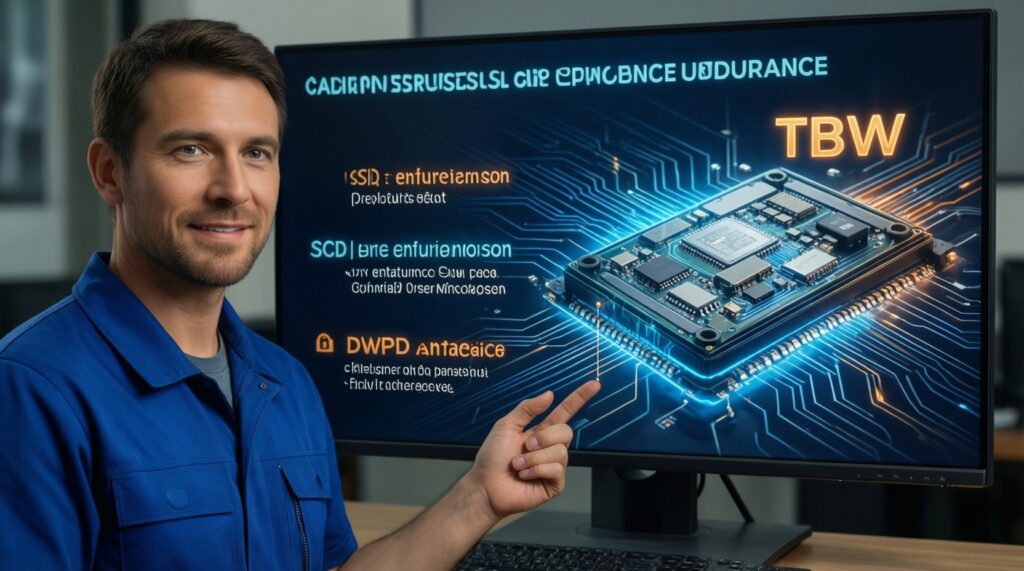
TBW SSD คืออะไร? TBW is the total amount of data the manufacturer rates the drive to write over its warranty period; DWPD expresses how many full-drive writes per day that corresponds to, for a defined time window. Use this quick selection algorithm without guessing:
- Define the job: OS/apps only, gaming library, content scratch, or write-heavy (logs/VMs/capture).
- Choose capacity first: Endurance ratings typically scale with capacity; compare TBW only among the same capacity tier of competing models.
- Find the official endurance line: Look up the exact model number's TBW (and DWPD if provided) from the product datasheet/spec page.
- Translate to your write pattern: If you do frequent large writes (exports, recording, caches), treat endurance as a primary filter, not an afterthought.
- Account for worst weeks: Pick headroom for peak projects, not just typical days; endurance is about accumulated writes over time.
- Prefer clearer warranty terms: Ensure the warranty is valid locally and that TBW/DWPD terms are explicitly stated for the model you buy.
- Match endurance to architecture: If two drives are close in price, favor the one with stronger endurance and steadier sustained-write behavior, especially for workstation use.
Workload decision tree: matching SSD class to gaming, content work and servers
- Buying the interface your slot doesn't support: M.2 SATA vs M.2 NVMe mistakes are common-verify with the laptop manual or board spec sheet.
- Chasing peak sequential numbers: Many real tasks feel similar across fast drives; consistency and latency under mixed IO often matter more.
- Ignoring sustained writes: Entry-level drives may drop sharply after cache is exhausted-painful for long exports and large backups.
- Overlooking thermal throttling: A fast NVMe in a hot laptop can perform like a slower one after it heats up; plan for a heatsink (desktop) or a cooler model (laptop).
- Assuming DRAMless is always bad (or always fine): It depends on workload and how tight the price gap is; evaluate based on your write intensity and multitasking.
- Not leaving free space: Running near-full reduces performance headroom; keep working space for updates and internal maintenance.
- Forgetting about migration and reuse: SATA 2.5" moves between systems easily; NVMe form factors and slot support can limit portability.
- Mixing "server-like" workloads with consumer picks: Always-on heavy writes (databases, CCTV, logging) deserve stronger endurance and predictable sustained performance.
A quick decision-tree you can apply before checkout
- Do you have an NVMe-capable slot? If no or unsure, choose 2.5" SATA (or M.2 SATA only if the manual confirms SATA M.2 support).
- Is your workload write-heavy (editing scratch, capture, VMs, logs)? If yes, choose NVMe with DRAM and prioritize stronger TBW/DWPD.
- Is it mostly OS + apps + gaming? If yes, choose NVMe if pricing is close; otherwise SATA is fine.
- Is the device thermally constrained (thin laptop/handheld)? If yes, prioritize a cooler-running model and correct physical size (often 2230/2242) over peak specs.
- Is the price difference small between DRAM and DRAMless? If yes, default to DRAM for consistency; if no, DRAMless can be acceptable for lighter use.
Performance in the field: benchmarks that matter - IOPS, sustained writes, and thermal throttling
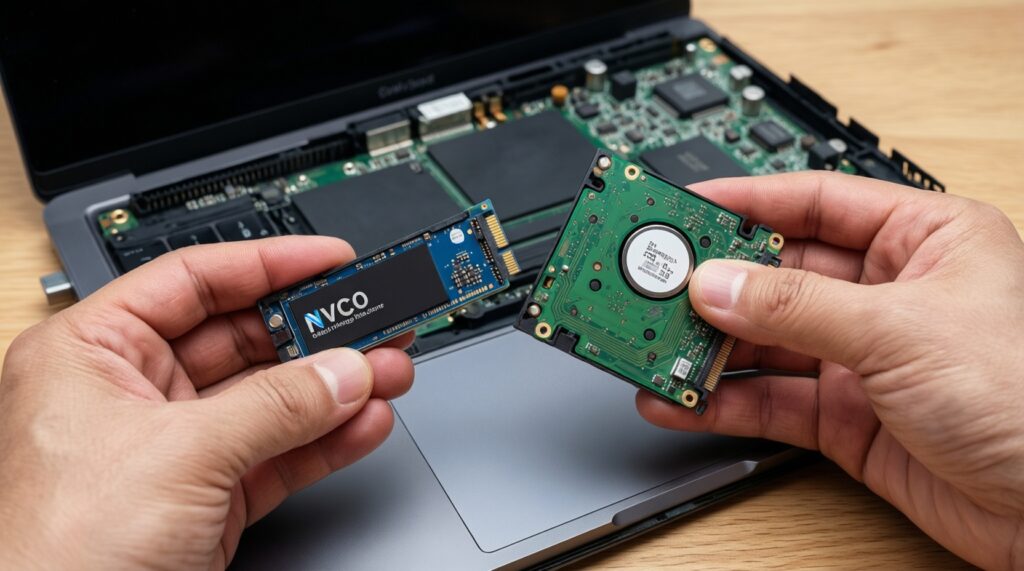
For most intermediate users, the "best" pick tends to be M.2 NVMe 2280 with DRAM when the platform supports it and thermals are manageable; the "best value upgrade" is often a 2.5" SATA when compatibility and easy migration matter most. For small devices, prioritize the correct M.2 length and stable sustained performance over headline speeds.
Concise clarifications on common SSD implementation doubts
Will I feel a big difference between SATA and NVMe for Windows and gaming?
You'll usually notice the biggest jump moving from HDD to any SSD. SATA vs NVMe can feel similar for many game loads, while NVMe more clearly helps in heavier multitasking and large file workflows.
How can I confirm whether my M.2 slot supports NVMe?
Check the laptop manual/motherboard spec page for "PCIe/NVMe" wording, not just "M.2". BIOS storage menus and vendor support pages typically list supported protocols per slot.
Is DRAMless always a bad choice?
No. DRAMless can be fine for lighter desktop use, but it's more likely to show slowdowns under sustained writes, low free space, or heavier multitasking than a comparable DRAM model.
Does HMB make a DRAMless NVMe equivalent to a DRAM drive?
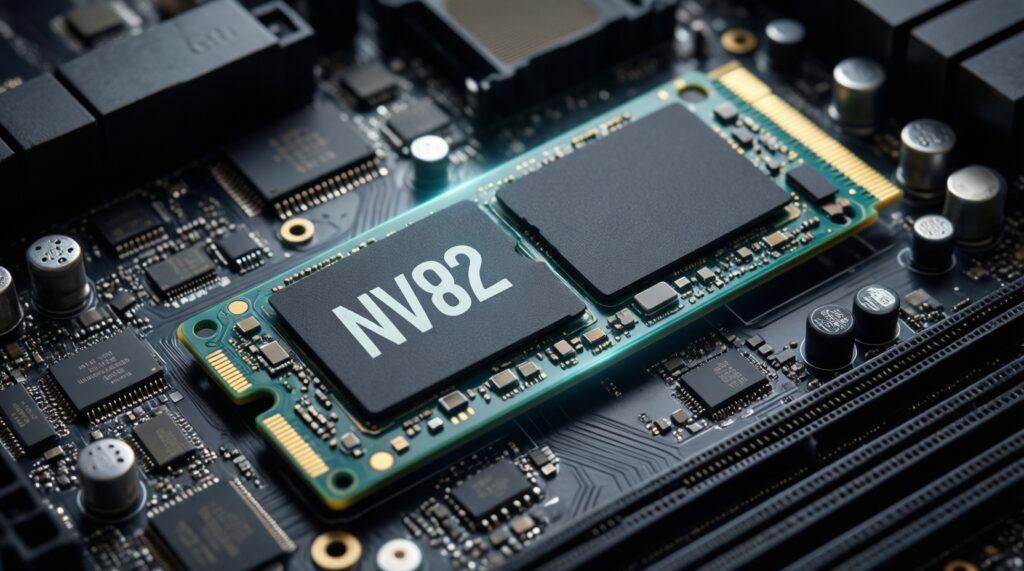
No. HMB can reduce worst-case behavior by using a small portion of system RAM, but it doesn't fully match the consistency of onboard DRAM in demanding write-heavy scenarios.
What should I do if my NVMe drive is thermal throttling?
Improve airflow, add a motherboard/heatsink (desktop), and avoid stacking heat sources. In laptops, choose a more efficient model and keep the cooling system clean.
How should I compare TBW across different capacities?
Compare TBW between drives of the same capacity class first. Larger capacities often have higher endurance ratings, so cross-capacity comparisons can mislead.
Can I use a PCIe adapter card to add NVMe to an older PC?
Often yes for storage, but booting from it depends on motherboard BIOS support. Also confirm PCIe lane sharing so you don't unintentionally limit other devices.