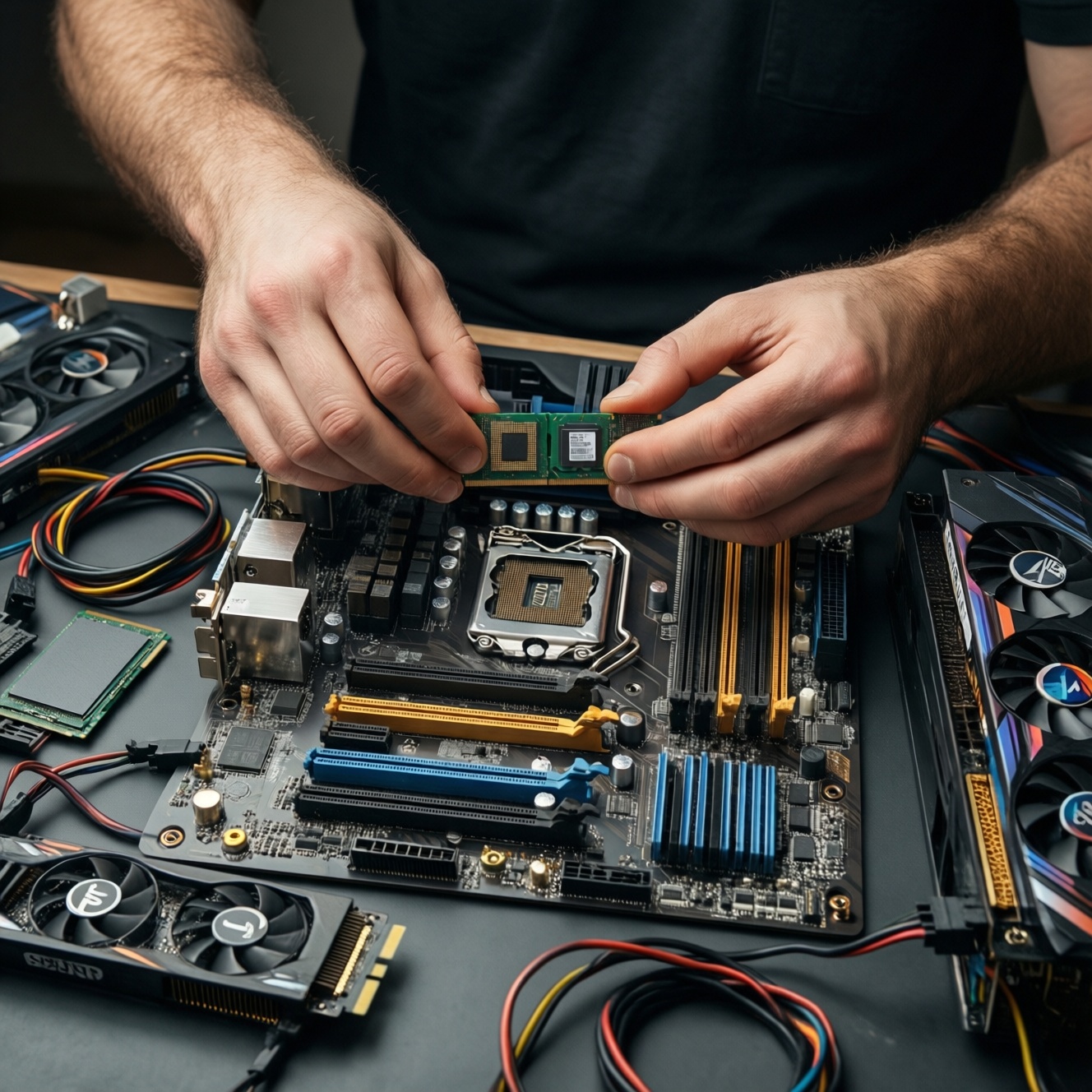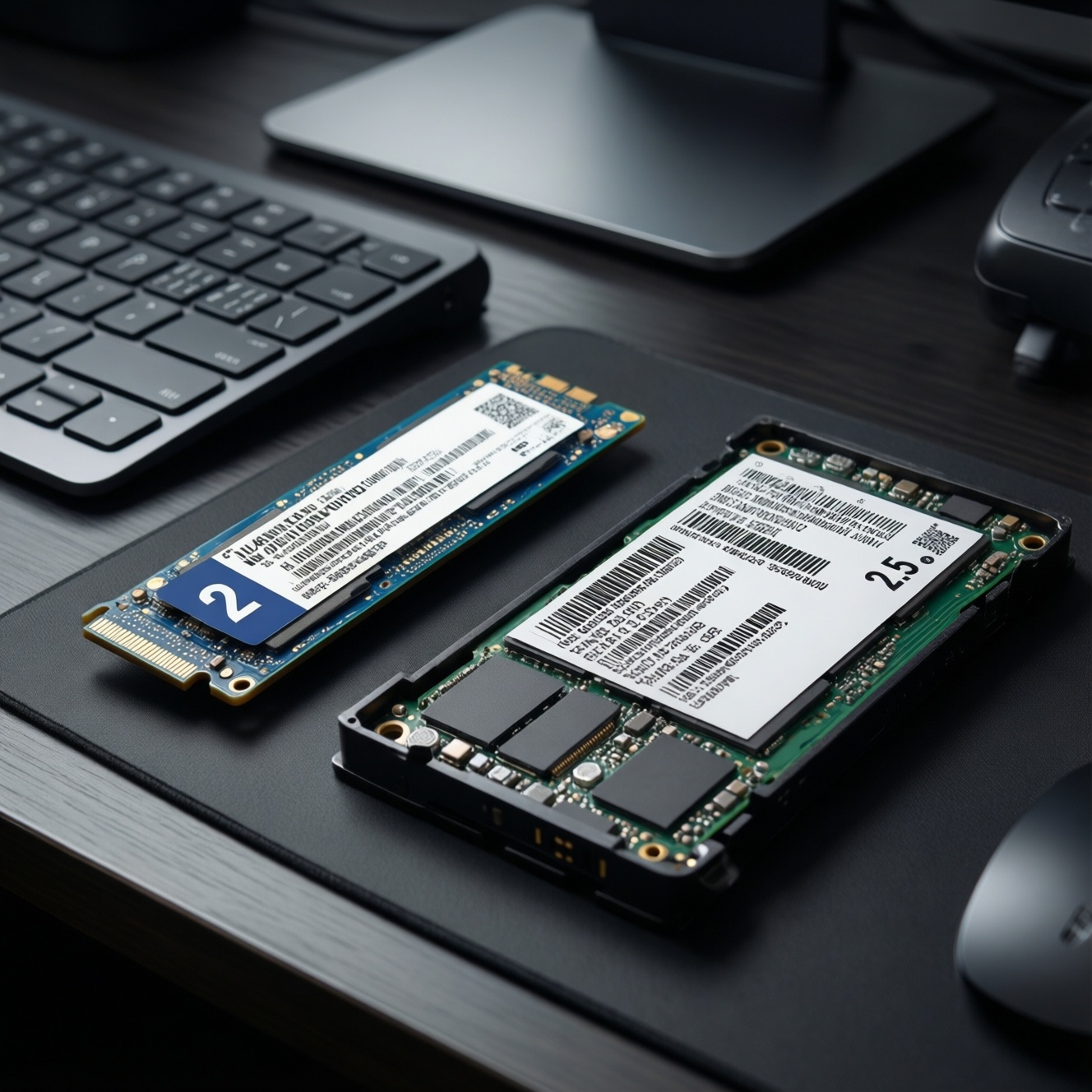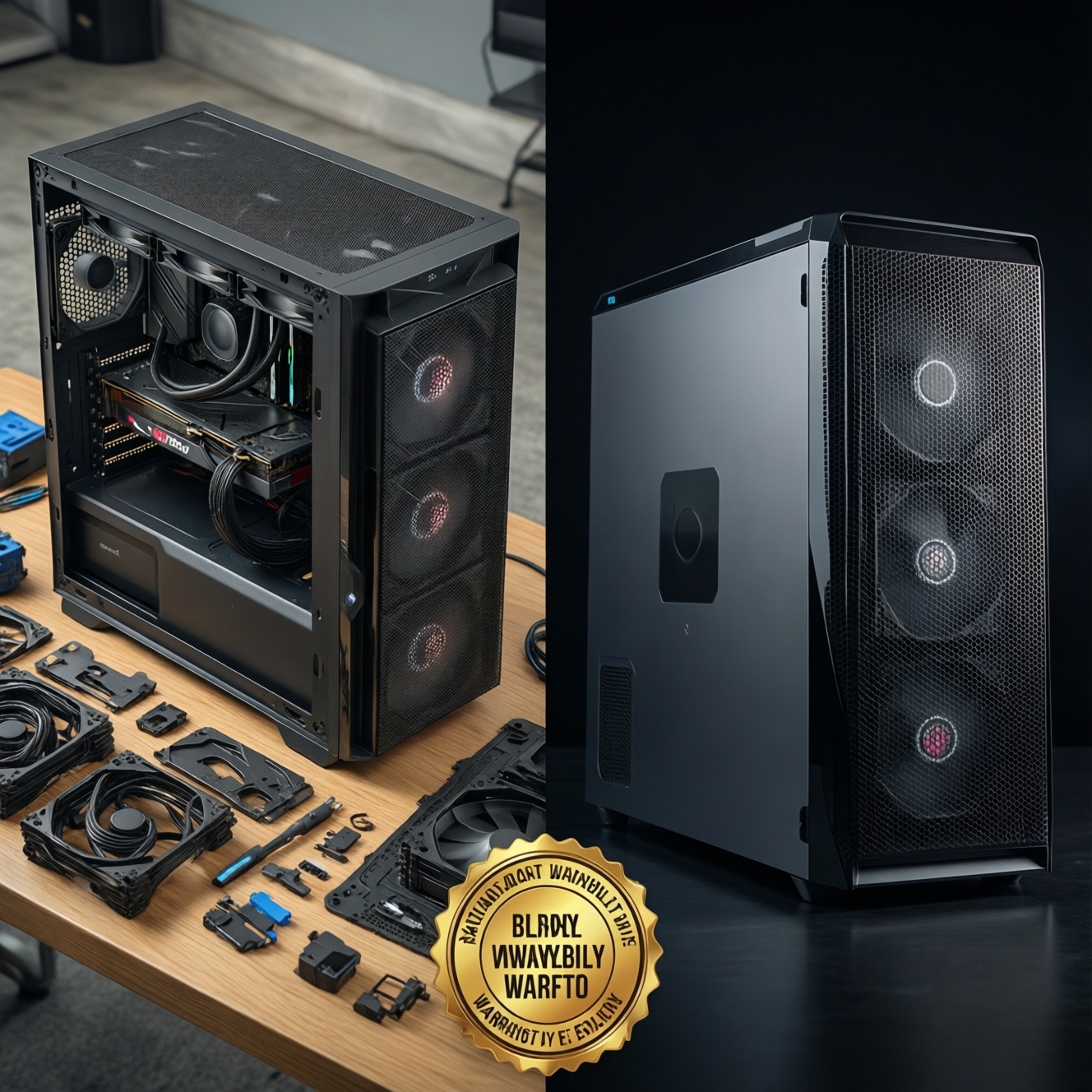
If your priority is the best value per baht and easy upgrades, a self-built PC usually wins because you control every part and can avoid paying for bundled extras. If you want the lowest hassle, a single warranty contact, and faster resolution when something fails, a prebuilt is often the safer choice.
Cost, Performance, and Support Overview
- Self-build typically maximizes price-to-performance because you choose each part and avoid brand premiums.
- Prebuilts simplify buying, setup, and troubleshooting by bundling assembly, OS imaging, and one support channel.
- Warranty experience is the biggest practical difference: per-part RMA versus single-system handling.
- Upgrade freedom is usually better on self-build; prebuilts can have proprietary cases, PSUs, or BIOS limits.
- For budget-first buyers, the "hidden costs" (tools, time, diagnostics, shipping) can erase some self-build savings.
Total Cost and Value: Parts versus Prebuilt Systems
When comparing คอมประกอบเอง vs คอมสำเร็จรูป, focus on total value, not just the sticker price. Use these criteria to decide which option is genuinely "worth it" for your usage and risk tolerance:
- CPU/GPU transparency: Are exact model names listed (including VRAM size and GPU power limits), or only vague labels?
- Motherboard/PSU quality: Does the system specify VRM tier, PSU wattage, and PSU certification, or is it unspecified?
- Cooling and noise: Case airflow, CPU cooler model, fan count, and whether GPU/CPU will throttle under sustained load.
- Upgradeable layout: Standard ATX parts, spare M.2/SATA slots, RAM slots, and physical space for future GPUs.
- Software value: Whether you actually need included OS, office trials, RGB apps, and vendor utilities.
- Service path: One-stop service versus per-part claims; shipping/transport effort and diagnostic time.
- Build quality risk: Cable management, correct RAM configuration (dual-channel), correct XMP/EXPO settings, and thermal paste application.
- Time-to-ready: Same-day use (prebuilt) versus sourcing parts, assembly, BIOS setup, and stability testing (self-build).
Simple budget example (illustrative, not a market price list)
This shows how budgeting changes between self-build and prebuilt. Replace the numbers with real quotes from Thai retailers and system integrators before deciding คอมประกอบเองคุ้มไหม.
| Line item | Self-build (THB example) | Prebuilt (THB example) | Why it matters |
|---|---|---|---|
| Core hardware (CPU+GPU+board+RAM) | 26,000 | 26,000 | Start by matching CPU and GPU class as closely as possible. |
| Storage (NVMe) | 2,000 | 2,500 | Prebuilts may bundle higher capacity or a second drive; check exact models. |
| PSU + case + cooling | 4,500 | 3,000 | Self-builders often pay more to ensure airflow and PSU headroom. |
| OS / image / setup | 0-4,500 | 0-4,500 | Sometimes included "free"; confirm license type and reinstall rights. |
| Assembly / stress test | 0-800 | Included | Some shops will assemble your parts; prebuilts usually include burn-in/testing. |
| Hidden costs (tools, travel, shipping, troubleshooting time) | Variable | Lower | The more budget-tight you are, the more this can change the outcome. |
Warranty, Support, and RMA Realities for Budget Buyers
The question ประกันคอมประกอบเองกับคอมสำเร็จรูป is less about "which is longer" and more about "who diagnoses the fault, who you contact, and how many trips it takes." Budget buyers should optimize for fewer failure points and a clear service route.
| Option | Who it fits | Pros | Cons | Choose it when |
|---|---|---|---|---|
| DIY self-build (you assemble) | Intermediate users who can diagnose and swap parts | Full control; easiest long-term upgrades; you keep all boxes/receipts per part | You are the "system integrator"; fault isolation and RMA coordination is on you | You can spare time for troubleshooting and want maximum component choice |
| Shop-built from your chosen parts (custom build service) | Budget-first buyers who still want part-level transparency | Often includes assembly check; you still pick quality PSU/case/RAM | Warranty responsibility can be split (shop labor vs. parts); clarify before paying | You want self-build value but less risk of assembly mistakes |
| Brand prebuilt (OEM-style) | Users who want a single point of contact | One-system support; consistent BIOS/driver image; fast "drop-off" workflow | May include proprietary parts; upgrades can be limited or costlier | You prioritize minimal downtime and simple service handling |
| System integrator prebuilt (gaming-focused) | Gamers who want a ready-to-play tower with known parts list | Usually clearer specs than OEM; may include cable management and stress testing | Still verify PSU model, motherboard tier, and RAM configuration | You want prebuilt convenience without sacrificing too much part transparency |
| Used PC (second-hand whole system) | Very tight budgets and experienced buyers | Best upfront savings; can land higher-tier GPU/CPU for the money | Uncertain history; limited or no warranty; higher risk of hidden defects | You can test in person and accept higher risk to save cash |
| Used parts for a new build (mixed) | Intermediate builders optimizing price-performance | Flexibility to spend where it matters (often GPU); can upgrade gradually | RMA complexity rises; compatibility and stability checks are essential | You can validate parts (temps, clocks, SMART data) before committing |
Practical warranty questions to ask before buying
- Who handles first-line diagnostics: the shop, the brand, or you?
- If the PC won't boot, will they test and identify the failing part, or only accept a full-system return?
- Is there a written policy on turnaround time, shipping costs, and what counts as user damage?
- Do you keep original boxes and serial numbers for each component (important for self-build RMAs)?
Performance-per-Dollar: How to Compare Real-World Results
To compare value without guessing, match performance by workload and constraints (resolution, target refresh, and noise). Avoid relying on marketing labels like "gaming edition." Use "if..., then..." rules and check that the prebuilt's CPU/GPU power and cooling allow sustained performance.
- If you mainly play esports at 1080p and care about stable high refresh, then prioritize CPU class, dual-channel RAM, and low-latency settings; a budget self-build often wins because you can avoid overspending on GPU.
- If you play AAA titles and want higher settings at 1440p, then treat the GPU as the anchor and ensure the PSU/case airflow can sustain GPU boost; a gaming integrator prebuilt can be good if it lists exact GPU model and cooling.
- If you do creator workloads (editing, streaming, 3D), then prioritize CPU core count, RAM capacity, and fast NVMe; self-build is usually better because storage and RAM upgrades are straightforward and cost-effective.
- If you need quiet operation for long sessions, then choose a case with airflow, a known CPU cooler, and a GPU with a proven cooler design; prebuilts with unknown coolers can underperform due to thermal limits.
Budget-first vs premium-first emphasis
- Budget-first: lock a realistic target (e.g., 1080p competitive or 1440p mixed), then spend on the GPU/CPU that meets it, and keep the rest reliable (PSU, airflow, SSD). Don't pay extra for RGB, bundled peripherals, or vague "OC" claims.
- Premium-first: pay for lower noise, better thermals, and convenience (clean cable management, validated stability, single support). Make sure premium cost is buying measurable quality: cooling, PSU tier, motherboard features, and upgrade headroom.
When researching คอมเล่นเกมสำเร็จรูปราคา, compare two quotes by normalizing what matters: same GPU tier, same RAM capacity/configuration, same SSD capacity, and clearly listed PSU and motherboard.
Building Logistics: Time, Tools, and Hidden Expenses
Use this quick selection algorithm before you decide to buy parts or pick a prebuilt. It prevents the common trap of optimizing only the upfront price.
- Write your top 2 workloads (games + one non-game task) and your target resolution/refresh.
- Set a hard limit on downtime: how many days can you tolerate without a working PC if something fails?
- Decide who will diagnose failures: you, a local shop, or the brand's service center.
- List what you already have (monitor, OS license, storage, peripherals) to avoid rebuying bundles.
- Confirm physical constraints: desk space, airflow, noise tolerance, and whether you can transport the PC for service.
- Price-check two paths with the same performance target: a parts list (self/custom) and a prebuilt with fully disclosed specs.
- Choose the option that meets your downtime and service preferences first, then optimize the spec within that choice.
Choosing Components for a Thrifty but Reliable Build
Budget builds fail most often due to weak supporting parts or unclear specs. Whether you build yourself or evaluate a prebuilt, avoid these mistakes:
- Unknown PSU model: "Wattage only" listings are a red flag; require the exact PSU model and warranty terms.
- Single-stick RAM when dual-channel matters: one stick can reduce performance and consistency; plan for matched pairs.
- Overspending on CPU while starving the GPU: common in gaming-focused budgets; anchor the GPU first for AAA targets.
- Ignoring case airflow: a fast GPU in a closed hotbox leads to throttling and louder fans.
- Motherboard too minimal for future upgrades: insufficient M.2 slots, weak VRM cooling, or limited fan headers.
- SSD with poor endurance/unknown controller: don't buy "capacity only"; look for reputable model lines and warranty clarity.
- BIOS/compatibility surprises: confirm CPU support for the chosen motherboard revision, especially with older stock.
- Buying "mystery prebuilt specs": if the listing does not disclose motherboard, PSU, RAM speed/config, and cooler, assume cost cutting.
- No stability testing plan: after assembly (or purchase), run basic memory and GPU stress checks to catch early issues within return windows.
When a Prebuilt Makes More Sense: Practical Scenarios
Best for budget optimization and long-term upgrades: a self-build or shop-built custom where every part is specified and you're comfortable managing RMAs. Best for predictable support and minimal hassle: a well-specified prebuilt with a single service path, especially if you're deciding คอมสำเร็จรูปยี่ห้อไหนดี based on local service quality, clear part disclosure, and upgrade-friendly standard components.
Concise Answers on Upgrades, Risks, and Long-Term Ownership
Is a self-built PC always cheaper in Thailand?
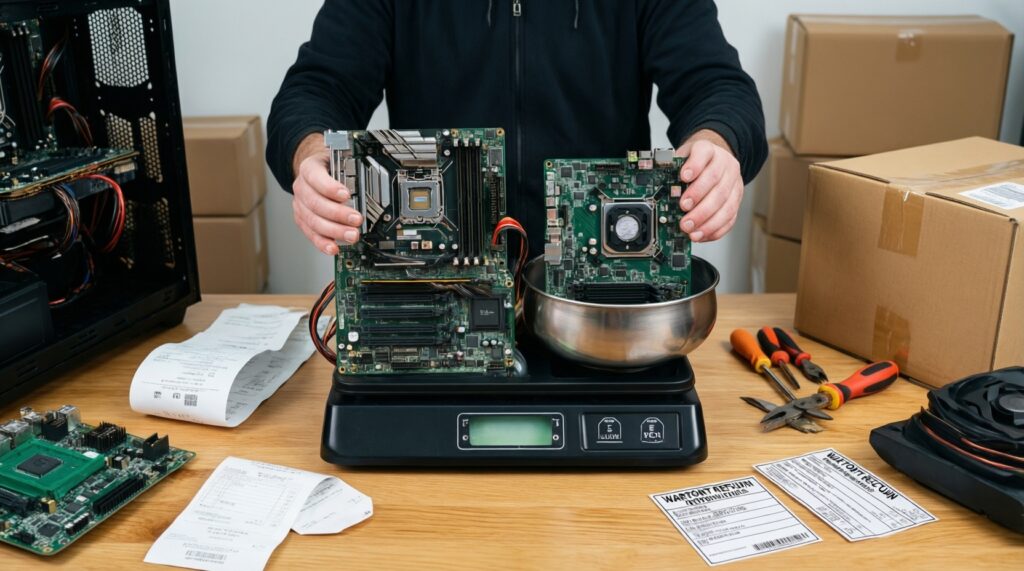
No. It can be cheaper when you avoid bundled extras and choose parts strategically, but assembly time, troubleshooting, and shipping/travel for RMAs can erase savings.
What is the biggest real-world difference in warranty handling?
With self-build you often need to identify the faulty component and claim per-part. With many prebuilts you contact one provider, but you must verify whether they truly handle full diagnostics.
How do I compare two prebuilts fairly?
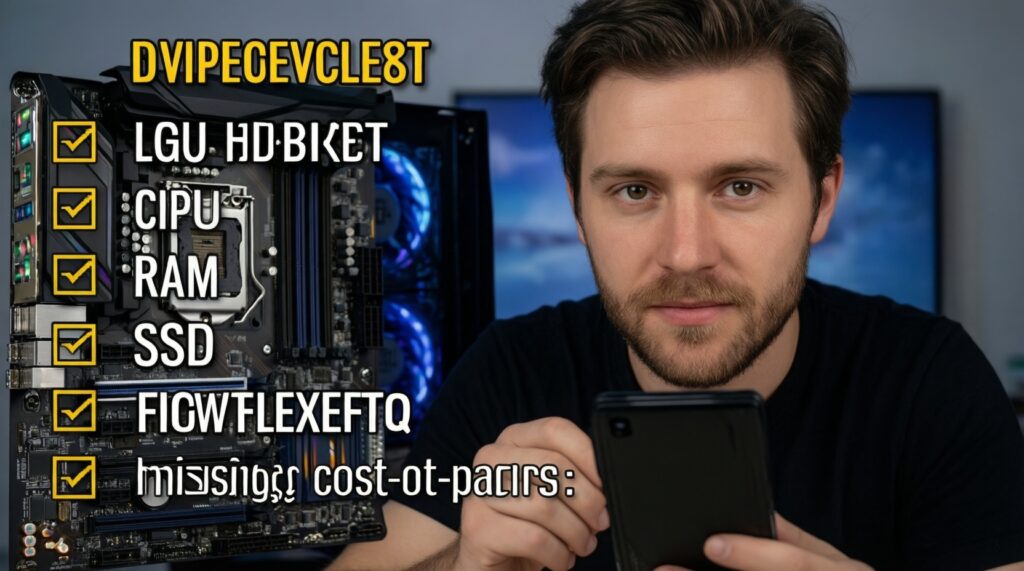
Match GPU tier, CPU class, RAM capacity/configuration, SSD capacity, and confirm exact PSU and motherboard models. If any of those are missing, treat it as an unknown-cost-cut area.
Which option is safer for first-time troubleshooting?
A prebuilt with a clear single-service workflow is usually safer if you cannot diagnose boot issues. A shop-built custom can be a good middle ground if it includes post-build testing and documented parts.
What upgrades are easiest later?
Storage and RAM are usually easiest on both, assuming standard parts. GPU and PSU upgrades are easiest on self-builds and standard-component prebuilts (avoid proprietary cases/PSUs).
What should I check immediately after receiving a prebuilt?
Verify the parts match the invoice, confirm RAM runs in the intended configuration, and check temperatures/noise under load. Keep boxes, serials, and documentation for any warranty claim.