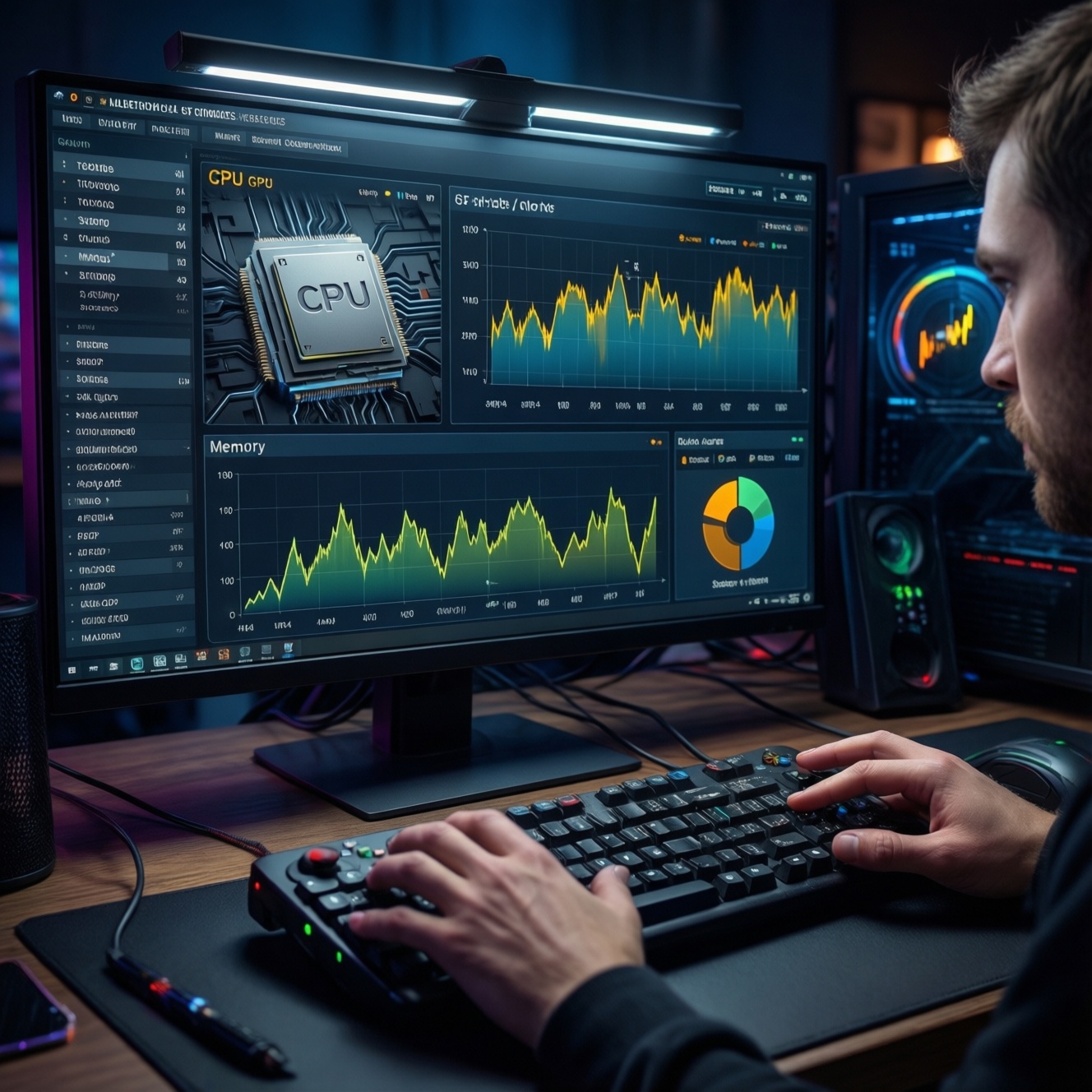
Undervolting reduces CPU/GPU heat and power draw by lowering voltage at the same frequency, often keeping performance nearly unchanged when tuned carefully. The safe approach is incremental changes, repeatable testing, and a clear rollback path (reset settings, revert profiles). This guide covers practical tools, step-by-step tuning, and stability validation for laptops and desktops.
Critical preflight checklist
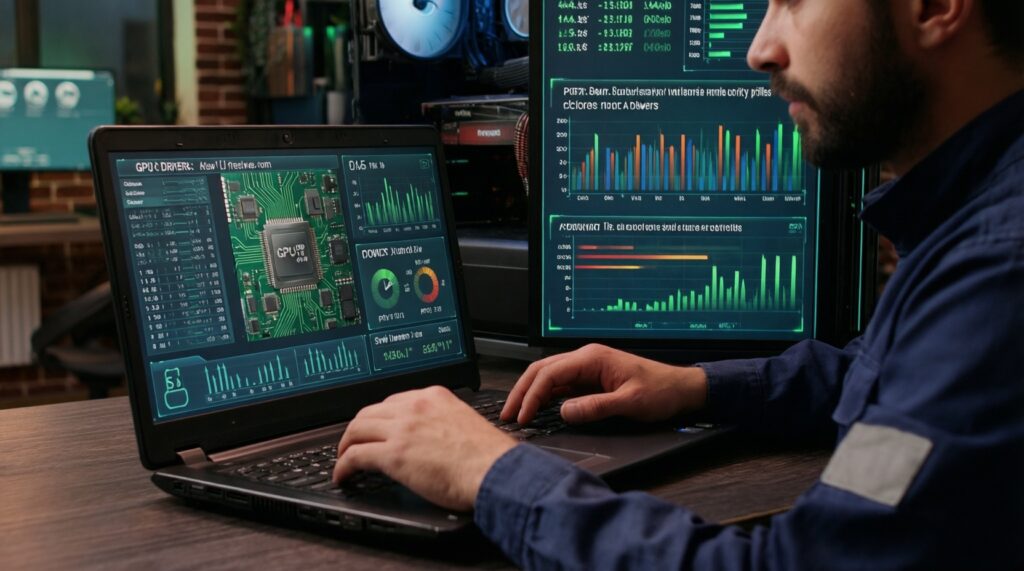
- Update BIOS/UEFI (if applicable) and GPU drivers; note that some laptops lock CPU undervolting.
- Create a restore point and back up any critical work; keep one known-good profile saved.
- Install monitoring: temps, clocks, power, fan speed, and error logs.
- Plan small voltage steps and keep a simple tuning log (change, test, result, rollback note).
- Know your recovery method: Safe Mode, "reset to defaults" in BIOS, or deleting a tuning profile.
Why undervolting works: silicon behavior, voltage/frequency curves and thermal headroom
At a given clock, many chips can run stable at less voltage than factory defaults. Lower voltage reduces power and heat, which can improve sustained boost behavior (less thermal throttling) and fan noise. Undervolting is most useful when you're temperature- or noise-limited (thin laptops, small cases, hot climates common in TH).
Good candidates: gaming laptops, compact desktops, GPUs that hit power/thermal limits, systems where fans are too loud under load.
When not to do it (or be extra cautious):
- Mission-critical workloads where any risk of a silent error is unacceptable.
- Already-unstable systems (random reboots, bad RAM, overheating from dust).
- Laptops with locked undervolt controls (you may only be able to tune GPU or power limits).
- Systems with poor cooling contact; fix fundamentals first (cleaning, paste/pads) before tuning.
Preparing the system: backup, BIOS/driver readiness and defining safe limits
Before changing voltages, define what "safe" means for your usage: stable gaming sessions, stable rendering, or stable everyday work. Also decide your "stop" thresholds (example: if you see repeated crashes, WHEA errors, or app instability, roll back immediately).
Tooling and approach comparison (risk-aware)
| Component | Vendor | Recommended tools (examples) | Method | Typical outcome (qualitative) | Risk level |
|---|---|---|---|---|---|
| CPU | Intel (laptop/desktop, if unlocked) | Intel XTU, ThrottleStop (this is your โปรแกรม undervolt CPU category) | Offset undervolt (core/cache), sometimes power limits | Lower temps and sustained clocks; minimal performance loss if stable | Medium (crash/BSOD; settings may reset) |
| CPU | AMD (desktop & some laptops) | BIOS Curve Optimizer, Ryzen Master (where supported) | Per-core curve optimization (effective undervolt behavior) | Better efficiency, possibly higher sustained boost | Medium (instability under specific loads) |
| GPU | NVIDIA | MSI Afterburner (common โปรแกรม undervolt GPU) | Voltage/frequency curve editing | Same FPS with less heat/power; quieter fans | Low-Medium (driver crash; easy rollback) |
| GPU | AMD | AMD Adrenalin (Performance Tuning) | Undervolt slider and/or frequency tuning | Efficiency gains; can reduce hotspot temps | Low-Medium (driver reset; easy rollback) |
What you need before you start
- Admin access on Windows (or equivalent permissions).
- Monitoring: a tool that shows CPU package temps, GPU temps/hotspot (if available), clock speeds, and power.
- Stress/validation tools: one CPU-heavy load, one GPU-heavy load, and at least one real game/app you actually use.
- A tuning log: date/time, setting changes, tests run, pass/fail, peak temps, notes.
Risk and limitations you must accept (read before steps)
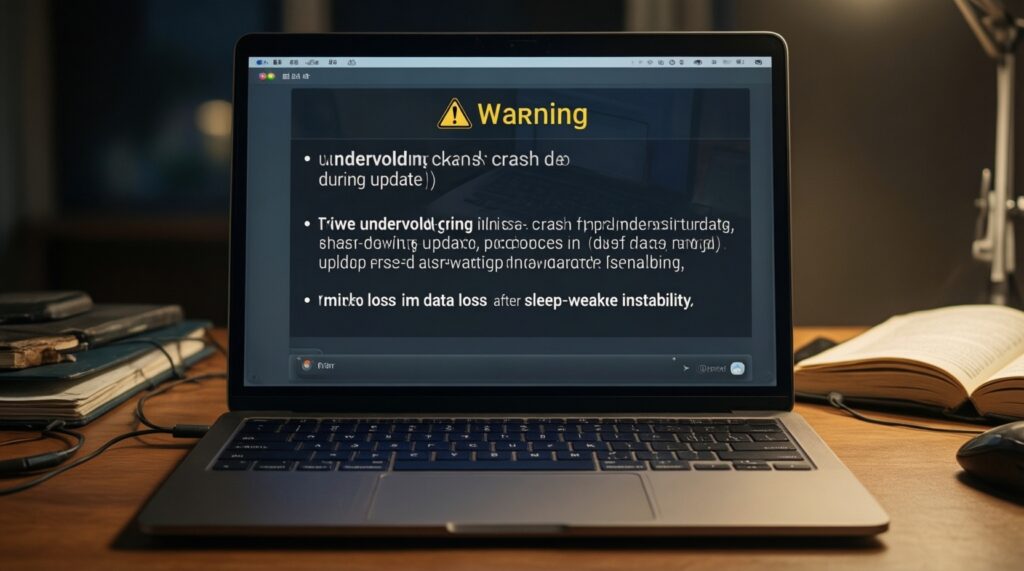
- Instability can be delayed: it may pass a quick test but fail after sleep/wake or long sessions.
- Data loss is possible if the system crashes mid-write; save work and don't undervolt while doing critical updates.
- Some laptops block CPU undervolting; you may only be able to undervolt the GPU or adjust power limits.
- "Too low" voltage can cause silent computation errors in rare cases; validate with the workloads that matter to you.
- Thermal fixes may beat undervolting: cleaning, correct paste/pads, and airflow can be the main win.
If you're comparing costs in Thailand, users often search โน้ตบุ๊ก undervolt ราคา, but undervolting itself is usually a configuration/tuning task. Spend budget only if you need cooling materials (paste/pads/stand), not for "undervolt hardware."
Undervolting CPUs: step-by-step for modern Intel and AMD processors
-
Confirm undervolt is actually available on your machine
On many laptops, BIOS or firmware mitigations can lock CPU voltage control. Check your tool's voltage controls and whether offsets apply after reboot.
- If offsets don't stick, focus on GPU undervolt and CPU power limits instead.
- Record your baseline temps/clocks first so you can tell if anything improved.
-
Establish a baseline (stock settings)
Run a repeatable CPU load for 10-15 minutes and note peak temperature, average clock, and whether throttling appears. Save screenshots or export logs.
-
Apply a small negative voltage change
Start with a conservative step and move gradually. For Intel offset undervolt, apply a small negative offset, test, then repeat.
- Keep changes incremental; don't jump to aggressive values.
- If tuning core and cache separately, keep them close at first to reduce weird edge cases.
-
Quick stability check after each step
After every adjustment, run a short CPU stability test and do a quick real-world task (browser tabs, a game launch, compile, etc.). Watch for errors, freezes, or sudden clock drops.
-
Extend to longer validation at the first sign of gains
Once you see lower temps or less throttling, run a longer session that matches your actual use (gaming, rendering, coding). Undervolts that "almost work" often fail here.
-
Define your final "daily" profile and save a fallback
Keep two profiles: Daily (stable) and Baseline (stock). If your tool supports startup profiles, enable it only after multiple successful reboots and sleep/wake cycles.
-
If CPU undervolt is locked: use power/boost limits safely
When voltage control is blocked, reducing CPU turbo power limits or boost behavior can still cut heat with predictable stability.
- Prioritize stability; small reductions often remove throttling without noticeable slowdowns.
Undervolting GPUs: step-by-step for NVIDIA and AMD cards (tools and curve editing)
GPU undervolting is usually the highest "value per risk" efficiency tweak. The goal is to hold your target boost clock at a lower voltage point on the curve, reducing power and heat. Use one tool, change one thing at a time, and save profiles.
Procedure (practical curve-first method)
-
Log a baseline gaming run
Play a consistent scene/benchmark and record average FPS, GPU temperature/hotspot (if available), power draw (if shown), and fan speed/noise impression.
-
Choose a realistic target clock
Pick a clock your GPU already sustains under load. Undervolting is easier when you don't chase maximum boost spikes.
-
Lower voltage for that clock (curve edit or undervolt control)
For NVIDIA, edit the voltage/frequency curve so your chosen clock aligns to a lower voltage point, then flatten the curve above it. For AMD, use the built-in undervolt/tuning controls and test stepwise.
-
Test, then refine in small steps
Run a GPU-heavy test and a real game. If stable, you can reduce voltage slightly more or raise the target clock slightly-never both at once.
-
Save profiles and set a simple rollback
Save "Undervolt Stable" and "Stock" profiles. Keep "apply at startup" disabled until you've tested multiple restarts.
Result verification checklist (use after each change)
- No driver resets, black screens, or game crashes during a sustained session.
- FPS is within your acceptable range for the same scene/settings.
- GPU clocks are steady (no rapid oscillation that wasn't present at stock).
- Temperatures improve or fan noise decreases at similar performance.
- No new artifacting (sparkles, texture corruption) in games or benchmarks.
- Sleep/wake and monitor on/off cycles work normally (common "gotcha" for marginal undervolts).
- Event logs show no recurring GPU-related critical errors.
Validation protocol: stability tests, benchmarks, and objective thermal/power metrics
Validate with a mix of synthetic and real workloads. Synthetics catch obvious instability; real workloads catch driver/game-specific behavior. Keep the same ambient conditions where possible (Thailand heat swings can change margins), and always compare against your baseline logs.
What to measure (objective, reproducible)
- Peak and sustained CPU package temperature; GPU temperature and hotspot (if exposed).
- Average sustained clocks under the same load window.
- Throttle flags (thermal/power) if your monitoring shows them.
- Stability indicators: WHEA errors (CPU), driver resets (GPU), application crash logs.
Frequent mistakes that waste time or create risk
- Changing multiple parameters at once (voltage + clocks + power limits), making failures impossible to diagnose.
- Relying on a single short benchmark and calling it stable.
- Enabling "apply at startup" before proving stability across reboots and sleep/wake.
- Ignoring event logs because "it didn't crash" (especially for CPU undervolt edge cases).
- Comparing results across different ambient temps or different fan profiles without noting it.
- Not saving a known-good profile, then getting stuck in a crash loop.
- Trying undervolt to fix a hardware cooling issue that actually needs cleaning or remounting.
- Over-focusing on the lowest possible voltage rather than stable, repeatable performance.
Failure modes and recovery: symptoms, mitigation, and safe rollback procedures
Most undervolt failures are recoverable: you revert settings and re-test at a less aggressive value. The key is to recognize symptoms quickly and have a rollback method that doesn't depend on the unstable profile loading.
Common symptoms and what they usually mean
- Instant BSOD/reboot under CPU load: CPU undervolt too aggressive; revert to last stable offset.
- App-only crashes (browser/game) with no reboot: marginal stability; back off one step and re-validate longer.
- GPU driver reset / black screen then recovery: GPU undervolt too low for the chosen clock; increase voltage slightly or lower the target clock.
- Artifacts: unstable GPU curve; revert immediately and retest.
Safe rollback procedures (do these in order)
- Disable the tuning profile/apply-on-startup in your undervolt tool and reboot.
- Boot into Safe Mode if normal boot crashes, then remove the tuning tool's startup task/profile.
- Reset BIOS/UEFI to defaults if BIOS-based tuning prevents boot (use "Load Optimized Defaults" or a CMOS reset if you know how).
- Return to stock GPU settings by resetting the tuning panel profile (Afterburner/Adrenalin) and re-testing.
Alternatives when undervolting is blocked or not enough
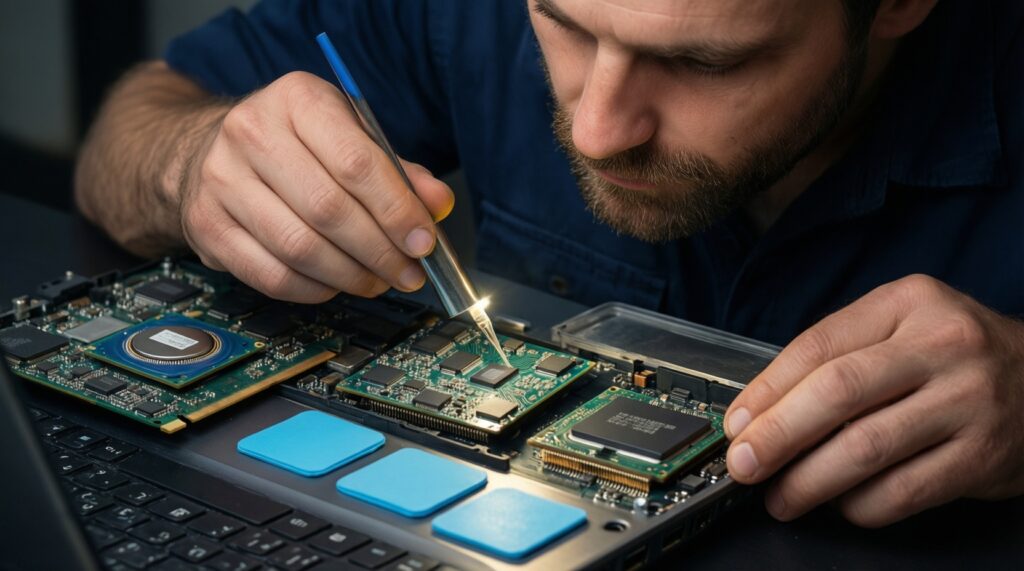
- Repaste and fix contact quality: if you're searching ซิลิโคนระบายความร้อน CPU ซื้อ, choose a reputable thermal paste and apply correctly; this often beats risky undervolt attempts on severely overheating laptops.
- Replace/upgrade thermal pads (VRAM/VRM on GPUs, some laptops): useful when hotspot/VRM temps are the limiting factor.
- Use a cooling stand and improve airflow: if you're comparing แผ่นรองระบายความร้อนโน้ตบุ๊ก ราคา, prioritize solid airflow and ergonomics; it's a low-risk way to gain thermal headroom.
- Adjust power limits/fan curves: predictable, often available even when undervolt is locked; a good "safety-first" option.
Common concerns and concise answers
Will undervolting reduce performance?
If stable at the same clocks, performance is typically unchanged; many systems sustain boost longer due to lower temperatures. If you also lower power limits aggressively, performance can drop.
Is undervolting safe for laptops in Thailand's hot climate?
It can be beneficial because it reduces heat output, but hot ambient temperatures reduce stability margin. Validate under your real room conditions, not only in an air-conditioned test.
Which is easier: CPU or GPU undervolt?
GPU undervolting is usually easier to validate and roll back. CPU undervolting can be locked on many laptops and may fail in more subtle ways.
What is the simplest recovery if I can't boot after changes?
Boot Safe Mode and remove the startup profile, or reset BIOS/UEFI settings to defaults. Always keep a stock profile saved before enabling apply-on-startup.
Do I need to buy anything to undervolt (โน้ตบุ๊ก undervolt ราคา)?
Usually no-undervolting is software/firmware tuning. Consider spending only if your thermal interface or airflow is the real bottleneck.
What tools should I start with (โปรแกรม undervolt CPU / โปรแกรม undervolt GPU)?
For CPU, use Intel XTU/ThrottleStop (Intel, if unlocked) or BIOS Curve Optimizer/Ryzen Master (AMD, where supported). For GPU, MSI Afterburner (NVIDIA) or AMD Adrenalin (AMD) are common starting points.
Should I repaste before undervolting (ซิลิโคนระบายความร้อน CPU ซื้อ)?
If your laptop is dust-free and still throttles hard, repasting can be the higher-impact fix. If temps are reasonable but you want quieter operation, undervolting first is fine.