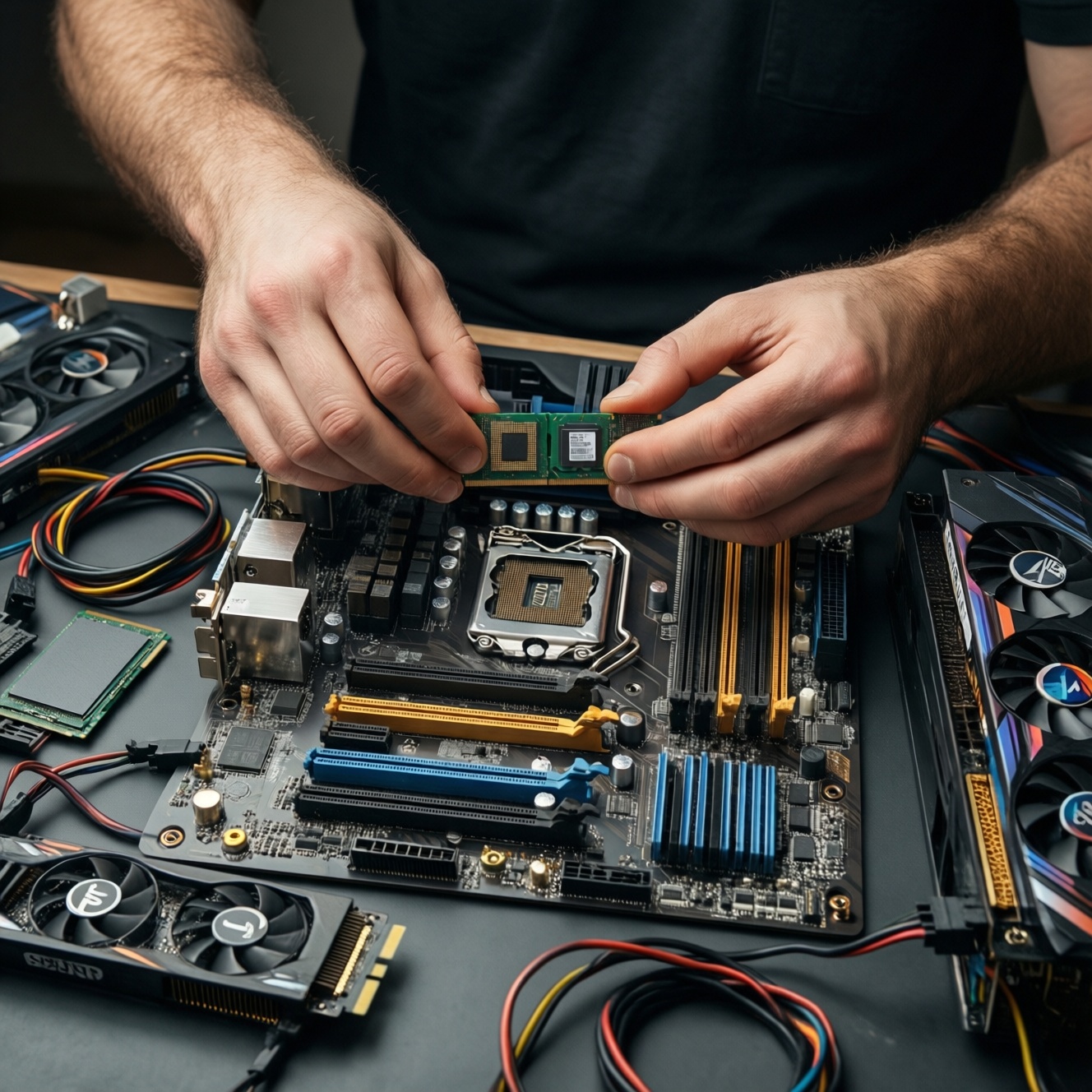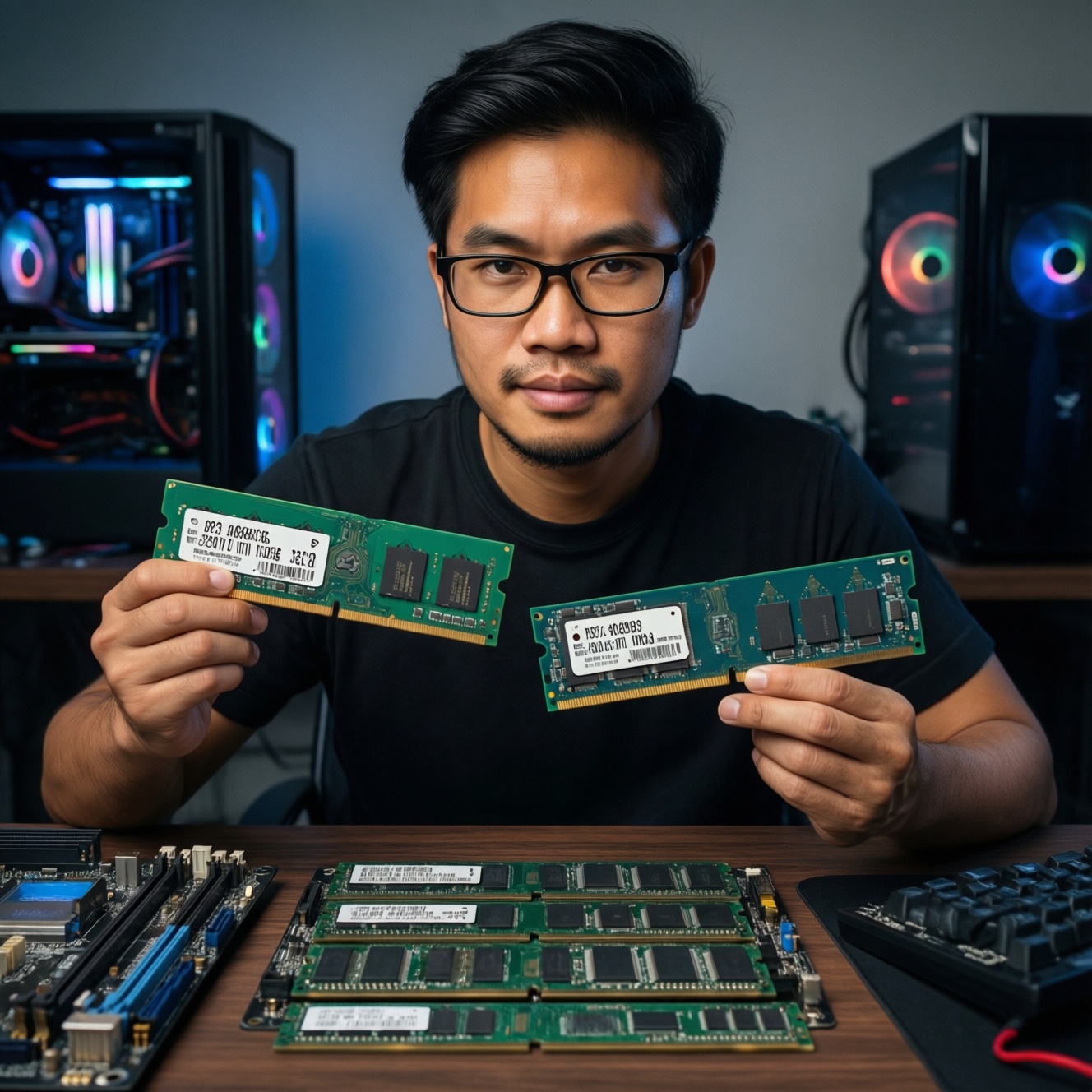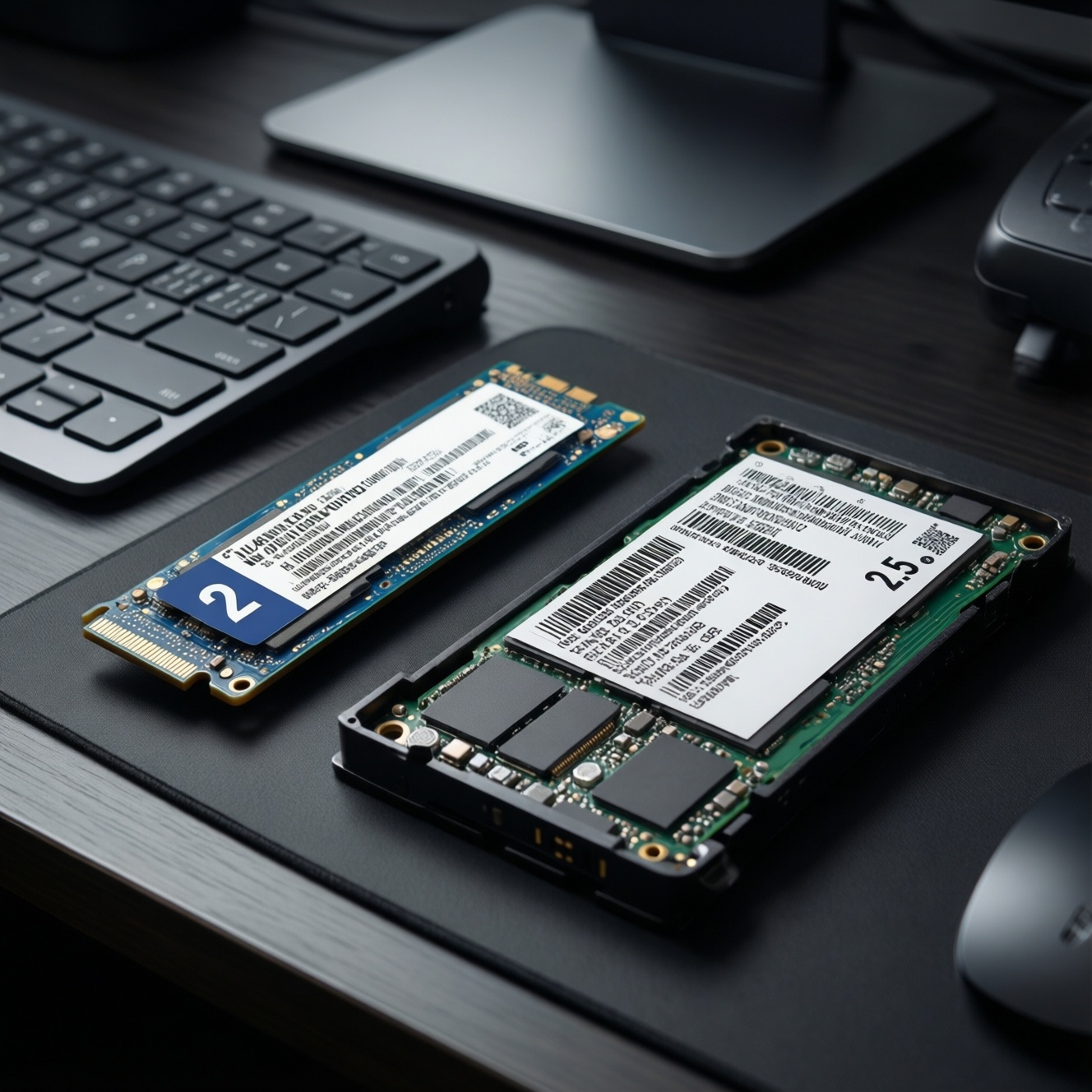
NVMe and SATA SSDs both feel fast versus hard drives, but they differ in interface, latency, and upgrade constraints. Choose NVMe when your device has an M.2 PCIe slot and your work involves large files, heavy multitasking, or many small I/O operations. Choose SATA when you need a safe compatibility upgrade, lower cost, or a simple 2.5-inch replacement.
Quick summary: NVMe vs SATA at a glance
- NVMe uses PCIe (usually M.2) and targets lower latency and higher throughput; SATA uses the SATA bus (2.5-inch or some M.2) and is capped by that interface.
- Real-life feel: NVMe is most noticeable for large file transfers, content creation, VMs, and heavy multitasking; SATA already feels snappy for basic apps and browsing.
- Compatibility: SATA works in almost any PC/laptop with a SATA bay; NVMe requires an M.2 slot that supports PCIe/NVMe and sometimes BIOS support for booting.
- Thermals: NVMe can throttle in thin laptops or poor airflow; SATA typically runs cooler and is easier to place.
- Pricing in Thailand: when comparing SSD NVMe ราคา and SSD SATA ราคา, NVMe often competes closely at popular capacities-buy based on workload and compatibility, not just the label.
- Decision shortcut: if you're asking อัปเกรด SSD NVMe คุ้มไหม, it's usually "yes" for creators/IT power users with a compatible slot, and "maybe" for casual use where SATA already removes bottlenecks.
How NVMe and SATA differ: protocols, connectors and form factors
- Protocol: NVMe is built for flash with parallel queues; SATA commonly uses AHCI, designed around older storage assumptions.
- Bus/throughput ceiling: NVMe rides on PCIe lanes; SATA is limited by the SATA interface, regardless of how fast the NAND could be.
- Latency profile: NVMe tends to reduce storage latency, which helps with many small reads/writes and "system feels instant" workloads.
- Connectors: SATA SSDs are typically 2.5-inch with a SATA data/power cable; NVMe is commonly M.2 "gumstick" with a single screw.
- M.2 is not automatically NVMe: M.2 can be SATA or NVMe; you must check the slot and drive type (this is the core of NVMe vs SATA ต่างกัน in real purchases).
- Lane sharing: some motherboards disable certain SATA ports when an M.2 slot is populated, or reduce PCIe lanes-check the manual.
- Power/thermals: NVMe can draw more power under sustained load; in laptops that can mean more heat and occasional throttling.
- Use-case fit: NVMe is best when storage is a measurable bottleneck; SATA is best when you need broad compatibility and consistent "good enough" performance.
- Decision tip: if your machine has only a 2.5-inch bay, stop here and buy SATA. If it has an M.2 slot, confirm it supports PCIe/NVMe (not just M.2 SATA) before choosing.
Real-world performance: benchmarks, latency and typical tasks
| Variant | Who it fits | Pros | Cons | When to choose |
|---|---|---|---|---|
| 2.5-inch SATA SSD | Casual users, older PCs/laptops, "I just want it fast" upgrades | Maximum compatibility; stable performance; easy cable-based swap | Capped by SATA; bulkier; needs bay/cables | Any system with SATA bay; budget-focused upgrades; replacing a failing drive |
| M.2 SATA SSD | Systems with M.2 slot that supports SATA only | No cables; same SATA behavior as 2.5-inch | Easy to buy the wrong type; still SATA-limited | Your M.2 slot is SATA-only or your device manual explicitly says "M.2 SATA" |
| NVMe SSD (PCIe 3.0-class) | Mainstream gamers, creators on mid-range PCs, general productivity power users | Noticeably faster large file moves and heavy multitasking; great OS/app responsiveness | Needs NVMe-capable M.2 slot; can heat-throttle in tight builds | You want a balanced upgrade and your platform is PCIe 3.0; best "default NVMe" pick |
| NVMe SSD (PCIe 4.0-class) | Video editors, photo workflows, frequent large project work | Higher sustained throughput potential; strong for scratch/project drives | Diminishing returns for light tasks; more heat; requires PCIe 4.0 to fully benefit | Your CPU/board supports PCIe 4.0 and you regularly move/encode large files |
| NVMe SSD in a USB enclosure (external) | Laptop users needing fast portable storage, backup, shuttle drives | Fast external transfers; flexible reuse of an NVMe drive | Limited by USB; can run hot; not always ideal as primary OS drive | You need portability or your internal upgrade options are limited |
| NVMe as OS drive + SATA as bulk storage (hybrid) | Gamers with big libraries, creators with large assets, small-business PCs | Best practical balance; keeps costs down while speeding "active" work | More planning; two-drive management | You want speed where it matters and cheap capacity for archives/games/media |
- Decision tip: prioritize NVMe if you regularly (1) copy multi-GB files, (2) run multiple heavy apps/VMs, (3) compile code, (4) scrub/edit high-bitrate video, or (5) work on large photo catalogs. If your workload is mostly web/Office/streaming, SATA already removes the biggest bottleneck.
Cost, capacity and endurance: total cost of ownership
- If you're comparing prices first, then shortlist by capacity and warranty and only then decide interface. In Thai shopping, people often search SSD NVMe ราคา vs SSD SATA ราคา; the cheaper option is not automatically the better value if you'll outgrow it or re-buy later.
- If you keep hitting low disk space, then buy more capacity before chasing peak speed. A roomy SATA SSD can feel better than a cramped NVMe drive that's always near full.
- If you do sustained heavy writes (proxy generation, cache/scratch, frequent large backups), then choose a model line known for stable sustained performance and adequate endurance, and plan for cooling. Interface alone doesn't guarantee consistency.
- If you maintain multiple PCs, then standardize: NVMe where the fleet has NVMe boot support; SATA where hardware varies. Lower support friction often beats marginal speed gains.
- If you plan a future platform upgrade, then favor NVMe as a portable investment you can reuse on the next motherboard-provided you can install it today.
- Decision tip: treat "value" as (usable capacity) + (time saved on your real tasks) + (support/compatibility risk). That's the most practical answer to อัปเกรด SSD NVMe คุ้มไหม.
Compatibility and installation: motherboards, BIOS and slot considerations
- Identify your slots: do you have a 2.5-inch bay/SATA port, an M.2 slot, or both?
- Confirm M.2 type: check the laptop/motherboard manual for "M.2 PCIe/NVMe" vs "M.2 SATA." Physical fit is not enough.
- Check boot support: older systems may have an NVMe slot but limited BIOS boot support; verify you can boot from NVMe before making it the OS drive.
- Watch for lane sharing: installing NVMe may disable some SATA ports or reduce GPU/other slot bandwidth on certain boards.
- Plan thermals: ensure airflow or a heatsink for NVMe in desktops; in laptops, avoid sustained write workloads without adequate cooling expectations.
- Decide the drive role: OS/app drive (benefits from responsiveness) vs game/library/media (benefits from capacity) vs scratch (benefits from sustained writes).
- Decision tip: if any step is uncertain (manual unclear, no BIOS info, OEM laptop restrictions), SATA is the safest "will work" upgrade path.
Upgrade guidance by persona: gamers, content creators, IT pros and casual users
- Gamer mistake: expecting NVMe to massively increase FPS. Storage mainly improves load times and asset streaming behavior in some titles, not raw GPU-limited frame rates.
- Gamer mistake: buying a tiny NVMe for the OS and immediately filling it with a game library-performance and maintenance get worse when drives stay near full.
- Creator mistake: choosing NVMe solely by peak sequential speed, then throttling under sustained writes because of heat or weak sustained performance.
- Creator mistake: using one drive for OS + scratch + projects + exports without a plan; separating roles (or using a hybrid setup) reduces contention.
- IT pro mistake: ignoring compatibility edge cases (BIOS booting, BitLocker/device encryption, cloning alignment) and then losing time on deployment fixes.
- IT pro mistake: mixing many SSD models without a support baseline-firmware tools, SMART reporting, and behavior under power loss can differ.
- Casual user mistake: overbuying the fastest NVMe when the laptop only supports M.2 SATA, or when the biggest pain point is low capacity rather than speed.
- Everyone mistake: not checking what "M.2" means in their device and ordering the wrong drive type-this is the most common real-world trap in NVMe vs SATA ต่างกัน discussions.
- Buying shortcut for Thailand: when asking SSD NVMe ยี่ห้อไหนดี, narrow by (1) warranty/service in Thailand, (2) controller/NAND consistency within the model line, (3) your thermal constraints, then compare price.
- Decision tip: gamers typically get the best overall experience with "NVMe for OS + main games" if compatible; creators benefit most from NVMe when timelines/projects are large and frequent; IT pros should optimize for deployment predictability; casual users should prioritize compatibility and capacity per baht.
Data migration and optimization: cloning, firmware, thermal and filesystem tips
For most compatible PCs, an NVMe drive is the best fit for creators and power users who move large files or multitask heavily, while a SATA SSD remains the best fit for wide compatibility upgrades and capacity-first builds. Whichever you choose, clone carefully, update firmware when needed, keep free space available, and manage NVMe thermals to avoid throttling.
Answers to common upgrade and compatibility concerns
Will an M.2 slot always support NVMe?
No. An M.2 slot can be wired for SATA or PCIe/NVMe (or both). Check the device manual or motherboard specs before buying.
Is NVMe always faster in daily use?
Not always. For web/office and light apps, SATA and NVMe can feel similar; NVMe stands out most under heavy multitasking, lots of small I/O, or large file work.
Can I install an NVMe SSD in a SATA-only system using an adapter?
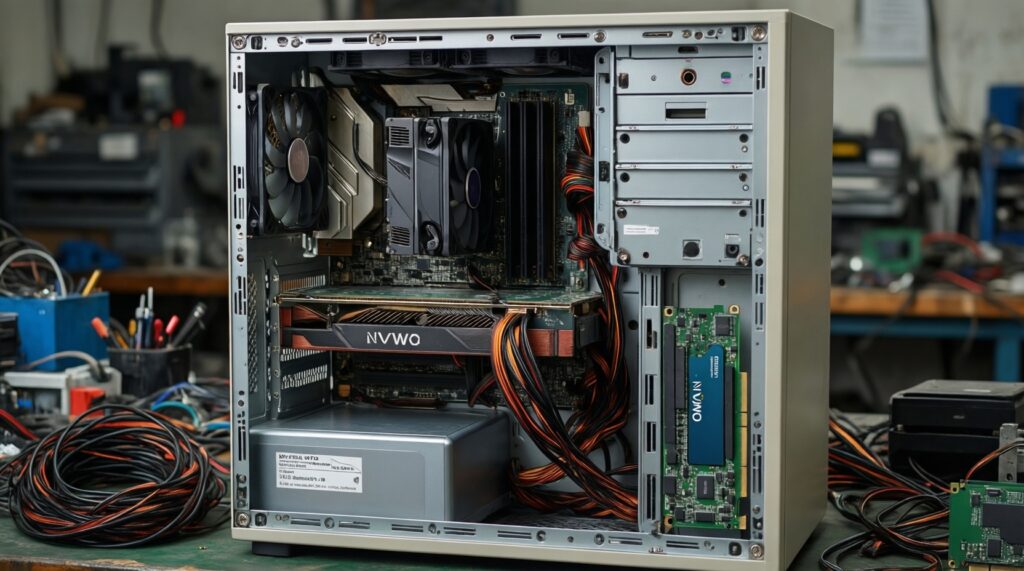
You can use some PCIe adapters in desktops, but booting from NVMe may require BIOS support. In many older systems, it's simpler to use a SATA SSD for the OS.
Do I need a heatsink for an NVMe SSD?
In desktops with limited airflow or sustained workloads, a heatsink helps prevent throttling. Many everyday workloads won't stress the drive long enough to matter.
Should I clone my old drive or do a clean install?
Cloning is faster and keeps settings; clean installs reduce accumulated software clutter. If you clone, verify partition alignment and that the system boots correctly before wiping the old drive.
How much capacity should I buy for a gaming or creator PC?
Buy enough to keep meaningful free space after installing your typical apps/projects. If you constantly run near full, prioritize capacity over interface speed.
How do I compare SSD NVMe ราคา vs SSD SATA ราคา without getting tricked?
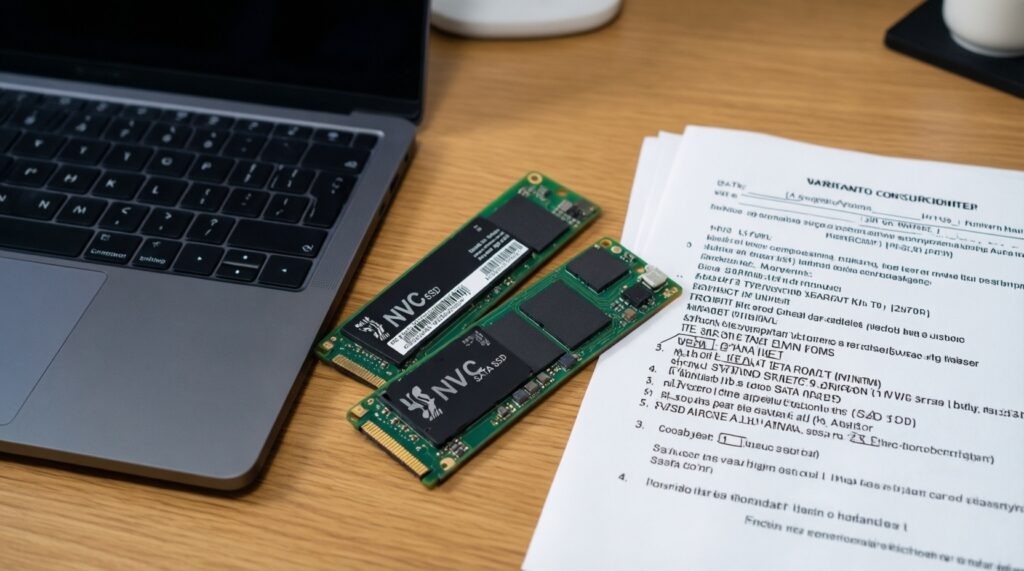
Compare equal capacities and consider warranty/service and your device compatibility first. If your workload won't benefit from NVMe, a larger SATA SSD can be better value.