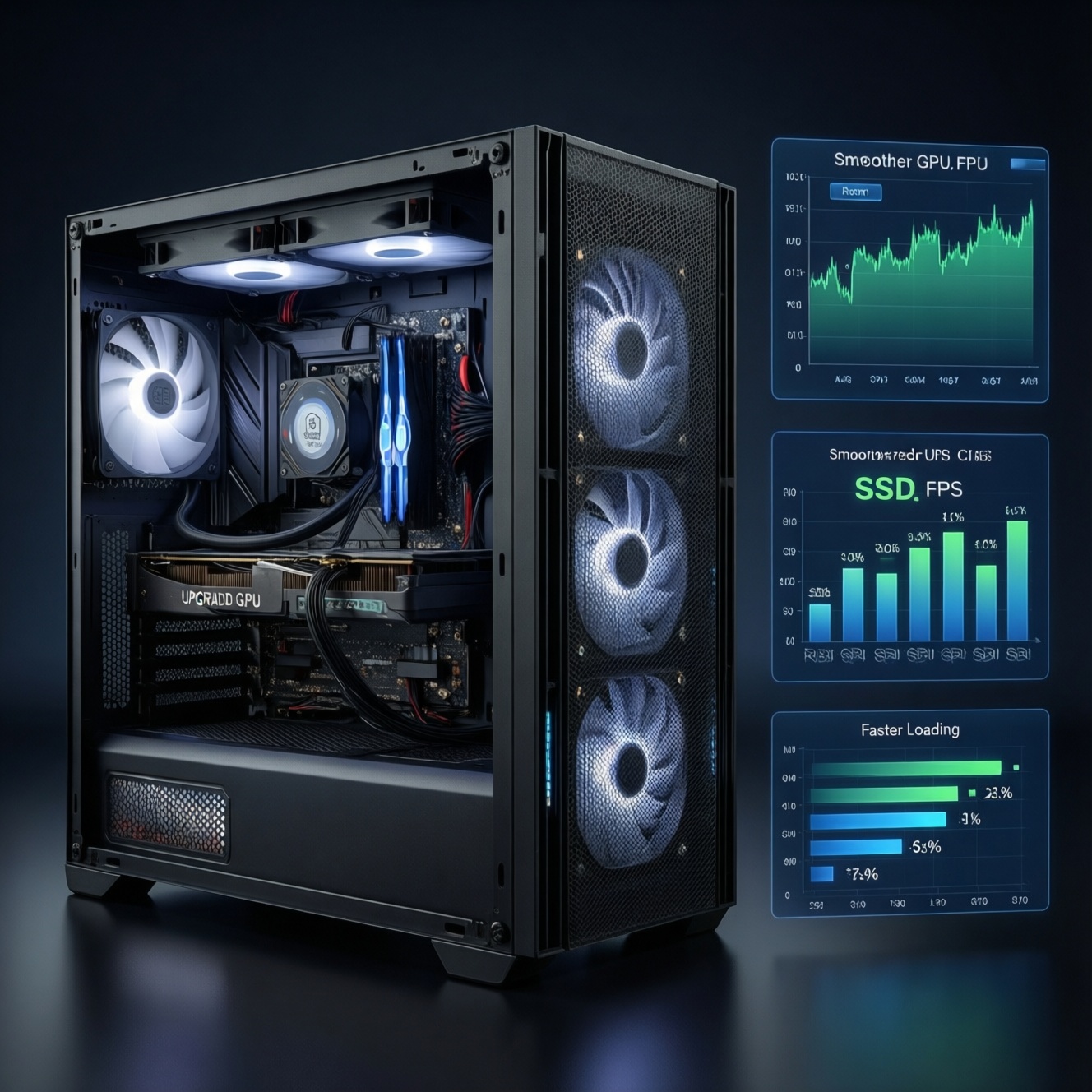
If you want a step-by-step PC upgrade that noticeably boosts FPS and everyday responsiveness, start by measuring the bottleneck, then prioritize upgrades that remove it: GPU for higher average FPS, CPU/cooling for stutter and frame pacing, RAM for multitasking and minimum FPS stability, and SSD for fast boot/load. Validate each change with the same benchmark run.
Upgrade priorities: what yields the biggest FPS and responsiveness gains
- Measure first: GPU load, CPU thread saturation, RAM usage, storage activity, and frametime consistency.
- GPU upgrades most often raise average FPS; CPU/cooling upgrades often reduce stutter and improve 1% lows.
- SSD improves load times and overall "snappiness"; it rarely increases in-game FPS by itself.
- RAM capacity and stability reduce hitching, heavy background app slowdowns, and texture streaming issues.
- PSU/motherboard compatibility prevents instability and protects the upgrade path (power, connectors, BIOS support).
- Do software/driver cleanup before buying parts; it can reveal the real limit and prevent wasted spending.
Diagnose your system: tools, metrics and identifying the real bottleneck
This section fits you if you're asking "อัปเกรดพีซีเริ่มจากอะไร" and you want predictable results instead of guessing. Don't upgrade yet if your system is overheating, crashing, or has inconsistent power/unstable RAM settings-fix stability first, or benchmark results won't be trustworthy.
What to watch during a repeatable test
- GPU-bound signs: GPU usage stays high; reducing resolution/graphics barely changes FPS.
- CPU-bound signs: one or a few CPU threads max out; GPU usage drops; FPS rises when lowering CPU-heavy settings (crowds, view distance).
- RAM pressure: near-full RAM, frequent stutters when alt-tabbing, heavy paging to disk.
- Storage bottleneck: long loads, streaming stutter in open-world titles, disk activity spikes during hitching.
Compact comparison: what usually changes FPS vs "feel"
| Component | Typical FPS impact (qualitative) | Cost tier (relative) |
|---|---|---|
| GPU | High for average FPS when GPU-bound; moderate otherwise | High |
| CPU | High for stutter/1% lows when CPU-bound; small when GPU-bound | Medium-High |
| Cooling (CPU/GPU airflow) | Moderate if you are throttling; otherwise small | Low-Medium |
| RAM (capacity + stability) | Low-Moderate; can be high for minimum FPS stability in some titles | Low-Medium |
| SSD (SATA/NVMe) | Small for FPS; high for load times and responsiveness | Low-Medium |
| PSU (quality + headroom) | No direct FPS gain; prevents crashes, black screens, and future limits | Medium |
GPU-first strategy: when the graphics card delivers the largest frame-rate jump
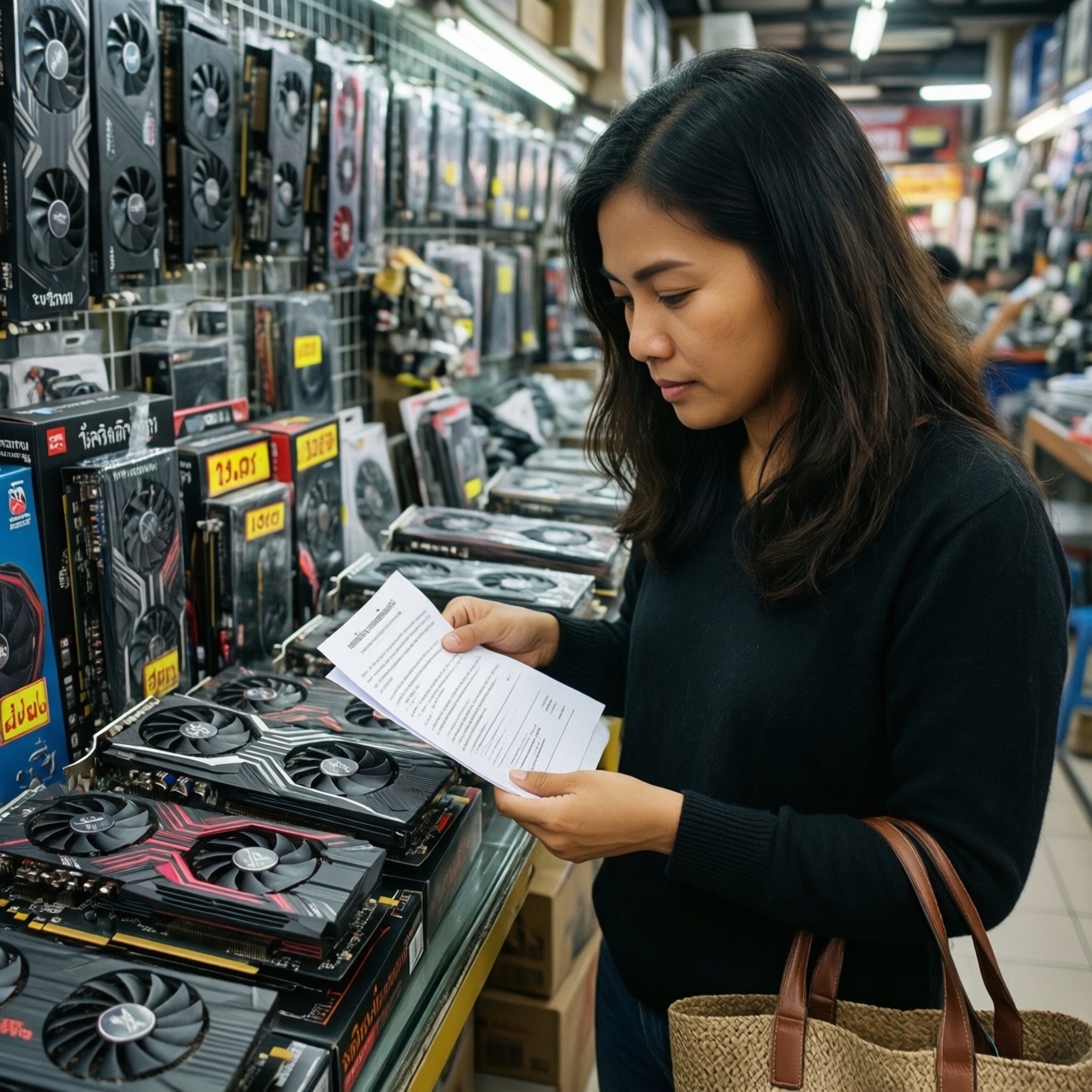
If your goal is "อัปเกรดคอมเล่นเกมเพิ่ม FPS" and your monitoring shows the GPU is consistently the limiting factor, a GPU upgrade is usually the most visible change. When you're searching "อัปเกรดการ์ดจอ รุ่นไหนดี", focus first on compatibility and total system balance rather than brand-only rankings.
What you need before buying a GPU
- Case clearance: measure length and thickness; check front radiator/fan interference.
- PSU capacity and connectors: confirm available PCIe power plugs and cable type; avoid loose adapters unless required and approved by the GPU vendor.
- CPU pairing reality: if you're already CPU-bound, a bigger GPU may not raise FPS until the CPU is addressed.
- Display target: refresh rate and resolution determine whether you need more GPU or better CPU lows.
- Driver housekeeping plan: be ready to clean-install GPU drivers if issues appear.
Practical buying rules (TH context)
- Prioritize warranty terms and local RMA convenience in Thailand over small spec differences.
- Check your home power quality; if you often see flicker or outages, plan for a quality PSU (and optionally a UPS) before pushing higher GPU power.
CPU, cores and cooling: fixing stutters, frame pacing and CPU-bound workloads
-
Confirm it's CPU-bound (not just low FPS)
Run the same scene twice: once at your normal settings, then at a much lower resolution. If FPS barely changes while one/few CPU threads stay pinned, your limit is CPU-side (or memory/IO).
- Watch frametimes: spiky frametimes usually feel worse than "low but stable" FPS.
-
Eliminate thermal throttling first
Check CPU temperature and frequency during the test. If clocks drop under load, fix cooling before buying a CPU-otherwise you may be "upgrading into the same problem".
- Clean dust filters, re-seat the cooler, refresh thermal paste if it's old or incorrectly applied.
- Improve airflow: front intake + rear exhaust is a safe baseline.
-
Decide: CPU drop-in upgrade vs platform change
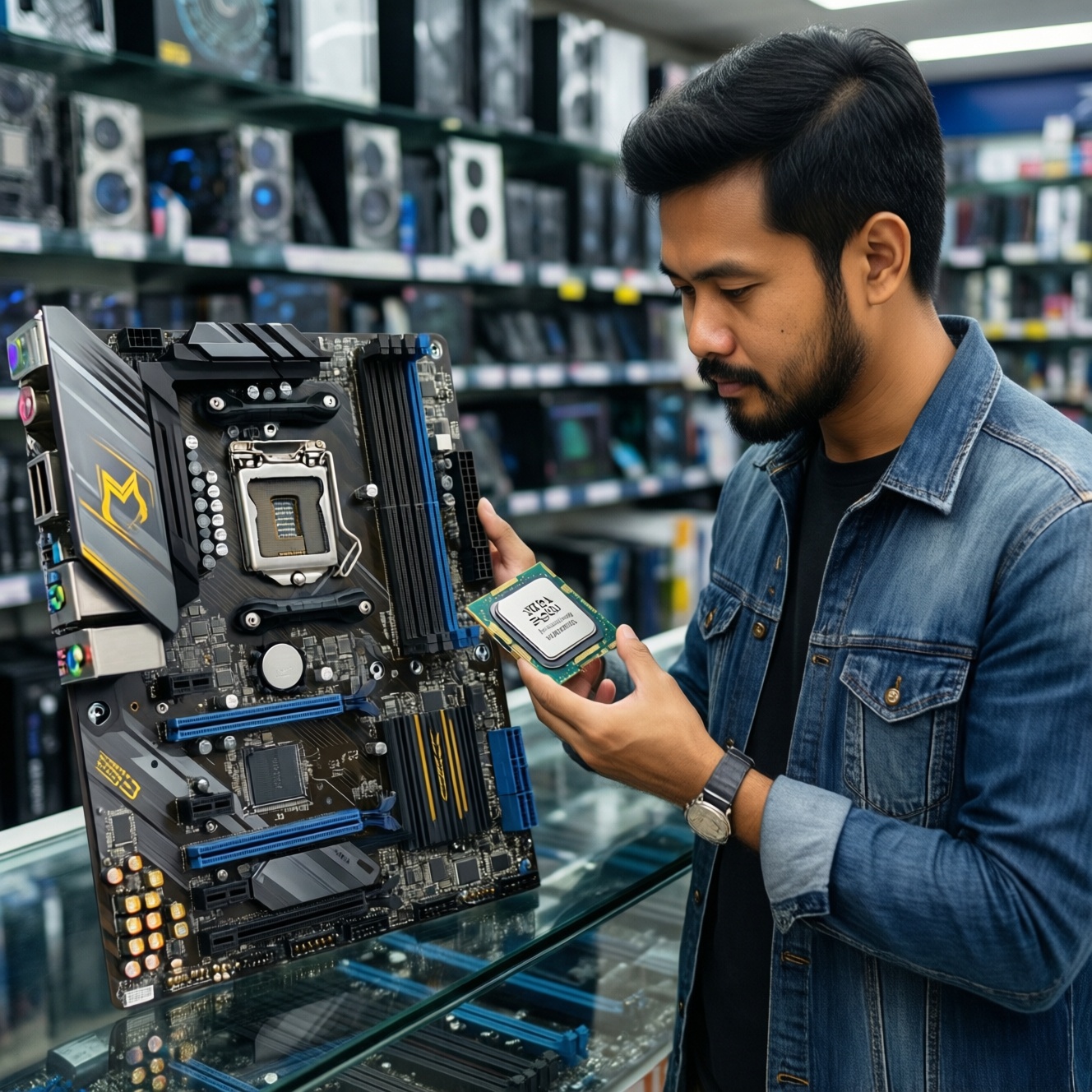
Verify motherboard BIOS support for the target CPU and whether your VRM/cooling is adequate. A drop-in CPU upgrade is simplest; a platform change is justified if you need newer features or your board caps performance.
- Check RAM compatibility on the board (QVL as guidance, not a guarantee).
-
Stabilize RAM and power delivery after the CPU change
After installing a CPU, reset BIOS to safe defaults, then re-enable memory profiles cautiously. Many "new CPU is unstable" issues are actually aggressive RAM settings or weak power delivery.
- Run a basic stability check before returning to long gaming sessions.
-
Re-tune in-game settings to match the new bottleneck
Once CPU headroom improves, you can often raise GPU-heavy settings without losing FPS, or you can aim for higher refresh targets with more consistent frame pacing.
- CPU-heavy settings typically include view distance, simulation density, crowds, and some ray-tracing workloads.
Fast mode: a shortened, safe algorithm
- Benchmark one repeatable scene and record FPS + frametimes + temps.
- If GPU usage is consistently high, plan a GPU upgrade; if a few CPU threads are pegged, plan CPU/cooling first.
- Fix throttling (dust, airflow, paste, fan curves) before buying major parts.
- Upgrade one component at a time, then re-run the exact same benchmark.
- Only after stability is proven, enable memory profiles and optional tuning.
Memory and storage upgrades: RAM sizing, speeds and NVMe vs SATA impact
When people ask "ซื้อ SSD อัปเกรดคอม" they usually want faster boot and game loads; when they ask "เพิ่ม RAM คอมพิวเตอร์ ราคา" they often want smoother multitasking and fewer stutters. Treat both as "responsiveness" upgrades: they can improve how the system feels even when FPS doesn't move much.
Post-upgrade verification checklist (run in this order)
- Boot and confirm the drive is detected correctly (capacity and interface) in BIOS/UEFI.
- Confirm RAM runs at the intended speed and capacity; if unstable, revert to defaults and retest.
- Check Windows Task Manager for memory pressure during your typical workload (game + Discord + browser).
- Load the same game area twice and compare consistency (less hitching/streaming spikes).
- Verify storage health with SMART status; ensure firmware is current if your vendor recommends it.
- Confirm the SSD is installed in the correct slot (some M.2 slots share lanes or drop speed when certain ports are used).
- Re-run your benchmark scene and compare frametime smoothness, not only average FPS.
- Watch temperatures: some NVMe drives throttle when uncooled; add a heatsink if needed.
Power, motherboard and compatibility: ensuring stable supply and future-proofing
- Ignoring PSU quality: crashes under GPU load, random reboots, or coil noise can appear after upgrades even if "wattage seems enough".
- Wrong PCIe power cabling: daisy-chaining cables or mixing modular PSU cables across brands can be unsafe-use only the correct, included cables.
- BIOS not updated before a CPU swap: some boards need a BIOS update to boot with a newer CPU.
- VRM/cooling mismatch: a higher-power CPU on a weak board can throttle or overheat, negating the upgrade.
- Case airflow overlooked: a new GPU can dump more heat; without airflow, both GPU and CPU may throttle.
- M.2 lane sharing surprises: installing an NVMe SSD in a specific slot can disable certain SATA ports or reduce PCIe speeds on some boards.
- RAM mixing assumptions: different kits with the same labeled speed can still behave differently; stability beats headline MHz.
- No rollback plan: always keep your old part and a bootable USB handy in case you need to revert drivers/BIOS settings.
Software tuning and quick wins: drivers, settings, OS tweaks and benchmark validation
These alternatives are appropriate when you want improvement without hardware changes, when stock is limited, or while you're planning a larger upgrade path.
- Driver and shader cache reset (targeted): clean-install GPU drivers if you see sudden performance drops, glitches, or inconsistent frametimes after updates.
- In-game setting rebalance: lower CPU-heavy options (crowds/view distance) when CPU-bound; lower GPU-heavy options (resolution, heavy effects) when GPU-bound.
- Background process control: disable unnecessary startup apps and overlays that hook into games; verify with the same benchmark pass.
- Storage housekeeping: keep adequate free space on the system drive; an overly full drive can reduce responsiveness and increase stutter during updates and caching.
Typical upgrade scenarios and concise recommendations
I want higher FPS in most games-what should I upgrade first?
Benchmark first: if GPU usage is consistently high, upgrade the GPU; if a few CPU threads are saturated and frametimes spike, prioritize CPU and cooling. This is the most reliable path for "อัปเกรดคอมเล่นเกมเพิ่ม FPS".
My FPS is okay, but the PC feels slow and loading takes forever.
Prioritize an SSD upgrade and ensure the OS and main games are on it; this aligns with "ซื้อ SSD อัปเกรดคอม". Add RAM next if you see heavy paging while multitasking.
I get stutters even when average FPS is high.
Check CPU throttling, RAM stability, and background apps first. If the system is CPU-bound, a CPU upgrade (plus adequate cooling) typically improves frame pacing more than a GPU swap.
Is adding more RAM worth it, and how do I think about budget?
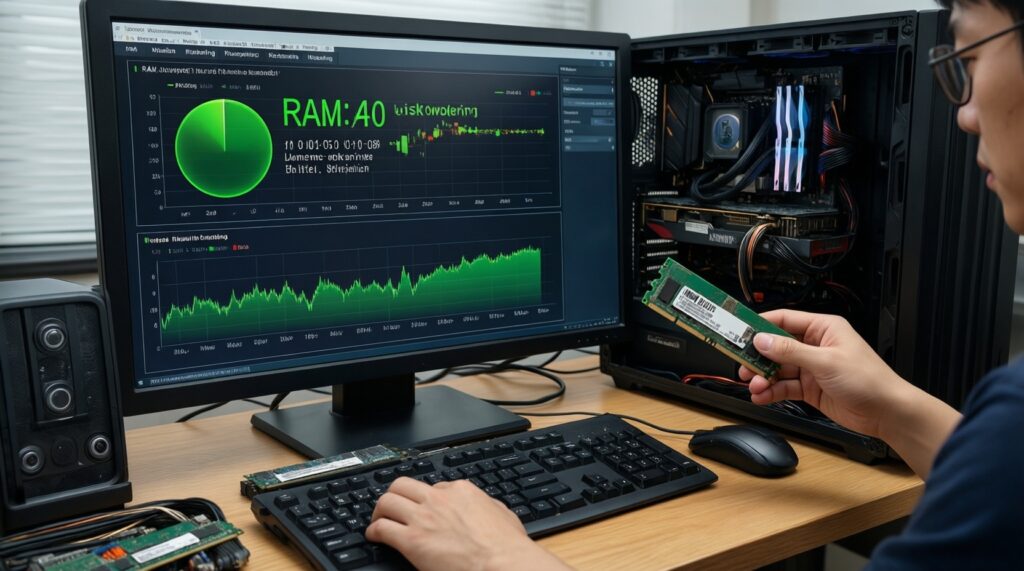
If you regularly hit high RAM usage or swap to disk, adding RAM can reduce hitching and improve multitasking; that's when "เพิ่ม RAM คอมพิวเตอร์ ราคา" becomes a practical question. Buy for stability and capacity first, then speed.
I'm searching "อัปเกรดการ์ดจอ รุ่นไหนดี"-what should I check before choosing a model?
Confirm PSU connectors, case clearance, and your monitor target. If you're currently CPU-limited, choose a balanced GPU rather than the largest possible, or plan a CPU upgrade path.
Should I upgrade CPU or GPU for competitive esports titles?
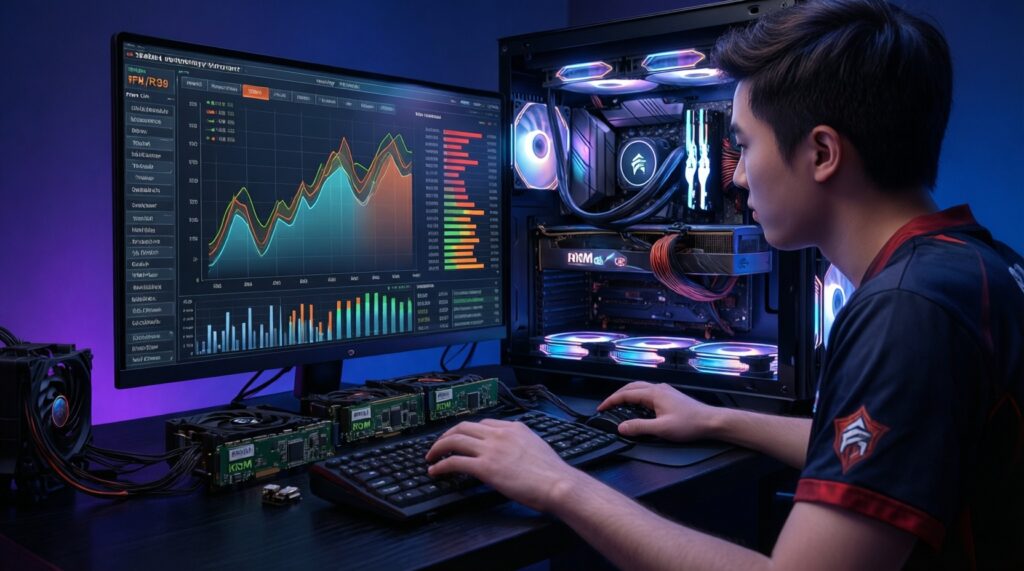
Many esports settings aim for high refresh and low latency, which can become CPU-bound. If lowering resolution doesn't increase FPS much, focus on CPU/cooling and stable RAM.
Can I upgrade one part now and the rest later without problems?
Yes-upgrade in a sequence that keeps the system stable: PSU/cooling first if needed, then GPU or CPU, then RAM/SSD. Validate each step with the same benchmark run and keep rollback options.