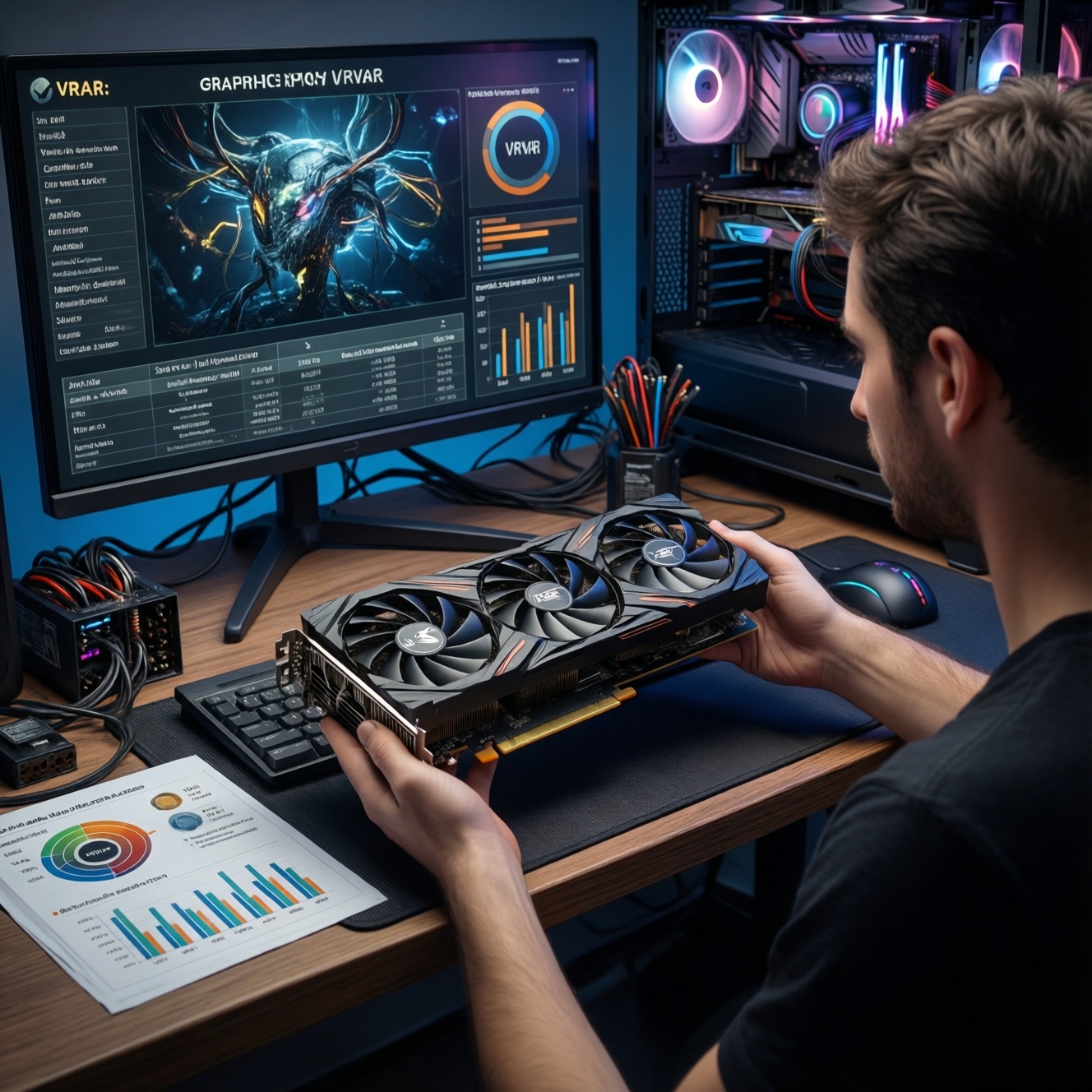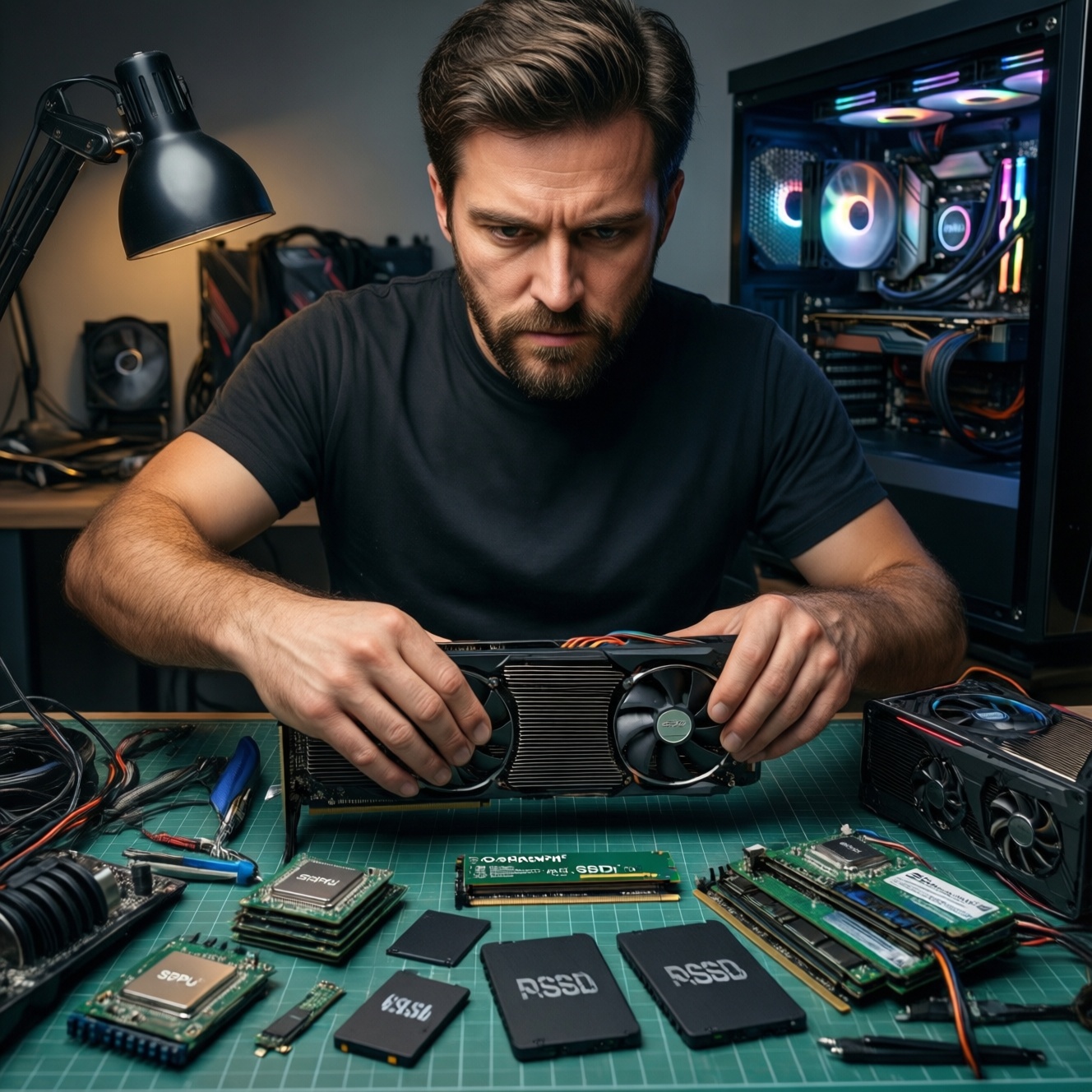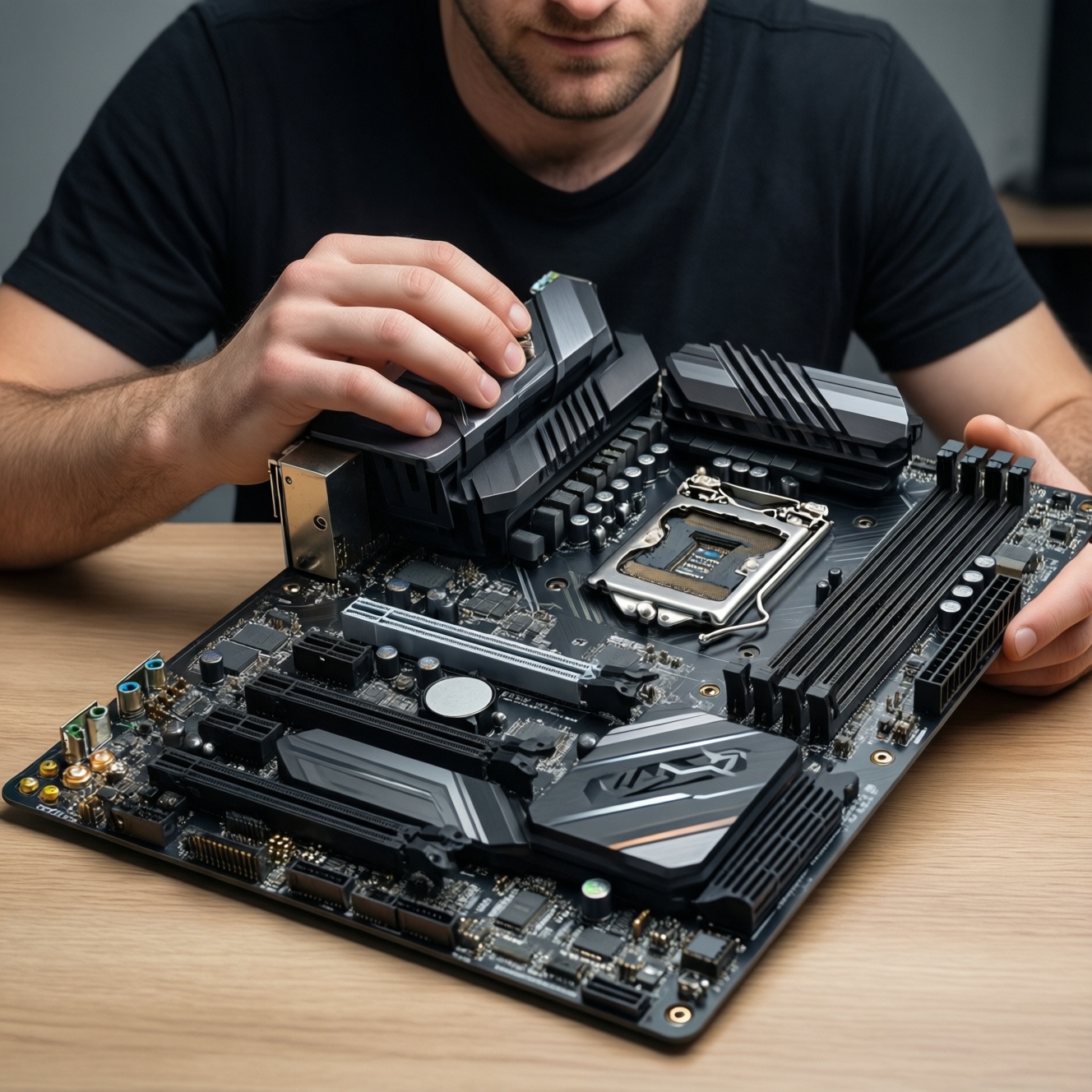
To choose a motherboard without being misled, validate three things against your exact CPU, case, and upgrade plan: VRM design for your real power draw, lane sharing that can disable M.2 or PCIe slots, and the connectivity you will actually use (Wi‑Fi/BT, USB, audio, headers). Then confirm BIOS support and return policy.
Pre-purchase decision checklist
- Match socket and chipset to your CPU and features you need (don't buy extra you won't use just because the เมนบอร์ดราคา looks attractive).
- Confirm VRM + heatsink quality is appropriate for your CPU class and sustained workloads, not only it boots.
- Map M.2 slots to CPU/chipset lanes and check which ports/slots get disabled when you populate each M.2.
- Verify whether you need a board that is เมนบอร์ดมี WiFi Bluetooth และสล็อต M.2 PCIe 4.0 (and which Wi‑Fi/BT version it really uses).
- Count rear I/O ports and internal headers against your case/front panel, fans, AIO, and storage plan.
- Check BIOS update method (Flashback/Q‑Flash), memory QVL, and vendor firmware track record before asking ซื้อเมนบอร์ดรุ่นไหนดี.
Assessing VRM quality: phases, cooling and real workloads
- Prefer a VRM with at least 8 true power stages for mid/high CPUs; aim for 10-16 stages if you expect sustained all-core loads.
- Look for large, finned VRM heatsinks with a heatpipe or substantial mass; tiny decorative blocks are a red flag.
- Check for two EPS CPU power connectors (8+4 or 8+8) if you plan high power or heavy boosting.
- Confirm the board has adequate fan headers to actively cool the VRM area in small cases.
- Validate with independent teardown photos: identify controller, stages, and whether phases are doubled/teamed.
Who this approach fits: intermediate builders comparing AM5 vs LGA1700 boards, gaming + creator workloads, and anyone planning CPU upgrades. When not to over-optimize VRM: low-power CPUs on stock limits, office builds, or if your case airflow is restricted and you can't add airflow-then prioritize thermals and layout over raw phase counts.
Quick real-world check: when a review includes VRM thermals, you want no throttling under sustained load rather than a single short benchmark run. If you already own the board, monitor VRM temp sensors in HWiNFO during a 10-15 minute all-core load.
M.2 layout and NVMe performance: lanes, heatsinks and thermal throttling
- Confirm at least one M.2 slot is CPU-attached (lowest latency) for the primary NVMe.
- Check how many M.2 slots are PCIe 4.0 x4 vs slower/shared; read the lane-sharing notes in the manual.
- Prefer boards with tool-less M.2 retention and real heatsinks (pad included) on the slots you'll actually use.
- Verify whether populating M.2 disables SATA ports or forces a PCIe slot to run at lower bandwidth.
- Plan thermals: NVMe under GPU backplates can heat-soak and throttle during long transfers.
What you'll need: the motherboard manual (PDF), your SSD model (length 2280/22110), and your case/GPU dimensions. If you already have parts, keep a screwdriver, spare thermal pad (1.0-1.5 mm typical), and a flashlight for slot identification.
Quick real-world check: after assembly, confirm link speed in Windows Device Manager > Storage controllers, or use CrystalDiskInfo to see negotiated PCIe generation; a PCIe 4.0 drive should not silently negotiate down because of a shared slot choice.
Built‑in Wi‑Fi and Bluetooth: standards, antennas and driver support
- Target Wi‑Fi 6 (802.11ax) minimum; choose Wi‑Fi 6E only if you will use 6 GHz and your region/router supports it.
- Prefer Bluetooth 5.2+ for better coexistence and device support.
- Ensure the board includes external antennas with a movable base; tiny fixed antennas often underperform.
- Confirm the wireless module is a known chipset (commonly Intel/MediaTek/Realtek) and has stable drivers for your OS.
- Validate that you're not overpaying: sometimes a non‑Wi‑Fi board + quality PCIe/M.2 Wi‑Fi card is better value.
Preparation mini-checklist
- Write down your router standard (Wi‑Fi 5/6/6E) and whether you need 2.4 GHz range, 5 GHz speed, or both.
- List your Bluetooth devices (gamepad, earbuds, keyboard) and whether you need low-latency audio.
- Confirm your case has a good antenna placement option (top/rear, away from thick metal panels).
- Decide if you require a board that is explicitly เมนบอร์ดมี WiFi Bluetooth และสล็อต M.2 PCIe 4.0 or if Wi‑Fi can be added later.
-
Identify the exact wireless spec on the product page
Don't stop at Wi‑Fi included. Look for 802.11ax/6/6E and the Bluetooth version, then cross-check the chipset in the detailed specs or user manual.
- If the spec only says Wi‑Fi ready, it may require a separate module.
- If it says CNVi/Key‑E module, verify whether the module is bundled.
-
Check antenna type and connector placement
Prefer dual antennas with a base you can reposition. Rear I/O-mounted connectors are normal; ensure your desk layout won't force the antenna to sit behind a metal case panel.
-
Validate driver support before purchase
Open the motherboard's support page and confirm Wi‑Fi and Bluetooth drivers exist for your OS version. Avoid boards where wireless drivers are only bundled via an outdated installer.
- Practical check: confirm the vendor provides standalone driver downloads (not only an app).
-
Plan interference and USB 3.0 coexistence
Bluetooth can be affected by poor antenna placement and USB 3.0 noise. Keep high-speed USB devices/cables away from the antenna path when possible.
-
Confirm expansion fallback for future changes
If the onboard Wi‑Fi ages, check you still have a free PCIe x1 slot or an M.2 Key‑E slot for a replacement module/card.
Quick real-world check: after Windows install, run netsh wlan show drivers to confirm the reported radio type and supported bands match what you paid for.
Rear I/O, internal headers and practical port planning
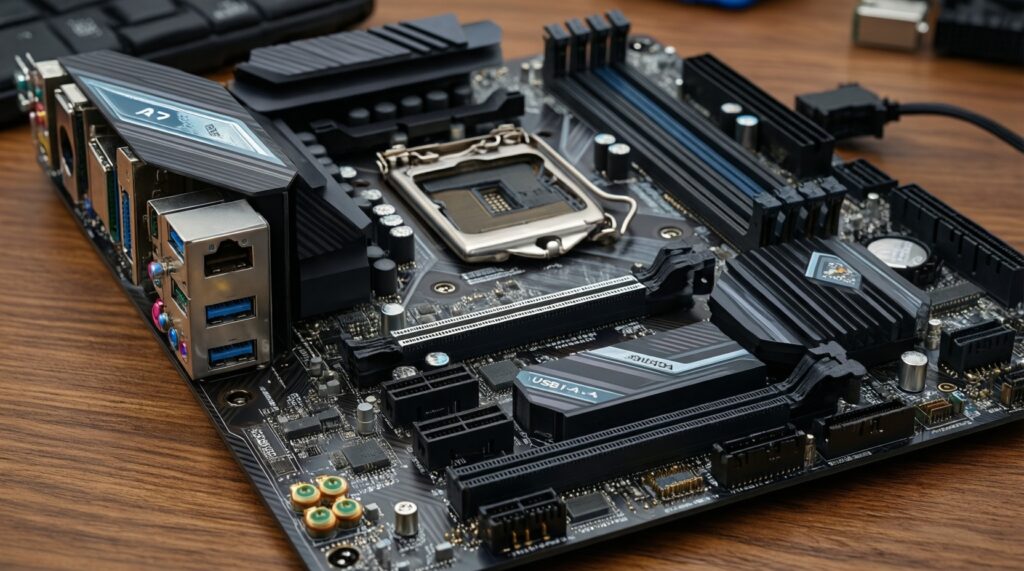
- Count USB-A vs USB-C you need today (keyboard/mouse, DAC, capture, external SSDs) and ensure the rear I/O matches.
- Confirm the board has the internal front USB‑C header if your case has front USB‑C.
- Verify fan headers count and placement for case fans + CPU cooler + optional AIO pump header.
- Check ARGB/RGB headers compatibility (5V 3‑pin ARGB vs 12V 4‑pin RGB) to avoid lighting mismatches.
- Make sure audio and networking meet your real needs (line-out, optical S/PDIF if required, 2.5GbE if your network supports it).
Result validation checklist (before you click buy)
- Rear I/O has enough USB ports without relying on hubs for always-on devices.
- There is a rear USB-C port if you use modern phones/SSDs, and an internal USB-C front header if your case needs it.
- Video outputs (HDMI/DP) exist only if you plan to use iGPU; otherwise don't pay extra for them.
- LAN speed matches your router/switch (1GbE vs 2.5GbE).
- Audio outputs match your setup (speakers/headset/mic) without needing adapters.
- Internal headers match your case: front panel, front audio, USB 2.0 for AIO controllers, and enough fan headers.
- Clear CMOS and BIOS Flashback buttons (or headers) are accessible, not blocked by a large GPU.
- Heatsinks and connectors don't collide with your cooler, RAM height, or top radiator.
Quick real-world check: download the board manual and search for Internal Connectors and Rear I/O pages; if the manual is missing or unclear, treat that as a support-quality signal.
Expansion slots and future CPU/GPU upgrade paths
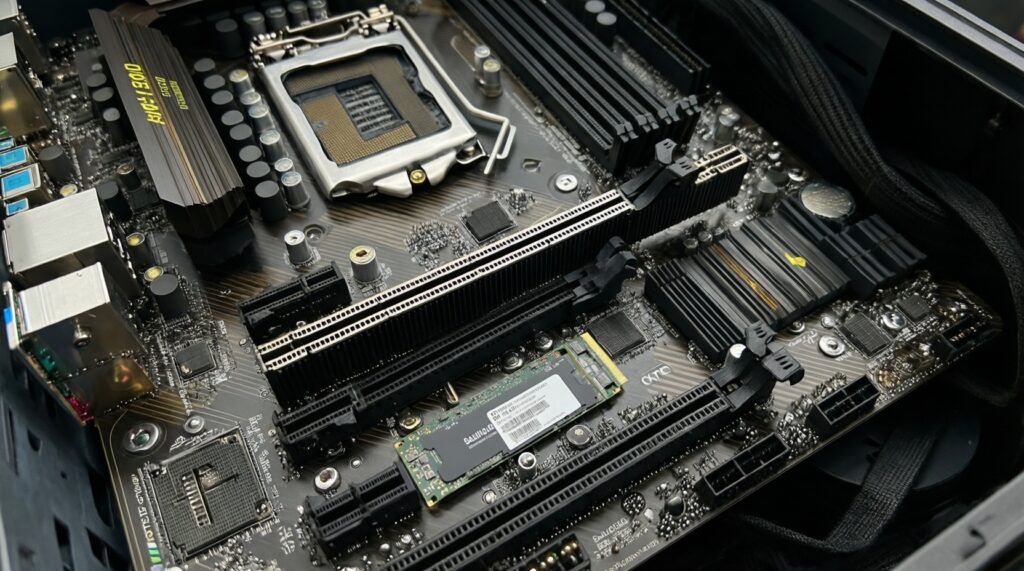
- Assuming all PCIe x16 slots are the same: many secondary x16-length slots are electrically x4 and share chipset lanes.
- Missing lane-sharing notes: installing a second M.2 can disable SATA ports or reduce a PCIe slot bandwidth.
- Buying for future GPU but ignoring case clearance and slot spacing (triple-slot GPUs can block x1 slots).
- Overpaying for PCIe 5.0 everywhere without a plan; prioritize stable layout and cooling first.
- Forgetting capture cards/sound cards: you may need a free PCIe x1 that isn't blocked by the GPU cooler.
- Assuming any board supports high-speed RAM easily; memory topology matters, especially with 4 DIMMs populated.
- Choosing the wrong platform guidance: searching เมนบอร์ด AM5 รุ่นแนะนำ vs เมนบอร์ด LGA1700 รุ่นแนะนำ should start from your CPU choice and lifecycle expectations, not brand loyalty.
- Ignoring PSU and VRM thermals when planning a higher-tier CPU later; the board should not be the limiter.
Quick real-world check: in the specs, find the line that states the primary PCIe slot mode (e.g., PCIe x16 (x16) from CPU) and whether any CPU provides PCIe 5.0/4.0-then verify how the chipset lanes are allocated to other slots and M.2.
BIOS, firmware policy and long‑term platform support
- Look for a BIOS Flashback feature if you may install a newer CPU than the board's launch BIOS supports.
- Check the vendor's CPU support list and BIOS release notes cadence (clear changelogs help).
- Confirm memory QVL includes kits similar to yours (capacity, ranks, speed).
- Prefer boards with straightforward recovery: Clear CMOS access, dual BIOS (if offered), and stable defaults.
- Buy from a seller with a practical return policy; firmware issues are often discovered only after assembly.
Alternatives that often make more sense
- Non‑Wi‑Fi motherboard + quality add‑in Wi‑Fi card: suitable when the onboard wireless raises the เมนบอร์ดราคา too much or you want easy future upgrades.
- Mid-tier board with strong VRM and simpler aesthetics: suitable when you want reliability for sustained loads but don't need premium RGB, extra controllers, or unnecessary PCIe switches.
- Choose platform by upgrade horizon first (AM5 vs LGA1700): suitable when which board to buy depends more on CPU roadmap than on a specific board model; start from CPU choice, then narrow down features.
- Used higher-tier board (with caution): suitable only if you can verify socket pins, USB ports, and BIOS stability, and you accept limited warranty.
Quick real-world check: once you have the board, you can read the current BIOS version in UEFI or on Windows with wmic bios get smbiosbiosversion (if supported). Compare it to the vendor's CPU support list before swapping to a newer CPU.
Typical compatibility traps and quick remedies
Why does my NVMe run at a lower PCIe generation than expected?
Move the drive to the CPU-attached M.2 slot and re-check lane sharing in the manual. Some chipset M.2 slots negotiate lower speeds or share bandwidth with other devices.
Why is Bluetooth unstable even though Wi‑Fi works?
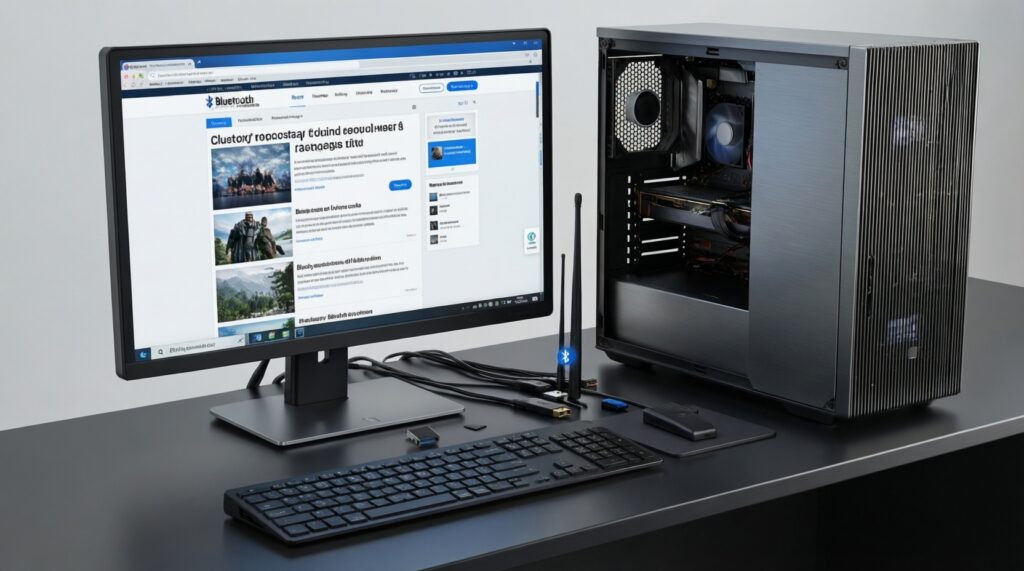
Reposition the antenna away from the case and USB 3.0 devices, then reinstall the latest Bluetooth driver from the board's support page. Avoid placing the antenna behind metal panels.
Why does the VRM run hot even with many advertised phases?
Phase count marketing can hide doublers/teaming and weak heatsinks. Prioritize heatsink mass, airflow, and independent VRM analysis over the printed number.
Why does the front USB‑C port on my case not work?
Confirm your motherboard has the internal USB‑C (Type‑E) header and that the cable is fully seated. If the board lacks that header, only a PCIe add-in card or case adapter can provide it.
Why did some SATA drives disappear after I installed a second M.2?
This is normal on many boards due to lane/port sharing. Use different SATA ports as specified in the manual, or move the NVMe to another M.2 slot.
What should I do if my cooler or RAM blocks connectors or does not fit?
Check RAM height, cooler overhang, and the board's socket keep-out zone before buying. If already assembled, rotate the cooler or switch to lower-profile RAM or a different cooler.
What if my CPU is not supported by the BIOS the board shipped with?
Use BIOS Flashback if available; otherwise you may need an older supported CPU to boot and update. Buying a board with Flashback reduces this risk significantly.