The most cost-effective upgrade usually follows your bottleneck: move to an SSD first if the PC feels slow in everyday use, add RAM if you hit memory pressure while multitasking, upgrade GPU for higher FPS or faster GPU-accelerated creation, and change CPU (often with motherboard) when the processor is pegged at 100% in your core apps.
Upgrade priorities at a glance
- Office / study user: SSD first, then RAM to reduce stutter with many tabs and apps.
- Esports gamer (1080p competitive): GPU first if FPS is low; CPU next if FPS is unstable or 1% lows are poor.
- AAA gamer (high settings): GPU first; SSD second for smoother loading and fewer texture-streaming hiccups.
- Creator (photo/video/3D): RAM first for large projects; GPU for GPU-accelerated effects; CPU for heavy encoding/simulation.
- Budget-constrained fallback: Upgrade the part that is consistently near 100% usage in your real workload (not in idle or brief spikes).
When an SSD delivers the biggest real-world boost
If you keep asking "อัปเกรดคอม เปลี่ยน SSD หรือ RAM ก่อน", choose SSD first when the system feels slow even in light tasks and disk activity stays busy during simple actions.
- You're still on an HDD for Windows/apps: boot, app launches, updates, and file search are the classic "night-and-day" wins.
- Disk active time stays high during freezes: Task Manager shows the drive pinned while CPU/RAM are moderate.
- Paging/virtual memory thrashing: the PC "grinds" while switching apps; SSD won't fix low RAM, but it reduces the pain.
- Large game/world streaming: open-world titles and big texture packs benefit from faster reads (fewer stalls when moving through areas).
- Content work with large media: importing, caching, and scrubbing large files improves when storage latency/throughput improves.
- Your free space is low (especially <15-20%): performance can degrade; upgrading capacity and keeping headroom helps.
- Interface choice matches your platform: check whether your laptop/board supports NVMe M.2 or only SATA 2.5".
- You're deciding capacity vs interface: "ราคา SSD 1TB SATA vs NVMe ซื้อไหนดี" is best answered by workflow-NVMe helps more in heavy transfers/caching, while SATA is often "fast enough" for everyday responsiveness.
How much RAM matters: measurable thresholds
RAM upgrades pay off when you exceed physical memory and the OS starts compressing memory or paging to disk. If you're checking "เพิ่ม RAM โน้ตบุ๊ก ราคา อัปเกรด", focus first on compatibility (DDR generation, slots, max per slot) and your peak memory usage in real sessions.
| Variant | Who it fits | Pros | Cons | When to choose |
|---|---|---|---|---|
| 8GB (single channel) | Very light office, older systems | Lowest cost; may be "good enough" for email/docs | Multitasking stutter; iGPU performance is limited; paging happens quickly | Only if your peak RAM use stays under ~6-7GB and you rarely keep many tabs/apps open |
| 16GB (2×8GB, dual channel) | Mainstream office users, students, light creators | Smoother multitasking; better iGPU bandwidth; fewer slowdowns with many browser tabs | May still be tight for heavy editing or large datasets | If peak usage is ~10-14GB or you see frequent memory pressure in normal work |
| 32GB (2×16GB) | Creators, developers, power multitaskers | Headroom for Adobe apps, large RAW batches, VMs, big projects; fewer cache purges | Higher cost; laptop may have limited upgrade paths | If you regularly exceed ~16GB or your timeline/project becomes sluggish as it grows |
| 64GB (2×32GB or 4×16GB) | Heavy 4K/6K editing, large simulations, multiple VMs | Prevents "out of memory" workflows; keeps more assets cached | Diminishing returns if your CPU/GPU is the actual limiter | If your workflow can use it (large After Effects comps, big scene files, multiple VMs) |
| Speed/timings upgrade (same capacity) | Tuned desktops, iGPU users, specific latency-sensitive apps | Can improve 1% lows on some games; helps iGPU bandwidth in dual channel | Smaller gains than capacity; stability tuning may be required | After you already have enough capacity and you're optimizing rather than fixing stutter |
| Single-stick capacity bump (e.g., 8→16GB in one slot) | Laptops with one free slot, tight budgets | Cheapest path to reduce paging | May remain single channel; less iGPU uplift than matched pairs | When you need immediate relief from memory pressure and can't buy a matched kit yet |
GPU upgrades: gaming versus content-creation payoff
GPU upgrades are the most direct way to increase FPS and speed up GPU-accelerated creative workloads. If you're searching "การ์ดจอเกมมิ่ง ราคา คุ้มค่า 2026", value usually comes from matching the GPU tier to your target resolution/settings and ensuring your PSU/case cooling are adequate.
- If your GPU usage sits near 95-100% in games and FPS is below target, then upgrade the GPU first (typical for AAA/high settings and higher resolutions).
- If FPS is "high but inconsistent" (good averages, bad 1% lows) and CPU threads are frequently maxed, then a CPU upgrade may do more than a GPU upgrade for smoothness.
- If you use GPU-accelerated effects (color grading, AI denoise, 3D viewport), then prioritize GPU VRAM capacity and compute; RAM comes next if timelines/projects grow and caching spills.
- If you play esports at low settings aiming for very high refresh rates, then check CPU limits first; a top GPU won't help if the CPU can't feed frames.
- If you have an iGPU and game lightly, then moving to dual-channel RAM can be a "mini GPU upgrade" before buying a discrete card.
CPU improvements: multicore versus single-thread trade-offs
CPU upgrades pay off when the processor is the consistent limiter (not just occasional spikes). Keep in mind platform constraints; "อัปเกรด CPU เมนบอร์ด พร้อมกัน ราคา" becomes relevant when your socket/chipset cannot support a meaningful CPU step-up.
- Measure the limit: in your real workload, confirm CPU is pegged (near 100% on many cores/threads) while GPU is not.
- Classify the workload: choose single-thread gains for high-FPS esports, UI responsiveness, and lightly-threaded apps; choose multicore for encoding, rendering, compiling, simulations.
- Check platform ceiling: verify the best CPU your current motherboard supports (BIOS updates, VRM capability, cooling).
- Decide "drop-in" vs platform change: if the best supported CPU is still close to what you have, plan CPU+motherboard (and possibly RAM generation) together.
- Validate cooling and power: ensure your cooler and PSU can handle sustained boost clocks without thermal throttling.
- Re-check RAM needs: for heavy multitasking/creation, confirm capacity first-an upgraded CPU won't fix constant paging.
Bottleneck analysis: how to diagnose the limiting component
- Judging by "feel" instead of monitoring: use Task Manager/overlay to check CPU, GPU, RAM, and disk during the slow moment.
- Upgrading GPU for slow boot/app launch: those are typically storage-bound; start with SSD if launches and updates are the pain.
- Assuming "more RAM = faster" without pressure: if peak RAM usage is far below installed memory, gains are minimal; spend on SSD/GPU instead.
- Ignoring dual channel on iGPU systems: single-channel RAM can bottleneck integrated graphics and even general responsiveness under load.
- Chasing average FPS only: stutter often correlates with CPU limits, RAM pressure, or asset streaming-watch 1% lows and frametime stability.
- Overlooking VRAM limits: in modern games/creator apps, insufficient VRAM can cause hitching even when GPU compute seems fine.
- Not checking laptop upgrade constraints: some models have soldered RAM, one SODIMM slot, or only one M.2 slot-plan the order accordingly.
- Forgetting PSU and connectors: a GPU upgrade may require more wattage and the right PCIe power cables.
- Upgrading CPU without considering motherboard/BIOS: incompatible BIOS or weak VRM can reduce stability and performance.
Cost-to-performance matrix: where your budget goes furthest
For most office/study builds, SSD-first is usually the best "felt performance per baht," then 16-32GB RAM if you multitask heavily. For AAA gaming, a GPU-first path typically yields the clearest FPS uplift, with SSD next for smoother loading. For creators, RAM capacity often prevents slowdowns first, then GPU or CPU depending on whether your apps lean on GPU effects or multicore exports.
Common upgrade scenarios and quick answers
My PC boots slowly and apps take ages to open-what should I upgrade first?
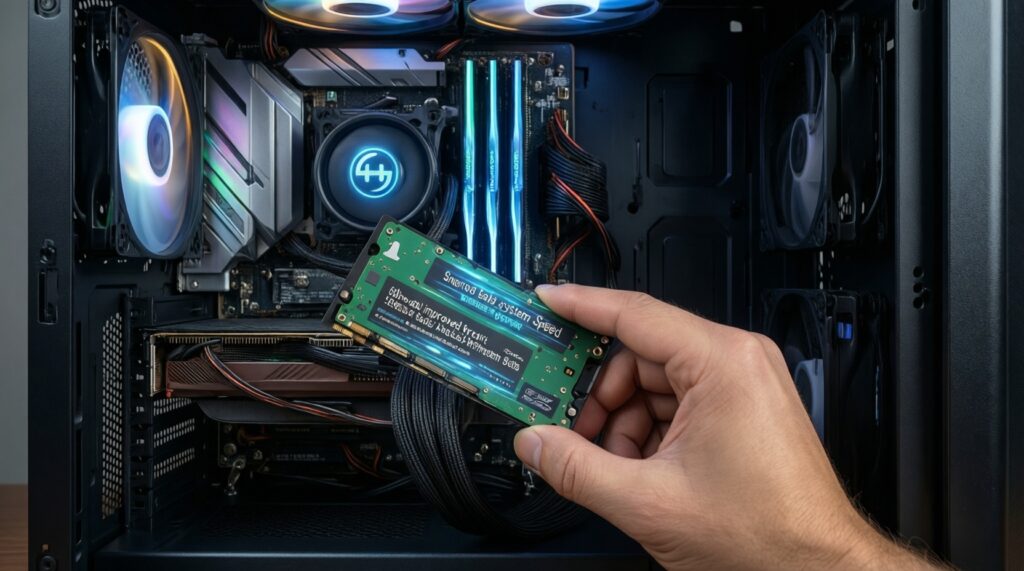
Start with an SSD (or a faster SSD if you're still on HDD). This is the clearest fix for boot, launches, updates, and general responsiveness.
I game at 1080p and my FPS is low-GPU or CPU?
If GPU usage is near 100%, upgrade the GPU. If CPU threads are maxed and FPS is unstable (bad 1% lows), prioritize CPU.
I have many browser tabs and meetings; the PC stutters when switching apps-SSD or RAM?
If RAM is near full and you see paging, add RAM first. If RAM is fine but disk is busy during freezes, upgrade to an SSD.
Is 16GB RAM still enough for a mid-range laptop in 2026?
For office work and light creation, 16GB is typically a solid baseline. Move to 32GB if you regularly exceed ~16GB peak usage or run heavy creative projects/VMs.
Should I buy SATA or NVMe for a 1TB SSD upgrade?
Pick NVMe if your device supports it and you do heavy file transfers, caching, or frequent large project loads. SATA is often sufficient for everyday "snappiness" if NVMe support is limited.
When does a CPU+motherboard upgrade make sense?
When your current platform can't take a meaningful CPU step-up, or you need a newer socket/RAM generation. It's most justified when CPU is the consistent limiter in your main apps.
What's the safest "one upgrade only" choice if I'm unsure?
Upgrade to an SSD if you're not already on one. If you already have an SSD, choose RAM when you hit memory pressure, otherwise GPU for gaming FPS.