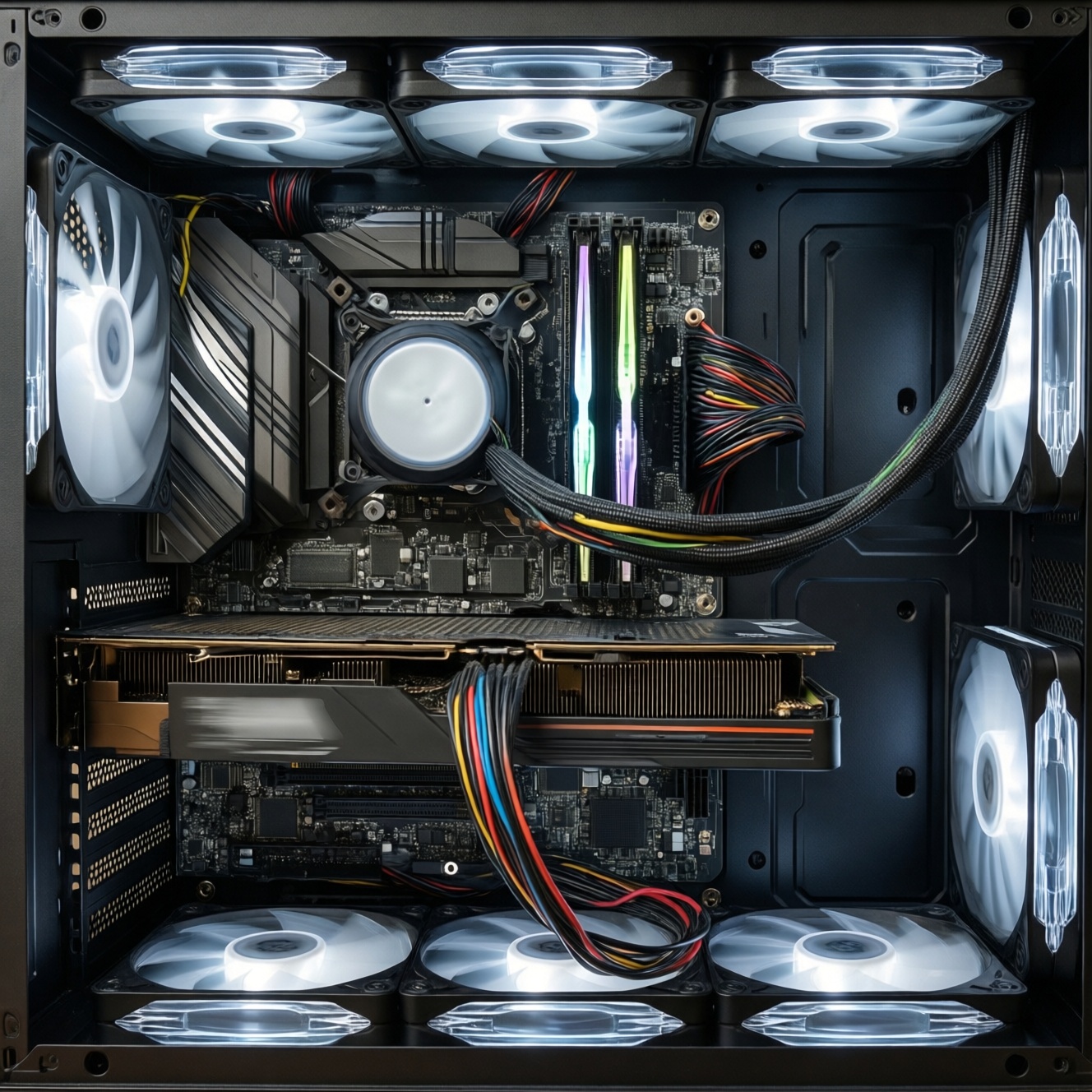
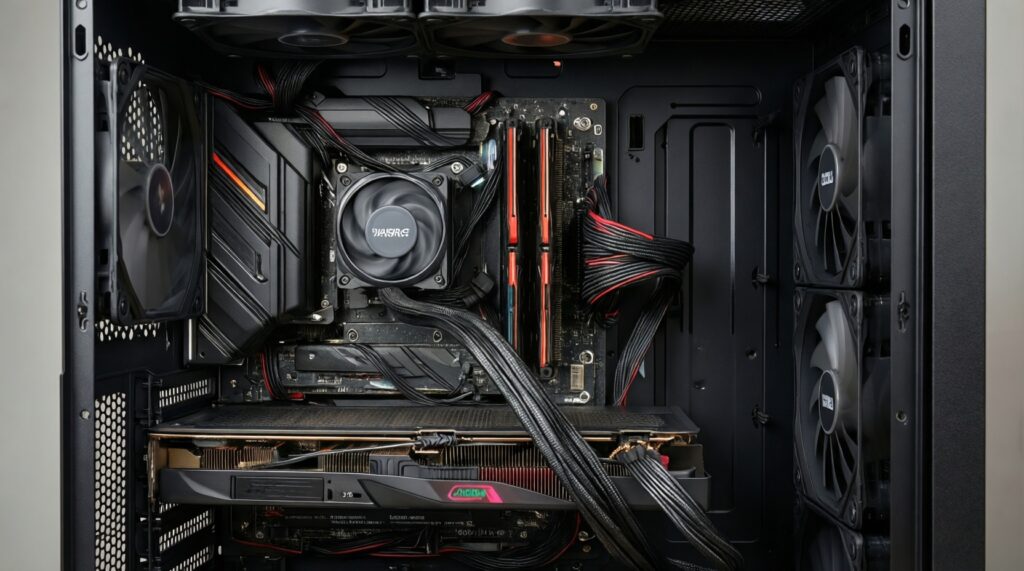
To improve PC airflow, reduce dust, and make the build look cleaner, route cables away from fan intakes, the CPU cooler path, and the GPU front edge, then secure them flat behind the motherboard tray. Use reusable ties, anchors, and short runs; finish by verifying fan clearance and temperatures after reassembly.
Core Principles of Cable Management for Airflow and Dust Control
- Keep the front-to-back (or bottom-to-top) airflow corridor open: no cable "curtains" in front of intake fans.
- Flatten and bundle cables behind the motherboard tray; cross airflow only when unavoidable-and do it at the edges.
- Prioritize fan safety: zero contact risk with blades, hubs, and fan frames.
- Shorten visible runs by using the nearest grommet/slot and the right-length cable or adapter.
- Secure every heavy connector (24‑pin, PCIe, EPS) so vibration doesn't pull it into airflow.
- Make cleaning easier: keep dust-prone zones (intakes, filters, bottom compartment) clear of loose wiring.
Assessing Your Case and Airflow Pathways
This process fits most mid-tower cases with a rear cable channel and at least one intake and exhaust fan. It's especially useful if your GPU sits close to the front intake or if you see dust buildup around cable tangles.
Skip or postpone a full re-route when:
- You're troubleshooting instability and need frequent component swaps (do a minimal tidy first).
- Your PSU or GPU cables are visibly damaged, pinched, or overheating (replace before bundling).
- Your case has no rear space for cables; consider external solutions (see the last section).
Planning Cable Routes to Maximize Cooling Efficiency
Before touching anything, plan routes with the side panels off and identify: (1) intake fan zones, (2) CPU cooler draw/exhaust direction, (3) GPU fan intake area, (4) nearest pass-through holes, and (5) safe tie-down points.
What you'll want ready (tools, access, and prep)
- Basic tools: Phillips screwdriver, flashlight, scissors/flush cutters (for trimming zip ties), and a soft brush for dust.
- Fasteners: reusable hook-and-loop ties (a common Thai query is ตีนตุ๊กแกพันสายไฟ ซื้อที่ไหน), a few zip ties for permanent spots, and adhesive cable anchors.
- Optional airflow helpers: fan splitter/hub (to reduce cable sprawl), short extension cables to avoid tight bends.
- Safety access: a clean workspace, enough slack to lay the case on its side, and time for a test boot.
- Safety baseline: power down, switch PSU off, unplug the power cable, and press the power button once to discharge. Avoid pulling on wires; always pull connectors by the plastic housing.
Selecting Tools and Materials for Neat, Durable Runs
-
Map the "no-cable zones" first.
Identify the rectangle in front of intake fans and the space directly under/around the GPU fans; keep these areas cable-free to prevent turbulence and dust traps.- If you must cross, cross at the case edge and secure tightly.
-
Choose the right fastener for the job.
Use hook-and-loop for cables you may change (GPU, SATA), and zip ties for "set and forget" areas (front panel harness backbone).- For อุปกรณ์จัดสาย Cable Management, prioritize reusable ties + anchors over over-tight zip tying.
-
Create one main trunk line behind the tray.
Bundle 24‑pin, USB, SATA, and front panel leads into a single flat "spine" that follows the case's cable channel.- Keep the trunk flat; round bundles bulge the side panel and can pop open.
-
Split into short branches at the nearest grommet.
Route each branch through the closest pass-through to reduce visible length and avoid mid-air loops in the main chamber.- For the GPU, aim for a direct exit near the card, not a long run from the top.
-
Secure and strain-relieve heavy connectors.
Anchor the 24‑pin and PCIe/EPS leads within a few centimeters of the connector so the plug can't creep loose or swing into fans. -
Handle external desk cables with proper containment.
If your PC area looks messy, use กล่องเก็บปลั๊กไฟและสายไฟ to hide power strips and reduce floor dust collection, and consider คลิปหนีบสายไฟ ติดผนัง to route cables along a wall edge.
Quick mode (fast-track tidy in 10-20 minutes)
- Clear the front intake area: move any dangling cables behind the tray immediately.
- Bundle GPU + front panel cables into one temporary hook-and-loop tie and pin them to a rear anchor point.
- Flatten the 24‑pin run: closest grommet in, then straight to the connector with one strain-relief tie.
- Verify fan clearance by spinning each fan by hand (PC powered off).
- Boot and check that all fans spin and no cables shift into blades.
Step-by-Step Tidy Routing Inside the Chassis
Use this result checklist after closing the rear panel but before sealing the glass/side window.
- No cable crosses directly in front of intake fans (front/bottom/side, depending on your case).
- GPU fan intake area is unobstructed; PCIe cables approach from the nearest edge with no slack loop.
- CPU cooler airflow path is clear: no cable bundle hanging near the heatsink fan(s).
- All fans spin freely when turned by hand; no wire can reach blades even if it shifts.
- 24‑pin, EPS, and PCIe connectors are fully seated; each has a nearby tie/anchor for strain relief.
- Front panel connectors (USB/audio/power) are routed flat and don't press hard against side panels.
- SATA power/data cables are not sharply kinked; bends are gentle and supported.
- Rear side panel closes without force; no "spring-back" from overstuffed bundles.
- Nothing rests on hot surfaces (GPU backplate edges, VRM heatsinks, radiator fins).
Minimizing Dust Accumulation Through Strategic Cable Placement
- Leaving loose cables in front of intakes: they act like a net and collect dust where you least want it.
- Bundling cables into a thick round rope: it blocks rear chamber airflow and pushes against the panel, loosening over time.
- Routing cables across the GPU face: it increases turbulence and can raise localized hotspot temperatures.
- Over-tight zip ties on delicate wires (front panel, fan leads): crushed insulation and broken conductors happen later, not immediately.
- Letting fan cables dangle: vibration can walk them into blades even if they cleared at first.
- Running cables under the case where the PSU intake/filter is: it increases dust intake and makes cleaning harder.
- Using weak adhesive anchors on dusty/oily surfaces: they peel off; clean with isopropyl alcohol and let dry before sticking.
- Ignoring cable length management: extra slack becomes a dust shelf; fold slack into flat "S" shapes and tie down.
Finishing Touches: Aesthetics, Testing, and Maintenance
- Low-visibility build: route everything behind the tray and use black ties/anchors; best when you want clean airflow with minimal cost.
- Sleeved cable look: add sleeves or cable combs on visible runs; useful for windowed cases, but keep the run tight to edges to avoid blocking airflow.
- Desk and wall routing: use คลิปหนีบสายไฟ ติดผนัง and a กล่องเก็บปลั๊กไฟและสายไฟ to reduce external clutter and dust; ideal for small rooms.
- Surface raceway for room wiring: if you're comparing รางเก็บสายไฟ ราคา options, choose the size that fits your thickest plug/brick and place it along edges, not across walking paths.
Testing and upkeep
- After reassembly, boot and confirm: all fans spin, no new noises, all drives detected.
- Do a quick temperature check with your usual monitoring tool under a normal workload; focus on "before vs after" consistency.
- Clean intake filters regularly; good cable routing keeps filters accessible and makes dust removal faster.
Common Practical Questions on Cable Routing & Cooling
Do tidy cables actually lower temperatures?
They can, when cables were blocking intake flow or the GPU/CPU cooler path. The biggest win is usually more stable airflow and less dust buildup over time.
Is it safe to use zip ties near fan cables?
Yes, if you don't over-tighten and you keep the tie head away from fan blades. For frequently changed parts, use hook-and-loop ties instead.
Where should PCIe power cables run for best GPU airflow?
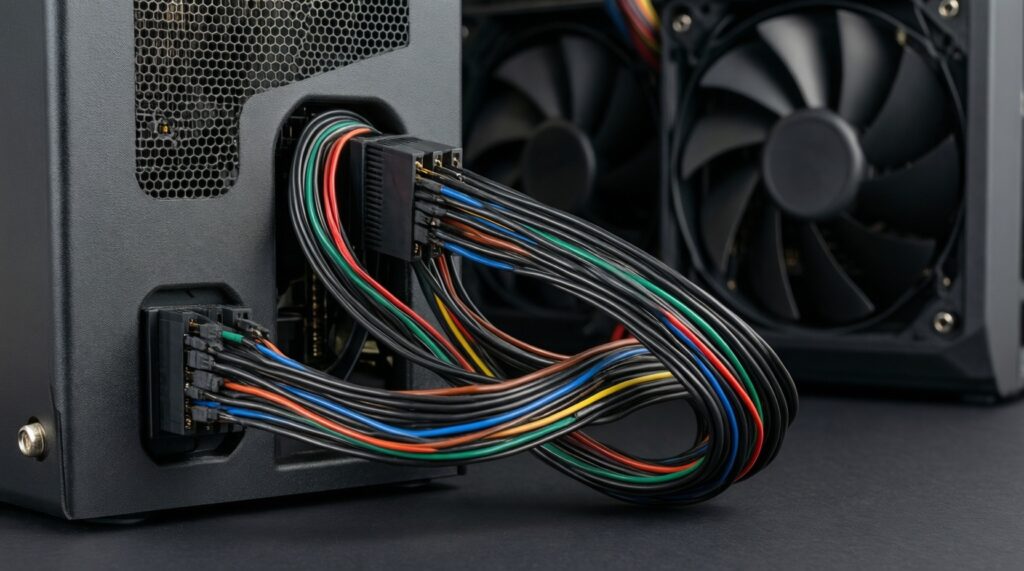
Bring them through the nearest grommet to the GPU and hug the case edge. Avoid a long loop that hangs in front of the GPU fans.
Can I mount cables to the wall behind the desk?
Yes-คลิปหนีบสายไฟ ติดผนัง works well when the surface is clean and dry. Route along edges and leave a small service loop near the PC for unplugging.
How do I choose between hook-and-loop ties and cable sleeves?
Hook-and-loop ties are for control and serviceability; sleeves are for appearance. Many builds use both: ties behind the tray, sleeves only on the visible section.
What's the safest way to hide a power strip and adapters?
Use a ventilated กล่องเก็บปลั๊กไฟและสายไฟ with enough space so adapters aren't tightly packed. Keep it accessible and off carpets if possible to reduce dust intake.
What if I can't close the rear side panel after bundling?
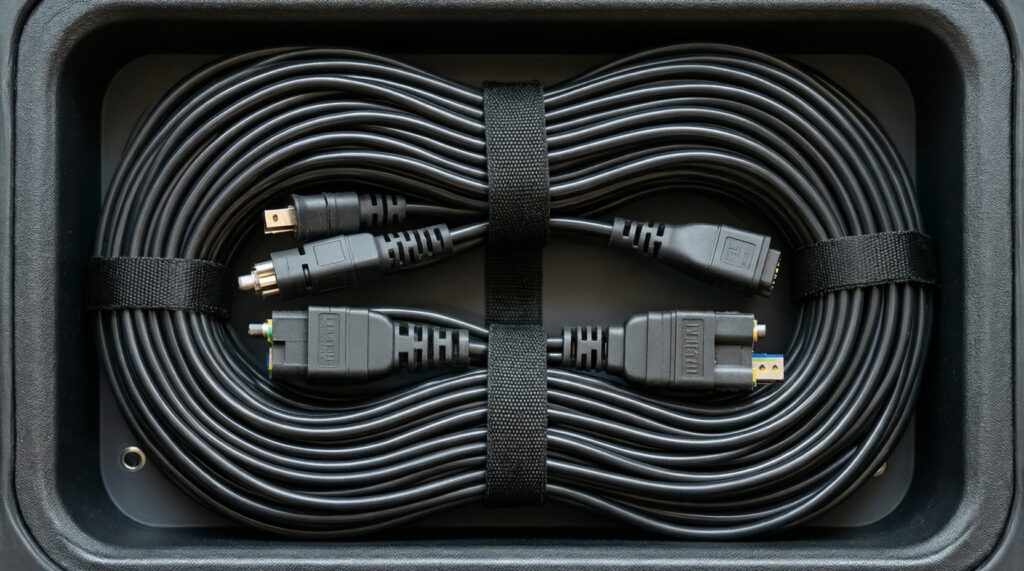
Flatten the bundle, split it into two thinner trunks, and relocate bulky connectors to a wider cavity. Replace thick zip-tie knots with low-profile hook-and-loop where needed.