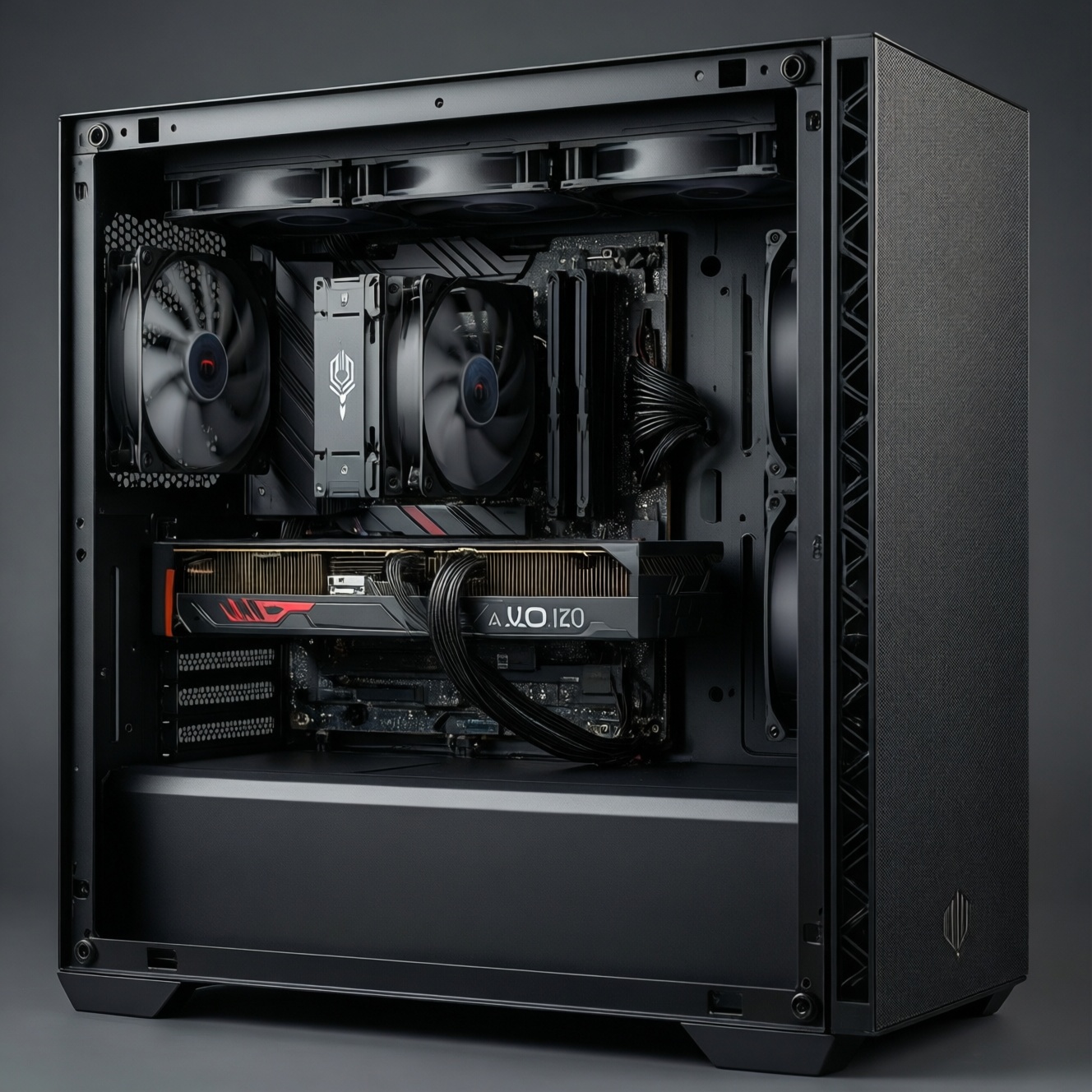
To safely tune a PC in BIOS/UEFI, focus on three changes: enable XMP/EXPO for your RAM, set a sensible fan curve for stable temperatures and acceptable noise, and turn on Resizable BAR when your CPU/GPU support it. Make one change at a time, validate stability, and keep a rollback path (defaults or a saved profile).
Quick Configuration Summary
- Update first when needed: "อัปเดต BIOS เมนบอร์ด" can improve memory training, fan control behavior, and Resizable BAR compatibility.
- Enable RAM profile (XMP or EXPO), then confirm the memory speed/voltage actually applied in BIOS and in Windows.
- Build a fan curve around real temperatures: idle (quiet), typical gaming (balanced), and worst-case (safe).
- For Resizable BAR, ensure UEFI boot, CSM off, and "Above 4G Decoding" on before enabling it.
- Change one setting, test, then proceed; if unstable, revert via BIOS profile or "Load Optimized Defaults".
Understanding XMP and EXPO: Profiles, Risks, and Compatibility
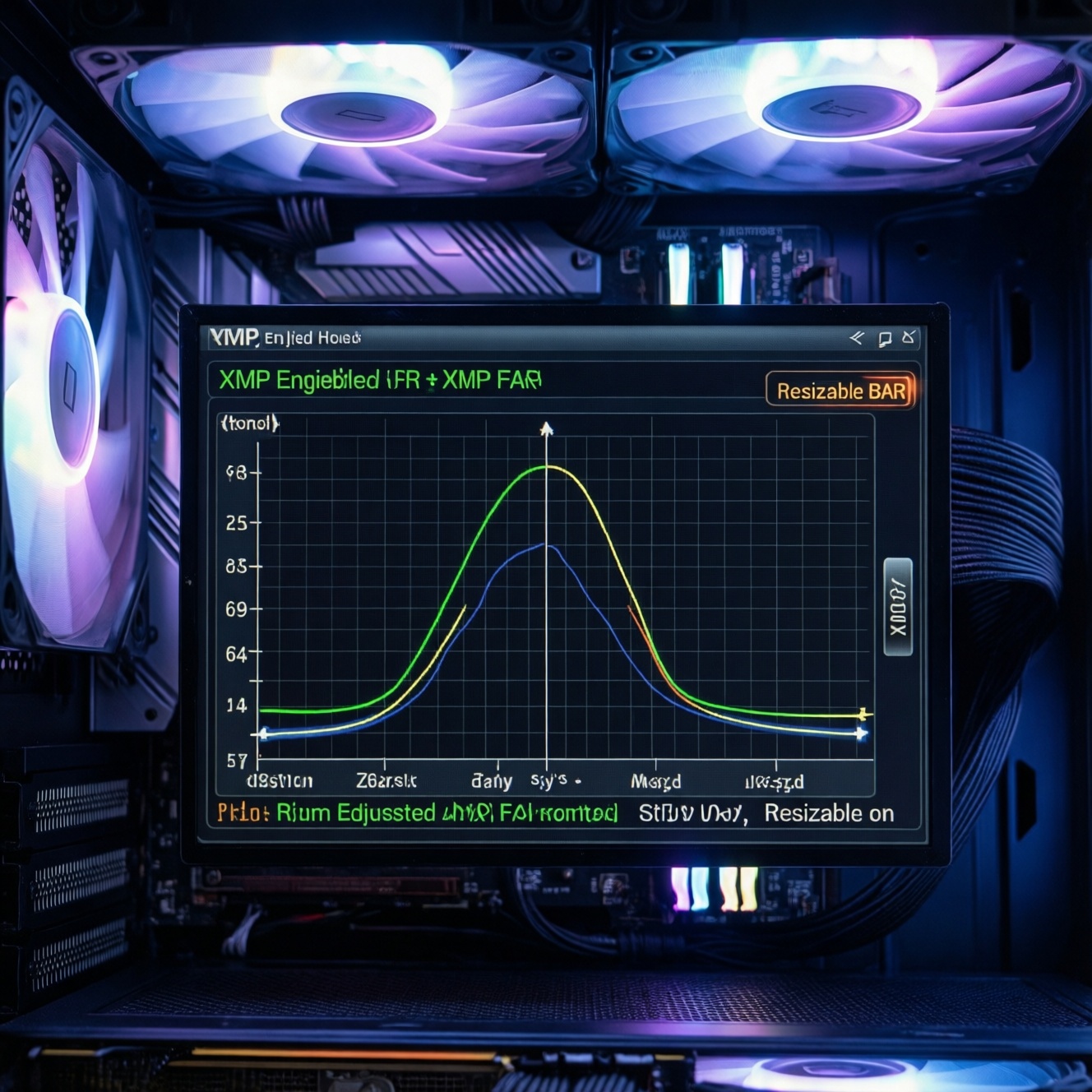
XMP (common on Intel-focused kits) and EXPO (common on AMD-focused kits) are pre-made RAM profiles that set frequency, timings, and voltage automatically. They usually work, but they are still an overclock versus official JEDEC defaults.
- Good fit: A matched RAM kit (e.g., 2×16 GB) on a modern platform (Intel 600/700-series, AMD 600-series) where the board QVL is reasonably aligned with your kit.
- Be cautious / avoid for now: mixed RAM sticks, four-DIMM configs at high speeds, very small form factor cases with poor airflow, or a system used for critical work where downtime is unacceptable.
- One-line risk warning: if the memory controller or board can't train the profile reliably, you can get boot loops, random app crashes, or silent file corruption.
In Thai searches you'll often see "เปิดใช้งาน XMP EXPO ใน BIOS"-the safe approach is to enable the profile, verify it applied, and keep a quick rollback plan.
How to Enable and Verify Memory Overclocking Safely
Before you start (especially if you're following "วิธีตั้งค่า BIOS UEFI" guides), prepare the minimum safety toolkit so you can recover quickly.
- Access: Know your BIOS/UEFI entry key (often Del/F2) and how to reach the board's "Advanced Mode".
- Recovery path: Learn where "Load Optimized Defaults" is, and how to clear CMOS (jumper/button) if the system won't boot.
- Baseline notes: Write down current RAM speed (JEDEC), CPU temps at idle/load, and current fan behavior.
- Monitoring tools (OS-level): Use any reputable hardware monitor to check RAM speed (effective data rate), CPU package temperature, and fan RPM after changes.
- Stability checks: Have at least one memory test and one CPU+RAM stress test ready; stop if you see crashes or WHEA errors.
Configuring Fan Curves: Temperature Targets and Noise Limits
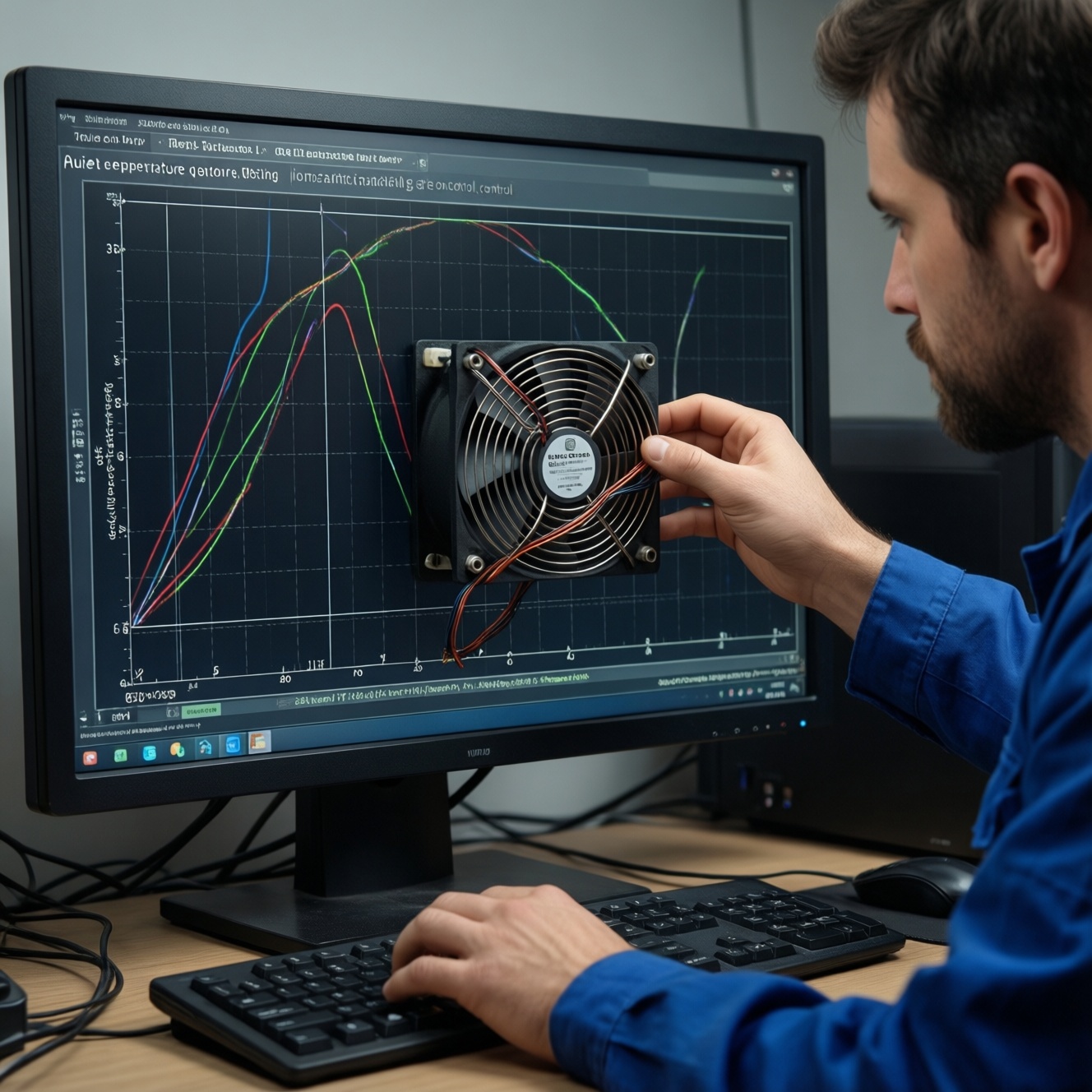
If your goal is "ตั้งค่า Fan Curve ใน BIOS" without chasing perfection, build a curve that prioritizes stability first, then tune for noise. Use CPU temperature for CPU cooler fans, and a motherboard/system sensor for case fans when available.
-
Identify each header and its control mode
In BIOS hardware monitor/Q-Fan/Smart Fan, map headers: CPU_FAN, CPU_OPT, AIO_PUMP, SYS_FAN. Set the correct mode: PWM for 4‑pin fans, DC for 3‑pin fans, and full speed for most pumps.
- CPU cooler fans: usually follow CPU temperature.
- Case fans: consider motherboard/system temperature to avoid constant ramping.
-
Set safe minimums to prevent stall
Choose a minimum duty/RPM that reliably starts your fans after sleep/boot. If a fan occasionally stops, raise the minimum slightly and retest.
-
Build a 3-zone curve (idle / typical / worst-case)
Keep low temps quiet, ramp gently through your common gaming range, and ramp aggressively near high temperatures. This avoids sudden noise spikes while still protecting the CPU.
- Use fewer points first; extra points are for refinement.
- Avoid "flat then cliff" shapes that cause audible surging.
-
Add hysteresis / step-up and step-down delay (if available)
Delays stop the fan from reacting to 1-2 second CPU boost spikes. Use a longer step-down than step-up so fans don't hunt up and down.
-
Validate with a controlled load and then re-check idle
Run a repeatable load (game benchmark loop or stress test) for a few minutes, observe peak temps and noise, then return to idle and confirm the fans calm down smoothly.
Fast mode (fast-track)
- Set CPU_FAN to PWM (4‑pin) or DC (3‑pin), then run fan auto-tune/calibration if your BIOS provides it.
- Pick a "Standard" or "Silent" preset for case fans, then bump one notch if temps feel high.
- Set AIO_PUMP (if present) to full speed or the vendor-recommended fixed speed.
- Add a small step-down delay so fans don't constantly ramp in normal browsing.
Advanced Fan Curve Techniques for PWM, DC and AIO Systems
- CPU fan control source matches your cooler type (CPU temp for air coolers; CPU temp or liquid temp for AIOs when supported).
- PWM fans don't click or pulse at low duty; if they do, raise the minimum duty.
- DC fans start reliably from cold boot and after sleep; if not, increase the minimum voltage/duty.
- AIO pump header is not set to a temperature curve unless the vendor explicitly recommends it.
- Case fans are not tied to CPU temp if that causes constant ramping; prefer system/VRM sensor when available.
- Fan curve has smoothing (hysteresis/delay) to prevent oscillation during CPU boost bursts.
- Under sustained load, temperatures stabilize rather than creeping upward indefinitely (a sign of insufficient airflow).
- Noise spikes are addressed by smoothing the curve (more gradual slope), not by lowering max fan speed to unsafe levels.
Enabling Resizable BAR: BIOS Steps and System Requirements
"เปิด Resizable BAR ใน BIOS" is usually quick, but failures are commonly caused by boot mode, GPU firmware/driver, or conflicting settings. Make sure the system is in UEFI mode and your platform actually supports it.
- CSM still enabled: Resizable BAR typically needs pure UEFI; disable CSM/Legacy boot, then confirm the OS boots.
- Disk is MBR, not GPT: If Windows was installed in Legacy mode, switching to UEFI may require converting the system disk to GPT before disabling CSM.
- Above 4G Decoding is off: Many BIOS require enabling "Above 4G Decoding" first, then toggling Resizable BAR.
- Option not visible: Some boards hide the setting until you update BIOS or switch to Advanced Mode.
- Old GPU VBIOS: Some GPUs require a VBIOS update for Resizable BAR support; check the GPU vendor tools/docs.
- Driver mismatch: Update GPU drivers after enabling; otherwise you may not see the feature reported correctly.
- Wrong expectation: Not every game benefits; treat it as a compatibility feature first, performance bonus second.
- Stability issues after enabling: If you see crashes, revert the toggle and retest-don't stack multiple BIOS changes at once.
Post-Change Validation: Benchmarks, Stability Tests and Rollback
Validate each BIOS change with a repeatable check, then lock it in. If something goes wrong, use the quickest safe fallback rather than continuing to tweak blindly.
- BIOS profile workflow: Save a known-good profile before changes, then save a second profile after each successful step. Use this when you frequently test RAM profiles or fan curves.
- "Default-first" stability approach: If XMP/EXPO is unstable, revert to JEDEC defaults and only then try a lower memory speed or a less aggressive profile. Use this for mixed RAM or 4-DIMM setups.
- Software-based alternatives (when BIOS is limited): If fan control in BIOS is too basic, use a reputable motherboard utility in Windows for finer smoothing-only after your baseline BIOS curve is safe.
- Update/rollback strategy: If behavior is inconsistent (boot loops, missing options), consider "อัปเดต BIOS เมนบอร์ด" to a stable release; if a new BIOS introduces issues, roll back to the previous stable version supported by your board.
Concise Answers to Common BIOS/UEFI Concerns
Will enabling XMP/EXPO void my warranty?
It depends on vendor policy, but XMP/EXPO is still an overclock relative to JEDEC defaults. If you need maximum safety, stick to defaults or use a lower profile.
Why does my PC reboot several times after enabling XMP/EXPO?
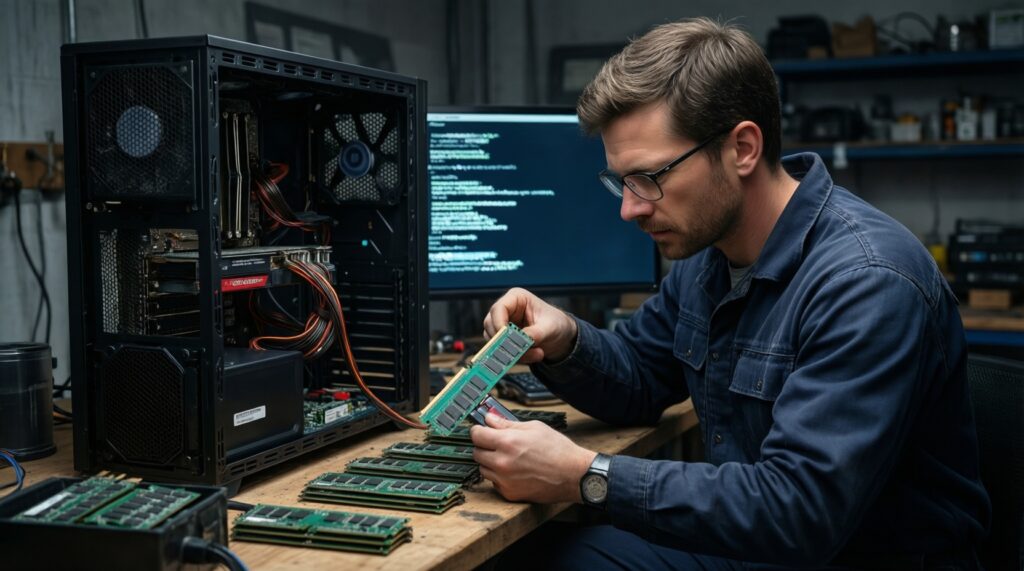
That's usually memory training. If it loops endlessly or fails to boot, clear CMOS and try a lower memory speed or one stick at a time.
Should case fans follow CPU temperature?
Not always. CPU temperature spikes quickly; case fans often behave better when tied to a motherboard/system sensor to avoid constant ramping.
Is it safe to run an AIO pump at full speed?
Commonly yes and often recommended, but follow the cooler vendor guidance. The main risk is unnecessary noise or vibration, not immediate damage.
Resizable BAR option is enabled, but software says it's off-why?
Most often the system is not truly booting in UEFI mode (CSM/Legacy), or the GPU driver/VBIOS is outdated. Confirm UEFI boot and update GPU driver first.
What's the safest order of operations for BIOS tuning?
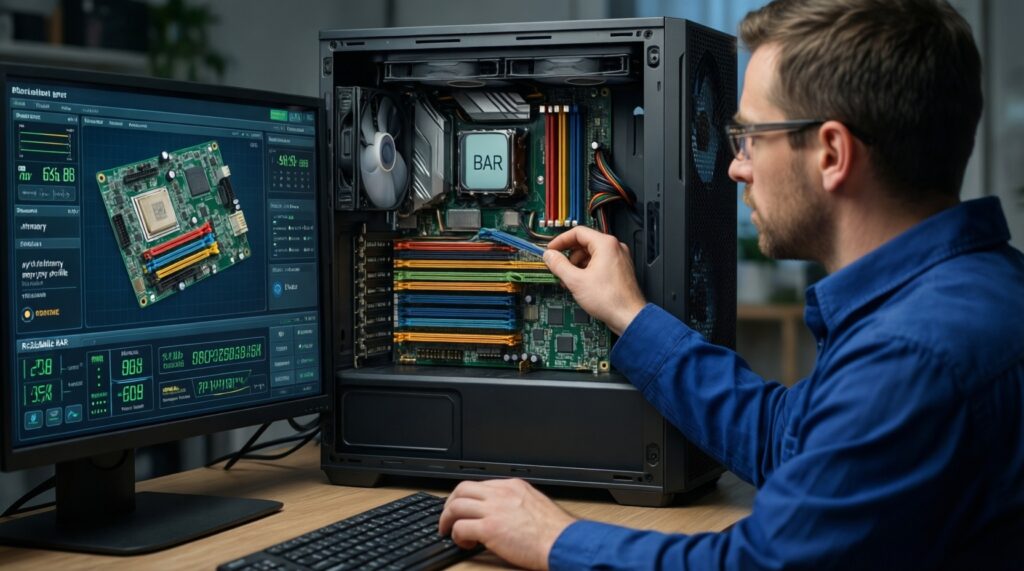
Update BIOS only if needed, then enable XMP/EXPO, then tune fan curves, then enable Resizable BAR. Test after each step so you know what caused an issue.
When should I stop and revert changes?
Revert immediately if you get repeat crashes, WHEA errors, or file corruption symptoms. Use saved BIOS profiles or "Load Optimized Defaults" to recover quickly.