To fix random freezes and BSODs, start with read-only checks that quickly separate hardware instability (RAM, SSD, overheating/power) from software causes (drivers). Capture the stop code, check disk and memory health, verify temperatures under load, then isolate drivers via Safe Mode and controlled rollbacks. Only after evidence points to a component should you replace RAM/SSD or reapply thermal paste.
Immediate symptoms and quick checkpoints
- BSOD repeats after login → suspect driver or corrupt system files → boot Safe Mode and check minidumps.
- BSOD during gaming/CPU load → suspect heat/power → watch CPU/GPU temps and throttling.
- Freezes without BSOD → suspect SSD/controller timeouts or RAM instability → check SMART + run memory test.
- New hardware or Windows update just happened → suspect driver conflict → rollback recent driver/feature update.
- Stop codes like MEMORY_MANAGEMENT / IRQL_NOT_LESS_OR_EQUAL → suspect RAM or driver → test RAM, then verify suspicious drivers.
RAM faults: how to detect intermittent memory errors and replace modules
What you see → likely cause → quick test
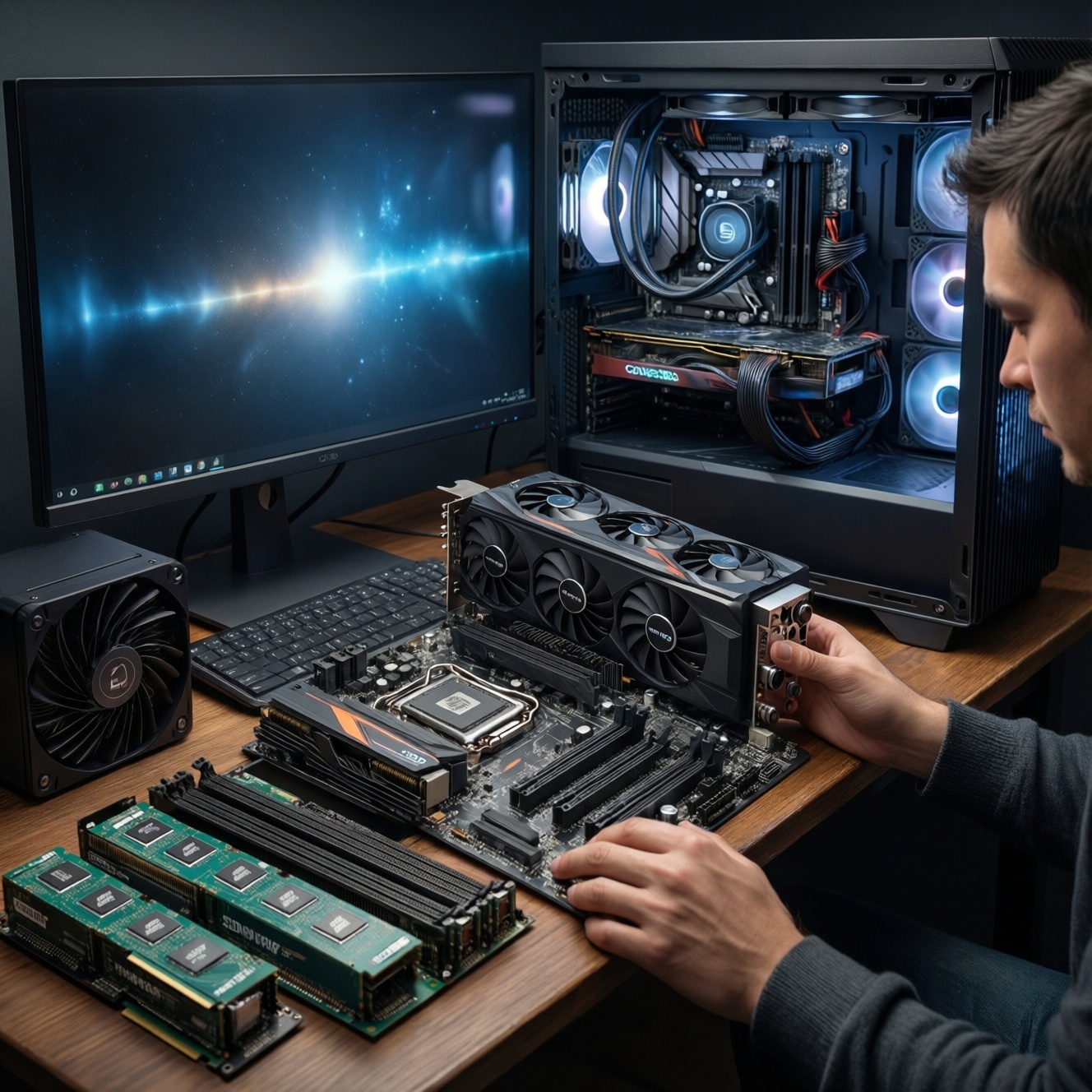
- BSODs with MEMORY_MANAGEMENT, PFN_LIST_CORRUPT, random app crashes → marginal RAM/XMP instability → run Windows Memory Diagnostic; then a longer bootable memory test.
- Freezes when many browser tabs/VMs are open → unstable RAM under pressure → run memory test + temporarily disable XMP/EXPO.
- BSODs started after enabling XMP/EXPO or changing RAM → unstable timings/voltage → reset BIOS to defaults; retest.
Read-only checks first (safe for production)
- Record the stop code and any driver name shown on the BSOD screen.
- Run Windows Memory Diagnostic (mdsched.exe) and review results in Event Viewer:
- Event Viewer → Windows Logs → System → filter by MemoryDiagnostics-Results.
- If you can reboot into BIOS/UEFI, temporarily set RAM to default (no XMP/EXPO) and retest stability.
Isolation (fast, high-signal)
- If you have 2+ sticks: test with one module at a time (same slot), then swap slots to separate DIMM vs motherboard slot.
- Check for simple physical issues: reseat RAM, clean dust, confirm latches fully locked.
Replacement decision (practical)
- If errors appear in memory tests at stock settings, treat it as hardware-fault until proven otherwise.
- When planning a replacement, people in Thailand often search เช็คราคาเปลี่ยน RAM คอมพิวเตอร์; the important part technically is matching DDR generation, capacity per stick, and motherboard QVL compatibility, not just speed.
SSD failures and performance faults: SMART, firmware, and controller diagnostics
What you see → likely cause → quick test
- Random freezes, stutters, long boot, Disk 100% → SSD firmware/controller issues or bad blocks → check SMART + Event Viewer disk warnings.
- BSODs mentioning storage (e.g., INACCESSIBLE_BOOT_DEVICE) → driver/firmware/cable/controller path → check BIOS detection + storage drivers.
- Confirm the SSD is detected consistently in BIOS/UEFI (no disappearing drive).
- Run a read-only SMART view tool (vendor utility or a SMART reader) and note any warning/failed status.
- Check Event Viewer:
- Windows Logs → System → look for disk/storage warnings around crash times.
- Run read-only file system checks (avoid write repairs first):
chkdsk C: /scan
- Check system file integrity (minimally invasive first):
sfc /scannow- If needed:
DISM /Online /Cleanup-Image /RestoreHealth
- Verify free space (very low free space can amplify stutters and update failures).
- Confirm storage mode and drivers:
- Device Manager → Storage controllers / IDE ATA/ATAPI → check for recent driver changes.
- If using SATA SSD: re-seat/replace SATA cable (low risk) and try a different SATA port.
- Check SSD vendor firmware updates (do this only after backup planning; read release notes).
- If symptoms persist and SMART is suspicious, plan migration/replacement; many users look for เปลี่ยน SSD ราคา พร้อมลงวินโดวส์, but technically the priority is data backup, cloning validation, and ensuring the correct NVMe/SATA form factor.
Driver corruption and conflicts: identifying culpable drivers and safe rollback
What you see → likely cause → quick test
- BSOD right after Windows update or new device install → driver mismatch → Safe Mode + roll back recent driver.
- BSOD names a .sys file → specific driver fault → map that driver to vendor, then update/rollback.
- Crashes only with certain peripherals/apps → filter driver/software → unplug/disable the device; retest.
Practical workflow (read-only to change)
- Collect evidence: stop code + timestamp + recent changes (drivers, updates, peripherals).
- Safe Mode test: if stable in Safe Mode, suspect drivers/services rather than RAM/SSD.
- Identify likely driver:
- Device Manager → view device properties → Driver tab (date, provider).
- Reliability Monitor (type "reliability" in Start) to correlate driver installs with crashes.
- Fix path (one change at a time):
- Roll back driver (Device Manager → Roll Back Driver) if the issue started right after an update.
- Update driver from OEM (laptop/desktop maker) first; then component vendor if needed.
- Remove third-party "tuning/overlay/monitoring" tools if they hook kernel drivers.
| Symptom | Possible causes | How to verify (safe-first) | How to fix (controlled changes) |
|---|---|---|---|
| BSOD after GPU driver update; crashes when launching games | Bad GPU driver build, leftover driver components, overlay conflict | Safe Mode stable; Reliability Monitor shows driver install before crashes | Rollback GPU driver; clean reinstall using vendor installer; disable overlays |
| BSOD mentions a specific .sys file | Faulty third-party driver (VPN, antivirus, storage filter) | Search the filename in C:WindowsSystem32drivers; check its vendor in file properties |
Update or uninstall the related software; replace with a stable version |
| Random BSODs, more frequent after Windows updates | Chipset/storage driver mismatch | Device Manager driver dates changed; crashes cluster after updates | Install OEM chipset/storage drivers; consider rolling back a problematic update |
| USB device triggers freeze/BSOD when connected | USB driver issue, power draw, device firmware | Reproduces only with that device/port; Event Viewer logs around connect time | Try different port; update USB/chipset drivers; update device firmware |
If you specifically need อัปเดตไดรเวอร์คอมพิวเตอร์ แก้จอฟ้า, do it in this order: OEM chipset/storage → GPU → network → peripherals, verifying stability between each step.
Thermal and power-related BSODs: sensors, throttling, and cooling remediation
What you see → likely cause → quick test
- Freeze/BSOD under load, fans loud, performance drops → thermal throttling or VRM/PSU instability → monitor temps and clocks during a controlled stress test.
- Sudden shutdowns or black screens → power delivery issue (PSU, adapter, battery, VRM) → check event logs; test with minimal peripherals.
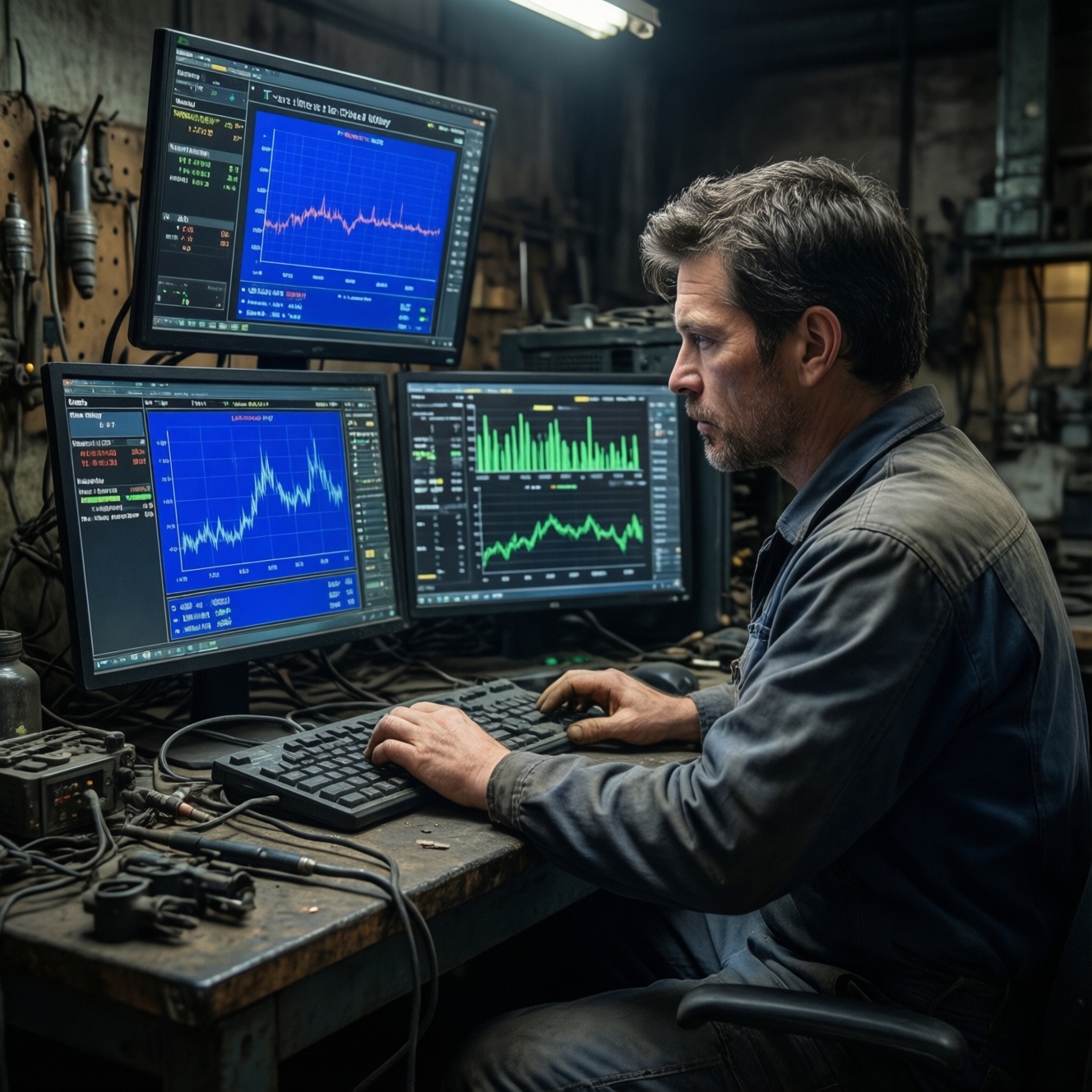
- Read-only monitoring first: use a hardware monitor to watch CPU package temp, GPU temp, and clocks while reproducing the issue.
- Confirm airflow basics: ensure vents aren't blocked; elevate laptop for intake; check case filters and fan operation.
- Clean dust safely: power off, unplug, discharge; remove dust from heatsinks/fans without spinning fans excessively.
- Reduce load to confirm diagnosis: temporarily cap FPS, reduce power limit (GPU), or switch Windows power mode to balanced; if stability returns, heat/power is likely.
- Check fan curves/BIOS defaults: reset BIOS/UEFI to defaults if aggressive undervolt/OC was used.
- Reseat power connections (desktop): motherboard 24-pin, CPU EPS, GPU power connectors; inspect for discoloration.
- Thermal paste service (higher risk): if temps spike quickly or throttling is severe, consider repasting CPU/GPU with proper procedure and torque pattern.
- Escalate to PSU/adapter testing: swap with a known-good PSU (desktop) or adapter (laptop) if power instability signs persist.
When people say ซ่อมคอมค้าง ความร้อนสูง เปลี่ยนซิลิโคนซีพียู, the key technical checkpoint is not the paste brand-it's verifying that load temperatures and clock stability improve after cleaning/repasting and that crashes stop under the same workload.
Reproduce, isolate, and capture evidence: minidumps, Safe Mode, and memory tests
What you see → likely cause → quick test
- Intermittent failures you can't explain → need evidence to avoid random part swapping → collect minidumps and correlate with changes.
Evidence package to build (fast and actionable)
- Note the exact time of each crash and what workload triggered it.
- Locate minidumps (if enabled):
C:WindowsMinidump. - Export key logs (read-only):
- Event Viewer → System/Application → save relevant events around crash time.
- Reliability Monitor → screenshot the timeline around failures.
- Test in Safe Mode:
- Stable in Safe Mode → drivers/services likely.
- Still crashes in Safe Mode → hardware or low-level drivers/firmware more likely.
- Run a longer memory test and repeat the workload after each single change.
When to escalate to a shop or vendor support
- BSODs continue at BIOS defaults with a known-good OS image and minimal drivers.
- SMART indicates warnings, the drive disappears, or you hear abnormal mechanical sounds (HDD).
- Memory tests report errors at stock settings, or failures follow a specific RAM slot (motherboard issue).
- Temperatures are abnormal despite cleaning, or the device requires full disassembly to service cooling.
- You need guaranteed uptime (production machine) and cannot risk iterative testing-this is where ซ่อมคอมจอฟ้า BSOD from a reputable service provider is more efficient.
Prioritized repair workflow: triage checklist, escalation, and verification table
- Freeze scope: capture stop code, timestamps, and what changed recently (drivers, updates, new devices).
- Safe Mode split-test: stable = drivers/services; unstable = hardware/firmware more likely.
- Storage health: SMART view +
chkdsk /scan+ check disk-related events. - RAM stability: disable XMP/EXPO → memory test → isolate sticks/slots.
- Thermals: monitor temps/clocks under the same reproduction workload; clean dust; verify fans.
- Driver control: rollback the most recent driver; then update in OEM-first order, one change at a time.
- Change management: after each fix attempt, reproduce the exact workload and log outcome (pass/fail).
- Only then replace parts: RAM/SSD/PSU, based on test evidence-avoid "guess replacements".
- Post-fix verification: confirm 24-48 hours of normal workloads without WHEA/storage/driver warnings in logs (no need to invent stress metrics).
Rapid solutions for common BSOD scenarios
My PC freezes but doesn't show a BSOD. What should I check first?
Check SSD health (SMART + disk-related events) and temperatures under load. Freezes without a stop screen often point to storage timeouts or thermal/power instability.
Safe Mode is stable, normal mode BSODs. What does that mean?
It strongly suggests a driver/service conflict. Roll back the most recent driver change, then update drivers in OEM-first order.
Should I run CHKDSK with repairs immediately?
No-start read-only with chkdsk /scan. Only run repair modes after you have a backup plan, especially if SSD health looks suspicious.
When should I suspect RAM even if Windows boots fine?
If stop codes are memory-related, crashes are random, or instability increases with heavy multitasking. Disable XMP/EXPO and run a longer memory test to confirm.
Is it okay to update all drivers at once to fix BSOD?
Avoid bulk changes. If you're doing อัปเดตไดรเวอร์คอมพิวเตอร์ แก้จอฟ้า, update one category at a time and verify stability between each change.
High temperatures: do I need to repaste immediately?
Not immediately-first confirm temps with monitoring, then clean dust and validate airflow/fans. Repasting is a higher-risk step best done after simpler checks fail.
If I plan to replace an SSD and reinstall Windows, what's the safest approach?
Back up or clone first, then verify the clone/backup before any wipe. The search phrase เปลี่ยน SSD ราคา พร้อมลงวินโดวส์ is common, but the technical priority is data safety and correct drive compatibility.