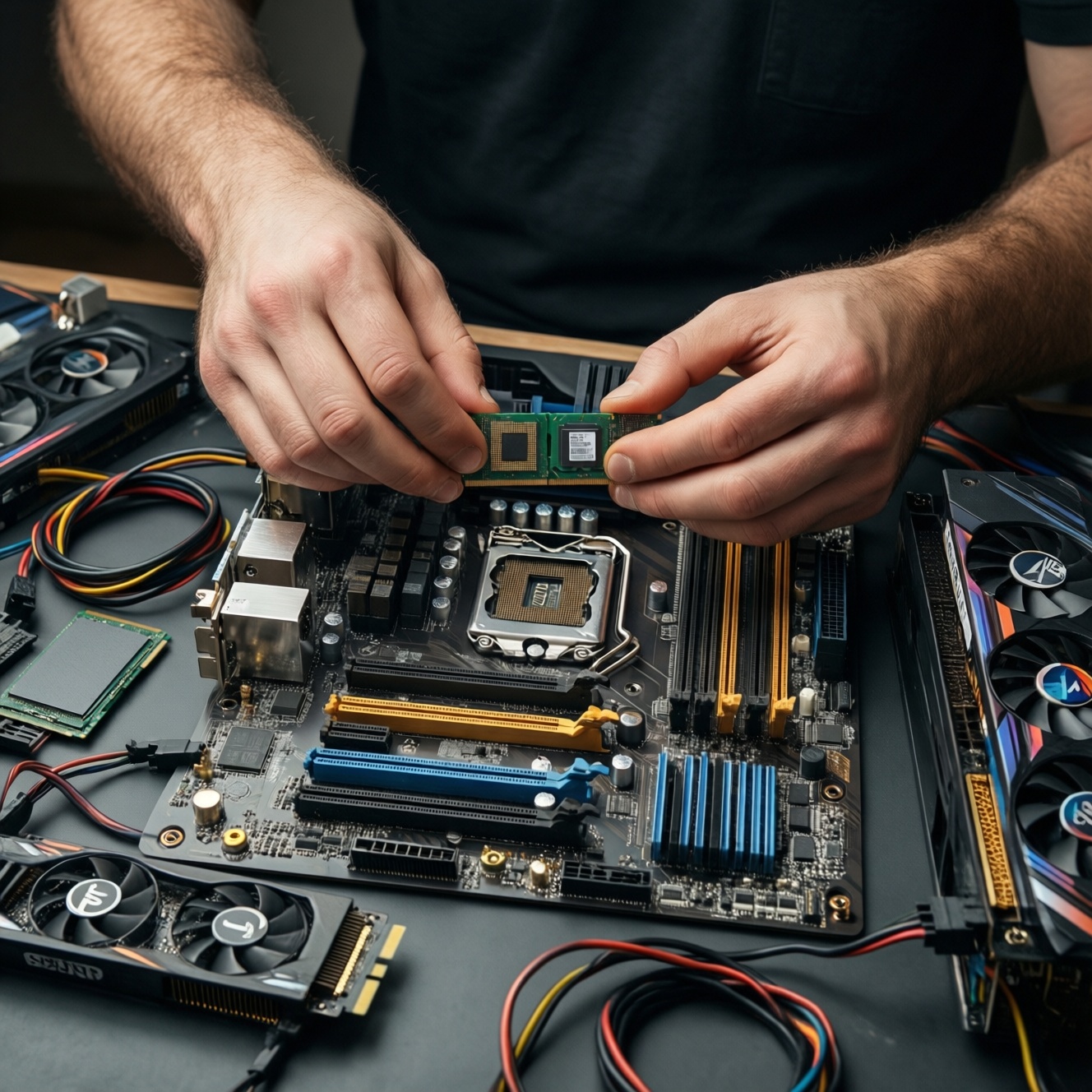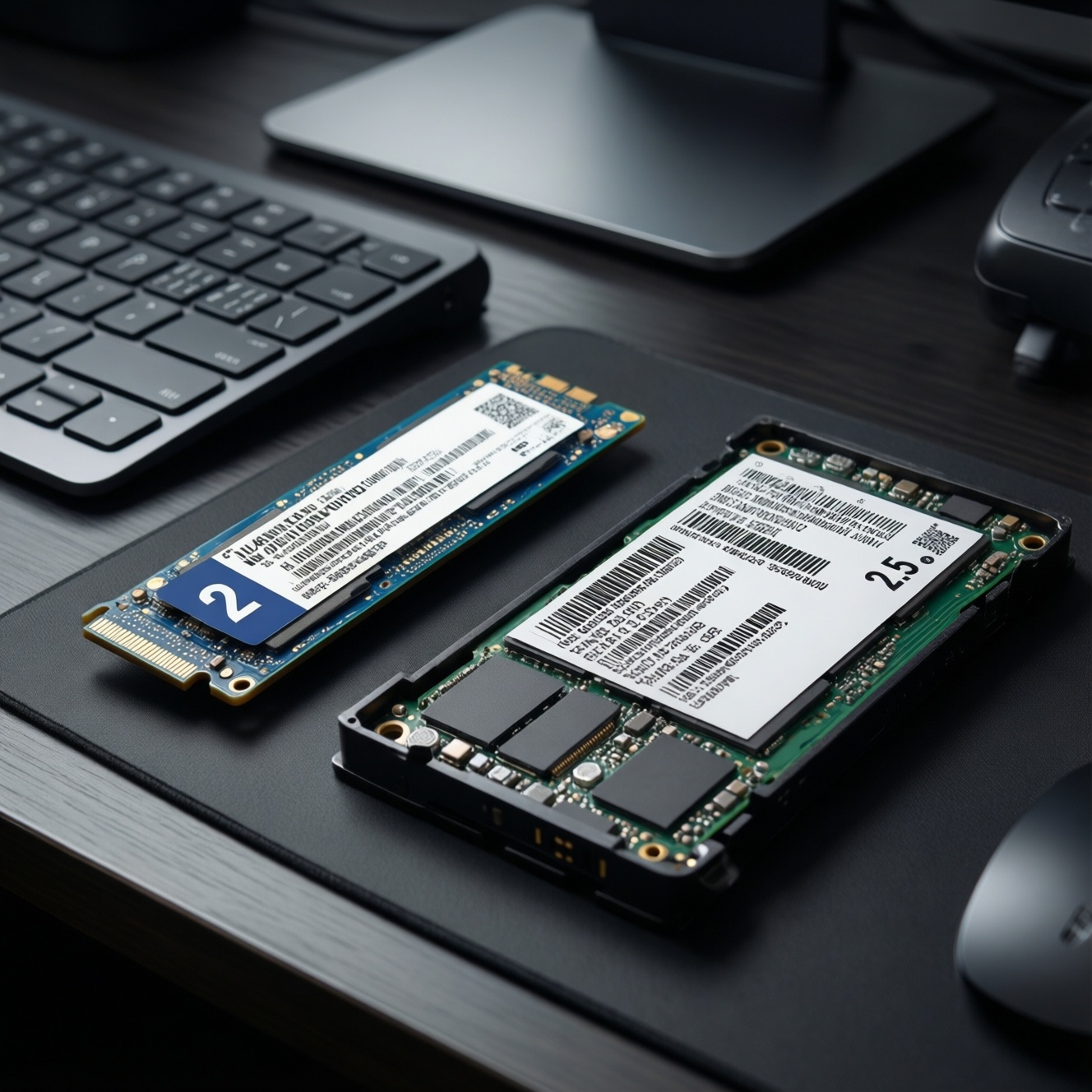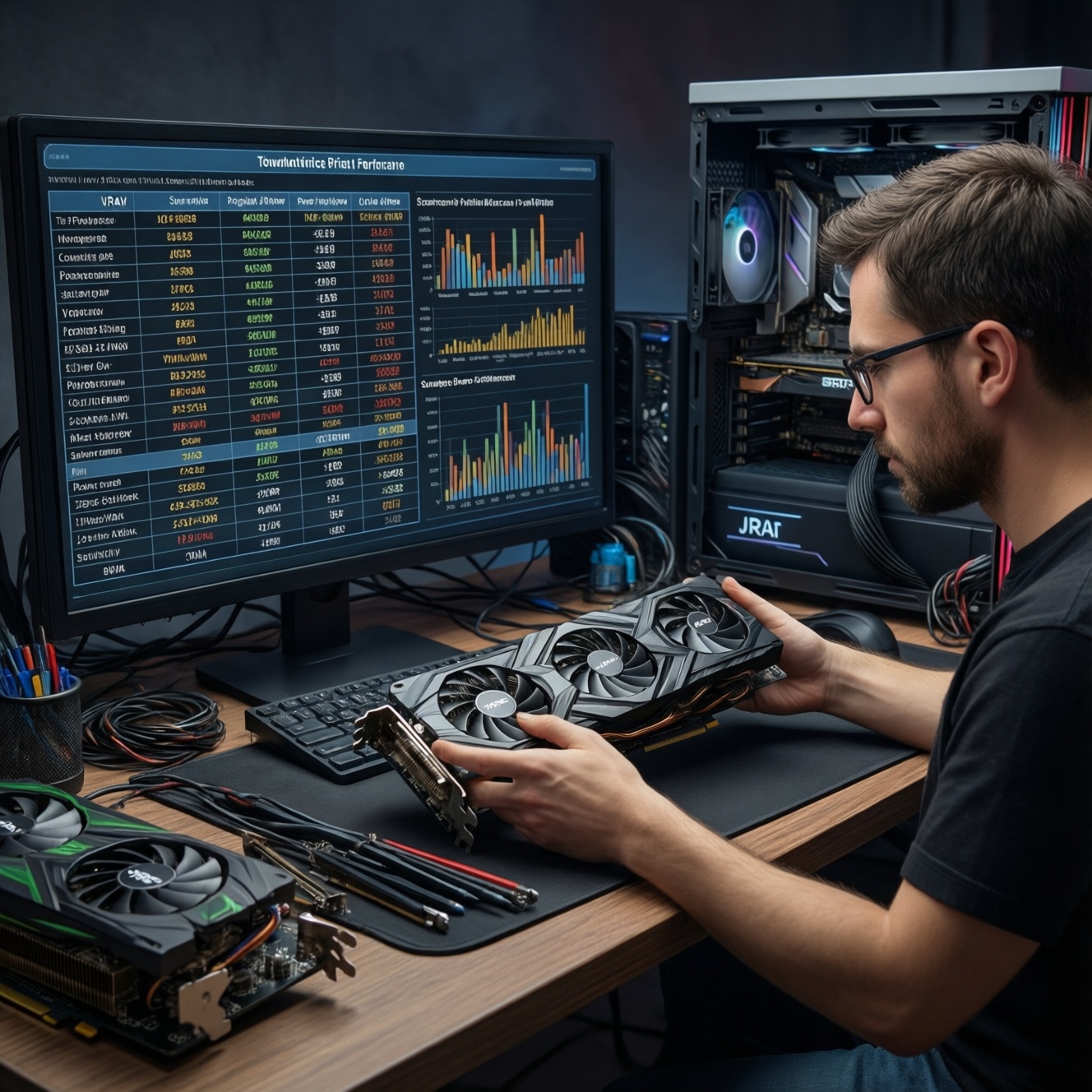
To choose a GPU without regrets, match VRAM to your resolution and texture workload, match TDP to your PSU/case cooling, and decode submodels so you don't pay extra for a cooler or factory OC you can't use. Then sanity-check price/performance by comparing tiers, outputs, and real fit in your PC.
Essential Specs to Check Before You Buy
- VRAM capacity and memory bus class (avoid overspending on VRAM you won't use).
- Total board power (TDP/TBP) and required power connectors (8-pin, 12VHPWR).
- Cooling design and noise/thermals (2-slot vs 3+ slot, fan count, heatsink size).
- Model suffixes and tier positioning (don't confuse generational naming and "XT/ Ti / SUPER" bumps).
- Case clearance and PCIe slot layout (length, thickness, GPU sag risk).
- Display outputs for your monitor (HDMI/DP version, multi-monitor needs).
Decoding VRAM: Capacity, Speed and When It Matters
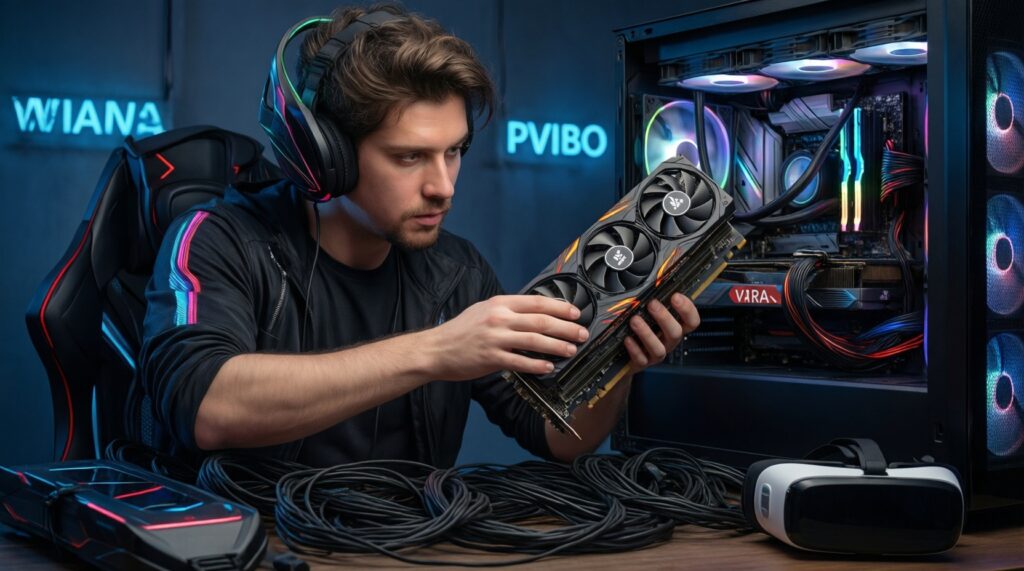
VRAM matters most when you raise resolution, texture quality, and use heavy mods or creator workloads. For many ซื้อการ์ดจอ เกมมิ่ง builds, VRAM is a limiter only after the GPU core is already near its performance ceiling. Don't buy VRAM "just in case" if the GPU tier can't drive the settings where that VRAM would be used.
- 8GB: Typically fine for mainstream 1080p gaming and competitive settings; can hit limits in newer titles at higher textures.
- 12GB: A practical middle ground for 1440p with higher textures and less stutter risk.
- 16GB: More headroom for 1440p/4K textures, mods, and some creator tasks; not automatically faster.
Use this question as a filter: การ์ดจอ VRAM 8GB 12GB 16GB เลือกแบบไหนดี depends on your target resolution, texture setting, and whether you run memory-hungry games/modpacks more than raw FPS-chasing esports titles.
- Confirm your real target resolution (1080p/1440p/4K) and texture ambitions.
- Prefer a stronger GPU core over extra VRAM when budgets are tight.
- Check memory bus class and generation (VRAM amount alone is incomplete).
- If you mod heavily, prioritize VRAM stability over small factory OC gains.
TDP and Cooling: Matching Power Draw to Case and PSU
TDP/TBP determines whether your PSU and case airflow can run the card safely and quietly. Before buying, you need (1) PSU model/wattage and available PCIe power cables, (2) your case GPU clearance and airflow path, and (3) awareness of connector standards (8-pin vs 12VHPWR) so you avoid unsafe adapters.
What you should gather before shopping
- PSU label info (wattage, 80 PLUS class, age/condition) and available connectors (2×8-pin, 3×8-pin, 12VHPWR).
- Case GPU length limit and slot thickness limit (e.g., 2.5-slot vs 3.5-slot).
- Cooling context: number of case fans, intake/exhaust direction, and whether the case has a front mesh.
- CPU model: very high-end CPUs can push total system power and heat up case ambient.
- Plan for native PSU cables when possible; avoid chaining splitters unless the PSU vendor explicitly supports it.
- Leave physical space for airflow: a tight GPU fit can raise temps and noise.
- Account for GPU transient spikes by using a quality PSU with adequate headroom.
- If you're noise-sensitive, prioritize bigger heatsinks over small OC claims.
GPU Tiers and Submodels: How to Read Model Numbers
Model names are designed to look similar across tiers and generations. The safe approach is to decode the generation, then the tier, then the suffix/submodel (Ti/SUPER/XT, "OC", "Gaming", "Dual") and map it back to your target workload. This avoids paying for branding instead of performance.
Mini prep checklist (before you compare models)
- Write down your target: resolution, refresh rate, and the 3 games/apps you actually run.
- Set a hard ceiling for การ์ดจอ ราคา and keep a small buffer for PSU upgrades if needed.
- Note your PSU connector situation (native 12VHPWR or only 8-pin).
- Measure case clearance (length and slot thickness) and identify the PCIe x16 slot position.
- List your monitor inputs (HDMI vs DisplayPort) and required cable types.
-
Identify the generation first (don't cross-compare names blindly).
Newer generations can deliver better efficiency and features even when tier names look close. Compare within the same generation when you can, then cross-gen only with direct benchmark references.- If you're searching การ์ดจอ รุ่นไหนดี 2026, separate "this year's" midrange from last gen high-end before judging value.
-
Decode the tier: entry, midrange, upper-mid, high-end.
The tier tells you the realistic resolution/quality target more than VRAM alone. Use tier as the primary anchor; VRAM and features refine the decision. -
Interpret suffixes: Ti/SUPER/XT/XTX and similar bumps.
Suffixes usually mean more cores/throughput than the base model, but also more power and heat. Confirm that your PSU/cooling can support the bump before paying for it. -
Separate chip performance from board partner "submodels".
"OC", "Gaming", "Ultra", "Triple Fan" typically change cooler quality, noise, size, and power limits more than the underlying chip. If your case is tight, a smaller cooler may be the only viable option even if it runs louder.- Prefer thicker heatsinks for sustained loads; prefer shorter cards only when clearance forces it.
-
Check connectors and BIOS/power limits before assuming upgrade headroom.
Two cards with the same GPU name can have different power limits, connectors, and thermal behavior. This affects stability, fan noise, and whether undervolting is beneficial. -
Make the NVIDIA vs AMD decision based on your features, not forum narratives.
The correct เปรียบเทียบการ์ดจอ NVIDIA กับ AMD is: your target games, ray tracing preference, upscaling support (DLSS/FSR), driver expectations, and power/noise constraints-not brand loyalty.
- Compare within a generation first; cross-gen only with a direct performance reference.
- Pick tier by resolution/refresh target, then refine with VRAM and features.
- Treat board partner names as cooler/size/noise differences, not "magic FPS".
- Validate connectors and power limits; don't assume every submodel behaves the same.
- Decide NVIDIA vs AMD based on the features you will actually enable.
Performance per Dollar: Benchmarks, Resolution Targets and Price Bands
Value comes from matching the tier to your resolution and buying the cheapest model that meets your constraints (fit, connectors, noise, outputs). Use multiple benchmark sources when you shop, but keep your evaluation consistent: same resolution, same settings class, and similar game mix.
| Price band (TH context) | Typical target | What to prioritize | Common "waste" to avoid |
|---|---|---|---|
| Entry / budget | 1080p, esports, medium settings | Efficiency, 8GB+ VRAM, quiet cooler in small cases | Paying extra for heavy factory OC and oversized coolers you can't fit |
| Mainstream / midrange | 1080p high to 1440p balanced | 12GB-class VRAM when pricing is close, solid cooler, sane power draw | Overbuying features you won't enable (ray tracing at settings your tier can't sustain) |
| Upper-mid | 1440p high, high refresh | Cooling quality, PSU readiness, upscaling support for heavier titles | Ignoring case thickness limits (3+ slot cards) and power connector needs |
| High-end | 1440p max / 4K tuned | Thermals/noise, strong PSU, display outputs for premium monitors | Buying high-end GPU with weak airflow or borderline PSU |
Result-check checklist (use this before paying)
- Pick 3-5 games/apps you use; check performance at your resolution with comparable settings.
- Verify minimums (1% lows/stutter notes) when available; VRAM limits often show up there first.
- Compare at least two tiers you can afford; choose the lowest tier that meets your target.
- Ensure the exact submodel fits your case and your noise tolerance.
- Confirm your PSU has the right native connectors for the card's requirement.
- Validate the ports match your monitor(s): HDMI vs DP, number of displays, adapter needs.
- If streaming/encoding matters, confirm the encoder support you plan to use.
- Keep comparisons consistent (same resolution, similar presets, similar game mix).
- Use "meets target smoothly" as the goal, not peak FPS screenshots.
- Let constraints (fit/PSU/ports) eliminate options early to avoid last-minute surprises.
- Don't pay more for a submodel that only adds a tiny OC but worsens fit.
Compatibility Checklist: Motherboard, PSU, Space and Display Outputs
Most failed builds aren't "bad GPUs"-they're mismatches: connector issues, clearance problems, or the wrong outputs for the monitor. Catch these before you click buy, especially if you're upgrading an older PC or moving from a compact case to a thicker modern GPU.
- PCIe slot: Use the primary x16 slot; avoid blocking it with adjacent cards if the GPU is 3+ slots thick.
- Clearance: Check GPU length and thickness against case specs; also check front radiator/fan interference.
- Power connectors: Match the card's requirement (2×8-pin, 3×8-pin, 12VHPWR) to your PSU's native cables.
- PSU quality/age: An older or low-quality PSU can cause crashes under load even if wattage looks "enough".
- Airflow path: Solid front panels and dusty filters can choke modern GPUs; plan intake/exhaust balance.
- GPU sag: Long heavy cards may need a support bracket to reduce stress on the PCIe slot.
- Monitor outputs: Confirm you have the right ports and cable types; avoid relying on fragile adapter chains.
- CPU balance: A very weak CPU can cap performance in 1080p high-refresh scenarios.
- Measure twice: length, thickness, and radiator/fan interference points.
- Only use the PSU cables intended for your PSU model; avoid mix-and-match modular cables.
- Plan airflow before installing the GPU (clean filters, set fan directions).
- Confirm monitor ports now to avoid last-minute "no signal" confusion.
- Consider a simple GPU support if the card is long/heavy.
Future-Proofing vs. Practicality: Ray Tracing, DLSS/FSR and Driver Support
Future-proofing is mostly about choosing a tier that can meet your next 1-2 upgrades (monitor resolution/refresh, game demands) without forcing a PSU/case rebuild. Features help, but only if you will enable them regularly. Pick the option that matches your real usage pattern.
Option A: Feature-first (ray tracing + upscaling)
Choose this when you play newer AAA titles and will actually enable ray tracing and use upscaling (DLSS/FSR) to stay smooth at 1440p or above. Prioritize the ecosystem that your games support best.
Option B: Efficiency-first (lower power, quieter build)
Choose this when your case is compact, your room is hot, or you're noise-sensitive. A slightly lower tier that runs cooler can outperform a hotter card in sustained sessions due to more stable clocks.
Option C: VRAM-headroom-first (mods/creation)
Choose this when you use high-resolution texture packs, heavy mods, or some creator workflows where memory headroom reduces hitching. Ensure the GPU tier still matches your performance target-VRAM alone won't carry FPS.
Option D: Upgrade-path-first (keep PSU/case, upgrade GPU later)
Choose this when you want a safe drop-in now and plan a bigger platform update later. Favor cards with connector compatibility and dimensions that won't force a case/PSU replacement.
- Only pay for ray tracing if you'll enable it in your actual game list.
- Use upscaling as a planned tool, not an emergency patch.
- Efficiency and cooler quality often matter more than a tiny factory OC.
- Future-proofing is constrained by your PSU, case, and monitor upgrade plans.
Concise Clarifications and Common Buying Pitfalls
Is 8GB VRAM still okay in 2026 for gaming?
It can be fine for 1080p and esports-focused settings, but some modern titles can exceed 8GB at high textures, causing stutter. If you're targeting 1440p with high textures, 12GB is often the safer floor when pricing is close.
Does a higher-wattage PSU automatically mean it's safe for a high-TDP GPU?
No. PSU quality, age, and having the correct native connectors matter as much as wattage. A good PSU with the right cables is safer than a questionable high-watt unit plus adapters.
Are "OC" submodels worth paying extra for?
Usually you're paying for the cooler, noise profile, and power limit more than meaningful performance. Pay extra only if you need better thermals/noise or your environment demands it.
How do I choose between NVIDIA and AMD without overthinking?
Decide based on the features you will actually enable (ray tracing behavior, DLSS vs FSR preference), your target games, and your power/noise constraints. That's the practical core of เปรียบเทียบการ์ดจอ NVIDIA กับ AMD.
What's the most common compatibility mistake?
Buying a card that doesn't physically fit (length/thickness) or lacks the right power connectors. Measure clearance and confirm connectors before comparing performance.
Can I rely on adapters for 12VHPWR or extra 8-pin connectors?
Use native PSU cables whenever possible. If you must use an adapter, follow the GPU/PSU vendor guidance and ensure proper seating and bend radius; otherwise choose a different GPU or upgrade the PSU.
How do I avoid overpaying when GPU prices fluctuate in Thailand?
Lock your required tier and constraints first, then buy the lowest-priced submodel that meets them. This keeps your decision stable even when การ์ดจอ ราคา changes week to week.