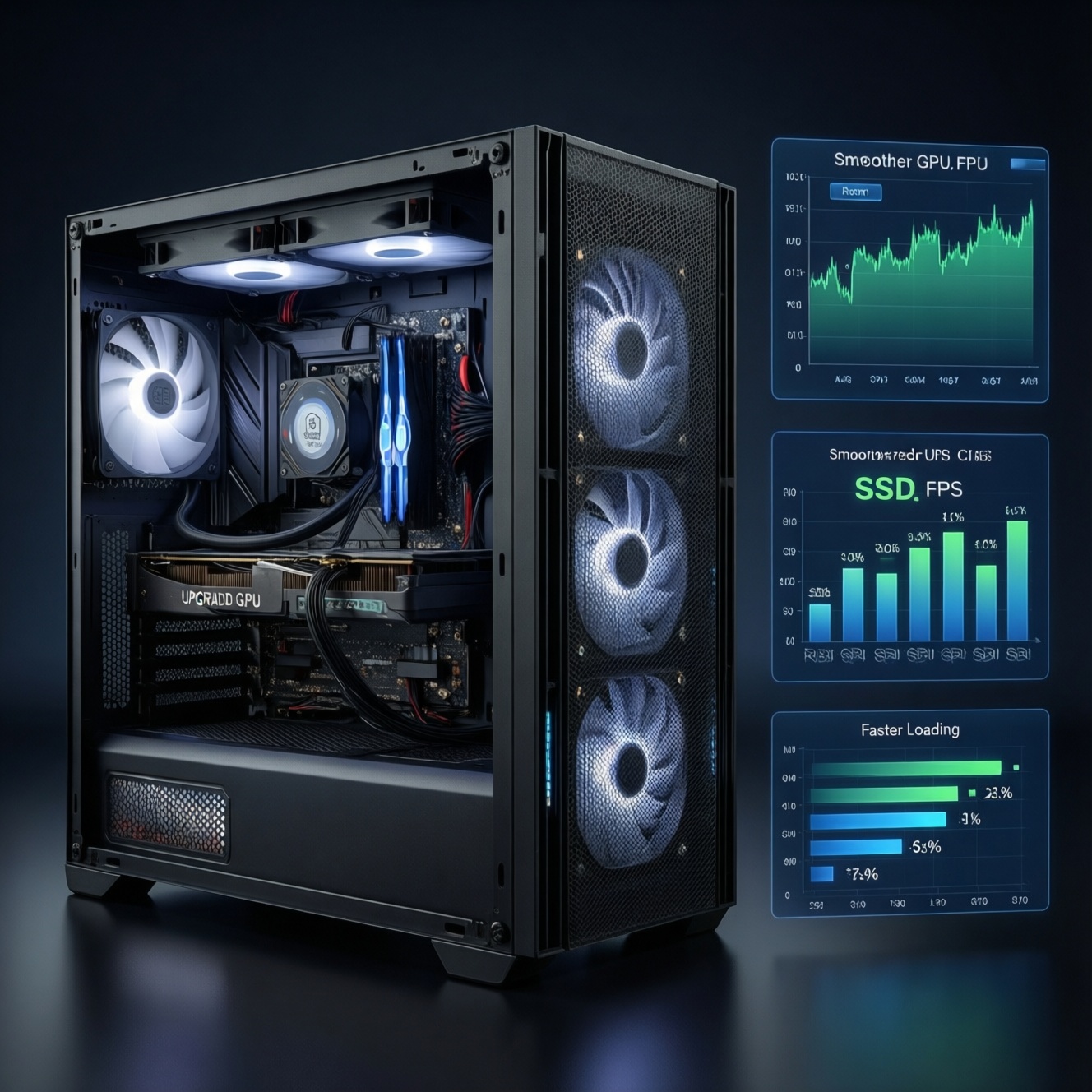
If your FPS is lower than expected, the fastest path is: confirm whether you're CPU-bound or GPU-bound, verify RAM is running in dual channel at the right speed, rule out driver/firmware misconfiguration, then remove hidden frame caps (V-Sync/limiters) and OS-level throttling (power, thermals, background tasks). Start with read-only checks, then apply one change at a time.
At-a-glance symptom map: match symptoms to likely causes
- GPU usage stays high (near max) while FPS is low → likely GPU-bound; reduce resolution/AA or use upscaling; check power/thermal limits.
- One CPU core spikes high while GPU usage looks "low" → CPU bottleneck; tune CPU-heavy settings and background load (ซีพียูคอขวด gpu แก้ยังไง starts here).
- FPS is "fine" but frequent micro-stutter / 1% lows are bad → RAM single-channel, paging, shader compilation, or background I/O (often why people search แก้ fps ตก).
- FPS suddenly dropped after update → driver settings reset, wrong GPU selected, corrupted cache; consider อัปเดตไดรเวอร์การ์ดจอ เพิ่ม fps with a clean approach.
- FPS won't exceed a specific number (30/60/120/144) → frame cap, V-Sync, game limiter, driver limiter, or VRR config issue.
- Performance varies wildly between sessions → thermals, power plan changes, laptop mux/Optimus path, or background tasks.
Frame drops and stuttering: distinguish CPU-bound vs GPU-bound symptoms
Start by describing what you observe; the pattern usually points to the bottleneck faster than guessing components.
- CPU-bound signs: GPU usage fluctuates low/medium while FPS dips; one/few CPU threads spike; lowering resolution barely helps; stutter worsens in crowds/physics-heavy scenes.
- GPU-bound signs: GPU usage is consistently high; lowering resolution or AA gives immediate FPS gains; stutter appears when VRAM is near full or GPU hits power/thermal limit.
- RAM/streaming signs: hitching when turning camera or entering new areas; disk activity spikes; RAM usage near capacity; 1% lows collapse more than average FPS.
- Limiter signs: FPS "sticks" to an exact cap; frametime graph shows a flat line at a fixed interval; toggling V-Sync/cap changes the plateau.
RAM configuration and latency: how single vs dual channel and timings affect FPS
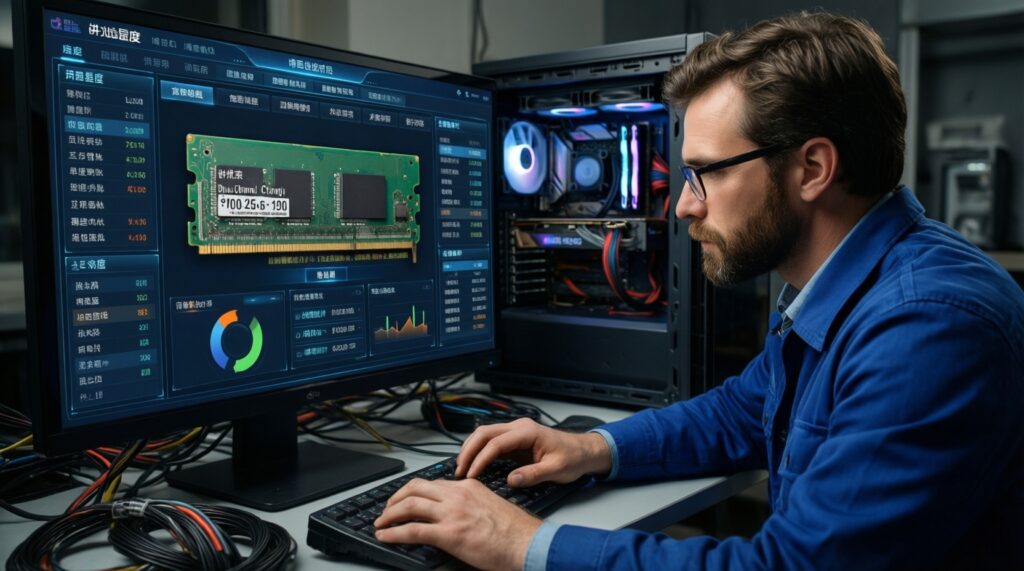
- Read-only check: confirm channel mode and speed.
- Windows: Task Manager → Performance → Memory (look for Speed), then verify in CPU-Z/HWiNFO (Channel: Single/Dual).
- Linux:
sudo dmidecode -t memory(module layout) andlscpu; for deeper, use vendor tools or BIOS info screens.
- Verify sticks are in the correct slots for dual channel (usually A2/B2 on many boards; confirm your motherboard manual).
- Check whether your RAM profile is actually enabled:
- Intel: XMP
- AMD: EXPO/DOCP (board-dependent)
- Confirm the effective DDR rate is what you expect (don't confuse base clock with DDR effective rate in some tools).
- Ensure both DIMMs match in capacity and preferably model/spec; mismatches can force conservative timings or single-channel behavior.
- Check memory is not running in "Gear 2" / high-latency mode unintentionally (platform-dependent) if you're chasing 1% lows.
- Watch for paging: if RAM usage is near full during gameplay, stutters often come from disk swap. Close heavy apps and retest before buying parts.
- If you currently have 1 stick, the most consistent uplift for stutter/1% lows is often dual channel (อัปเกรดแรม dual channel เพิ่ม fps is mainly about stability and lows, not only average FPS).
- After any RAM change, run a stability check before gaming sessions (e.g., built-in Windows Memory Diagnostic; or a reputable memory test of your choice).
Driver and firmware issues: detecting outdated or misconfigured GPU/software stacks
Prioritize low-risk, reversible checks first, then escalate to clean driver workflows. This is where "อัปเดตไดรเวอร์การ์ดจอ เพิ่ม fps" can be true, but only if you also fix the settings/regressions around the update.
| Symptom | Possible causes | How to verify (read-only first) | How to fix (apply one change at a time) |
|---|---|---|---|
| FPS capped at 60/120/144 (exact plateaus) | In-game limiter, driver limiter, V-Sync, RTSS cap, laptop OEM cap | Check in-game video options; check NVIDIA/AMD control panel global caps; look for RTSS/Afterburner overlays; confirm monitor refresh | Disable caps one-by-one; set driver to "Application-controlled"; avoid stacking caps (use either in-game or driver, not both) |
| GPU usage low but CPU not fully loaded | Wrong GPU selected (iGPU), power saving mode, PCIe link downshift, background hooks/overlays | Windows: Task Manager GPU Engine; Device Manager; NVIDIA/AMD panel per-app GPU; HWiNFO shows PCIe link speed; Linux: nvidia-smi / glxinfo |
Force high-performance GPU per-app; set Windows Graphics settings to High performance; disable unnecessary overlays; reseat GPU if link is abnormal |
| Stutter after driver update | Shader caches rebuilt, settings reset, regression, corrupted install | Check driver version and release notes; observe if stutter reduces after multiple runs (cache warm-up); look for new background services | Let caches rebuild (repeat same route); reset driver settings; if persistent, do a clean reinstall workflow and retest |
| Random spikes in frametime during streaming/loading | Storage/IO contention, antivirus scanning, game installed on slow drive, driver telemetry | Windows Resource Monitor: Disk activity; Event Viewer warnings; Linux: iotop, dmesg |
Exclude game folder from aggressive scans (if policy allows); move game to faster SSD; reduce background downloads |
| Lower FPS only in one API/mode (DX12/Vulkan) | Different shader path, driver issues, overlay incompatibility | Switch API and retest same scene; check overlays (Discord, capture tools) and disable temporarily | Stick to the better API for that title; update GPU driver/chipset; keep overlays minimal |
Fast, safe checks before changing anything
- Record current driver version and control panel settings (screenshots help rollback).
- Windows: confirm chipset drivers and OS updates are not pending a reboot.
- Verify the game is using the discrete GPU (especially on laptops).
- Temporarily disable non-essential overlays (recording, FPS counters, RGB suites) and rerun the same 60-second test route.
When to do a clean GPU driver pass
- If you see persistent stutter/fps loss after updating and quick checks fail, remove the driver using a clean method (safe mode utilities are common, but follow vendor guidance).
- Install a known-stable driver version for your GPU and your target games; keep settings "default" for the first retest.
- Re-apply only the needed tweaks (VRR, low-latency mode, cap) and verify each change.
Game settings that throttle performance: resolution, CPU-heavy options, frame caps and vsync
- Establish a controlled test scene (same location, same camera path, 60-120 seconds) to validate each change.
- Remove hidden FPS limiters: disable in-game frame cap and V-Sync temporarily; check borderless mode caps; confirm Windows "fullscreen optimizations" behavior per game.
- Lower CPU-heavy options first (good for CPU bottlenecks):
- Crowd density, view distance, world/terrain detail, physics, reflections (CPU path in some engines), ray tracing CPU overhead in some titles.
- If GPU-bound, reduce pixel cost:
- Resolution or render scale, anti-aliasing level, ray tracing, volumetrics, heavy shadows.
- Prefer upscaling when available (DLSS/FSR/XeSS) to keep clarity while lowering GPU load; confirm it's not forcing a low internal resolution unintentionally.
- Set textures based on VRAM, not "FPS": too-high textures can cause VRAM overflow and stutter; lowering textures often fixes hitching more than it raises average FPS.
- Use one limiter strategy: either in-game cap (often best for consistency) or driver/RTSS cap. Stacking caps can worsen frametime.
- Re-enable V-Sync/VRR correctly after you find headroom:
- With VRR (G-SYNC/FreeSync), cap slightly below max refresh (method varies) to reduce latency and tearing.
- Only then consider "risky" tweaks: registry tweaks, unofficial config edits, aggressive low-latency modes-do them last and keep rollback notes.
For many players, the quickest route to ตั้งค่าเกมให้ fps สูงขึ้น is removing caps and tuning the few CPU-heavy options that match the game's bottleneck profile.
System-level culprits: background processes, power plans, thermals and PCIe link state
Escalate beyond in-game tweaks if you see any of the patterns below; these often require system changes or hardware inspection.
- Thermal throttling indicators: clocks dropping during load, sustained high temperatures, fans ramping hard, FPS decays over time. If you're not comfortable repasting/cleaning, use a shop.
- Power limiting: laptop on battery, OEM "quiet" mode, Windows power plan set to balanced with aggressive limits, GPU power limit too low in tuning tools. If it's a work machine (prod), avoid firmware/power hacks.
- PCIe link anomalies: GPU running at unexpectedly low link speed under load, or unstable link training. This may need BIOS settings, reseating GPU, cable/slot checks-consider professional help if downtime matters.
- Unidentified background load: anti-malware scans, sync tools, browser video decode, game launchers updating. If you can't pause them due to policy, coordinate with IT/support.
- Repeated driver crashes or WHEA errors: possible unstable RAM/CPU/GPU/PSU; stop "tuning" and do stability validation or get diagnostics.
How to measure and confirm: benchmarks, profiling tools and a reproducible test plan
- Use a frametime-capable overlay (not only average FPS): log FPS, 1% lows, GPU usage, CPU per-core usage, RAM/VRAM, clocks, temperatures.
- Test in three passes: baseline (no changes), change one variable, verify with the same route. Keep notes.
- Separate CPU vs GPU limits:
- Drop resolution/render scale: if FPS barely changes, you're likely CPU-bound.
- Raise resolution: if FPS drops predictably, you're likely GPU-bound.
- Validate RAM mode after BIOS updates or resets; re-check that dual channel and XMP/EXPO are still enabled.
- Warm up shader caches: run the same path twice before judging stutter after a driver/game update.
- Track driver and game version with each test result; regressions become obvious with a simple changelog.
- Confirm stability before "performance": if crashes/WHEA appear, revert OCs/UVs and re-test stock.
- Keep a rollback plan: export driver profiles (when possible), snapshot key BIOS settings, and note last-known-good versions.
Rapid-response scenarios and targeted fixes
My FPS is capped at exactly 60 even on a high-end GPU. What should I check first?
Disable the in-game frame cap and V-Sync, then check the GPU control panel for a global FPS limiter. Also verify the display refresh rate in Windows and that you're not in a power-saving laptop mode.
GPU usage is low, but my CPU isn't at 100%. Is it still a CPU bottleneck?
Yes-many games bottleneck on a few threads, not all cores. Watch per-core usage and frametimes; if lowering resolution doesn't increase FPS, treat it as CPU-bound and tune CPU-heavy settings.
I have 16GB RAM but still get stutters when rotating the camera. What's the likely fix?
Confirm you're in dual channel and that XMP/EXPO is enabled; single-channel often hurts 1% lows. Also watch disk activity: streaming stutter can be paging or shader compilation after updates.
Does "อัปเดตไดรเวอร์การ์ดจอ เพิ่ม fps" always work?
No-updates can help, but they can also reset settings or introduce regressions. Treat it as a controlled change: document your current driver, update or clean reinstall, then retest the same scene.
What's the quickest way to "แก้ fps ตก" without risky tweaks?
Turn off overlays, remove FPS caps/V-Sync temporarily, confirm the game uses the discrete GPU, and retest. If stutter persists, verify dual channel RAM and close background disk-heavy apps.
If I'm CPU-bottlenecked, what should I lower first in settings?
Lower crowd density, view distance, world detail, and physics-related options before touching resolution. That path directly targets "ซีพียูคอขวด gpu แก้ยังไง" symptoms.
Will "อัปเกรดแรม dual channel เพิ่ม fps" improve average FPS or just smoothness?
Often it improves smoothness and 1% lows more than peak average FPS, especially in CPU-limited or streaming-heavy games. Verify you're actually running dual channel after installation.