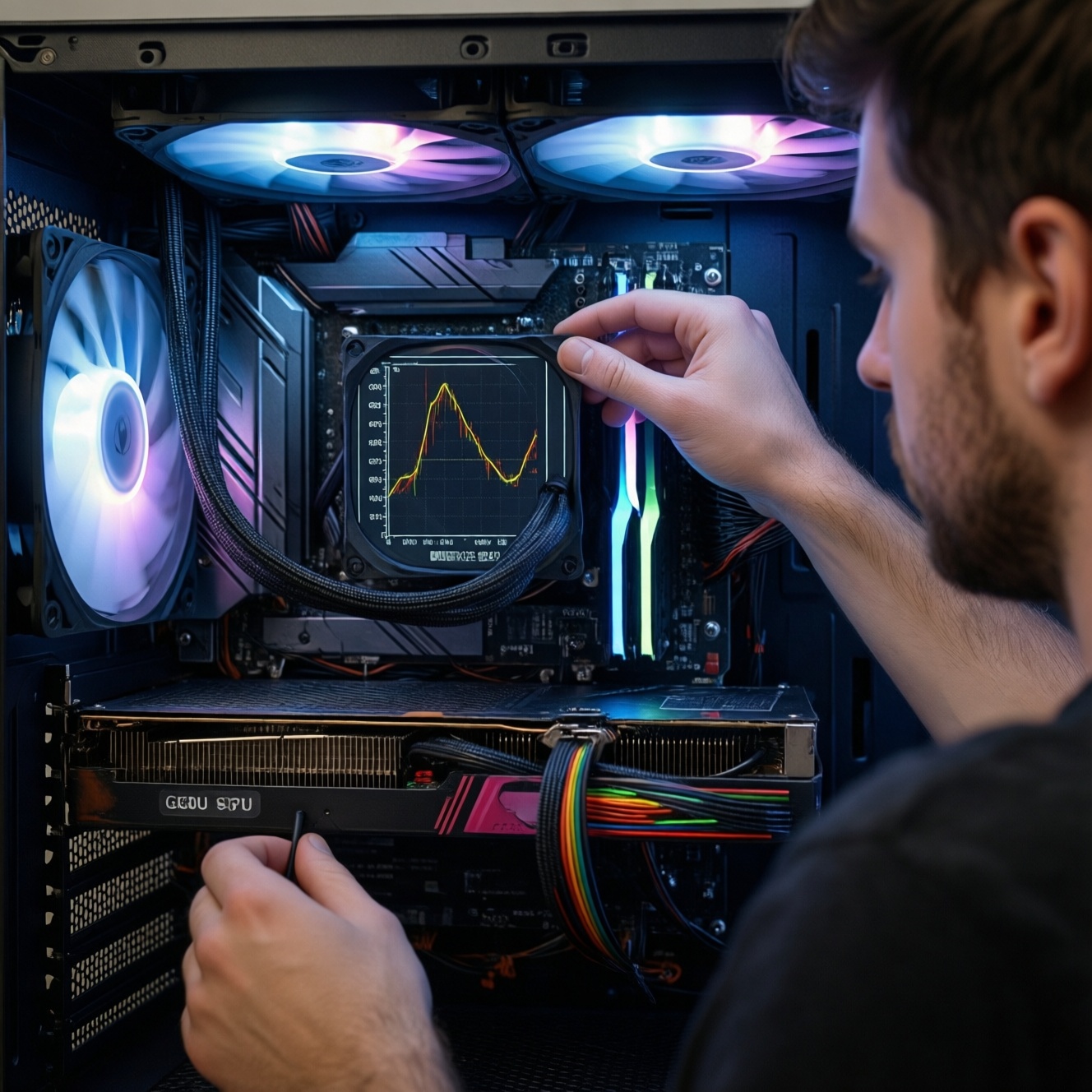
To make your PC quieter without running hot, tune your fan curve so fans stay near their minimum stable RPM at idle, then ramp smoothly based on CPU/GPU temperature with small delays to prevent constant speed hunting. Do it first in BIOS for reliability, then refine with software profiles if you need per-app behavior.
Operational Essentials for Quiet, Safe Cooling
- Start with a baseline: current temps, current fan RPM, and the specific noise you hear (airflow vs bearing vs vibration).
- Prefer BIOS control for CPU/case fans; add software only when you need GPU-based or per-profile switching.
- Use smooth curves with hysteresis/delays so fans do not "pulse" up and down with brief temperature spikes.
- Confirm the minimum stable RPM for each fan (some stall below a threshold, especially on DC control).
- Validate under real workloads (gaming + CPU load) and keep an easy rollback path to default settings.
Understanding Fan Types, Bearings and Noise Sources
Fan-curve tuning works best when your noise is mainly airflow noise (whoosh) or unnecessary high RPM at idle. It helps less when the noise is bearing-related (grind/click) or vibration-related (rattle), which often requires mounting fixes or replacing the fan.
What you can safely improve
- Airflow noise: reduce unnecessary RPM at low-to-mid temperatures, smooth the ramp.
- Ramp noise: add hysteresis and slower ramp rates to avoid sudden bursts.
- Case resonance: lower top-end RPM and remove tonal peaks by avoiding "favorite" RPM bands.
When you should not rely on fan-curve tuning alone
- Persistent clicking, grinding, or ticking: likely bearing or cable contact; fix/replace first.
- Overheating or throttling at stock: address cooler mounting, paste, dust, or airflow layout before going quieter.
- Very restrictive cases/radiators: you may need better fans or a different airflow plan; sometimes it's time to ซื้อพัดลมเคสเงียบ instead of forcing ultra-low RPM.
- Small form factor with tight thermals: prioritize stability; avoid aggressive "silent" curves.
Measuring Baseline Temps and Sound Levels Before Tuning
Before changing anything, capture a baseline so you know whether your changes helped (and so you can revert safely).
What you need
- Access: BIOS/UEFI access; Windows admin rights if using software.
- Monitoring: any reputable hardware monitor that shows CPU package temp, GPU temp, fan RPM, and (ideally) CPU/GPU power.
- Load tools: one CPU-heavy workload and one GPU-heavy workload you already trust (a game, a render, a stress tool you normally use).
- Sound check: your phone's basic dB meter app is enough for before/after consistency (same distance, same room, same time).
- Notes: record idle temps after 10 minutes and load temps after a stable plateau (avoid quoting one-second peaks).
Baseline checklist (do this once)
- Record room conditions and case state (side panel on/off).
- Idle for ~10 minutes, note CPU/GPU temps and fan RPM.
- Run a CPU load until temps stabilize, note temps/RPM/noise character.
- Run a GPU load (game/benchmark), note GPU temp and case fan behavior.
- Identify the loudest offender: CPU fan, rear exhaust, front intakes, GPU fans, or pump (if you use an AIO).
Designing Fan Curves: Targets, Hysteresis and Ramp Rates
- Risk: A curve that is too low can cause heat soak over time (temps creep up minutes later), not immediately.
- Risk: Some fans stall below their minimum; a stalled fan can spike temps quickly under load.
- Risk: Wrong temperature source (e.g., "Motherboard" instead of CPU/GPU) can delay ramp-up.
- Limitation: Case fans tied only to CPU temp may stay slow during GPU-heavy gaming unless you use GPU-aware control.
-
Find each fan's minimum stable RPM (or %)
Lower the fan speed step-by-step until you see stalling, start/stop behavior, or RPM instability. Set the minimum 5-15% above the stall point (or one step above the unstable region) for safety.
- For PWM fans, minimum is often stable at low duty, but varies by model.
- For DC fans, too-low voltage commonly causes "won't start" issues after sleep/boot.
-
Pick a temperature target strategy (CPU, GPU, or mixed)
CPU coolers should react to CPU temperature; case airflow during gaming should react to GPU temperature if possible. If you can only pick one source for case fans, choose the one that drives your real workload.
- Workstation/rendering: prioritize CPU package temperature.
- Gaming: prioritize GPU temperature for case fans, CPU temperature for CPU fan.
-
Set a quiet idle plateau
Create a flat section where fans stay near minimum during idle/light tasks. Keep enough airflow to prevent slow heat buildup, especially in warm Thai rooms with limited air conditioning.
- Start with a low but safe baseline RPM/%, then verify temps don't creep up after 20-30 minutes of typical use.
-
Design a smooth midrange ramp (avoid "steps")
Use a gradual increase so small temperature changes don't cause audible RPM jumps. If your BIOS/software allows multiple points, add at least 3-4 points through the midrange.
- Avoid sudden jumps like 30% → 70% in one step unless you truly need emergency cooling.
-
Add hysteresis, ramp delay, or smoothing
Set a small delay so fans don't chase one-second spikes. This is the main fix for "revving" behavior during short boosts.
- Use "Step Up/Step Down" times if available.
- If only one value exists, prioritize a slower step-down so fans don't instantly drop and bounce back.
-
Define an emergency top end you can tolerate
Choose a high-temperature region where fans ramp aggressively to protect hardware. This region should be loud but rare in normal use.
- Make sure the curve reaches high output near your personal "too hot" threshold instead of staying flat until the last moment.
-
Build 3 practical profiles (silent / balanced / performance)
Keep profiles simple so you actually use them. Switch profiles depending on workload rather than chasing a single perfect curve.
- Silent: lowest stable RPM at idle, gentle ramp, earlier hysteresis; intended for browsing/office.
- Balanced: moderate idle, smooth midrange; intended for mixed use and gaming.
- Performance: higher midrange and faster ramp; intended for rendering, hot days, or long sessions.
BIOS Approaches: Safe Profiles, PWM vs DC and Temperature Sources
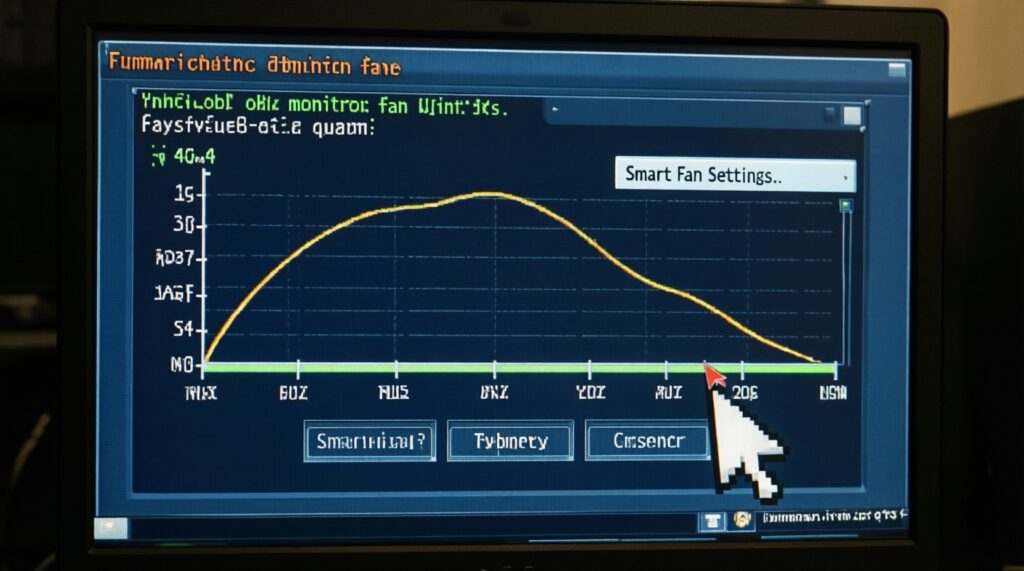
BIOS is the safest place to start because it works before Windows boots and doesn't depend on background services. For Thai users searching ตั้งค่า Fan Curve ใน BIOS, the exact menu names vary, but you'll typically find it under Hardware Monitor, Q-Fan, Smart Fan, or Fan-Tuning.
Practical BIOS settings to look for
- Control mode: set to PWM for 4-pin fans, DC for 3-pin fans (wrong mode often causes unstable low speeds).
- Temperature source: CPU for CPU_FAN; for case fans choose CPU/Motherboard/VRM depending on what your board offers.
- Fan stop: disable unless you are certain the fan always restarts reliably and temps stay stable.
- Calibration/Tuning: run the board's fan auto-calibration once, then customize.
Result verification checklist (before you call it "done")
- Fans reliably spin up from a cold boot (not only when already spinning).
- After sleep/wake, no fan remains stalled at 0 RPM.
- Idle temps remain stable for 20-30 minutes (no slow heat creep).
- Under CPU load, the CPU fan ramps smoothly without audible pulsing.
- Under GPU-heavy gaming, case temps do not rise continuously (check GPU hotspot behavior if available).
- No fan repeatedly ramps up/down every few seconds (increase hysteresis/delay if it does).
- Max-load test does not hit thermal throttling (or it happens later than before).
- Noise is reduced at your real seating distance, not only when standing next to the case.
- You saved a BIOS profile or wrote down defaults for quick rollback.
Using Software Utilities: Curve Editors, Profiles and Scripts
Software control is useful when you want case fans to follow GPU temperature, per-game profiles, or more complex mixing rules. In Thai, people often search โปรแกรมปรับรอบพัดลมคอม or specifically Fan Control โปรแกรมควบคุมพัดลม-the main idea is the same: map sensors to fans with smoothing, then test fail-safes.
Common mistakes that make systems louder or less safe
- Controlling the wrong header: you edit "CHA_FAN1" but your intake is on "CHA_FAN2", so nothing changes.
- Using a sensor that updates too slowly: fans respond late, then overcorrect (pick a more direct sensor when possible).
- No smoothing/hysteresis: fans surge with every short boost; add averaging or step delays.
- Forgetting minimums: setting 0-10% where the fan cannot spin leads to random stalls.
- Startup behavior: software applies curves only after login; use BIOS for safe defaults, then let software refine.
- Conflicting controllers: BIOS smart fan plus another utility both fight; choose one as the "owner" per header.
- Unverified GPU-based curves: the GPU temp sensor is fine, but the selected fan is a case fan-make sure airflow actually helps GPU temps.
- Over-optimizing for idle: ultra-low airflow makes VRM/SSD/case temps drift up during long light workloads.
- Not validating per profile: "Silent" is stable, but "Performance" accidentally keeps fans capped due to a mis-set maximum.
Safe software workflow (minimal)
- Set conservative BIOS curves first (stable, not necessarily quiet).
- In software, bind case fans to GPU temp (for gaming) and add smoothing.
- Create 2-3 profiles (silent/balanced/performance) and bind hotkeys only if you will use them consistently.
- Enable a fail-safe behavior if the app stops (or rely on BIOS as the fallback).
Safety, Monitoring and Long-term Maintenance Practices
If fan-curve tuning can't reach your noise goal safely, use alternatives that reduce noise at the source rather than forcing dangerously low airflow.
When and what to change instead of pushing ultra-low RPM
- Replace noisy case fans: if you hear ticking or motor hum at any RPM, ซื้อพัดลมเคสเงียบ is often the fastest real fix. Focus on better bearings and stable low-RPM behavior.
- Improve airflow path: add/clean dust filters, tidy cables, ensure at least one clear intake and one exhaust, and avoid blocking the front panel.
- Upgrade the CPU cooler: a larger heatsink can run the same temperature at lower RPM.
- Choose a quieter AIO carefully: if pump noise is your main problem or you need radiator placement flexibility, consider a ชุดน้ำปิด AIO รุ่นเงียบ-but only if you can verify pump control options and accept that pumps add their own noise profile.
Ongoing maintenance habits (quick)
- Re-check temps after seasonal changes (hot season vs air-conditioned months).
- Clean dust periodically; clogged filters force higher fan RPM for the same cooling.
- Listen for new vibration and re-seat fans/cooler if resonance appears.
- After BIOS updates, confirm fan control settings didn't reset.
Common Concerns and Quick Answers
Is BIOS fan control enough, or do I need software?
BIOS is enough for stable CPU and case fan behavior in most builds. Use software when you need GPU-temperature-based case fan control, per-game profiles, or more advanced smoothing.
Why do my fans keep ramping up and down every few seconds?
Your curve is reacting to short temperature spikes. Add hysteresis/step delays (especially for step-down), and smooth the midrange so small temp changes don't create big RPM jumps.
Should I use PWM or DC mode?
Use PWM for 4-pin fans and DC for 3-pin fans. The wrong mode often causes unstable low speeds or fans that fail to start reliably after boot/sleep.
Can I stop case fans at idle for silence?
Only if you confirm fans always restart and your case temps don't creep up during long light workloads. For most systems, a low stable RPM is safer than full stop.
My gaming temps are fine but the PC is still loud-what next?
Identify whether the loudest source is GPU fans, case turbulence, or vibration. If it's a tonal or mechanical noise, fan replacement or mounting fixes can outperform curve tuning.
What's a safe rollback plan if I mess up a curve?
Save a BIOS profile (or note default values) before changes, and keep one conservative "Balanced" curve you know won't stall fans. If software causes issues, disable it and rely on BIOS defaults.