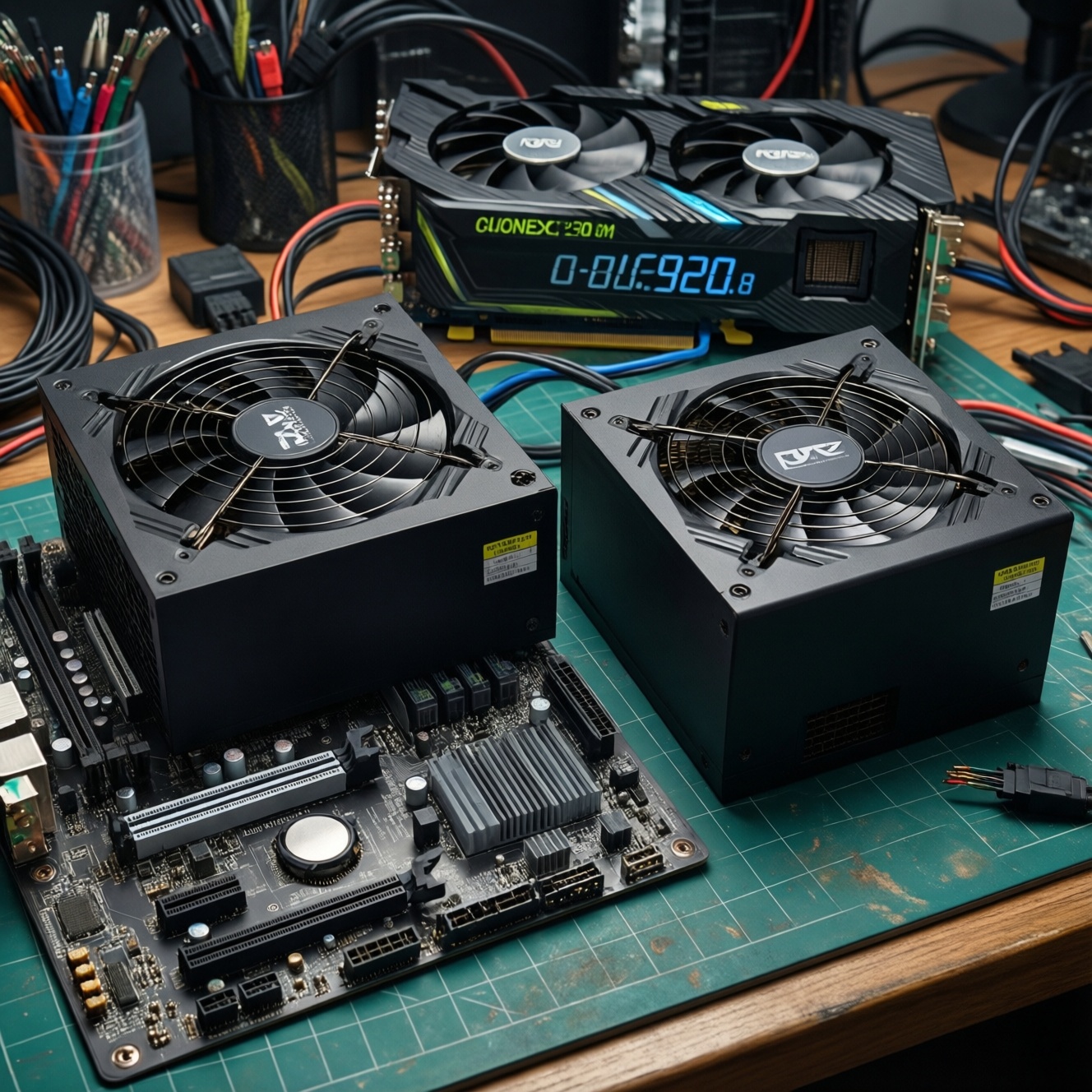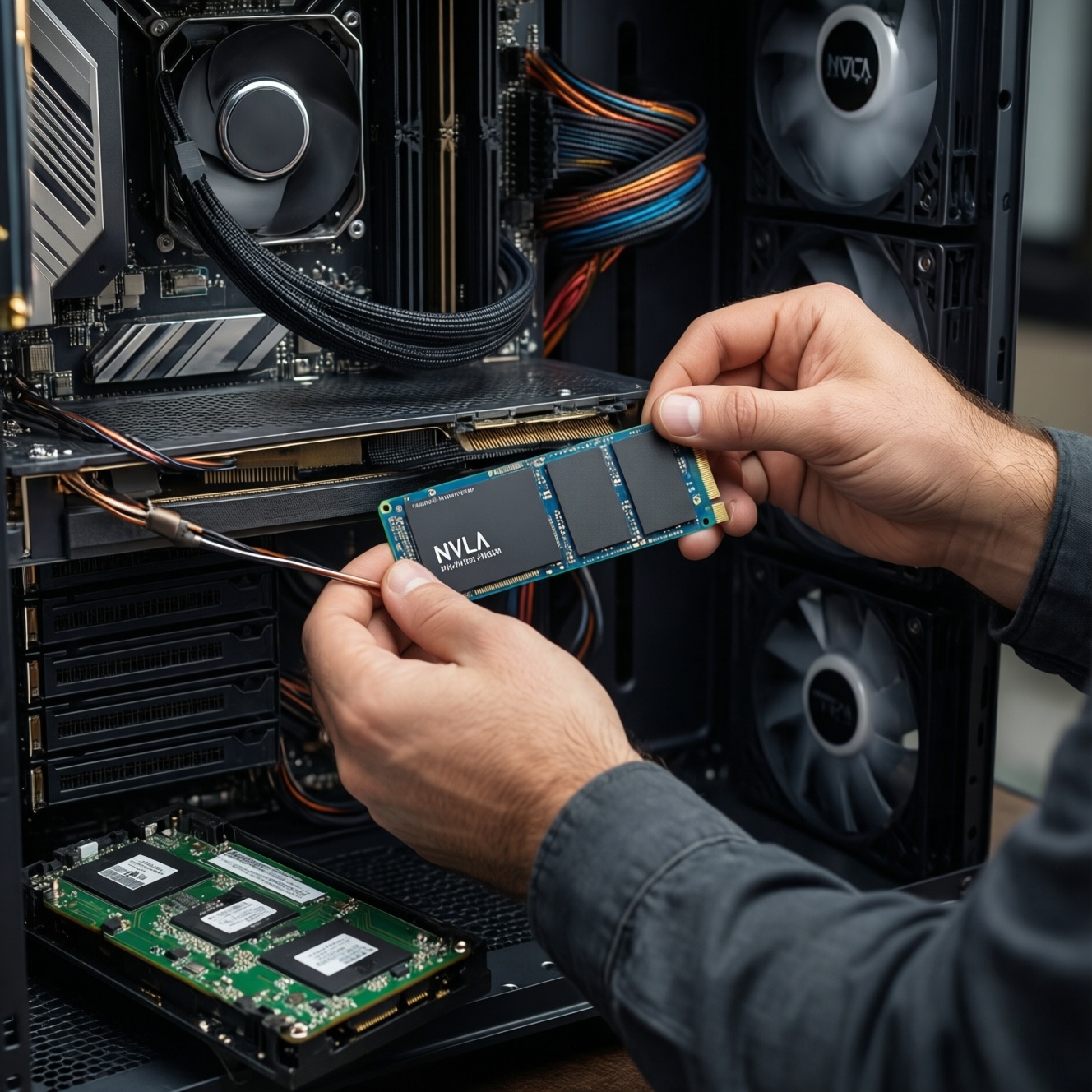
Choose SATA SSD only for older PCs or budget upgrades; for most modern desktops and laptops, NVMe is the better default because it reduces latency and boosts responsiveness. Then pick PCIe 3.0/4.0/5.0 based on your platform and workload: PCIe 4.0 is today's sweet spot, while PCIe 5.0 mainly benefits heavy professional I/O.
At-a-glance decision matrix for SSD selection
- If your motherboard has an M.2 NVMe slot: prefer NVMe; use SATA only when NVMe isn't supported or all M.2 slots are taken.
- If you ask "SSD SATA vs NVMe ซื้อแบบไหนดี": pick NVMe for OS/apps; SATA for simple storage expansion on older systems.
- If you want "SSD NVMe PCIe 4.0 รุ่นไหนดี": look for a PCIe 4.0 drive with a good controller, adequate cooling, and a warranty that matches your write volume.
- If you wonder "SSD PCIe 5.0 รุ่นไหนดี": choose PCIe 5.0 only when your platform supports it and you can cool it well (often needs a heatsink); otherwise PCIe 4.0 is typically the practical buy.
- If "SSD NVMe 1TB ราคา" drives your decision: compare price-per-GB and warranty/TBW, not just peak MB/s.
- If you're evaluating durability: learn "TBW คืออะไร SSD และวิธีดูความทนทาน" and map TBW/DWPD to your daily writes, plus check warranty exclusions.
SATA vs NVMe: internal design and practical performance differences
Use these criteria to decide quickly (most buyers only need the first 3-4):
- Interface & protocol: SATA uses AHCI (legacy storage model); NVMe is designed for flash with parallel queues and lower software overhead.
- Latency and "feel": NVMe usually improves small random I/O latency, which affects boot, app launches, game loading, and project indexing.
- Sustained workload headroom: NVMe has more bandwidth; SATA can become the bottleneck in large transfers or heavy multitasking.
- Form factor constraints: SATA commonly 2.5-inch; NVMe commonly M.2 2280. (Some M.2 drives are SATA-verify "NVMe/PCIe" vs "SATA".)
- Thermals: NVMe (especially PCIe 4.0/5.0) can throttle without airflow/heatsink; SATA 2.5-inch is usually easy to cool.
- Upgrade compatibility: Older laptops/desktops often accept only 2.5-inch SATA; some systems have an M.2 slot wired for SATA only.
- Capacity planning: For the same budget, SATA sometimes offers more capacity; NVMe often wins on responsiveness at similar capacities.
- Power behavior (laptops): NVMe supports advanced power states, but real battery impact depends on firmware and workload; a poorly tuned NVMe can idle warm.
PCIe 3.0, 4.0 and 5.0 compared: bandwidth, latency and backward compatibility
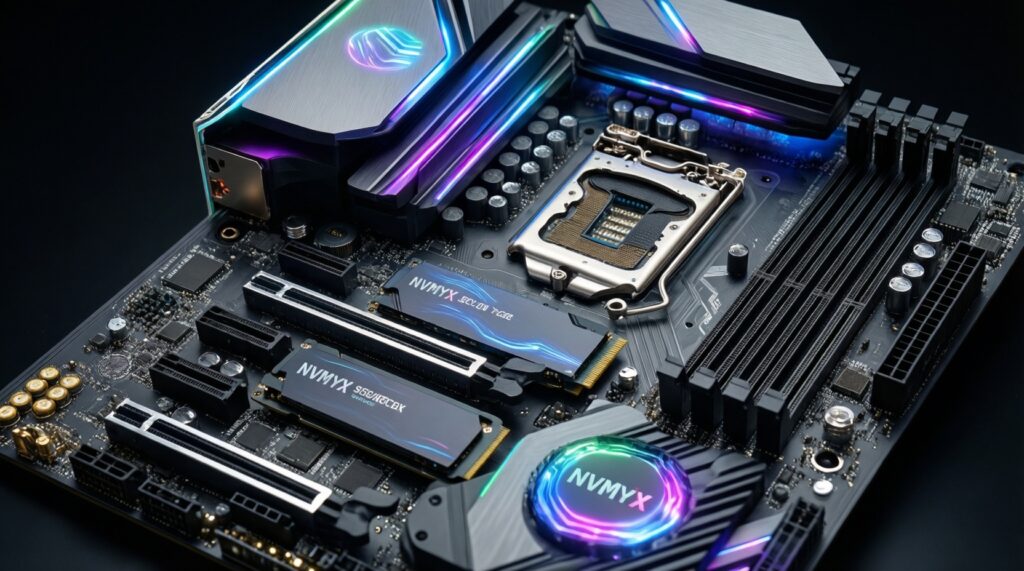
PCIe generations are backward compatible at the slot level: a PCIe 4.0 SSD works in a PCIe 3.0 slot (at PCIe 3.0 speeds), and a PCIe 5.0 SSD works in PCIe 4.0/3.0 slots similarly. What changes in practice is bandwidth headroom and often heat. Use the table to match a tier to your platform and workload.
| Option | Who it fits | Pros | Cons | When to choose |
|---|---|---|---|---|
| SATA 2.5-inch SSD | Legacy PC/laptop upgraders; bulk game library on older systems | Broad compatibility; easy thermals; simple installation | Lower ceiling vs NVMe; limited by SATA link | When your device has no NVMe support, or you need the simplest guaranteed upgrade |
| M.2 SATA SSD | Systems with M.2 slot wired for SATA only | M.2 convenience; same behavior as SATA 2.5-inch | Often confused with NVMe; no NVMe latency advantage | When your M.2 slot does not support PCIe/NVMe (check the manual) |
| NVMe PCIe 3.0 (M.2) | Budget NVMe buyers; older platforms (Intel 8th-10th gen era, many AM4 boards) | Big jump in responsiveness vs SATA; typically cooler than higher-gen flagships | Less bandwidth headroom than PCIe 4.0 | When your platform is PCIe 3.0, or PCIe 4.0 pricing is not attractive |
| NVMe PCIe 4.0 (M.2) | Mainstream gamers; creators; power users asking "SSD NVMe PCIe 4.0 รุ่นไหนดี" | Strong all-around performance; excellent for modern workloads; widely supported | Can throttle in cramped laptops without heatsink/airflow | When your system supports PCIe 4.0 and you want the best balance of speed, price, and maturity |
| NVMe PCIe 5.0 (M.2) | Heavy pro workflows; enthusiasts asking "SSD PCIe 5.0 รุ่นไหนดี" | Highest bandwidth headroom; great for sustained, high-throughput tasks on capable platforms | Thermals and power can be demanding; needs good heatsink/airflow; value varies by workload | When you do frequent large sequential transfers, scratch-disk work, or multi-stream capture and you can cool it well |
Endurance and reliability: interpreting TBW, DWPD and warranty clauses
TBW (Total Bytes Written) is a manufacturer endurance rating: how much data you can write over the warranty period under defined conditions. DWPD (Drive Writes Per Day) is a normalized way to express writes per day over the warranty. Warranty terms can matter as much as TBW: check the length, what voids coverage, and whether the drive has separate limits for consumer vs "data center" use.
- If your workload is mostly read-heavy (gaming, office, web), then prioritize compatibility, capacity, and consistent performance; TBW is rarely the limiting factor.
- If you do frequent large writes (4K/8K editing, proxies, caches, scratch disks), then choose a drive with higher TBW/DWPD and stable sustained write behavior; avoid models that collapse after the SLC cache is exhausted.
- If you run VMs, containers, or local databases, then pick NVMe with strong random write performance and good endurance specs; also prefer drives known for steady latency under load.
- If this is a laptop with limited cooling, then choose an efficient NVMe (often a well-balanced PCIe 4.0 or even PCIe 3.0) rather than the fastest-rated model; lower throttling can improve real reliability.
- If you keep irreplaceable work locally, then treat TBW as one signal only: also plan backups and consider power-loss behavior (consumer SSDs vary widely).
Practical reading tip: when you search "TBW คืออะไร SSD และวิธีดูความทนทาน", interpret TBW together with warranty years. A higher TBW is useful only if your writes are high enough to approach the limit within the warranty.
Match SSD type to workload: gamers, creators, professionals and mobile users
- Confirm slots first: check your motherboard/laptop manual for M.2 support (NVMe PCIe vs M.2 SATA) and supported lengths (e.g., 2280).
- Pick your persona target:
- Gamer (desktop): NVMe PCIe 4.0 is the default; prioritize capacity (often 1-2TB) and consistent game-load performance.
- Content creator (video/photo): NVMe PCIe 4.0 or 5.0; ensure good sustained writes, higher TBW, and cooling; consider a separate scratch/project drive.
- Professional (VMs/dev/data): NVMe with strong random I/O and endurance; PCIe 4.0 is usually plenty unless your workflow is bandwidth-bound.
- Laptop user: NVMe that runs cool; PCIe 4.0 is fine if thermals are managed; avoid buying "fastest on paper" if your chassis throttles.
- Choose PCIe generation by platform: PCIe 3.0 platform → buy PCIe 3.0/4.0 (it will downshift); PCIe 4.0 platform → buy PCIe 4.0; PCIe 5.0 only if you'll use it and can cool it.
- Set capacity based on real use: OS/apps plus active projects/games. If "SSD NVMe 1TB ราคา" is close to smaller capacities, 1TB is often the practical baseline for a main drive.
- Screen endurance: compare TBW/DWPD and warranty; creators/pro users should bias toward higher endurance and stable sustained performance.
- Plan thermals: for PCIe 4.0/5.0, ensure a motherboard heatsink or aftermarket heatsink and airflow; in laptops, favor efficient models.
- Decide on "good enough" speed: if your apps are not bandwidth-bound, invest in capacity and reliability rather than chasing peak sequential numbers.
How to read benchmarks: sequential vs random I/O, queue depth and real-world tests
- Overvaluing sequential peak MB/s: it mainly affects large contiguous transfers; everyday OS/app usage is often dominated by small random I/O and latency.
- Ignoring queue depth (QD): very high QD results can look impressive but may not match desktop/laptop reality where QD is often low.
- Not checking sustained writes: many SSDs use an SLC cache; performance can drop sharply after the cache fills during long writes.
- Comparing different capacities unfairly: larger capacities can perform better (more NAND dies/parallelism) and may have higher endurance ratings.
- Missing thermal throttling behavior: a drive that benchmarks great on an open test bench can slow down in a laptop or under a GPU.
- Assuming PCIe 5.0 automatically feels faster: for many desktop tasks, latency and firmware matter more than extra bandwidth.
- Mixing up M.2 SATA and M.2 NVMe: both are "M.2" physically, but performance and protocol differ; always verify "NVMe PCIe".
- Not validating your platform limits: some boards share PCIe lanes with other devices; an M.2 slot may run at fewer lanes in certain configurations.
Purchase checklist: capacity, form factor, controller, firmware and price-per-GB
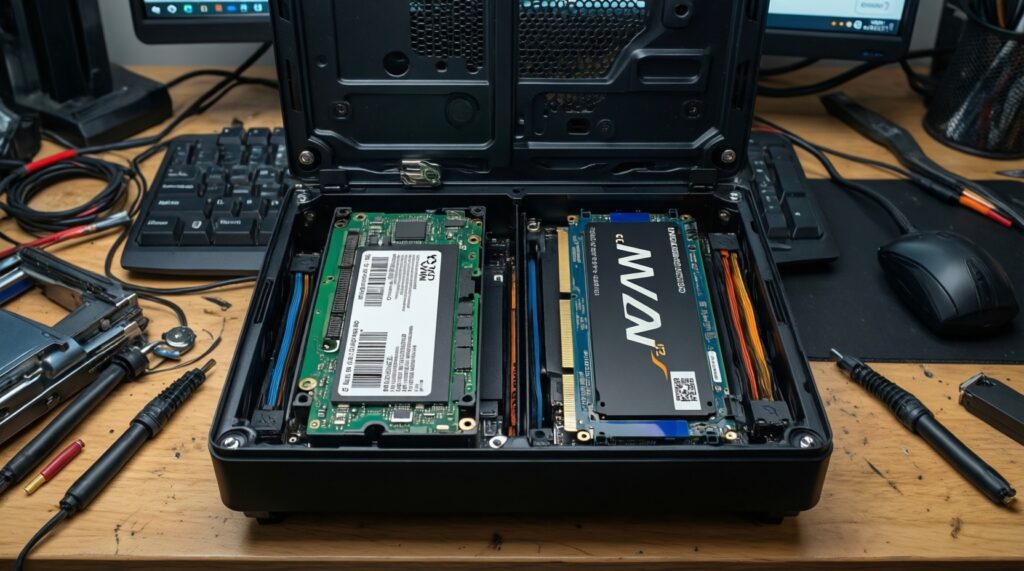
For most buyers asking "SSD SATA vs NVMe ซื้อแบบไหนดี", an NVMe PCIe 4.0 drive is the most balanced choice when your system supports it; prioritize capacity and thermals over chasing peak specs. For value-focused upgrades on older machines, SATA is often the least risky. For creators and heavy I/O professionals, choose NVMe with higher endurance and better sustained behavior; consider PCIe 5.0 only when your workflow is truly throughput-bound and your cooling is ready.
Common practical concerns answered for real-world buyers
Will an NVMe SSD work in any M.2 slot?
No. Some M.2 slots support NVMe (PCIe) while others are SATA-only; check the device manual for "PCIe/NVMe" support.
Is PCIe 4.0 worth it over PCIe 3.0 for gaming?
Often yes as a balanced buy on a PCIe 4.0 platform, but the biggest gains vs SATA are already achieved with PCIe 3.0 NVMe; capacity and consistency can matter more than peak speed.
Should I buy PCIe 5.0 if my motherboard supports it?
Only if you do heavy sustained transfers or professional scratch-disk workloads and can cool the drive well; otherwise PCIe 4.0 is typically the more practical choice.
What does TBW mean in practice?
TBW is the total amount of data the manufacturer rates the drive to write within the warranty conditions. Higher TBW is more relevant for write-heavy workflows than for gaming or office use.
How do I compare SSD endurance quickly?
Compare TBW (or DWPD) together with warranty length, then match it to how write-heavy your workload is. Also check any warranty clauses that exclude certain usage patterns.
Does a heatsink matter for NVMe?
Yes for many PCIe 4.0 and especially PCIe 5.0 drives; without adequate cooling they can throttle, reducing real performance and consistency.
How should I think about "SSD NVMe 1TB ราคา" when choosing?
Use price-per-GB and warranty/TBW as your baseline, then pick the fastest tier your platform can actually use without throttling. If 1TB is only slightly more than 500GB, it's often the more flexible main-drive choice.